
The simplest way is to look in the trash bin. Most of the time, lost files are not permanently deleted.
How to Recover Data on Mac
 Kartik Wadhwa
Updated on: Mar 24, 2026
People who work on a Mac almost every day often lose data, whether on purpose or by accident. And it is definitely a stressful experience, whether it was your personal photos, work documents, or files related to a project.
The good news is that there are a number of simple ways for Mac users to get back files that have been lost. Some of these are simple and quick, while many are time-consuming and complex.
Read this article to explore the five most efficient ways to recover your lost files. Let’s begin with the first process.
Key Takeaways
- Accidental or other types of data loss can be easily recovered with effective ways.
- Checking the trash bin is the simplest way to recover data, as most of the time, data is not permanently deleted.
- Restoring files using Time Machine is the most efficient built-in feature to recover data.
1. Check the Trash First.
When you delete a file on a Mac, it goes to the Trash first. After that, it is completely gone from your computer. To get to your Trash, simply click on the trash icon found in your dock. From here, search for the file you want to find, then recover it.

2. Restore Files Using Time Machine
Time Machine is the built-in backup solution in macOS, and it’s truly one of the best free safety nets you can have when faced with data loss. If you had Time Machine set up before the file went missing, recovering a lost file is fairly simple. You just have to connect the external drive that you use for Time Machine backups.
From here, follow these steps:
- Open Apple Menu > General.
- Click on General > Go to Time Machine.
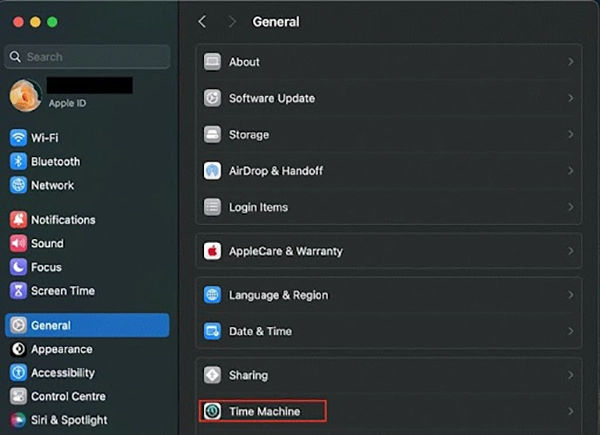
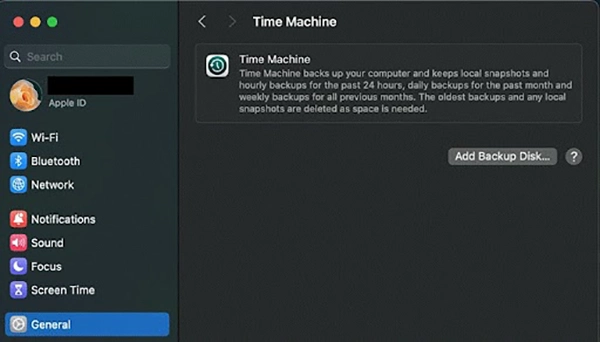
If you have set up a backup disk, Time Machine allows you to choose backup dates and select the files to restore.
It’s useful noting that Time Machine backups get larger with time and can use much space on your hard drive. If your backup disk is running low, it might be a good idea to delete old Time Machine backups to free up space and keep your backup system working smoothly.
3. Recover Files from iCloud Drive
When you delete a file, it goes to iCloud’s Recently Deleted folder and remains there for up to 30 days if you have iCloud Drive set up. This is helpful if you use iCloud Drive to sync your documents, photos, and other files.
You can use any computer with a web browser that is linked to the internet. Find iCloud Drive on your Mac, and if you have any items that have been deleted, you will see the Recently Deleted option in the left-hand toolbar. To recover, click on it.
Note: Files deleted more than 30 days ago will not show here, so do this fast if this is where you want to restore the files.
4. Use Terminal to Recover Recently Deleted Files.
If you’re used to a command-line program. The terminal can often recover files that were just deleted when the Trash hasn’t been cleared too lately.
Open Terminal and type the cd ~/.Trash && ls command.

This shows what is still in the Trash folder. After that, you can use the mv command to move it back to where it should be before you delete it permanently at the OS level.
5. Boot into macOS Recovery Mode
If the Mac isn’t started properly and data is at risk, macOS Recovery Mode lets you use Disk Utility, which can fix disk errors that may be hidden or stop files from starting.
For Intel Macs: Restart, and right away hold the Command + R keys.
For Apple Silicon Macs: Shut down, then press and continue to hold the Power button until you see the startup options window.
Open Disk Utility and run First Aid on the drive you want to fix while in Recovery Mode. This can often fix folder corruption, which is what’s causing files to go away from your Mac in the first place.
Conclusion
Losing data on a Mac need not be the end of things. Whether files were deleted by accident or it was a system failure, there are plenty of ways using which one can recover the lost files. And definitely, regular backups are always your best defense! If you have Time Machine backing up and storing your data in an organized fashion, it’s easy to recover from almost any data-loss scenario.
Taking instant steps to back up your data is also very important to avoid future losses. With the smart tool, one can easily keep their data safe and secure.
Frequently Asked Questions
Which is the simplest way to recover lost files?
Are the above methods applicable to every type of deletion?
Yes, these methods work directly, regardless of the reason for the deletion; it might be accidental, a system crash, or corrupted files.
Why not simply prefer boost mode?
As it is a delicate process, pressing the wrong keys while performing these might result in some other operations.
Related Posts

8 Best AI Presentation Makers for Business-Ready Slides
Making a presentation doesn’t just mean designing slides. It’s about defining a clear structure, using defined logic, useful visuals, and…

Queue Management Software Troubleshooting Guide: 8 Common Faults and Fixes
The long wait times and ineffective management of customer queues can have a significant impact on customer satisfaction and business…

How to Use Similarweb Website Traffic Data for Competitor Research
Competitor research without traffic data is guesswork. You can guess who your rivals are, guess how big they are, guess…

Choosing the Right Hosting Model for Scalable Digital Platforms
The performance of digital business is directly related to website speed, uptime, and scalability. Slow page performance has a negative…

How Data-Driven Performance Tools Are Transforming Employee Recognition in Tech Companies
“People work for money but go the extra mile for recognition, praise, and rewards.” — Dale Carnegie (Writer & Teacher)…

Why Businesses Struggle to Collect Reliable Data from the Web
Almost every company that depends on data runs into the same problem: although they can find the data they need,…

Why Financial Data Recovery Matters for Businesses
Financial data supports every part of a business, directly affecting cash flow, payroll, tax reports, audits, customer billing, and daily…

CMMC Compliance Is Coming for Manufacturers. Here Is What You Need to Do
“Cybersecurity is much more than a matter of IT.” — Stephane Nappo (Cybersecurity Professional) For manufacturers working within the defense…

How Data-Based Tools Influence Learning Performance
Learning has transformed in the modern age with the integration of new technologies to help students and professionals prosper in…