
EML files contain email messages, attachments, and email metadata.
Best Tools for Email File (EML) to PST Conversion for Data Integrity and Sharing
 Reviewed By Brijesh Kumar Singh
  Saipansab Nadaf
Updated on: Mar 23, 2026
Businesses receive and deal with thousands of emails every year, and as these volumes grow, file compatibility and secure migration become a new challenge. Most users switch between email clients such as Windows Mail, Thunderbird, Outlook Express, and Microsoft Outlook for successful file conversion.
Consequently, converting EML files into PST format emerges as one of the most common migration tasks. According to Microsoft, Outlook continues to remain one of the most widely used enterprise email platforms globally, making PST compatibility essential for many organizations.
However, email migration involves more than simply moving files. Businesses today must ensure data integrity, folder structure preservation, and protection against email corruption or data loss during the conversion process.
Key Takeaways
- EML and PST are the popular formats for email on various platforms.
- Effective conversion tools can ensure that the integrity of emails and folder structure is maintained.
- Support for bulk conversions is crucial for large migrations,
- Before converting the data into emails, businesses should always create a data backup.
- Professional migration services come in handy during enterprise and complex migration projects.
What are EML and PST Files?
EML and PST are two popular email file formats and are used for different purposes, as well as by different applications. It is crucial to know the distinctions between these formats before undertaking any email migration.
To better understand how these email formats interact during migration processes, the following infographic provides a quick visual overview of PST and EML file conversion workflows.
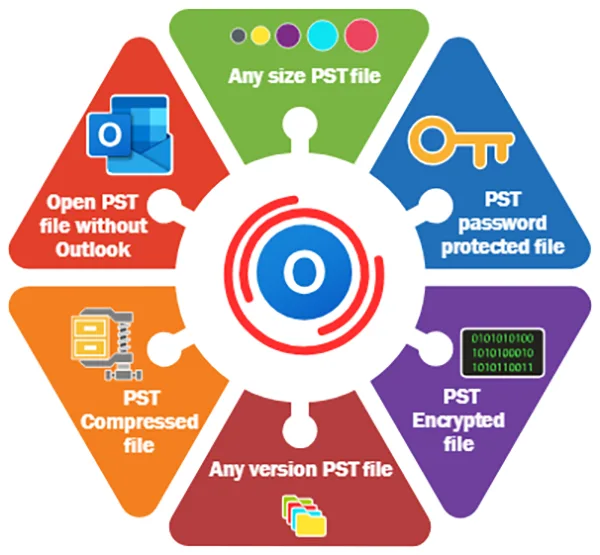
An EML File contains individual email messages, which contain details about the sender and the recipient(s), subject lines, attachments, message formatting, and metadata. EML files are often generated by email clients like Windows Mail, Mozilla Thunderbird, and Outlook Express.
A PST (Personal Storage Table) file is a file used by Microsoft Outlook to store emails, contacts, calendars, attachments, notes, and tasks. Outlook users can efficiently organize huge amounts of email data by using the PST files. EML files are typically converted to PST files for business use when moving to Outlook-based systems or when archiving emails.
There are also some users who use a free EML to JPG tool to convert email content to image files for sharing, documentation, and compliance reasons.
INTERESTING FACT
PST files were introduced in Microsoft Outlook in the 1990s to enable users to store and manage a significant volume of emails within their local computers.
Key Features to Look for in an EML to PST Converter
There are no equal conversion tools in terms of reliability, speed, and security. When choosing a software solution for converting, businesses should take the time to consider the features that are offered. These are some of the most critical capabilities for assuring data accuracy and migration efficiency.
Data Integrity and Folder Structure Preservation
It is essential to preserve the original structure and format of your emails when migrating. Important features: Preserves attachments, maintains metadata, retains email formatting, and preserves the folder hierarchy of the original file. Trustworthy email conversion tools reduce the chances of losing or damaging email content.
Bulk Conversion and Large File Support
There are times when organizations may have to move thousands of emails at a time. Bulk conversion features enhance efficiency and minimize effort. Important features: Batch file conversion, the ability to support large PST files, faster migration speeds, and automated processing. These features are particularly beneficial in enterprise migrations.
Compatibility with Outlook and Windows Versions
Potential compatibility issues may lead to migration failures and data access issues. Businesses need to make sure that their tool supports multiple Outlook versions, modern Windows operating systems, Unicode PST formats, cloud and local storage systems. If compatibility is high, it will be easier to move and easier to use in the long term.
Best EML to PST Conversion Tools to Consider
Both personal and enterprise users have many different email migration tools to choose from. The decision on what solution to choose is based on the volume of files, security concerns, and technical needs. Here are some popular types of conversion tools.
Professional EML to PST Converter Software
You can use professional EML to PST converter software to convert all EML emails to PST format. Professional tools are engineered to be quick, precise, and safe email migration solutions. Common solution: advanced filtering options, preview before conversion, bulk migration support, password-protected PST support, and automated folder mapping.
Businesses that deal with large and sensitive email datasets frequently opt for these tools.
Open-Source and Manual Conversion Options
For smaller migrations or to save costs, some users might opt for open-source or manual conversion methods. Common options include: drag-and-drop import methods, Thunderbird-based exports, free migration scripts, and basic email export tools.
Manual techniques can be cost-effective but may involve technical knowledge and could lead to formatting errors or partial transfers.
Enterprise-Ready Migration Utilities
For secure and scalable email transfer, large organizations need an enterprise-grade migration platform. Common features: centralized migration management, compliance-focused security, multi-user migration support, cloud integration capabilities, and, consequently, detailed reporting and logs are available.
Often used during organization-wide email system upgrades or migrating to the cloud.
How to Safely Convert EML Files Without Data Loss
An email migration system should always be done in a structured process to ensure minimum risk and data integrity. It is imperative for any business or user to take precautionary measures prior to any conversion process. Best practices for safe conversion:
Make backups prior to migration
Verify file compatibility
If you want to convert the file, then use software that you can trust
Test small quantities first
Do not interrupt active data-transfer processes.
Use a scan to detect files that are corrupted or contain malware
The converted PST files can be validated. Once migrated, users need to check folder structures, attachments, email timestamps, and formatting consistency. Identify missing data records and remove any duplicate emails generated during the transfer process. It is important to validate the data appropriately for a successful and accurate migration outcome.
When to Use Professional Email Migration Support
Professional email migration can be useful in several situations. Some migrations can be done on their own, but bigger or more complex migrations may need experts to help. When organizations consider professional migration services, they should take into account:
- Large email archives
- Compliance-sensitive data
- Enterprise-wide migrations
- Corrupted email files
- Multi-platform migrations
Professional experts can help minimize downtime, data loss, and smooth migration workflows. For businesses in regulated industries, there might also be a need for extra security and compliance assistance during transfers.
Conclusion
Many businesses and users have a need to import EML files into PST format when moving to Microsoft Outlook. But the migration of emails isn’t all about moving files. To ensure reliable access to email and business continuity, it is vital to ensure data integrity, preserve folder structure, attachments, and compatibility.
The modern conversion tools include some advanced features like bulk migration, automatic processing, and enterprise-class security to make complex email migration easy. Adopting trusted software, adhering to a secure migration procedure, and seeking assistance from experts when needed can make the email conversion process run smoothly and reduce the chances of data loss or corruption.
In the era of ongoing technological advancement, secure and accurate email migration solutions are crucial in the realm of digital infrastructure management.
Frequently Asked Questions
What is meant by an EML file?
Why use the EML to PST converter?
Companies sometimes transform EML files to utilize them in Microsoft Outlook settings.
Does converting an EML file to a PST file result in data loss?
Yes, there can be data loss or missing data when using poor-quality tools or migrating improperly.
Do free conversion tools work?
While some can be useful for small tasks, enterprise migrations can all for professional tools.
Related Posts

8 Best AI Presentation Makers for Business-Ready Slides
Making a presentation doesn’t just mean designing slides. It’s about defining a clear structure, using defined logic, useful visuals, and…

Queue Management Software Troubleshooting Guide: 8 Common Faults and Fixes
The long wait times and ineffective management of customer queues can have a significant impact on customer satisfaction and business…

How to Use Similarweb Website Traffic Data for Competitor Research
Competitor research without traffic data is guesswork. You can guess who your rivals are, guess how big they are, guess…

Choosing the Right Hosting Model for Scalable Digital Platforms
The performance of digital business is directly related to website speed, uptime, and scalability. Slow page performance has a negative…

How Data-Driven Performance Tools Are Transforming Employee Recognition in Tech Companies
“People work for money but go the extra mile for recognition, praise, and rewards.” — Dale Carnegie (Writer & Teacher)…

Why Businesses Struggle to Collect Reliable Data from the Web
Almost every company that depends on data runs into the same problem: although they can find the data they need,…

Why Financial Data Recovery Matters for Businesses
Financial data supports every part of a business, directly affecting cash flow, payroll, tax reports, audits, customer billing, and daily…

CMMC Compliance Is Coming for Manufacturers. Here Is What You Need to Do
“Cybersecurity is much more than a matter of IT.” — Stephane Nappo (Cybersecurity Professional) For manufacturers working within the defense…

How Data-Based Tools Influence Learning Performance
Learning has transformed in the modern age with the integration of new technologies to help students and professionals prosper in…