
Sync errors with iCloud or other accounts, changes in visibility settings, accidental deletion, and a recent update are some of the most common reasons behind the missing contacts on an iPhone.
How to Restore Contacts on iPhone: 5 Easy Ways
 Kartik Wadhwa
Updated on: Dec 16, 2025
Table of Contents
- How to Recover Deleted Contacts on iPhone via iCloud (Fastest Method)?
- How to Restore Contacts on iPhone Using iCloud.com?
- How to Restore Deleted Contacts on iPhone from iTunes or Finder Backup?
- How to Retrieve Deleted Contacts on iPhone from Gmail or Other Accounts?
- How to Restore Contacts on iPhone Using Data Recovery Software?
- Additional Ways to Recover Deleted Contacts on iPhone
- How to Make Sure You Never Lose Your iPhone Contacts Again?
- Final Thoughts
- Frequently Asked Questions
Lost some contacts on your iPhone? You can usually recover deleted contacts on iPhones in under 10 minutes. Most of the contacts disappear because of a sync glitch, a recent update, or an accidental delete. The good thing is your device leaves several recovery doors open.
I will explain how to restore contacts on iPhones using the simple recovery methods that we use as professionals. Whether your contacts were backed up to iCloud, stored through Gmail, or saved on a previous iPhone or Mac, you can get them back without any technical hassle.
Quick Glance (If You’re in a Hurry)
- Fastest way to recover: Toggle off the Contacts option in iCloud settings, choose Keep on My iPhone, then turn it back on and tap on Merge.
- Check iCloud web archives: Go to iCloud.com > Data Recovery > Restore Contacts.
- Use computer backups: Restore from a Finder or iTunes backup if you have one, but remember this restores the whole iPhone, not just contacts.
- Sync with email accounts: Add Gmail, Outlook, Yahoo, or any other account by going to Settings > Mail > Mail Accounts and turning on Contacts.
- Try data recovery tools: If cloud and account access fail, apps like Disk Drill or Stellar can scan and recover deleted contacts without wiping your phone.
- Additional Options: Try local transfer, check your SIM data, or ask a mutual friend to share the contact.
How to Recover Deleted Contacts on iPhone via iCloud (Fastest Method)?
If your contacts were syncing with iCloud earlier, this is the quickest way to restore contacts on iPhone. Think of it like refreshing your address book straight from the cloud. Try this on your iPhone:
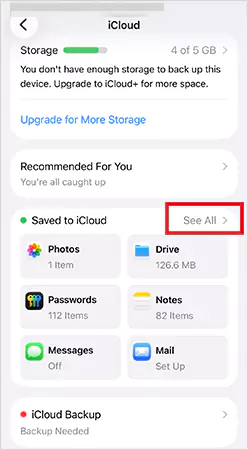
- Open Settings, tap your Apple ID name, then iCloud > See All (under “Saved to iCloud”).
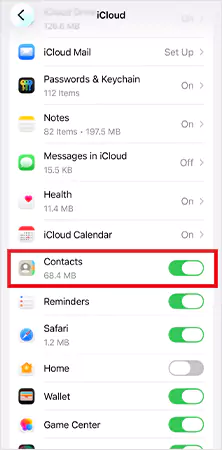
- Next, turn Contacts off.
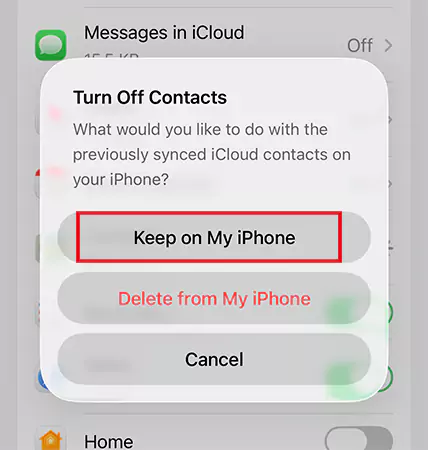
- When asked, choose Keep on My iPhone.
- Now, after some time, turn Contacts on again.
- Finally, tap on Merge to retrieve deleted phone numbers on iPhone.
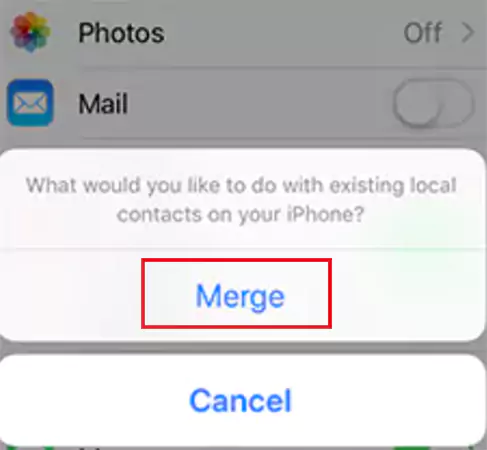
This simple toggle-resync fixes most missing-contact issues because it forces your device to rebuild its contact list using the latest iCloud version.
How to Restore Contacts on iPhone Using iCloud.com?
Now, if your contacts disappeared after an update, reset, or accidental deletion, you will be glad to hear this. Contacts on iCloud.com keep older versions archived, like a Time Machine for your address book.
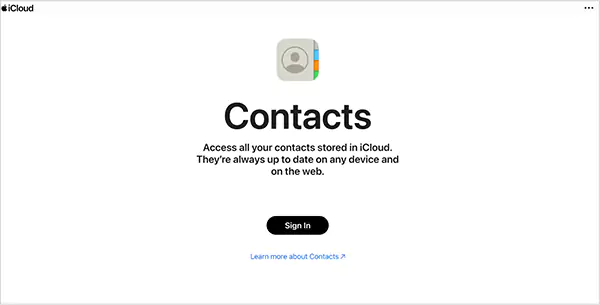
Here’s how to recover contacts on iPhone from an earlier archive:
- Visit iCloud.com and sign in with your Apple ID.
- Open the menu (top right) and select the Data Recovery option.
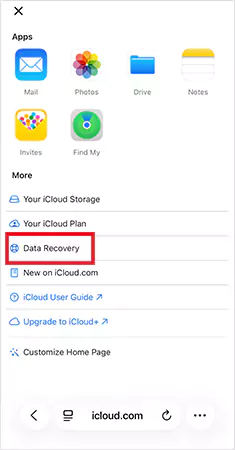
- Here, choose Restore Contacts.
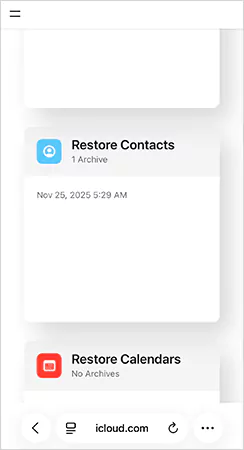
- Now, pick an archive created before your contacts went missing.
- Finally, just click on Restore and then confirm.
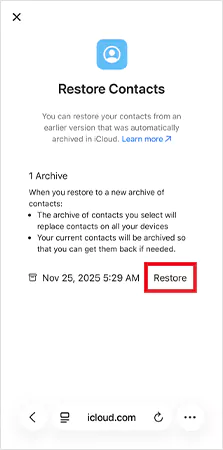
Your current contact list gets archived automatically behind the scenes, so you can switch back if needed. Syncing may take a few minutes to reflect on your device. Keeping the phone charged and on Wi-Fi helps speed it up.
How to Restore Deleted Contacts on iPhone from iTunes or Finder Backup?
Most of you might not use iTunes or Finder backup these days. However, if you regularly use these to back up your iPhone to a computer, your contacts are stored inside those backups. Restoring one brings back everything as it was on that date, including contacts.
Here’s how to restore contacts on iPhone using Finder or iTunes:
- Connect your iPhone to your MacBook or Windows PC.
- Open Finder on Mac or iTunes on Windows/macOS older versions.
- Next, select your iPhone from the sidebar or the device list.
- Under Backups, choose the Restore Backup option.
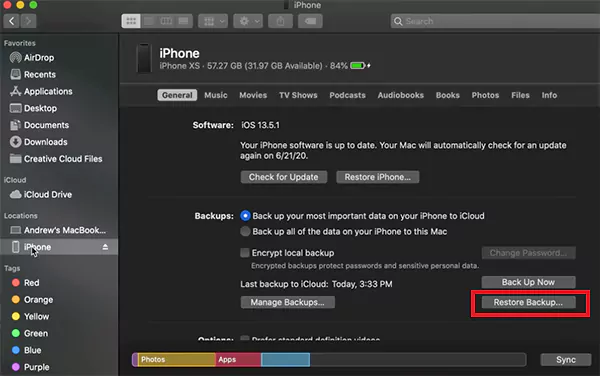
- Pick a backup created before your contacts disappeared.
- Click on Restore and keep your iPhone connected until it finishes.
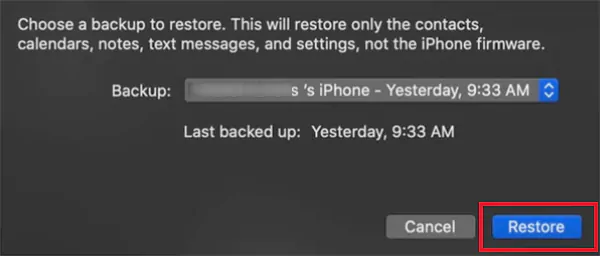
This method restores deleted text messages on iPhone, media, and the entire backup on iPhone, not just contacts. Anything added after that backup, like photos, messages, notes, etc., will be replaced. It is a solid option when contacts are crucial, but make sure you back up important recent data before proceeding.
How to Retrieve Deleted Contacts on iPhone from Gmail or Other Accounts?
If you have ever stored contacts inside Gmail, Outlook, or any other email service, those entries appear only when the account is added and syncing is enabled.
So if your contacts disappeared after a reset, update, or new iPhone setup, there is a good chance they are still there in your email account’s data.
Let’s see the process to retrieve deleted phone numbers on iPhones using Gmail sync:
- Open Settings on your iPhone.
- Go to Mail > Mail Accounts > Add Account.
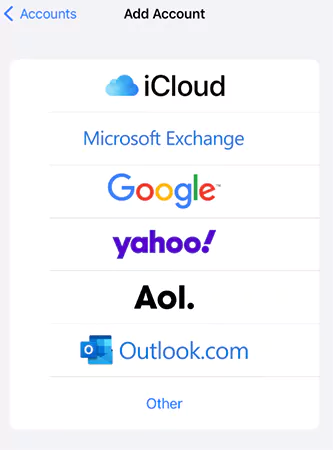
- After adding your Gmail, click on the Gmail option.
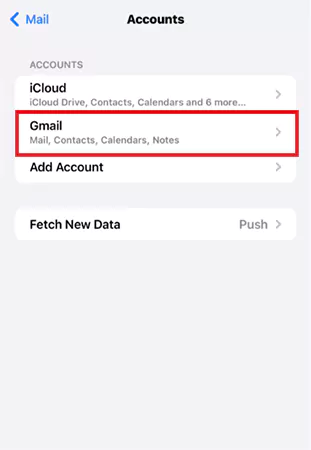
- Here, turn on the Contacts option.
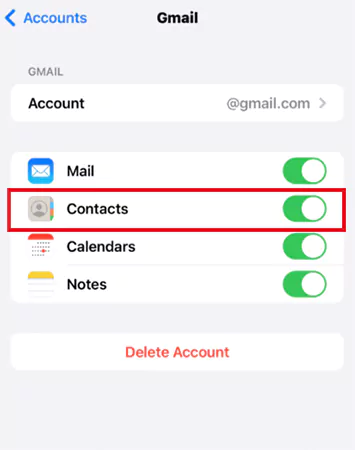
Your phone will pull all saved Gmail contacts back into its address book. This sync works across every device signed into the same Google account, so it keeps things consistent without manual effort.
If you used Outlook, Yahoo, or any other provider, you can add the account again and enable contact sync the same way. This method is especially helpful when you have switched iPhone, and suddenly notice numbers missing. Usually, they are simply attached to an email account you have not added yet.
How to Restore Contacts on iPhone Using Data Recovery Software?
How can you retrieve deleted contacts on iPhones without backup? Your last line of defense is iPhone data recovery software if iCloud, iTunes, Gmail, and all other accounts cannot help.
These tools scan your iPhone’s internal storage for deleted entries, including contacts that no longer appear on the device. Disk Drill, Stellar, EaseUS, and Tenorshare are some popular tools.
Let’s see the step-by-step process of recovering contacts using Disk Drill. It is my personal favorite because of its reliability.
- Install Disk Drill on your computer.
- Connect your iPhone and tap on Trust when asked.
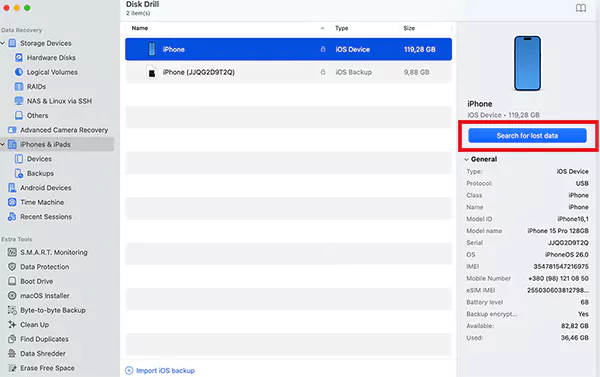
- Open Disk Drill and select your iPhone from Devices.
- Now, click on Search for lost data.
- After the scan, choose the Contacts option, select what you were looking for, and then click on Recover.
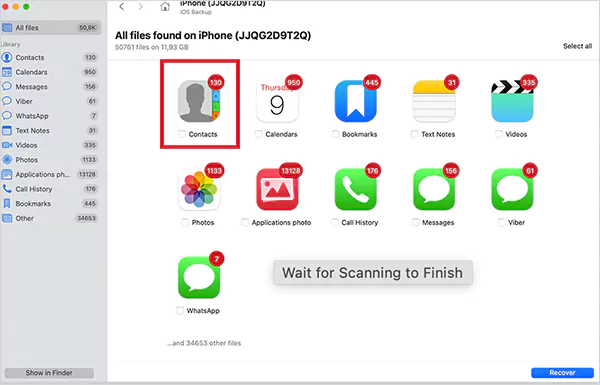
- Select where you want the recovered contacts saved on your computer.
Once exported, you can import these contacts back into the iPhone via iCloud, the Contacts app, or your preferred email account.
What’s even better is that you can use these data recovery tools to extract contacts from iCloud and iTunes backups. Traditional Apple backup methods restore everything, not just contacts.
These third-party tools allow you to recover contacts without resetting your iPhone or losing recent data. It is a better choice when you want to recover overwritten files and be precise.
Additional Ways to Recover Deleted Contacts on iPhone
Other than the above five, there are still a few more practical ways to get your contacts back. One is to restore contacts from an iCloud backup after erasing all content and settings, which I only recommend if nothing else works. But here are some more things you can try:
- Transfer contacts directly from an old phone: If you still have your previous iPhone or even an old Android device, you can look for contacts there. Tools like Contact Transfer allow you to connect any phone to a PC and move contacts without relying on iCloud or Google.
- Check your SIM card: Some older SIM cards store contacts directly. You can check this quickly by going to Settings > Contacts > Import SIM contacts. If the number was saved to a physical SIM, it will appear instantly.
- Ask someone who has the missing number: When you are only missing one or two contacts, the simplest fix is to just ask a friend or someone who already has the number. You can ask them to share the contact card directly. It is a quick, clean, and reliable way, especially for urgent contacts.
How to Make Sure You Never Lose Your iPhone Contacts Again?
Learning how to restore contacts on iPhone is helpful, but preventing the loss is even better. With a few simple habits, you can make sure your contacts are always safe, even if your phone gets lost, damaged, or reset. Here are some smart tips to follow:
- Turning on iCloud sync for contacts is your strongest safety net. Your contacts automatically stay backed up across all Apple devices.
- A monthly Finder backup acts as your offline insurance. If anything goes wrong with iCloud, you still have a complete copy saved locally.
- Sync contacts with Gmail or another email service. This creates a multi-layer backup. So, even if one fails, another version remains intact.
With these layers in place, you won’t have to worry about losing contacts again.
Final Thoughts
Losing your contact feels stressful, but the good news is that iPhones store them in more places than most of us realize. Whether you prefer the cloud, a computer backup, your email accounts, or recovery tools, there is almost always a way to restore contacts on iPhones.
If you were able to get back the contacts you were looking for, please send this to someone who needs to know how to restore contacts on iPhone.
Frequently Asked Questions
Why do contacts disappear on iPhone?
How do I get my contacts back on my iPhone?
The fastest way is to toggle off the Contacts option in iCloud settings on your iPhone and then turn it on again. You can restore using iCloud.com data recovery, iTunes/Finder backup, or third-party recovery software.
How to retrieve contacts on iPhone without iCloud?
You can restore using a Finder or iTunes backup, or by syncing your email accounts on your iPhone. Data recovery software can also help you retrieve deleted contacts.
How to refresh the contact list on iPhone?
Just open your contact list in the Phone or Contacts app and swipe down. This will refresh the list and show you the changes.
How to view Contacts in iCloud?
Go to icloud.com/contacts and log in with your Apple ID. Now, you will be able to see all your contacts. You can also click on the “Contacts” app icon from the main iCloud homepage.
Does iCloud save deleted iPhone contacts?
Yes, iCloud saves deleted iPhone contacts on previous backups. You can restore until you have access to that backup version.
Related Posts
Why Modern Organizations Depend on Data Privacy Software
Data growth has significantly accelerated beyond what most compliance teams can manage, with personal records, financial details, contracts, and emails…
Converting Chats Into Leads While Maintaining Professionalism
The way marketing teams and businesses approach their potential clients to boost their sales has completely transformed in the last…
How to Delete iCloud Account? Complete Guide for 2026
Thinking, how can I delete iCloud or Apple account? It is not just about removing an account; it is about…
How Different Industries Use Specialized Software to Stay Competitive
In the market we have today, companies are always trying to find ways to work better and get results. The…
What Key Adjustments Enhance Visual Appeal Across Web Pages
Attractive web pages form the roots of any appealing website. For instance, imagine looking for content on Google, and you…
When is it Time to Consider IT Support Services for Your Business?
Every business needs to ensure smooth operations for a successful business. But despite trying hard to avoid barriers, technical issues…

How to Delete User Profile in Windows 10: Step-by-Step Guide
You don’t notice user profiles until one starts causing problems. A profile gets corrupted, a login error pops up, or…

How AI Can Help Students Take Notes and Check Their Work
Artificial Intelligence is transforming how students learn, study, and manage their academic work. From automating note-taking to checking assignments, AI…
How to Stop Windows Update: Pause, Disable, or Uninstall Safely
Imagine that face when Windows starts updating with a deadline looming and your screen freezes. Frustrating is an understatement, and…