
There is no dedicated recently deleted apps list. But you can use Purchase History on the App Store to find all the deleted apps.
How to See Recently Deleted Apps on iPhone and Recover Them Easily?
 Prakhar Shivhare
Updated on: Apr 13, 2026
Deleted an app on your iPhone and now can’t remember what it was? You are definitely not the only one. While there is no explicit way to recover a deleted app on iPhone, they do keep a record of everything you have ever downloaded using your Apple account.
The trick is knowing where to look. In this guide, I will explain how to see recently deleted apps on iPhone using App Store purchase history, app library, and hidden settings. You will be able to quickly identify and reinstall any app you have lost.
Quick Answer: How to Find a Deleted App on iPhone?
Open App Store > Profile > Apps or Purchased > Not on this iPhone. Now scroll or search for the app you are looking for. That’s your complete list of deleted apps on iPhone. If it is not there, check your App Library or the Hidden folder.
How to See Recently Deleted Apps on iPhone?
There is no recently deleted apps folder on iPhone. Once you delete an app, it is gone from your device. But the part most people miss is that you can still track every app you have used.
Let’s break down how to see recently deleted apps on iPhone.
1. Check App Library
Before assuming the app is deleted, confirm this first. If you can’t find an app on the Home Screen:
- Swipe left on your Home Screen until you reach the App Library.
- Then, use the search bar at the top.
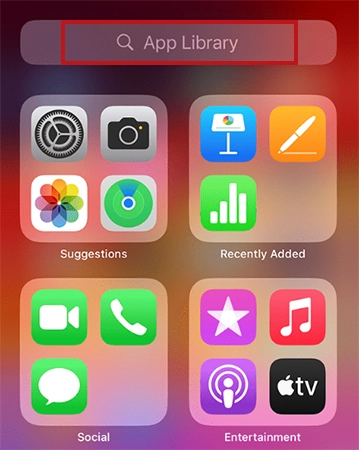
- Type the app name.
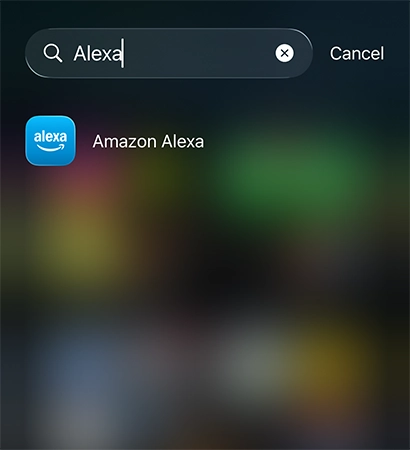
- Now, if it shows up, long-press it and move it back to the Home Screen.
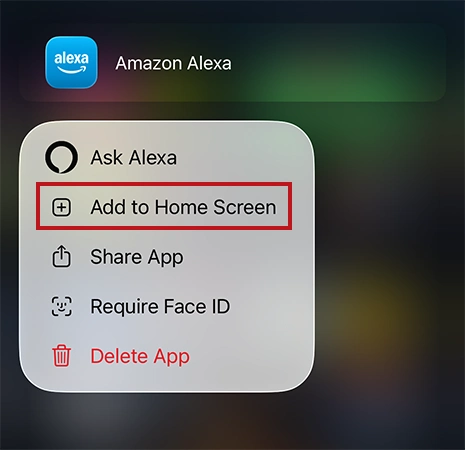
What’s really happening is that many people don’t delete apps. iPhone allows you to remove apps from the Home screen without deleting them. They just forget this part and start finding the recently deleted apps on iPhone.
2. Check App Store (Real Deleted Apps List)
This is the closest thing to a list of recently deleted apps on iPhone. Here’s how to access it:
- Open the App Store.
- Tap your profile icon at the top right.
- Now, go to Apps.
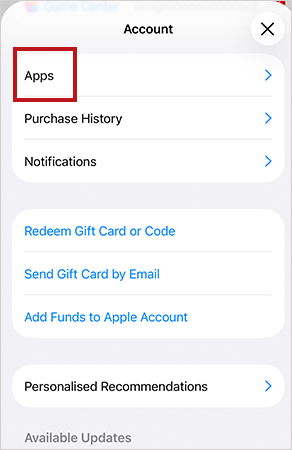
- Next, tap on Not on this iPhone.
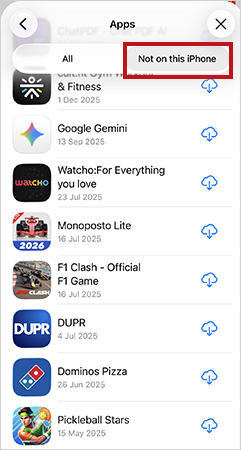
- Here, you can scroll or search for the app.
It will show you every app you have ever installed, and it works even for apps deleted years ago. If you don’t remember the app name, just scroll slowly. Most people rediscover apps this way.
3. Check Hidden Apps (iOS and Later)
Some apps don’t appear anywhere, not even in search. That’s because they are hidden.
- Go to the App Library.
- Scroll down and find the Hidden folder.
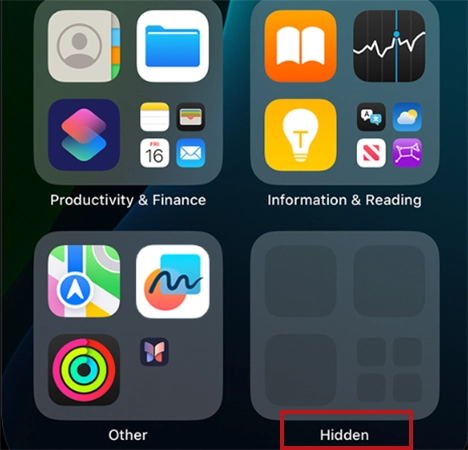
- You can unlock it using Face ID or a passcode.
- Check for your app here.
You can unhide apps on iPhone by long-pressing the app icon and tapping on “Don’t Require Face ID”.
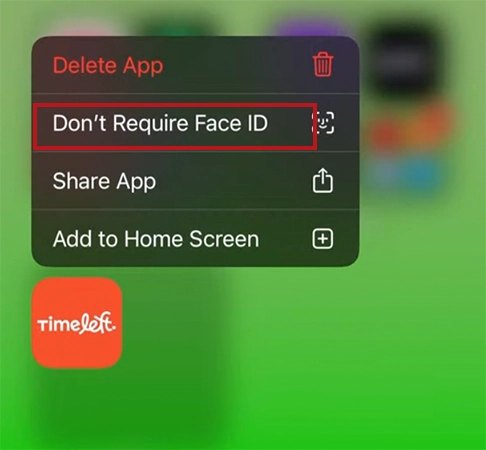
Hidden apps are completely invisible from the Home Screen and search. This is why many users think the app has been deleted.
How to Recover Deleted Apps on iPhone using App Store?
Recovering a deleted app is simple. You just need to know where to reinstall it from. Here’s how to recover the deleted apps for iPhone:
- First, find deleted apps on iPhone using the App Store option we discussed above.
- Then, just tap on the cloud icon (redownload button). The app will reinstall like before.

- You can also just search the app name on the App Store and tap on the redownload icon.
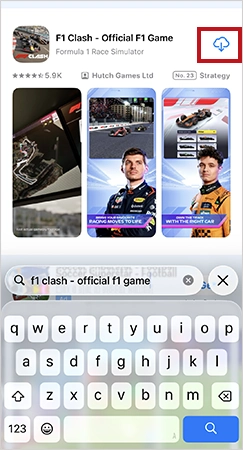
After you recover an app, the data may or may not return. If the app uses cloud sync, your data will be restored. If not, you might have to start fresh.
What to Do If You Can’t Find Deleted Apps on iPhone?
Now, if you can’t redownload apps or find deleted apps on iPhone, stop guessing. Here’s why it happens and what you can do:
- First, check the Hidden folder in the App Library. As I have already mentioned, this is one of the most common mistakes.
- Make sure you are using the right Apple ID. This trips a lot of people. If you switched accounts, the app won’t show in the purchase of your Apple account. If accessible, you can log in to the old Apple ID and check again.
- Some apps disappear due to policy issues, developer removal, or compatibility problems with your device. If it is gone from the App Store, you can’t reinstall it normally.
Furthermore, if you can’t redownload an app that you see in your purchase history, just report the problem to Apple after signing in.
Pro Tips to Avoid Losing Apps Again
Let’s be honest, losing apps is annoying. But it is also preventable. Here are some practical habits that you should consider:
- If you just want a clean screen, just remove the apps from the Home Screen, instead of deleting them. The app stays in the App library.
- Create one important folder and put daily use or important apps in one place. This reduces the chances of accidental deletion.
- Avoid hiding apps unless necessary because it creates confusion. They don’t even appear in search. Use this feature only for privacy.
- Try to stick with one Apple ID. Switching accounts creates gaps in your app history.
Most lost apps are just hidden, misplaced, or forgotten. Fix your system once, and this stops being a problem.
Conclusion
How to see recently deleted apps on iPhone? So, you don’t need hacks or third-party tools to find or recover deleted apps on your iPhone. And once you understand that, everything becomes simpler. You just need to know where to look. Purchase history on the App Store shows every app you ever downloaded using your account. Finding and recovering any app just takes seconds.
Frequently Asked Questions
Can you see recently deleted apps on iPhones?
How do I see recently deleted apps on iPhone?
Go to the App Store, tap on your profile icon, select Apps, and then tap on Not on this iPhone.
How do I recover deleted apps on iPhone?
Open the App Store, tap your profile or the Sign-In button, go to Apps, find the app, and tap Redownload.
Why is my deleted app not showing in Purchase History?
You might not see the app in Purchase history if it is hidden, downloaded using a different Apple ID, or removed from the App Store.
What is the fastest way to recover a deleted app on an iPhone?
Open App Store > Search the app > Tap download. If you have installed it before, you will see a cloud icon to reinstall instantly.
Related Posts
The Technical Blueprint for Safe Outsourced Infrastructure
In recent times, it seems as if more and more businesses from various industries have turned to infrastructure outsourcing. This…
Simple Ways to Clean Audio Data for Better Model Performance
Most of the machine learning teams do not struggle because their processing systems are not capable—they struggle because their audio…

How to Check for Malware on Mac in 2026?
Can Mac computers get viruses? Macs are not as safe as people think. Yes, macOS has built-in tools like XProtect…

10 Best Lightroom Preset Alternatives in 2026
“Photography is the story I fail to put into words.” — Destin Sparks (Landscape Photographer) For years, Lightroom presets have…
Elementor Hosting vs SiteGround: Which is Faster in 2026?
A website’s performance is mainly determined by its Speed. Even a slight delay can reduce conversions by a significant margin.…

10 Best Visual UGC Platforms for eCommerce Brands in 2026
“People influence people. Nothing influences people more than a recommendation from a trusted friend.” — Mark Zuckerberg (Meta CEO) That…

The Data Models Powering the Next Creative Revolution in Video Generation
Artificial intelligence has evolved from a mere tool to the cornerstone of advancements in the new era. Over the years,…

Solar Software Companies: How Platforms Improve Cross Team Collaboration
“If everyone is moving forward together, then success takes care of itself.” — Henry Ford (Industrialist & Business Magnate) Handoffs…

What Healthcare Leaders Expect From Digital Tools
Healthcare executives are under pressure to protect patient safety, clinician time, and data privacy while modernizing the delivery of care.…