
You can download the Move to iOS app on Android and move data. Also, you can use a SIM card, a VCF file, or sync your contacts with your Google account and then add the same account to your iPhone.
How to Transfer Contacts from Android to iPhone: 4 Easy Methods
 Mahima Dave
Updated on: Apr 06, 2026
Switching from Android to iPhone should not feel like rebuilding your life from scratch. Restoring contacts on iPhone should be the first thing you should sort because they keep your daily life running, from friends to work calls.
So, how do I transfer numbers from Android to iPhone? The smartest way is to use Move to iOS, as Apple recommends. If that does not work, you still have reliable backups like SIM import or VCF files.
In this guide, I will explain how to transfer contacts from Android to iPhone using the easiest method and smart alternatives.
Quick Answer: How Do I Transfer Contacts from Android to iPhone?
- Setting up a new iPhone?
Use Move to iOS during setup for a clean and one-time transfer.- Already using your iPhone?
Use Google Account Sync on Android, add your account on iPhone, and turn on Contacts. They will appear automatically.- Need a quick manual method?
Export contacts as a VCF file and import them on your iPhone.
How to Transfer Contacts From Android to iPhone?
There is no single best method here. You actually have four solid options, and the right one depends on your situation. Many online guides advise using third-party software. But there is no need for you to do that.
These are the only four safe options that are worth trying. You won’t have to look for any other method. So, let’s see how to load contacts from Android to iPhone step-by-step.
Method 1: How to Shift Contacts from Android to iPhone Using Move to iOS?
This is Apple’s official method and the most seamless one. It is best for those who have just got a brand-new iPhone and are not done with the setup.
Here’s how to transfer phonebook from Android to iPhone while setting up:
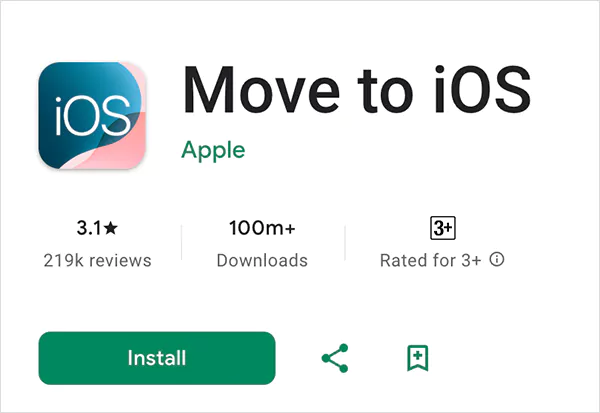
- First, install the Move to iOS app from Google Play or the APK file on your Android phone.
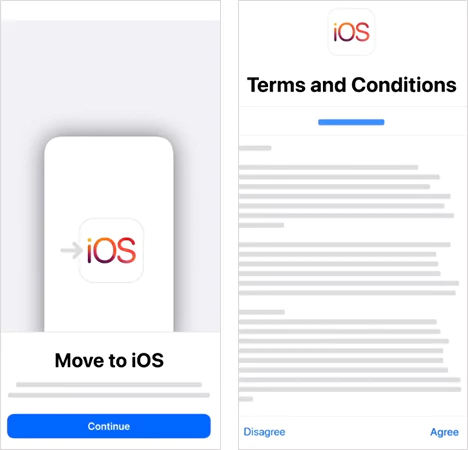
- Tap Continue, agree to the terms and conditions, and then follow the prompts.
- Then, start setting up your iPhone.
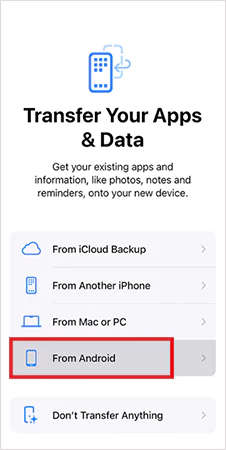
- On the Transfer Your Apps & Data screen, tap From Android.
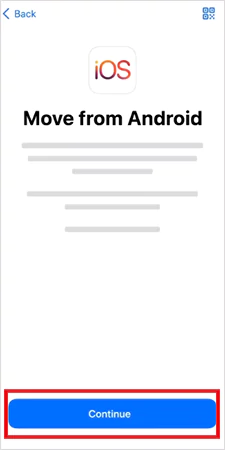
- Next, tap Continue.
- Here, a six-digit or ten-digit code will appear on your iPhone screen.
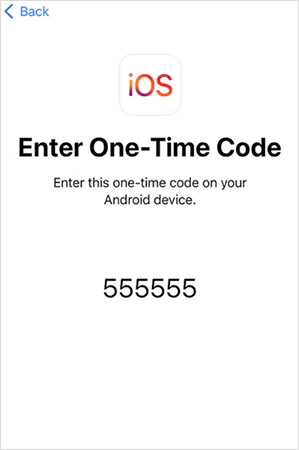
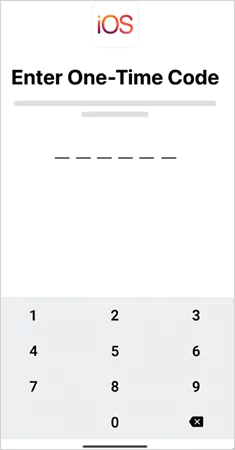
- Now, on your Android device, enter the same code.
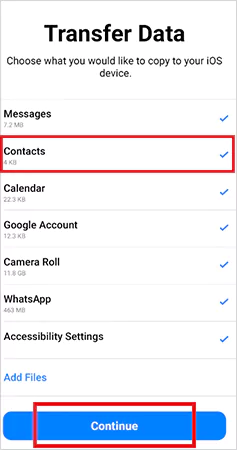
- Now, select Contacts (and anything else you want) and tap Continue.
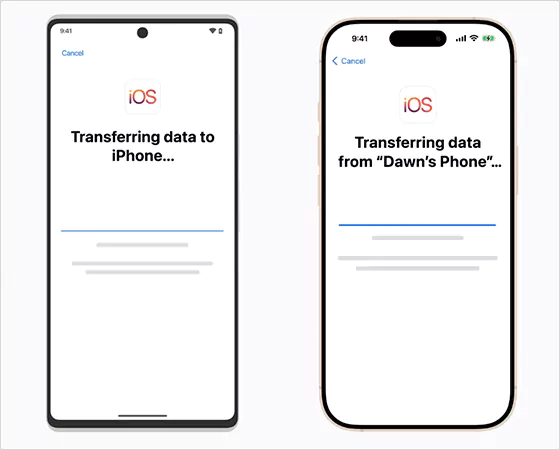
- Wait while the transfer is processing.
- Tap Done on your Android device and tap Continue on your iPhone.
- Finally, just follow the onscreen steps to finish setting up for your iOS device.
- Once done, your contacts will automatically appear on your iPhone.
You can transfer more than contacts, like messages, photos, and calendars. Apps won’t transfer, but iPhone will suggest them from the App Store. Using a cable might work even faster, but Wi-Fi works fine too.
This method works only during iPhone setup. If it is already set up, you will need to factory reset your iPhone, and then use these steps.
But that would be inconvenient. So, you can just skip this completely and use Google Sync to pass contacts from Android to iPhone.
Method 2: How to Migrate Android Contacts to iPhone Using Google Account Sync?
If you have already set up your iPhone, this is the smartest and most practical method.
- On Android, go to Settings > Google > All Services > Google Contact Sync, and turn on the Contacts sync option.
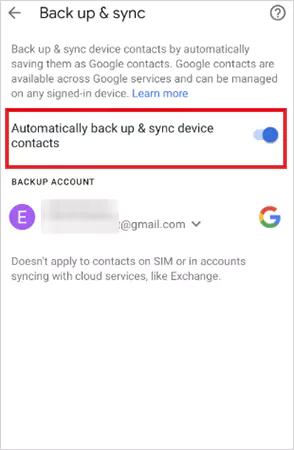
- Next, on your iPhone, go to Settings > Apps > Contacts > Contact Accounts.
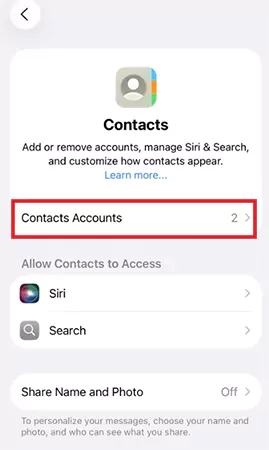
- Select Google and log in with the same account that has your synced Android contacts.
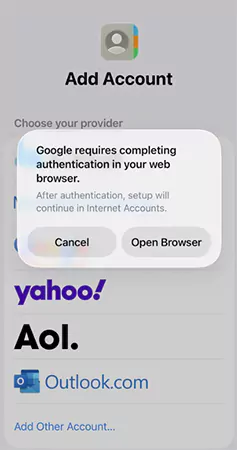
- Now, make sure that the Contacts option is turned on.
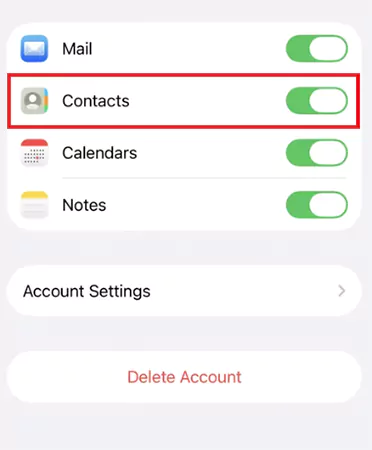
Your contacts will start appearing within seconds. This is a powerful option because you won’t need to transfer again in the future. Any new contact you add will sync automatically. It works like a live backup across devices.
Method 3: How to Transfer Phone Numbers from Android to iPhone With a SIM Card?
This is the old-school method, but still useful in specific situations. Here’s how to put contacts from Android to iPhone:
- On Android, open your Contacts app.
- Tap the menu button, choose Manage Account, and go to Import or export contacts.
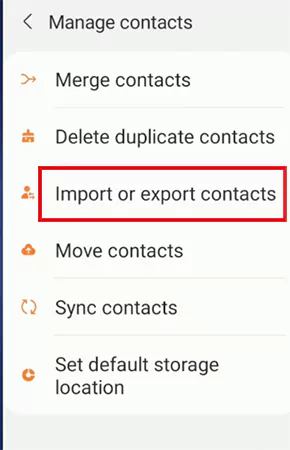
- Now, choose Export, select the SIM card, and complete the export.
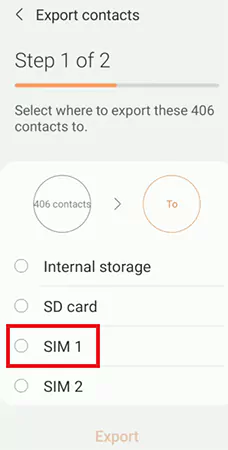
- Remove the SIM and insert it into your iPhone.
- On iPhone, go to Settings > Apps > Contacts > Import SIM Contacts.
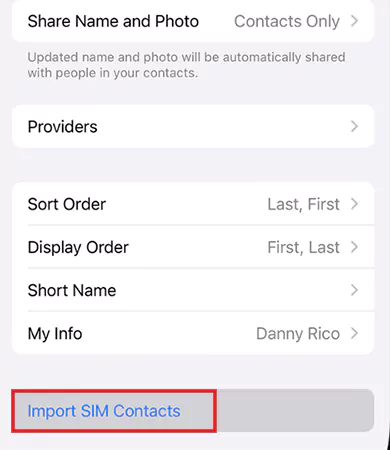
- Your contacts will be transferred instantly.
However, it stores only basic information and offers a limited space. It does not support emails, addresses, or extra details. If you just need quick numbers, this can be a great option for you.
Method 4: How to Transfer Address Book from Android to iPhone Using a VCF File?
Last, but the most flexible and underrated method. It is best for backup and selective transfer. Here’s how to copy contacts from Android to iPhone via vCards or VCF files:
- Open the Contacts app on Android.
- Now, export the contacts to a .VCF file (the internal storage option does the same job).
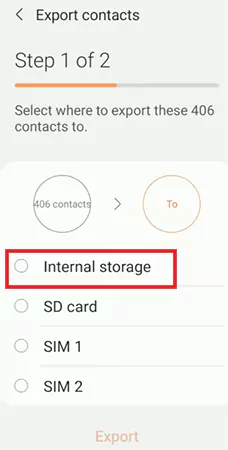
- Share the VCF file via Email or any other way.
- Next, open the file on your iPhone.
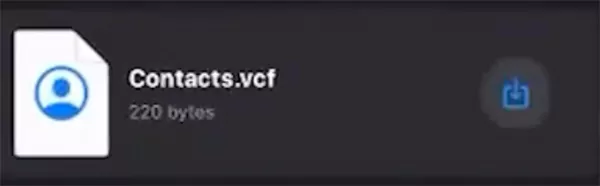
- Finally, tap on Add All Contacts.
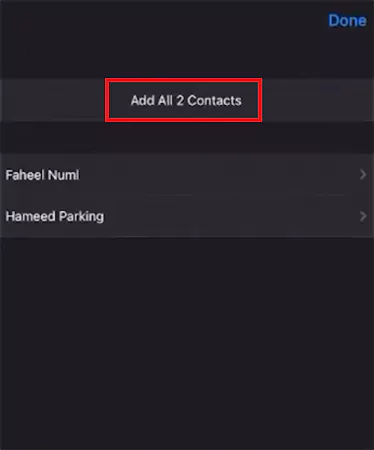
Done, your contacts are imported. This method does not require any app, and you can store the file as a backup. Think of it as your portable contact file that works across devices.
Which Methods Should You Choose to Send Contacts from Android to iPhone?
Now, let’s try to make this simple for you. Here’s how you can pick the method based on your situation:
- New iPhone (not set up yet): Use the Move to iOS app. It offers a one-time clean transfer and moves everything in one go.
- iPhone Already Set Up: Use Google Account Sync because it is fast, automatic, and keeps contacts updated going forward.
- No Internet: Use the SIM card method. For basic detail transfer.
- Want Control or a Backup Copy: Use the VCF file option. It is a manual process, but it offers great flexibility and is one of the most reliable options.
Do not overcomplicate this decision. All of these transfer methods are safe and work fast.
What to Do If Contacts Do Not Appear on iPhone?
Now that you know how to transfer contacts from Android to iPhone, you should also be aware of the following things:
- Check if contacts sync is on. If this is off, nothing will show up on your iPhone.
- If the contacts on your Android phone are not saved on Google, they won’t sync to your iPhone automatically.
- Sometimes sync just gets stuck. In that case, you can try to remove your Google account from your iPhone, add it again, and turn on Contacts. This works like an instant refresh.
- If you are still not able to find the contacts, try the VCF file as your backup fix.
The four methods discussed in this guide usually won’t disappoint you. If you follow everything carefully, you can easily get your contacts on iOS.
Final Thoughts
Transferring contacts is not hard. Just carefully read the guide, and it will make sure you can send contacts from Android to iPhone without any hassle.
Do not try all methods. Pick one based on your situation and do it properly. Once you do that, your contacts will get transferred in minutes. So, this was all about how to transfer contacts from Android to iPhone
Frequently Asked Questions
How do I copy contacts from Android to iPhone?
What is the easiest way to transfer contacts from Android to iPhone?
If your iPhone is new, use Move to iOS. If it is already set up, Google Sync is the fastest and simplest option.
Why are some contacts missing after switching to iPhone?
It happens usually because contacts were saved locally on the Android device or SIM card instead of Google. Only synced contacts will transfer automatically.
Do I need to reset my iPhone to use Move to iOS?
Yes, Move to iOS only works during the initial setup. If your iPhone is already set up, you need to reset it or use other methods.
How do I export all Contacts from Android?
Open the contacts app, go to settings, and export contacts as a .VCF file. You can then transfer and import this file to your iPhone.
Related Posts
White Label Ad Server vs Development From Scratch: What to Choose
Even though the DSP segment is the largest market within AdTech at the moment, an ad server remains a crucial…
How Data Infrastructure Powers Next-Gen Mobile Recognition Apps
Modern digital applications have evolved with time, offering various functionalities to users that weren’t possible or even imaginable before. But…
How Poor Contract Visibility Leads to Revenue Leakage in Growing Companies
Growth is an important factor that determines the success rate of any business. When we witness new operations, partnerships and…

Managing Bitcoin Operations? Here’s How Salesforce Automation Helps
“Digital currency is here to stay, and it’s only a matter of how long before governments embrace it.” — Brad…

Why Modern Organizations Depend on Data Privacy Software
Data growth has significantly accelerated beyond what most compliance teams can manage, with personal records, financial details, contracts, and emails…
Converting Chats Into Leads While Maintaining Professionalism
The way marketing teams and businesses approach their potential clients to boost their sales has completely transformed in the last…
How to Delete iCloud Account? Complete Guide for 2026
Thinking, how can I delete iCloud or Apple account? It is not just about removing an account; it is about…

How Different Industries Use Specialized Software to Stay Competitive
In the market we have today, companies are always trying to find ways to work better and get results. The…

What Key Adjustments Enhance Visual Appeal Across Web Pages
Attractive web pages form the roots of any appealing website. For instance, imagine looking for content on Google, and you…