
Press the Search + Shift + T buttons together after enabling debugging keyboard shortcuts in Chrome flags. This instantly disables the touch screen.
How to Turn Off Touchscreen on Chromebook? Step-by-Step Guide
 Mahima Dave
Updated on: Mar 27, 2026
Table of Contents
- How to Turn Off Touchscreen on Chromebooks?
- How to Disable Touchscreen on Chromebook Using Terminal?
- How to Turn Off Touch Screen on Chromebook (Additional Methods)?
- Why You Might Want to Disable Touchscreen on Chromebook?
- How to Enable Touch Screen on Chromebook?
- Final Thoughts
- Frequently Asked Questions
Touchscreen on a Chromebook sounds great until it starts getting in the way. Accidental taps while typing, smudges, and random inputs can quickly become frustrating. And not every model gives you a simple Chromebook Disable Touchscreen option in settings.
So, how to turn off touchscreen on Chromebook? Well, if you do not want to use touch, the fix is simple once you know where to look. In this guide, you will learn to disable the touch screen on a Chromebook using hidden settings, so you can use your laptop without distractions.
Key Takeaways: How to Turn the Touchscreen Off on Chromebooks?
- ChromeOS does not offer a universal toggle to turn off the touchscreen.
- The fastest and most reliable option is to use the Search + Shift + T shortcut after adjusting the settings via Chrome Flags.
- You can turn the touchscreen back on instantly using the same shortcut.
- Use other workarounds only when the shortcut method does not work, and disabling touch is extremely important.
How to Turn Off Touchscreen on Chromebooks?
Most ChromeOS computers don’t have a simple “Chromebook turn off touch screen” button. So, if you are looking for the most reliable way, here’s how to turn off touch on Chromebooks:
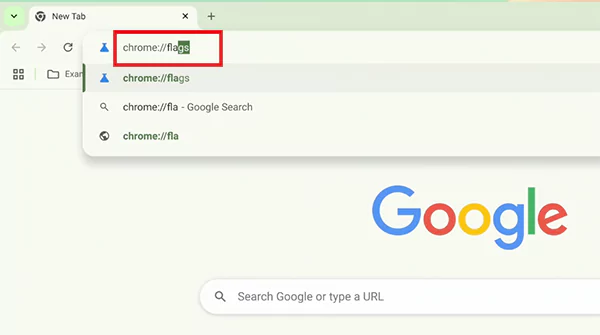
- Open Chrome, type “chrome://flags”, and press Enter.
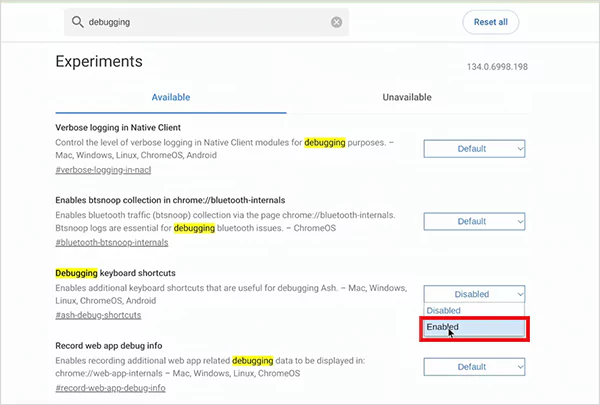
- Then, search for Debugging keyboard shortcuts and set it to Enabled.
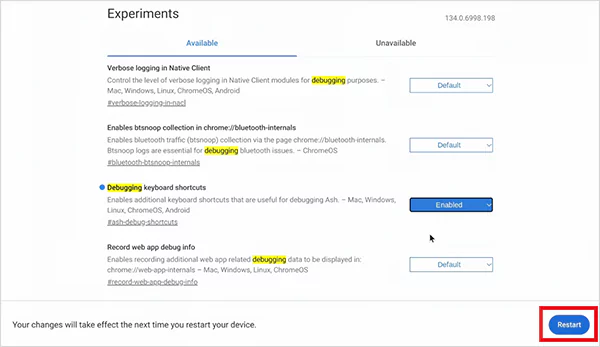
- Now, just click on Restart.
- After rebooting the computer, press Search + Shift + T to turn the touchscreen on or off.
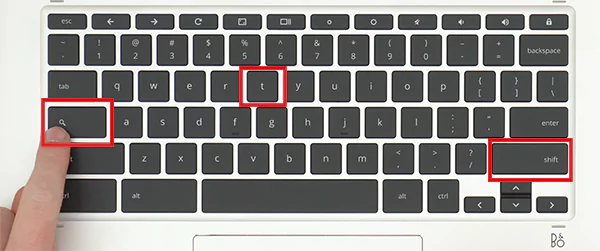
Note that the Search key is where Caps Lock usually is. You can also disable the touchpad on a Chromebook by pressing Search + Shift + P.
This is an experimental feature, so it may change in the future. Plus, most school or work devices may block this option. So, you cannot use this Chrome Flags method on a managed device.
How to Disable Touchscreen on Chromebook Using Terminal?
Moving on, this is an advanced method. Use it only if the shortcut does not work on your device. There is no official command for this. You are basically forcing it through system-level controls. Let’s see how to disable touch on Chromebook:
- Press Ctrl + Alt +T to open the Crosh (Chrome OS Terminal).
- Type “shell” and press Enter. This gives you deeper system access (only works in Developer Mode).
- Next, type “xinput list”. This will show a list of all input devices connected to your Chromebook.
- Now, look carefully for your touchscreen device. It is usually named something like Elan Touchscreen, Atmel maXTouch, or anything with Touchscreen in the name.
- Each device will have an ID number next to it.
- Once you find it, run this command (replace ID with the actual number):
Xinput disable [ID]
This method is temporary and resets after reboot. So, it is not better, just more aggressive. For most users, the shortcut method is the most reliable option.
How to Turn Off Touch Screen on Chromebook (Additional Methods)?
If the above two methods don’t work, you still have a few alternatives. However, not all will work on every device, but they are worth trying.
Method 1: Check Chromebook Settings (Limited Support)
Some newer Chromebooks include this option. Here’s what you need to do:
- Click the time at the bottom-right corner.
- Then, open Settings and go to Advanced > Accessibility.
- Here, look for the touchscreen setting, and turn it off (if available).
This is the cleanest method, but it is rare. Some brands, like Acer, may include a native toggle menu on Chromebooks.
Method 2: Temporary Physical Workarounds
If software methods fail, physical tricks may help you. Try it only if it is too important for you. Here’s how to make your Chromebook touchscreen stop working:
- Use a thick screen protector to block touch.
- Add a plastic overlay to reduce sensitivity.
- Contact a technician to disconnect the touchscreen ribbon cable. However, you won’t be able to enable touch by yourself.
Keep in mind that these workarounds can affect screen clarity and brightness. Plus, they are not always fully effective and not ideal for long-term use.
Why You Might Want to Disable Touchscreen on Chromebook?
Touchscreens were made to improve your experience. But in real use, it often gets in the way more than it helps on computers. Here’s when turning it off actually improves your experience:
- Accidental Touches: Your palms or fingers trigger random action, which breaks your flow and slows you down.
- More Control and Precision: Keyboard and trackpad give you cleaner and more intentional input with fewer mistakes.
- Cleaner Screen and Less Maintenance: Say no to constant fingerprints, smudges, or wiping every few minutes.
- Slight Battery Boost: Touch sensors stay active in the background. So, turning them off cuts that extra usage.
- Better for Kids’ Devices: It prevents random clicks, unwanted changes, and distractions.
If the touchscreen is adding friction instead of value, turning it off makes your Chromebook feel faster, cleaner, and more controlled.
How to Enable Touch Screen on Chromebook?
Once you have set up your device with the shortcut method, you can easily switch back to the touch mode whenever you want. Here’s how to turn on the touch screen on Chromebook again:
- Just press Search + Shift + T.
- And, your touchscreen will be enabled instantly.
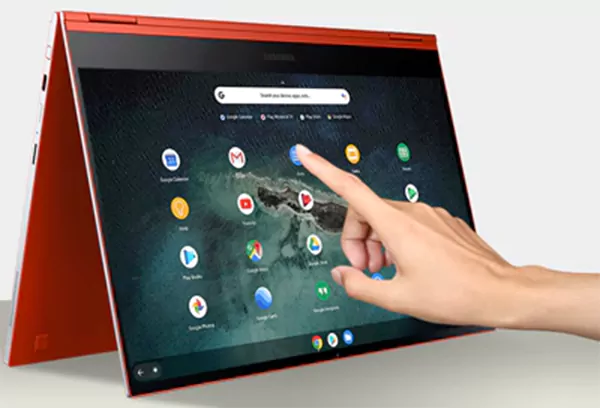
The same shortcut works both ways. If the touchscreen does not respond, do not overthink it. First, restart your device, then clean the screen properly, and check for any pending ChromeOS updates.
Final Thoughts
Turning off the touchscreen is not about removing a feature. It is about using your Chromebook the way that works best for you. Mostly, the shortcut method is enough. Keep it simple and don’t overcomplicate it.
Once set up, you can switch between touchscreen and non-touch mode in seconds. That flexibility is what actually matters.
Frequently Asked Questions
How do I turn off the touch screen on my Chromebook?
Does turning off the touchscreen save battery?
Yes, it reduces background touch input activity, which can improve the battery to some extent.
How do I shut down Chromebook?
Click on the time section, then click the Power icon, and shut down. You can also press and hold the power button for a few seconds until the device turns off.
How to freeze the screen on Chromebooks?
You can freeze the screen by locking the screen using Search + L or closing the lid to pause activity.
How to fix the touchpad on Chromebooks?
Press Search + Shift + P to enable the touchpad. If it does not work, restart your device, check for system updates, and try again.
Related Posts
How to See Blocked Messages on iPhone? (What Actually Works)
Ever blocked someone on your iPhone and later found yourself wondering if you can see blocked texts on iPhone? It…
The 5 Architecture Decisions That Haunt SaaS Founders Two Years Later
Architecture decisions are fundamental to ensuring steady growth in any business or technical step, especially when the topic is laying…

Database Scaling: How to Manage 10,000+ Political Volunteers
Every small business or growing team needs to deal with a common issue—the database that was working perfectly for the…
What Structured Cabling Systems Include and Why Businesses Still Need Them
Nowadays, IT conversations jump straight to cloud apps, wireless coverage, and cybersecurity tools. While these are visible and easy to…

Top 10 Web Development Companies to Partner with in 2026
In today’s fast-growing digital world, every business needs a strong online presence to stay competitive. A well-designed website not only…

Intelligent Dynamic Pricing with Market Data
Rising fixed costs no longer exist in retail as real-time market volatility and AI-driven shifts reshape the way brands do…
Recovering Lost YouTube Videos from a Corrupted Drive
Losing your videos strikes fear into any YouTuber. One instant everything runs smoothly—crisp footage, clean sound, visuals locked in place—the…
How to Fix Windows Update Error? 10 Reliable Fixes
Windows Update keeps your Windows system secure, fast, and packed with the latest features. But let’s be honest, sometimes Windows…
How to Recover Data on Mac
People who work on a Mac almost every day often lose data, whether on purpose or by accident. And it…