
Hidden apps usually appear in the App Library, which you can access by swiping left on your Home Screen pages.
How to Unhide Apps on iPhone? Quick Guide to Restore Hidden Apps
 Prakhar Shivhare
Updated on: Mar 16, 2026
iOS 18 has launched so many new additions, but hiding iPhone apps has remained the talk of the town. Apple users have gotten the knack of how to hide the apps on iPhone but have been seen struggling to unhide the apps.
Worry not; I have been using both methods in my day-to-day life and shared the simplest way for how to unhide apps on iPhone in the article ahead.
Quick Answer
To unhide apps:
Open the App Library >> Locate Hidden Apps Folder >> Authenticate the Face ID>> Tap on Don’t require Face ID.
How to Unhide Apps on iPhone?
Hiding apps on iPhone brings a neat and tidy home screen by eliminating the apps that are less used. But knowing the process of unhiding them can save you from panic during emergencies.
That is why I have elaborated on the prime and easiest process of how to unhide apps on iPhone below:
- Unlock your iPhone and swipe right to left on the screen to open the App Library.
- Scroll down and locate the Hidden Apps folder.
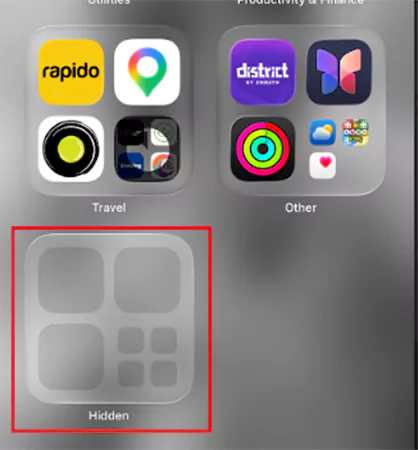
- Authenticate the Face ID or enter the passcode.
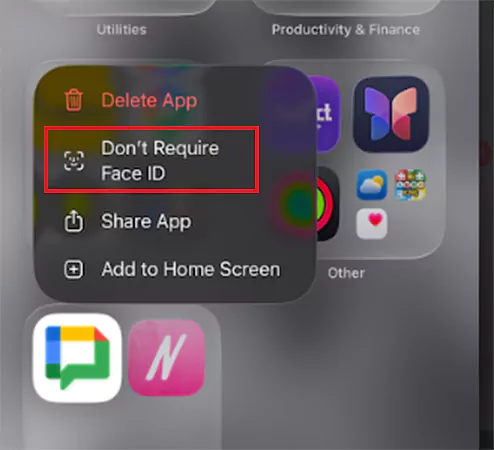
- Long-press the app icon you want to unhide and tap on “Don’t Require Face ID,” and your app will be removed from the Hidden Apps folder.
How to Hide Apps on iPhone?
Hiding apps helps to boost your privacy by eliminating the icons of the apps from the home screen, preventing others from seeing and making unnecessary opening attempts.
Check out the simple process for how to hide apps on iPhone mentioned below:
- Unlock the iPhone and swipe right to locate the app you want to hide.
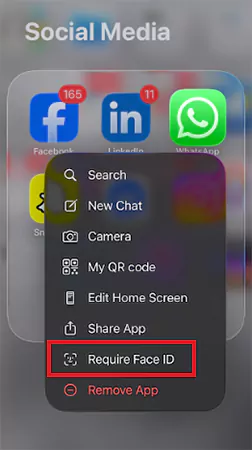
- Touch and long-press the app icon and tap on Require Face ID.
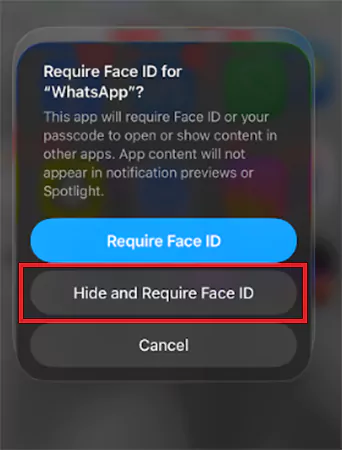
- Choose, Hide and Require Face ID from the list of options.
What Happens When an App is Hidden on an iPhone?
When you hide an app on an iPhone, the operating system increases your privacy by removing the app from common places where people usually find apps. Check out what changes you will experience when your app is hidden.
- It disappears from the home screen.
- The app does not appear in the App Library categories.
- The app cannot be found using Spotlight search.
- Opening the Hidden folder requires Face ID, Touch ID, or a passcode.
- The app’s notifications are hidden.
Difference Between Hidden Apps and Locked Apps on iPhone
Hidden apps are removed from the visible screen so others can’t easily find them, while locked apps stay visible but require Face ID or a passcode to open. Check out the head-to-head comparison below:
| Attributes | Hidden Apps | Locked Apps |
| Core Purpose | Completely hide the app from the normal view. | The locked app is restricted but remains visible on the screen. |
| Home Screen Visibility | Not visible on the home screen or search bar; access it from the Hidden Apps folder in the app library. | It remains visible on the home screen, Spotlight, and App Library. |
| Access Process | Navigate to App Library > Hidden Apps and enter Face ID or Passcode. | Tap the app → requires Face ID/Touch ID/Passcode to open |
| Notifications | Notifications and alerts are hidden. | Notifications are visible on the lock screen. |
| Use Cases | Private apps like personal data notes on iPhone, secret apps, and more. | Apps you use daily but want protection for, like payment apps, banking apps, and more. |
Conclusion
The Hidden Apps feature was introduced in iOS 18 and remained unchanged in the current versions as well. Hiding the apps adds an extra layer of security, and unhiding them gives easy and fast access to the day-to-day routine tasks.
Remember, you can only hide the apps that are installed from the App Store. All the pre-installed apps on your Apple device remain unhidden and are displayed on the home screen. Hope you are now clear about how to unhide apps on iphone.
Frequently Asked Questions
Where do hidden apps go on iPhone?
Can you hide and unhide apps on an iPhone without deleting them?
Yes. iPhone allows you to remove apps from the Home Screen without deleting them. The app stays in the App Library and can be restored anytime.
How do I restore a hidden app to my iPhone home screen?
You can search for the app in Spotlight Search, press and hold the app icon, and select Add to Home Screen.
Can I hide apps on the version older than iOS 18?
No, the hide apps feature was launched in iOS 18 only, and you cannot hide apps in the older versions running on any device.
Related Posts
How to Transfer Contacts from Android to iPhone: 4 Easy Methods
Switching from Android to iPhone should not feel like rebuilding your life from scratch. Restoring contacts on iPhone should be…
White Label Ad Server vs Development From Scratch: What to Choose
Even though the DSP segment is the largest market within AdTech at the moment, an ad server remains a crucial…
How Data Infrastructure Powers Next-Gen Mobile Recognition Apps
Modern digital applications have evolved with time, offering various functionalities to users that weren’t possible or even imaginable before. But…
How Poor Contract Visibility Leads to Revenue Leakage in Growing Companies
Growth is an important factor that determines the success rate of any business. When we witness new operations, partnerships and…

Managing Bitcoin Operations? Here’s How Salesforce Automation Helps
“Digital currency is here to stay, and it’s only a matter of how long before governments embrace it.” — Brad…

Why Modern Organizations Depend on Data Privacy Software
Data growth has significantly accelerated beyond what most compliance teams can manage, with personal records, financial details, contracts, and emails…

Converting Chats Into Leads While Maintaining Professionalism
The way marketing teams and businesses approach their potential clients to boost their sales has completely transformed in the last…
How to Delete iCloud Account? Complete Guide for 2026
Thinking, how can I delete iCloud or Apple account? It is not just about removing an account; it is about…

How Different Industries Use Specialized Software to Stay Competitive
In the market we have today, companies are always trying to find ways to work better and get results. The…