
This happens when a Windows update fails to install properly. The system then rolls back the changes to restore stability and avoid system damage.
Undoing Changes Made to Your Computer Error: Why It Happens and How to Fix It?

Reviewed By :
Brijesh Kumar Singh  Kartik Wadhwa
Updated on: May 21, 2026
Imagine you are expecting a smooth update, but instead, you see the “Undoing changes made to your computer” message. You see a stuck screen with no clear answers.
Here’s what’s actually happening. Windows tried to install an update, something didn’t go as planned in Windows 11/10, and now it is rolling back to protect your system.
Sometimes this is normal and resolves on its own. But if it keeps looping or takes hours, it signals a deeper issue. This guide breaks it down clearly and explains how to fix this Windows update error without risking your data.
What Does Undoing Changes Made to Your Computer Mean?
When you see your laptop undoing changes made to your computer, Windows is just trying to reverse a failed OS update (such as Windows Update Error 0x80070643).
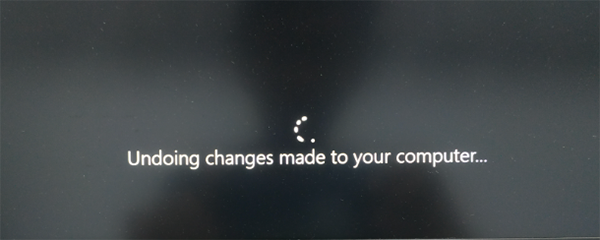
Instead of leaving your system in a broken state, Windows rolls everything back to the stable version. Here’s what actually happens behind the scenes:
- Update begins.
- Something breaks during installation.
- Windows cancels the process.
- It restores your system to avoid damage.
This is more like a built-in safety mechanism. In most cases, the message disappears on its own once the rollback finishes. The real issue begins when it gets stuck or keeps repeating.
What Causes the Windows Undoing Changes Made to Your Computer Error?
The Undoing changes made to your computer black screen will never appear randomly. Something interrupts and stops the Windows update, and then the system tries to protect itself. Here are some common reasons behind it:
- Corrupted Update Files: The update download is incomplete or damaged, so the installation fails midway.
- Low Storage Space: Your system needs space to install updates. If your drive is almost full, it simply can’t proceed.
- Driver or Hardware Conflicts: Outdated drivers, especially graphics or network ones, often break compatibility during updates.
- System File Corruption: If core Windows files are already damaged, new updates won’t install properly.
- Antivirus or Software Conflicts: Third-party tools can block or interfere with update processes without you realizing it.
What’s important to understand is that Windows detects risk and rolls back to keep your system usable.
How Long Should You Wait Before Taking Action?
Most people mess up and panic too early. Don’t rush to fix it too early. If it is under 1 hour, let it run. If the time crosses 2-3 hours with no progress, it is likely stuck and needs action.
How to Fix Undoing Changes Made to Your Computer?
If your system is stuck on undoing changes made to your computer or keeps looping. Don’t guess and find what broke during the update and fix or remove it. Here’s a clean and practical flow that works in most situations:
1. Force Restart to Break the Loop
If nothing is moving on your system, you need to interrupt the process.
- Press and hold the power button to shut down.
- Turn it back on.
- When you see the Windows logo, shut the device off again.
- Repeat these steps 2-3 times.
- Now, Windows will show you the Automatic Repair screen. Just select Advanced Options.
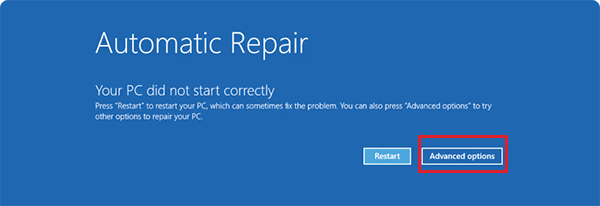
This forces Windows into the Windows Recovery Environment (Windows RE), where you get repair options.
2. Run Startup Repair
Once you are inside recovery mode or environment, go to Troubleshoot > Advanced options > Startup Repair.
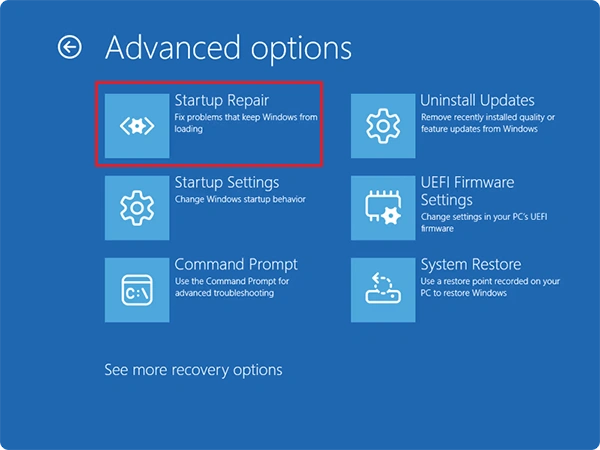
This tool automatically fixes the boot issues and selects the proper boot device, missing system files, and update-related startup failures. In many cases, this alone is enough to solve your issue.
3. Uninstall the Latest Update
If the issues started after an update, you must try to remove it. Here’s how you do it from Windows RE:
- In Windows RE, go to Troubleshoot > Advanced options > Uninstall Updates.
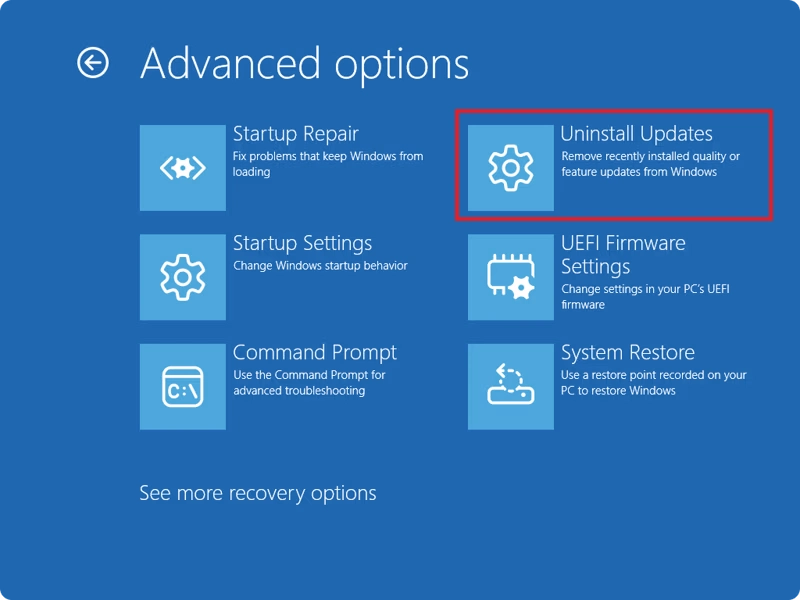
- Start with the latest quality update.
If your system can boot, you can even go to Settings > Windows Update > Update history > Uninstall updates.
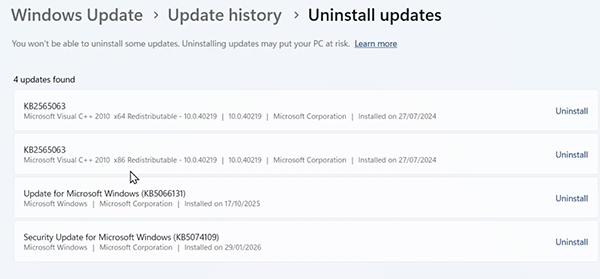
This directly removes the faulty update causing the loop issue.
4. Use Safe Mode to Remove Conflicts
Sometimes the update fails because of drivers or apps. To check this:
- Go to Advanced options > Startup Settings > Restart.
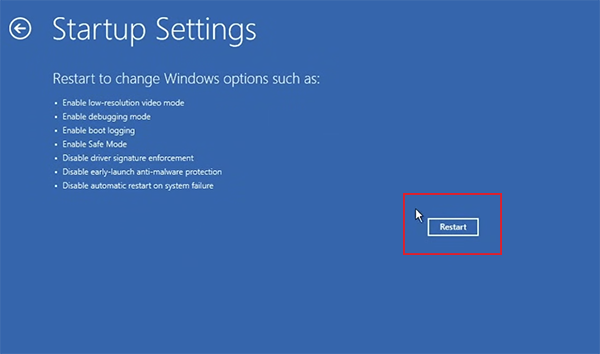
- Then, press 4 or F4 to enter Safe Mode.
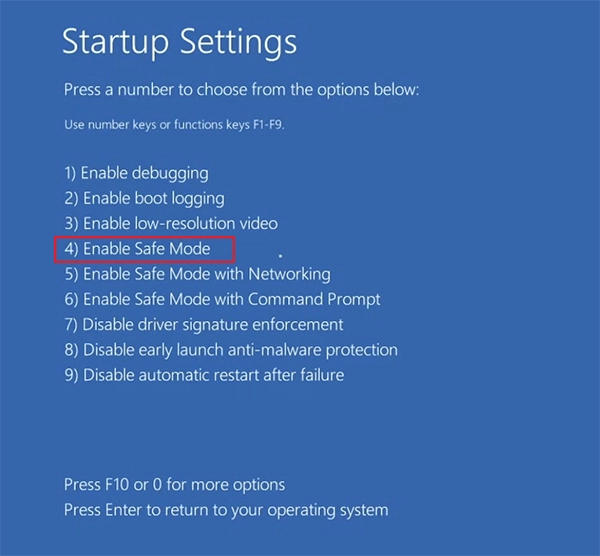
Safe Mode loads only the essential services, helping you isolate the root issue and fix it.
5. Repair System Files (SFC + DISM)
If Windows files are damaged, updates won’t install. So, open your Command Prompt as an administrator and run the following commands:
- sfc /scannow
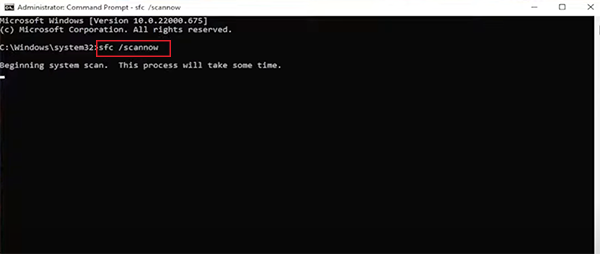
- DISM /Online /Cleanup-Image /RestoreHealth
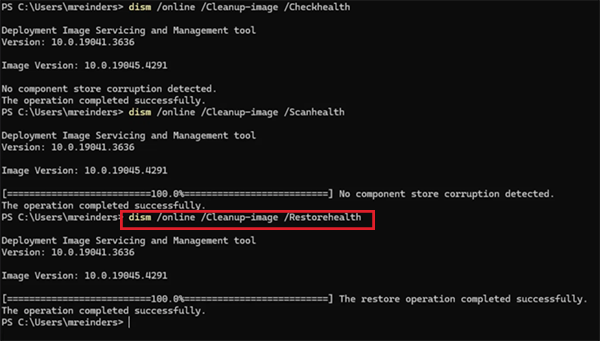
SFC and DISM commands scan and fix deep system issues that most users miss.
6. Run Windows Update Troubleshooter
Windows also has a built-in tool specifically for update errors.
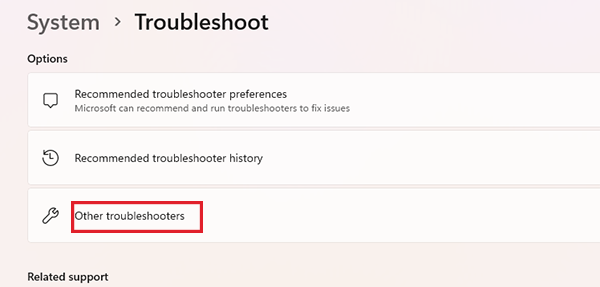
- Go to Settings > System > Troubleshoot > Other troubleshooters.
- Next to Windows Update, click Run.
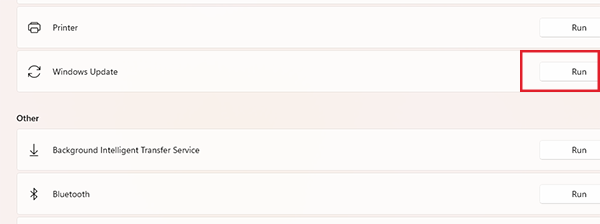
Windows Update Troubleshooter automatically detects and fixes update-related issues like failed downloads, misconfigured services, and broken update components.
7. Reset Windows Update Cache
If the update files are corrupted, the system keeps failing again and again. Here’s how to fix that:
- Go to File Explorer > C: Drive > Windows > SoftwareDistribution.
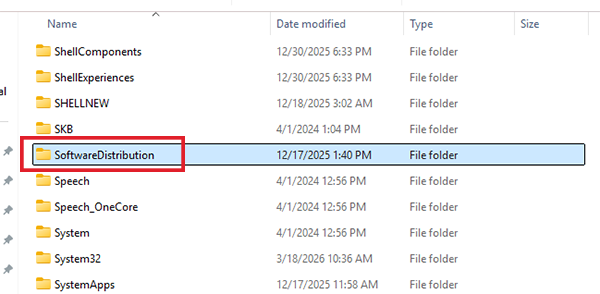
- Here, just select everything and delete all files.
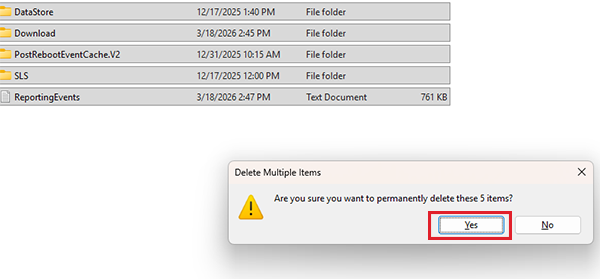
This forces Windows to download fresh update files and fix hidden corruption.
8. Use System Restore
If your system was working fine earlier, it might be a good idea to go back to that point using System Restore.
- Insider recovery, go to Troubleshoot > Advanced options > System Restore.
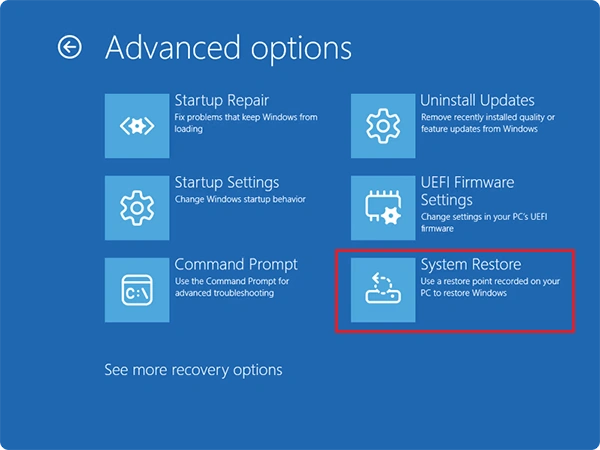
- Then, choose a restore point.
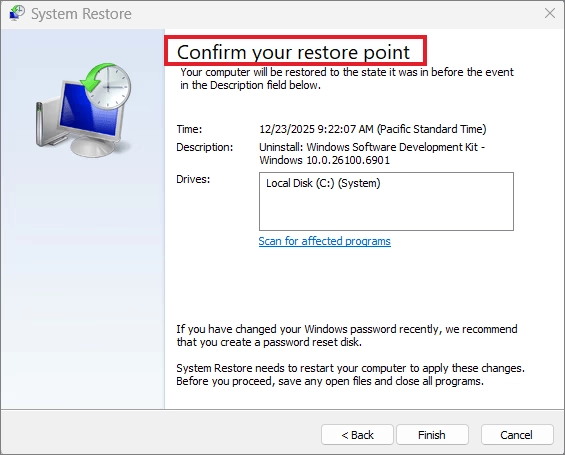
System Restore is designed specifically to recover from updates or system failures. Your personal files stay safe, but system changes get reversed.
9. Reset Your PC
If nothing has worked for you till now, just go to Troubleshoot > Reset this PC.
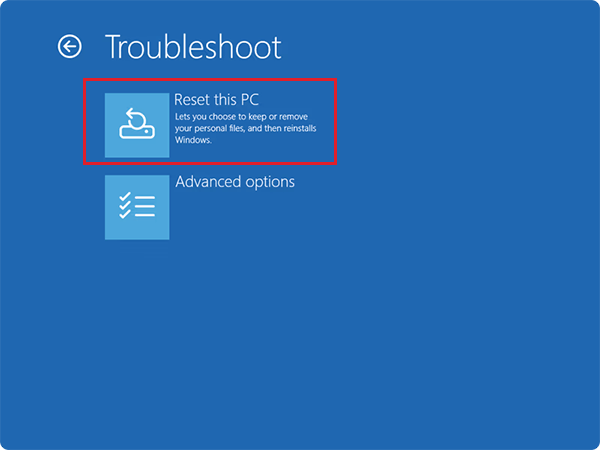
You can choose to keep your files or do a full factory reset. This will reinstall Windows and remove problematic system configurations.
If you follow this flow step-by-step, you can easily diagnose and fix Windows 11 or Windows 10 undoing changes made to your computer.
How to Stop Undoing Changes Made to Your Computer From Happening Again?
Fixing it once is not enough. If you don’t change how you handle updates, this will come back. Here’s what actually reduces the chances in the long term:
- Maintain at least 20-30 GB of free space to avoid failure and a rollback loop.
- Disconnect all external devices before updating. Some devices can create conflicts during installation.
- Temporary disable third-party antivirus or uninstall them. They might interfere with the process silently.
- Regularly update drivers and always create a restore point before major updates.
You cannot just eliminate this issue. But with better update habits, you can reduce the chances drastically.
Conclusion
This Windows message simply means that the update failed, and your system is going back to a safe state. You only need to worry when it stays stuck for hours or keeps repeating after every restart.
Start with Startup Repair or uninstalling updates. If that fails, go for Safe Mode or SFC/DISM tools. Reset or reinstall only if none of the other methods works in your favour.
Frequently Asked Questions
Why am I getting the undoing changes made to the computer error?
How do I fix the undoing changes to your computer error?
Wait if the process is still running. If it is stuck, restart your PC, enter Windows Recovery Environment, and use tools like Startup Repair or System Restore to fix the issue.
How long does undoing changes made to your computer take?
In most cases, it completes within 30 minutes to 1 hour. If it runs for more than 2-3 hours with no progress, the system is likely stuck and needs attention.
How to Fix Something Didn’t Go As Planned Windows update error?
Try uninstalling the problematic update, running Windows Update Troubleshooter, and using System Restore.
How to stop an update in Windows 10?
You can pause updates on Windows by going to Settings > Update & Security > Windows Update > Pause Updates.
Related Posts
WindowServer Mac: What It Means and How to Fix High CPU Usage
If your Mac computer is freezing, feels slow, overheats, or shows high CPU usage in Activity Monitor, WindowServer Mac could…

pagefile.sys Explained: Why It Gets Huge and How to Manage It Safely
What is pagefile.sys and can I delete it? If you noticed a huge pagefile.sys file is taking up storage on…
How to Fix Error 0x800f081f on Windows 11: Complete Update Repair Guide
You are here because you may have encountered install error – 0x800f081f. This error code appears after something interrupts updates,…