


It is a macOS system process that manages windows, displays, visual effects, and on-screen graphics.
WindowServer Mac: What It Means and How to Fix High CPU Usage
If your Mac computer is freezing, feels slow, overheats, or shows high CPU usage in Activity Monitor, WindowServer Mac could be the reason. You must be wondering: What is Window Server on Mac?
It is an essential macOS process that manages everything displayed on your screen, including app windows, animations, and visual effects. While it usually runs in the background, excessive CPU usage can point to several issues.
This guide breaks down the Mac process WindowServer, how it works, why it uses high resources, and provides practical ways to reduce its impact and keep your Mac fast and stable.
Key Takeaways: WindowServer Process on Mac
- WindowServer is a core visual process in Mac that manages displays, windows, and graphical effects.
- High CPU or memory usage is usually caused by excessive visual load or display-related tasks.
- Adjusting display settings, organizing the desktop, and reducing visual effects can significantly lower usage.
- Regular macOS updates, system maintenance, and smarter display management are essential for long-term stability.
What is WindowServer on Mac?
The MacBook process WindowServer manages everything visual on your screen. Simply put, it controls how app windows, displays, animations, transparency effects, and other graphical elements appear and function.
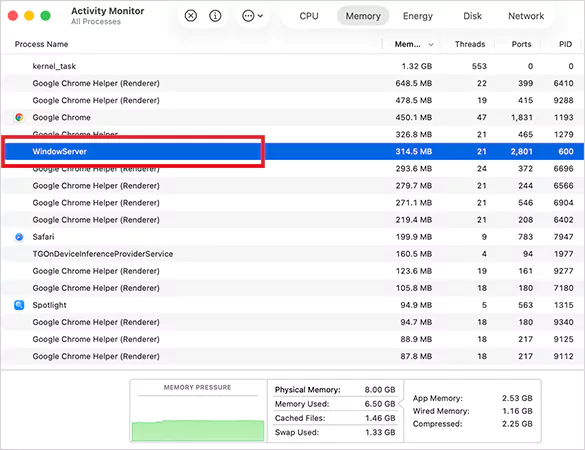
Whenever you open an app, move a window, switch desktops, connect an external monitor, or use visual effects, WindowServer Mac works in the background to make it happen. In short, it handles:
- Window rendering.
- Display communication.
- Visual effects.
- Screen compositing.
- Desktop and monitor management.
You can find it in Activity Monitor, where it normally runs as an essential system process.
Important: Activity Monitor WindowServer is a legitimate macOS process. It is not malware, and it is not related to Microsoft Windows Server.
Why Does Mac WindowServer Use High CPU or Memory?
WindowServer Mac using CPU is quite normal. High CPU or memory usage usually happens when macOS is processing too many visual tasks at once. Here are some common causes that you should know:
- Too many open windows or browser tabs require your system to do more rendering work.
- External monitors or multiple displays with higher resolutions can significantly increase the workload.
- Custom resolutions and scaled display settings require additional CPU and GPU power.
- Heavy visual effects like transparency, motion, and animated wallpapers can increase system strain.
- Apps like Chrome, Zoom, editing software, virtual machines, and other poorly optimized apps can overload the display engine.
- Too many visible files on the desktop and overall clutter can increase redraw demands.
Furthermore, some system versions may temporarily cause abnormal spikes due to software bugs. In most cases, _windowserver is reacting to what your system demands visually.
How to Fix the WindowServer Mac High CPU Usage?
If the _windowserver is using excessive CPU, the real fix is reducing the visual and system load on your Mac, not force-quitting the process. Here are 8 reliable solutions you should try to fix the issue:
1. Close Unnecessary Apps, Tabs, and Windows
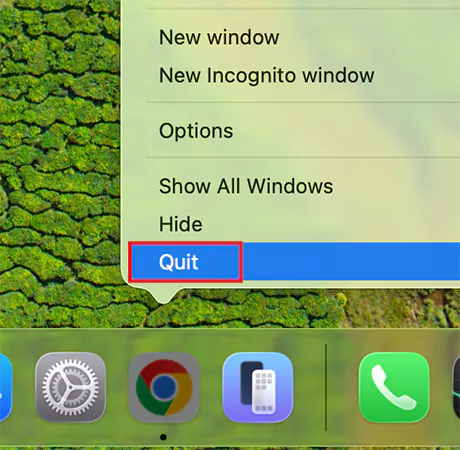
Too many open apps, browser tabs, desktops, or background tools increase WindowServer’s workload. You should focus on closing:
- Extra browser tabs, especially on Google Chrome.
- Messaging apps like WhatsApp.
- File sync apps like Google Drive and OneDrive.
- Virtual machines like Parallels or VirtualBox.
- Games or gaming launchers.
- Display management tools.
- Heavy browser windows like Gmail in Safari.
If your Mac slows down only when specific apps are open, those apps may be overloading the iMac WindowServer.
2. Restart your Mac
Restarting your MacBook can clear the temporary cache, free RAM, refresh system memory, and fix temporary glitches. If you mostly use sleep mode, restarting can noticeably reduce the burden on the Windows Server on Mac.
3. Reduce Transparency and Motion Effects
macOS visual effects can heavily increase CPU and memory usage. Here’s how to fix that:
- Go to System Settings.
- Then, click on Accessibility > Display.
- Here, enable Reduce Transparency.
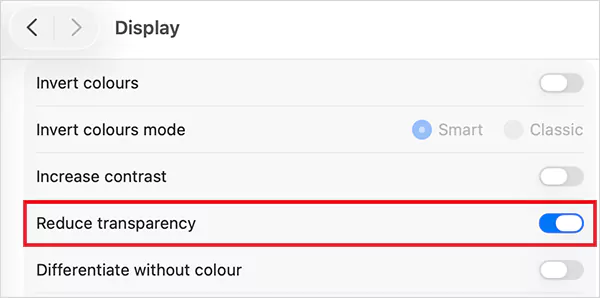
- Then, go back to Accessibility and select Motion.
- Now, just enable Reduce Motion.

This lowers graphical strain and often improves system responsiveness.
4. Optimize Display Settings
Display configuration directly affects WindowServer. Here are a few recommended adjustments apart from transparency and motion settings:
- Use the default resolution instead of scaled settings.
- Lower refresh rates on external monitors.
- Disable unnecessary HDR.
- Disconnect unused displays.
- Reduce active desktops.
- Use simpler wallpapers.
High resolutions, multiple monitors, and external 4K displays force the Window Server to constantly redraw more visual elements.
5. Clean Your Desktop

A cluttered desktop increases rendering pressure because every file and thumbnail is actively displayed. So, try to remove unnecessary files, organize folders, use desktop Stacks, and move old screenshots elsewhere. Think of your desktop as a workspace, not storage.
6. Reduce Mission Control Desktops
Too many virtual desktops can increase CPU usage. So, here’s how you can remove extras with Mission Control:
- Open Mission Control by pressing F3 or swiping up with three fingers.
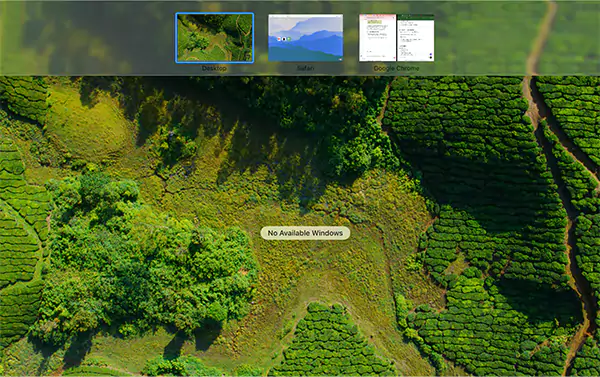
- Now, just close unused desktop spaces.
Try keeping active desktops to three or fewer, and check if that helps your case.
7. Update macOS
Apple often fixes WindowServer bugs, memory leaks, display compatibility issues (like Mac Pink Screen), and graphics optimization problems.
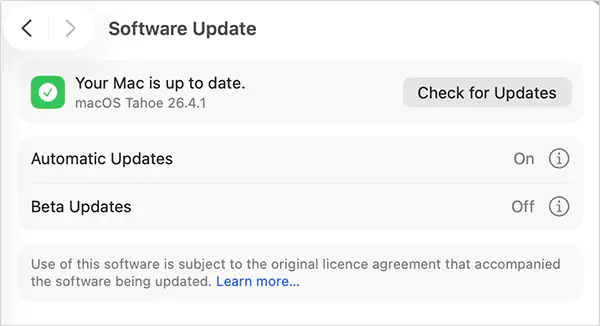
Running an outdated macOS while troubleshooting performance issues is a common mistake. So, just go to System Settings > General > Software Update, and install any pending updates.
8. Check for Malware or Abnormal Background Activity
While it is rare, sometimes adware or malicious software may also increase CPU load indirectly. You must check for malware on a Mac. You should watch for:
- Sudden CPU spikes while the system is idle.
- Unknown startup apps.
- Browser redirects.
- Random ads.
- Unusual system lag.
After that, try to review login items, remove suspicious extensions, check background processes, and keep macOS security updated.
WindowServer high CPU usage is usually a symptom, not the root problem. In most cases, optimizing your Mac’s environment will stabilize it far better than trying to force it to stop it.
How to Keep macOS WindowServer Stable?
The best long-term fix is reducing unnecessary graphical pressure while keeping your system optimized. I would recommend that you follow these simple best practices:
- Keep macOS updated for bug fixes and performance improvements.
- Use the default display resolution whenever possible, and always close unused apps and browser tabs.
- Limit excessive external monitor setup usage and keep your desktop clean and organized.
- Remove problematic browser extensions or background apps.
- Restart your Mac and monitor the WindowServer in Activity Monitor occasionally.
Pro Tip: If you use external displays often, simpler display settings can dramatically improve system performance.
Final Thoughts
WindowServer Mac is one of the most essential visual processes on macOS. Occasional CPU spikes are normal, but constant high usage should be checked properly.
Focus on optimizing your Mac by reducing visual effects, cleaning desktop clutter, and managing displays better. These small adjustments can significantly improve performance and keep your Mac safe and efficient.
Frequently Asked Questions
What is WindowServer in Activity Monitor?
What happens if I quit the WindowServer on Mac?
Quitting WindowServer can log you out or disrupt your current session, so it is not recommended unless troubleshooting.
Is high WindowServer memory usage normal?
Moderate usage is normal, but consistent excessive memory or CPU spikes may signal display overload or software issues.
How to reduce Mac Window Server CPU usage?
Close unused apps, reduce visual effects, optimize display settings, clean desktop clutter, and keep macOS updated.
What should I do if the WindowServer quits unexpectedly on Sequoia?
First, try to restart your Mac. If the issue persists, review display settings, update macOS, and check for problematic apps or external monitor conflicts.
Related Posts
How to Disable Microsoft Edge in Windows? 4 Quick Methods
Microsoft Edge can feel difficult to “turn off” because several Windows and Edge settings control when it starts and what…

How to Open EXE Files on Mac: 5 Ways to Run Windows Apps
If you have downloaded a Windows .exe file on your Mac, double-clicking it won’t make it run. macOS does not…

How to Sign Out of iMessage on Mac?
Your Mac can quietly become another place where your private conversations appear. That’s convenient until you are using a shared…
What is Windows Fast Startup and How Does It Work?
Fast Startup can make your PC boot noticeably faster after a shutdown. Instead of completely rebuilding the Windows kernel state…

How to Unzip Files on Mac: 3 Easy Ways to Extract ZIP Files
A ZIP file has a funny way of making a simple task feel more complicated than it is. On a…

How to Delete Files Completely in Mac Terminal?
Finder makes deleting files simple, but sometimes you need Terminal to remove a file or folder by its exact path…
How to Add Widget in Mac: A Step-by-Step Guide
Your Mac desktop can give you useful information without turning into another dashboard to manage. A weather update, calendar reminder,…

The macOS Installation Couldn’t Be Completed? Learn How to Fix It
You are halfway through a macOS update when the progress bar stops, and a message says the macOS installation couldn’t…

How to Restart Bluetooth Service Windows 11? (Fix Bluetooth Issues)
Bluetooth stopped working in Windows 11? It can suddenly stop working even when your headphones, mouse, or keyboard work perfectly…