
It usually means your Mac has encountered a serious system error. In many cases, it is linked to the kernel panic or graphics issue.
Mac Pro Pink Screen: 7 Real Fixes That Actually Work
 Mahima Dave
Updated on: Apr 24, 2026
Imagine you open your Mac and the screen suddenly turns pink. Not a minor glitch, but something that feels off right away. While many people know about the Windows Blue Screen of Death, Macs have their own version.
The Mac Pro Pink Screen signals that something is not right. It could be a simple software issue, or it could point to deeper issues like overheating, GPU failure, or display damage.
This guide helps you quickly understand the causes of the MacBook pink screen of death and shows you how to fix it without making things worse.
Quick Answer: How to Fix MacBook Pro Pink Screen?
- Restart your Mac to clear temporary crashes.
- Disconnect all external devices to rule out cable or accessory issues.
- Update macOS to fix bugs.
- Boot into Safe Mode to check if apps or startup items are causing the issue.
- Reset NVRAM/PRAM (Intel Macs only) to fix display settings.
- Run Apple Diagnostics to detect hardware problems.
- Use Recovery Mode to repair disk issues or reinstall macOS.
- If the issue still exists, contact Apple Support for repair.
Why is My Mac Showing a Pink Screen?
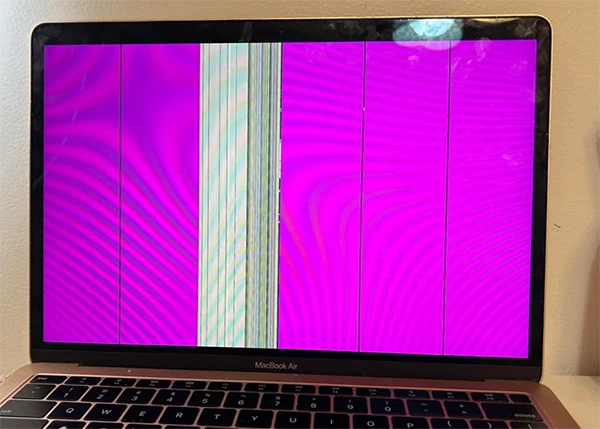
A MacBook Pink Screen is not random. Your Mac is signaling that something is not working the way it should. The real task is to identify where the issue is coming from.
Here are some common causes of the Pink Screen of Death:
- Software Glitches or System Crashes: Sometimes, macOS just crashes. A buggy update, app conflict, or temporary error can trigger a pink screen and restart. This is usually occasional.
- Graphics or Display Issues: Your Mac’s GPU handles everything you see. If it becomes unstable or corrupted, colors can break, triggering a pink screen or orange smudges on MacBook screens.
- Overheating and Internal Stress: Heat directly affects performance. When your Mac overheats, the GPU struggles, and display issues can show up.
- External Devices or Accessories: Faulty cables, monitors, or USB devices can mess with display signals.
So, a pink screen on a MacBook can be a one-time glitch, a repeat software issue, or an actual hardware failure.
How to Fix Mac Pro Pink Screen?
If your Apple laptop screen turned pink, try to keep things simple. You need to follow a clear sequence. Start with quick fixes, and if the issue stays, try advanced steps. Here’s how you can fix the Pink Screen MacBook:
1. Restart Your Mac (Clean Reboot)
Sounds basic, but this solves more cases than people expect. A Pink screen can come from a temporary system crash or kernel panic. Restarting a MacBook resets everything.
Just shut down your Mac completely, wait for 10-15 seconds, and turn it back on. If the issue is gone, don’t overthink it. You can now safely use your device.
2. Disconnect External Displays and Accessories
External monitors and cables are often the hidden problem. So, remove all external devices, use only your Mac’s screen, and test again. A faulty cable or adapter alone can cause pink tint or flickering.
3. Update macOS
You must have heard this a thousand times. An outdated macOS means that bugs are waiting to show up. Apple regularly fixes display glitches, GPU issues, and random crashes.
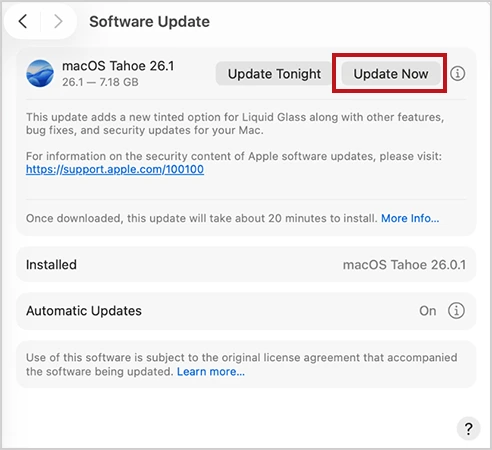
So, go to System Settings > General > Software Update, and install any available update. If your issue is software-related, this alone can fix it.
4. Boot Into Safe Mode
Safe Mode strips your Mac down to essentials. It disables unnecessary apps and extensions, clears system cache, and checks your disk. Here’s how to start up your Mac in safe mode:
- Shut down your Mac completely.
- Then, press and hold the power button.
- Wait until you see “Loading startup options”.
- Now, select your startup disk.
- Hold the Shift key and click Continue in Safe Mode.
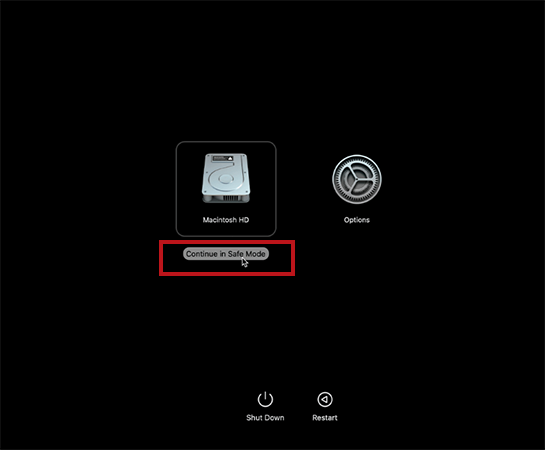
- Now just log in, and you will see “Safe Boot” on your screen if done correctly.

If you have an Intel Mac, shut down your device, turn it on, and immediately press and hold the Shift key. Release when the login screen appears.
Now, if the pink lines on MacBook Pro do not show up, the problem is likely a third-party app or startup item. If it still shows up, the issue is likely with the hardware.
5. Reset NVRAM/PRAM (Intel Macs Only)
This resets display-related settings like resolution, color profile, and startup configuration. Here’s how to reset NVRAM or PRAM on a Mac:
- Shut down your Mac.
- Then, turn it on and press Option + Command + P + R.

- Hold for about 20 seconds.

If you are using a Mac computer with Apple Silicon (M1, M2, M3), skip this step. This is automatically handled by the chip.
6. Run Apple Diagnostics
Apple Diagnostics scans for GPU issues, display faults, and logic board problems. Here’s how to run it:
For Apple Silicon:
- Shut down your Mac.
- Press and hold the power button.
- When the Startup Option appears, press Command + D, and follow the on-screen steps.
For Intel Macs:
- Shut down your Mac.
- Turn it on and hold the D key.
- Release when the test screen appears.
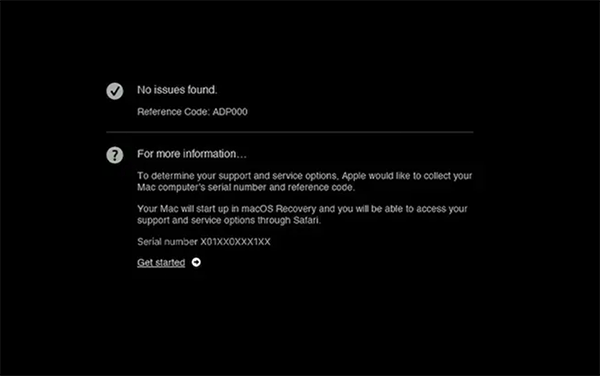
If everything is fine, you will see ADP000 (No issues found). Otherwise, you will get error codes. These codes point to specific hardware faults like display or GPU issues.
7. Use Recovery Mode
If the MacBook Pro Pink Screen keeps coming back, you need to dig deeper. Mac Recovery Mode gives you a clean environment to repair disk issues and reinstall macOS.
For Apple Silicon:
- Shut down your Mac.
- Press and hold the power button until you see “Loading startup options”.
- Then, click on Options > Continue.
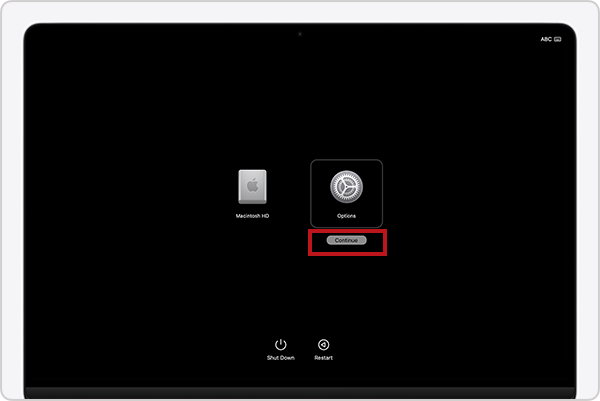
For Intel Mac:
- Just restart your device, and then hold Command + R. Release when the Apple logo appears.
First, open Disk Utility and run First Aid. If the issue continues, choose the Reinstall macOS option.
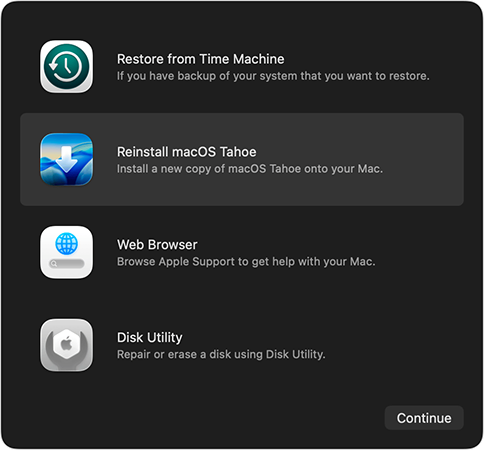
If a fresh macOS install still shows the pink screen on your Mac, it is no longer a software issue. And that’s your signal to stop troubleshooting and go for repair.
What to Do If the Pink Screen on MacBook Pro is a Hardware Problem?
When the issue is most likely with the hardware, you should stop trying random solutions because this is not something you can fix at home. First, confirm if the pink screen stays pink, shows up in Safe Mode, appears in diagnostic, or keeps getting worse.

Once confirmed, take your Mac to Apple or an authorized service center. Hardware issues usually involve the display, GPU, or internal components, which require professional repair.
Also, before you do that, back up all your data using iCloud, Time Machine, or an external drive to avoid any loss.
How to Prevent MacBook Pro Pink Screen of Death in the Future?
You can’t control everything. But you can avoid most triggers if you are careful. Here are some useful tips:
- Keep macOS updated because it fixes real issues like display bugs and GPU instability.
- Keep your vents clear, avoid soft surfaces, and pause during heavy tasks to control heat.
- Use external devices carefully. Bad cables or accessories can cause display errors. If the screen acts weird after plugging something in, remove it immediately.
- Don’t ignore early warning signs like flickering, pink lines, or random crashes.
Furthermore, make sure you restart your device once in a while to clear memory, reset GPU state, and prevent small issues from building up.
Final Thoughts
A Mac Pro Pink Screen is not something that you should ignore. But it is also not something to panic about immediately. If it happens once and disappears, you are fine. If it keeps coming back, you should take immediate action.
You know how to identify the cause, and when to stop troubleshooting and get help. And that is what actually saves time, money, and unnecessary stress.
Frequently Asked Questions
What does a MacBook Pro Pink Screen of Death mean?
Why is my MacBook Pro screen pink?
The most common reasons include software glitches, GPU issues, overheating, or display hardware problems.
How do I fix a pink screen on a MacBook Pro?
Start with a restart, disconnect anything external, then boot in Safe Mode to identify possible hardware faults.
Should I keep using my Mac if the screen turns pink?
No, especially if it happens repeatedly. It is better to diagnose the issue early and take action before it gets worse and more expensive to fix.
How do I know if the pink screen on my MacBook is a GPU problem?
If the pink screen appears frequently, especially during heavy tasks or even in Safe Mode, it may indicate a GPU issue. Running Apple Diagnostics can help you confirm this.
Related Posts

8 Best AI Presentation Makers for Business-Ready Slides
Making a presentation doesn’t just mean designing slides. It’s about defining a clear structure, using defined logic, useful visuals, and…

Queue Management Software Troubleshooting Guide: 8 Common Faults and Fixes
The long wait times and ineffective management of customer queues can have a significant impact on customer satisfaction and business…

How to Use Similarweb Website Traffic Data for Competitor Research
Competitor research without traffic data is guesswork. You can guess who your rivals are, guess how big they are, guess…

Choosing the Right Hosting Model for Scalable Digital Platforms
The performance of digital business is directly related to website speed, uptime, and scalability. Slow page performance has a negative…

How Data-Driven Performance Tools Are Transforming Employee Recognition in Tech Companies
“People work for money but go the extra mile for recognition, praise, and rewards.” — Dale Carnegie (Writer & Teacher)…

Why Businesses Struggle to Collect Reliable Data from the Web
Almost every company that depends on data runs into the same problem: although they can find the data they need,…

Why Financial Data Recovery Matters for Businesses
Financial data supports every part of a business, directly affecting cash flow, payroll, tax reports, audits, customer billing, and daily…

CMMC Compliance Is Coming for Manufacturers. Here Is What You Need to Do
“Cybersecurity is much more than a matter of IT.” — Stephane Nappo (Cybersecurity Professional) For manufacturers working within the defense…

How Data-Based Tools Influence Learning Performance
Learning has transformed in the modern age with the integration of new technologies to help students and professionals prosper in…