
It is a Terminal error that appears when macOS blocks a file, script, or command because the required permissions are missing.
Zsh: Permission Denied: How to Fix the Error on Mac?
 Written by Mahima Dave
Did you run into a “zsh: permission denied:” error while trying to run a command or script in Terminal on your Mac? If yes, do not panic. macOS is simply blocking a command, script, or file because it does not have the required permission to run.
Missing execute permissions, incorrect file paths, and Terminal access issues are usually the cause of this error. In this guide, I will explain the Mac Terminal Permission Denied error, why it happens, and the safest ways to fix it.
What Does zsh: permission denied Mean on Mac?
The zsh: permission denied error appears when Terminal tries to open, run, edit, or access something that macOS blocks for security reasons. In simple terms, your Mac is trying to say: “You do not currently have permission to do this.”
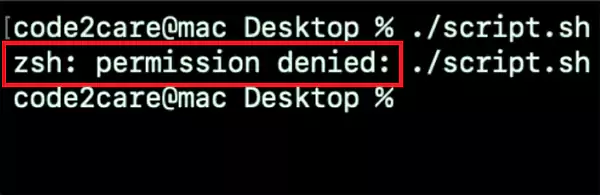
macOS uses Unix-based file permissions where every file has separate read, write, and execute rules. If the required permissions are missing, zsh (a Unix shell) blocks the command immediately instead of letting it run.
That is why even a normal command can fail and show you “Failed to generate content: permission denied. Please try again.”
Why Are You Seeing the zsh Permission Denied Error?
If you see permission denied in the Mac Terminal, one of the following causes is usually responsible.
- The File is Not Executable: This is the most common reason. On macOS, scripts and executable files need execute permissions before Terminal allows them to run. If the file only has read and write access, zsh blocks execution.
- No Administrator Access: Some Terminal commands modify protected system locations or settings. macOS requires administrator privileges for those actions.
- macOS Security Restrictions: Newer macOS versions are stricter about privacy and file access. Even if the command is correct, it may fail if:
- The terminal lacks full disk access.
- The file was downloaded from the internet.
- Apple quarantine protection is live.
This commonly affects downloaded scripts and developer tools.
- Incorrect .zshrc Permissions: Sometimes the issue is with the .zshrc file itself. If it has broken permissions or invalid commands, Terminal may show the zshrc permission denied on Mac.
The important thing to understand is that, unlike errors like Mac Computer Freezing or Mac Pink Screen, this error is usually about permissions, not a broken Mac.
How to Fix zsh: Permission Denied on Mac?
All you need to do is follow the given approach to fix this Terminal error. Also, stay away from copying random Terminal commands from forums.
Fix 1: Make Sure You are Using the Correct File Path
A surprisingly common mistake is trying to run a script without specifying its path properly. For example, using “script.sh” instead of “./script.sh” may fail even if the script is executable.
Here is a quick rule you should know:
- Use “./script.sh” to run from the current folder.
- Use “/full/path/script.sh” to run from an exact location.
Without the correct path reference, Terminal may fail to execute the file properly.
Fix 2: Check File Permissions Properly
Before changing permissions blindly, inspect them first. Here’s how:
- Open Terminal and type “ls -l”.
- Then, drag the file or folder you want to use and press Return.
- Now, you will see something like the following output:
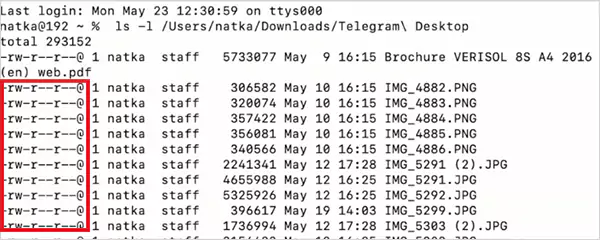
Now look at the “-rw-r–r–” part. “ Here, r means read and w means write. If you do not see x (execute), the file cannot run yet. A working executable file usually looks like: “-rwxr-xr-x”.
Fix 3: Make the File Executable Using chmod
This is the first thing you should try when you see the Terminal permission denied error. Here’s what you need to do:
- Open the Terminal app on your Mac.
- Use “cd YourScriptDirectory” to enter the directory that contains the file you want to execute.
- Now, use the “chmod 755 filename.sh” or “chmod +x filename.sh” command to make the file executable.
- Then, just normally run: “./filename.sh”.
The “+x” or “755” adds execute permission to the file. Without execute permission, Terminal cannot run the file.
Fix 4: Run the Command with sudo
Some macOS files and folders are intentionally protected. If your command modifies system files, protected directories, and configuration files, you may need administrator privileges.
- After giving execution rights, just type “sudo” before the usual command. For example: “sudo ./your_file”.
- If the file is owned by a different user, run: “sudo chown $(whoami) /path/to/your/file”.
macOS may ask for your password before running the file. Also, do not blindly add sudo to every command. It gives deep system access, and one incorrect command can damage important settings or permissions.
Fix 5: Give Terminal Full Disk Access
Even correct commands can fail if the Terminal lacks proper macOS permissions. To enable Full Disk Access:
- Open System Settings and go to Privacy & Security.
- Next, open Full Disk Access.
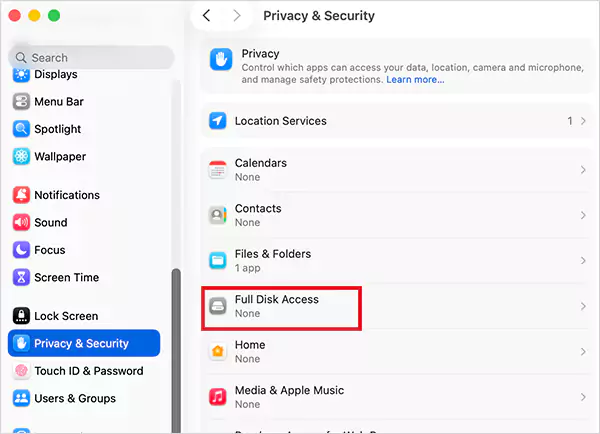
- Here, enable Terminal and restart the Terminal app.
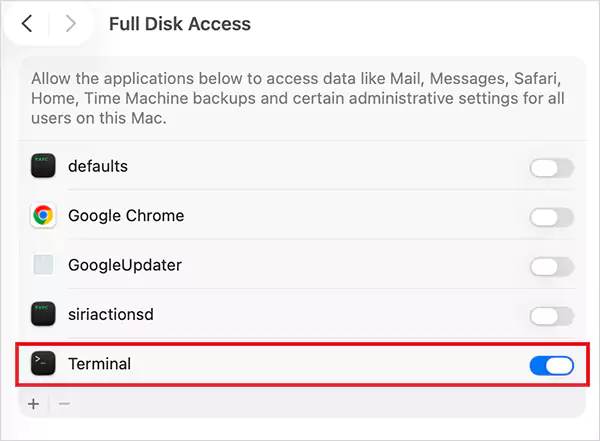
This is especially useful when scripts interact with Documents or the Desktop folder, external drives are involved, and developer tools fail unexpectedly.
Fix 6: Remove Apple Quarantine Restrictions
File downloads from the internet may carry Apple’s quarantine flag. macOS can block those files and show “/.zshrc permission denied” even after they become executable.
- To check quarantine status, use: “xattr -l filename”.
- To remove quarantine, use: “xattr -d com.apple.quarantine filename”
Do this for trusted files only. This commonly affects GitHub downloads, Shell scripts shared online, and developer tools.
How to Prevent the Permission Denied Error from Coming Back?
Most people fix the MacBook Terminal permission denied issue once, but repeat the same habits later. These practices can help you avoid recurring permissions problems.
- Many tutorials suggest “chmod 777”. This gives unnecessary access to everyone and weakens security. Only use the permission you actually need.
- Double-check every command before running it in the Terminal. Small typos can trigger permission errors.
- Be careful while editing .zshrc and create a backup. A broken.zshrc file can cause Terminal errors every time it opens.
- Instead of disabling security features completely, verify the file permissions and use trusted sources only.
Carefully following these simple habits is crucial for a safe and long-term approach.
Final Thoughts
The zsh permission denied Mac error may look intimidating at first, but usually, macOS is simply protecting your system from unsafe execution.
Try to make the file executable, use the correct file path, grant Terminal proper access, and avoid broken configurations. Once you understand how macOS permissions work, these Terminal errors become much easier to troubleshoot.
Frequently Asked Questions
What is zsh: permission denied on a Mac?
Why does macOS Terminal say permission denied?
It happens when the file is not executable, administrator privileges are required, Terminal lacks Full Disk Access, or file ownership or permissions are incorrect.
How to fix permission denied in macOS Terminal?
Try using “chmod +x” to execute files, running commands with sudo, and enabling Full Disk Access for Terminal.
What does chmod +x do on Mac?
It adds execute permission to a file, allowing Terminal to run it as a script or executable file.
Can .zshrc cause permission denied errors?
Yes, incorrect .zshrc permissions or broken startup commands can trigger a Terminal permission error when a new shell session opens.
Related Posts
How to Disable Microsoft Edge in Windows? 4 Quick Methods
Microsoft Edge can feel difficult to “turn off” because several Windows and Edge settings control when it starts and what…
How to Open EXE Files on Mac: 5 Ways to Run Windows Apps
If you have downloaded a Windows .exe file on your Mac, double-clicking it won’t make it run. macOS does not…
How to Sign Out of iMessage on Mac?
Your Mac can quietly become another place where your private conversations appear. That’s convenient until you are using a shared…
What is Windows Fast Startup and How Does It Work?
Fast Startup can make your PC boot noticeably faster after a shutdown. Instead of completely rebuilding the Windows kernel state…
How to Unzip Files on Mac: 3 Easy Ways to Extract ZIP Files
A ZIP file has a funny way of making a simple task feel more complicated than it is. On a…
How to Delete Files Completely in Mac Terminal?
Finder makes deleting files simple, but sometimes you need Terminal to remove a file or folder by its exact path…
How to Add Widget in Mac: A Step-by-Step Guide
Your Mac desktop can give you useful information without turning into another dashboard to manage. A weather update, calendar reminder,…
The macOS Installation Couldn’t Be Completed? Learn How to Fix It
You are halfway through a macOS update when the progress bar stops, and a message says the macOS installation couldn’t…
How to Restart Bluetooth Service Windows 11? (Fix Bluetooth Issues)
Bluetooth stopped working in Windows 11? It can suddenly stop working even when your headphones, mouse, or keyboard work perfectly…