


Open Terminal and run “sudo apt install ./package-name.deb”. APT will automatically install the whole package, including any required dependencies.
Install Deb File Ubuntu: How to Install a .deb File Safely
Installing a deb file in Ubuntu is easier than it sounds once you know the right method. While Ubuntu supports several ways to install local .deb packages, not all of them handle dependencies the same way.
Choosing the right approach can help you avoid broken packages and installation errors. In this guide, you will learn how to install deb file Ubuntu using both graphical and command-line methods, fix common installation issues, and understand when to use each option.
TL;DR: How to Install .deb Files in Ubuntu?
- Use APT to install a .deb file in Ubuntu because it automatically installs all required dependencies.
- You can also install using the Ubuntu App Center, dpkg, or GDebi, depending on your preference.
- If the installation fails, run “sudo apt –fix-broken install” to resolve missing dependencies.
- To uninstall a package, use sudo apt remove or sudo apt purge, then run sudo apt autoremove to remove unused dependencies.
What is a .deb File?
A .deb file is the standard software package format used by Debian-based Linux distributions, including Ubuntu and Linux Mint. It is similar to an .exe installer on Windows or a .pkg installer on macOS.
A .deb package contains everything needed to install an application, including:
- Program files
- Installation instructions
- Package information
- Required dependencies
Most Ubuntu software is installed directly from the official repositories using APT. However, developers often provide standalone .deb files when an application is not available in the repositories or when they want users to install a specific version.
Some popular applications distributed as .deb files include Google Chrome, Discord, Zoom, and Slack.
How to Install Deb File Ubuntu?
Ubuntu offers multiple ways to install deb file Ubuntu. While they all achieve the same result, they differ in how they handle dependencies and package management.
Here’s a quick comparison before you choose a method:
| Method | Best For | Automatic Dependencies Installation |
| APT | Most users | Yes |
| Ubuntu App Center | Beginners who prefer a graphical UI | Usually |
| dpkg | Advanced users and troubleshooting | No |
| GDebi | Users who frequently install local packages | Yes |
For most users, APT is the best option because it is officially recommended by Ubuntu and automatically resolves missing dependencies. Let’s take a look at all four ways to install the Debian package on Ubuntu.
Method 1: Install Deb Package Using APT (Recommended)
APT is Ubuntu’s default package manager and the easiest way to install local .deb packages. Unlike lower-level tools, it automatically downloads and installs any required dependencies, reducing the chances of installation errors.
Here’s how to install deb in Ubuntu using APT:
- First, download the .deb file.
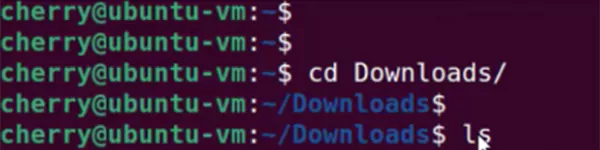
- Open Terminal and navigate to the folder where the package is saved. For example: cd Downloads/
- Install the package by running: sudo apt install ./package-name.deb
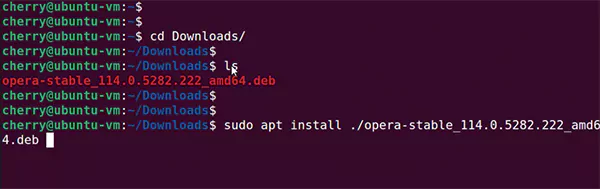
- Replace “package-name.deb” with the actual name and press Enter.
Tip: The “./” tells APT to install the package from your current folder. Without it, APT may try to find the package in Ubuntu’s online repositories instead.
Method 2: Using the Ubuntu App Center
If you don’t want to use the Terminal, Ubuntu’s App Center provides a simple graphical way to install the package.
- Open Files and locate the downloaded .deb file.
- Double-click the file, or right-click it and select Open With App Center (or Software Install), depending on your Ubuntu version.
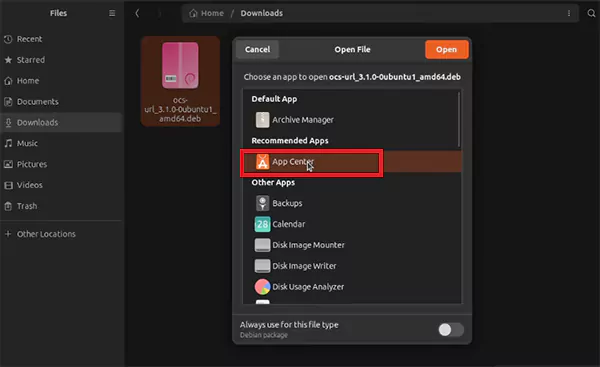
- Click Install.
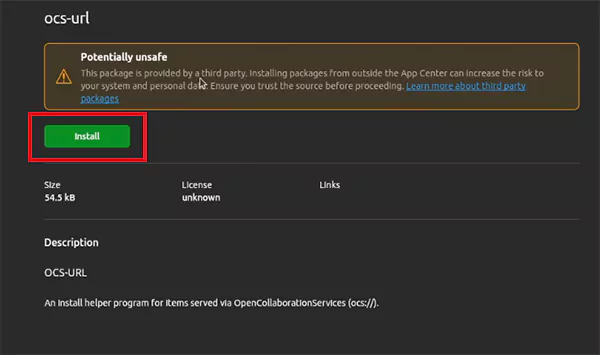
- Enter your administrator password if prompted.
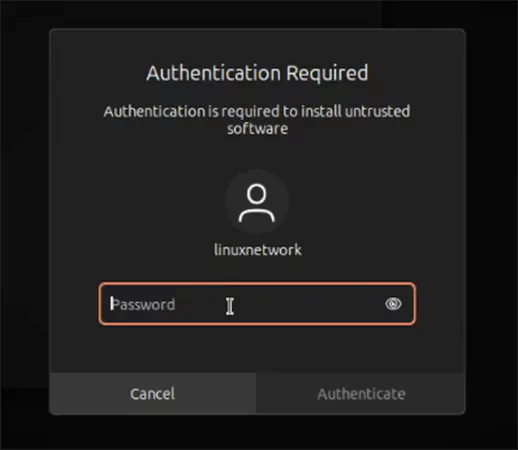
- Now, just wait for the installation to finish.
This method is ideal for beginners who prefer a point-and-click experience. Also, note that some Ubuntu versions have had issues installing local deb files through the App Center. If the installation fails, use the APT method instead.
Method 3: Install a .deb File Using dpkg
“Dpkg“ is Ubuntu’s low-level package management tool. It installs .deb files directly but does not automatically install missing dependencies.
- Open Terminal.
- Run: sudo dpkg -i package-name.deb
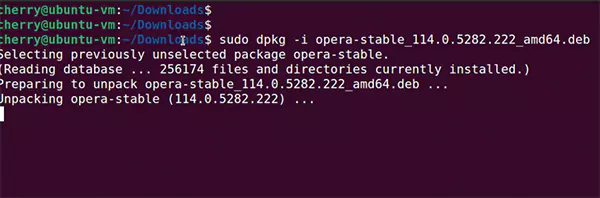
- If you see dependency errors, run: sudo apt –fix-broken install.
- APT will download the missing dependencies and complete the installation.
This method is mainly useful for advanced users or troubleshooting situations where direct control over package installation is needed.
Method 4: Install the .deb File in Ubuntu Using GDebi
GDebi is a lightweight installer designed specifically for local .deb packages. Like APT, it automatically resolves dependencies, but it is not installed by default on modern Ubuntu versions. Here’s what you need to do:
- Step 1: Install GDebi
Run: sudo apt install gdebi 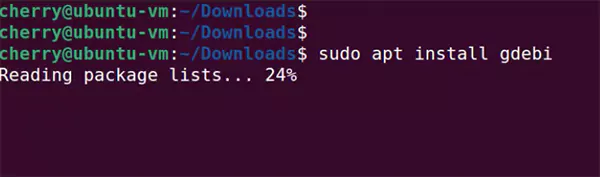
- Step 2: Install the Package
Run: sudo gdebi package-name.deb 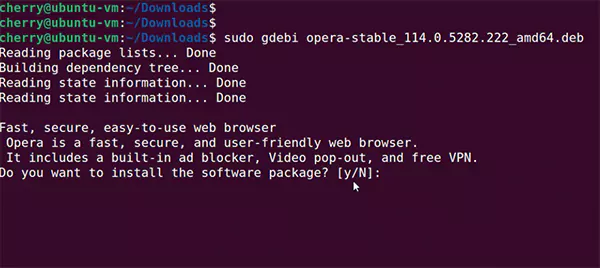
- Review the package information, type Y when prompted, and GDebi will install the package along with any required dependencies.
If you regularly install local deb files, GDebi is a useful alternative. For most users, however, APT remains the simple and recommended option.
How to Fix Deb Installation Errors?
Most deb installation problems are caused by missing dependencies, incomplete downloads, or an incompatible package. Here are the quickest ways to fix them:
- Update Your Package Lists: Before installing any software, refresh Ubuntu’s package database by running “sudo apt update” in Terminal. This ensures Ubuntu can find the latest package information.
- Fix Broken Dependencies: If you see dependency errors during installation, run “sudo apt –fix-broken install”. APT will install the missing dependencies and complete the installation whenever possible.
- Check Package Compatibility: Not every deb file works with every Ubuntu version or processor architecture. Before installing, make sure the package supports your Ubuntu release and your processor architecture (such as AMD64 or ARM64). You can usually find this information on the developer’s download page.
- Download the Package Again: If the installation files unexpectedly disappear or Ubuntu reports that the package is corrupted, download the .deb file again from the developer’s official website.
A damaged or incomplete download is a common cause of installation errors.
How to Uninstall the Deb Package in Ubuntu?
If you no longer need an application, Ubuntu also allows you to remove it using a few simple APT commands.
- To uninstall the package while keeping its configuration files: sudo apt remove package-name
- To completely remove the package along with its configuration files: sudo apt purge package-name
- To remove unused dependencies left behind by uninstalled applications: sudo apt autoremove
Running these commands also helps free up storage and keep your system clean.
Conclusion
In most cases, installing a .deb file in Ubuntu is straightforward and quick when you use the right approach.
While you have several installation options, I would recommend you use the APT method because it automatically installs required dependencies and integrates seamlessly with Ubuntu’s package management system.
By installing software from trusted sources and following these best practices, you can keep your Ubuntu system secure, stable, and easy to maintain.
Frequently Asked Questions
How to install a deb package in Ubuntu?
How to run a .deb file in Ubuntu?
You can’t run a .deb file directly. Install it using the Ubuntu App Center or the APT method, and then launch the application from the Applications menu or Terminal.
What is the command to install a deb file in Ubuntu?
The recommended command is “sudo apt install ./package-name.deb”. Advanced users can also use “sudo dpkg -i package-name.deb”, but it may require fixing dependencies afterwards.
Why is apt better than dpkg for installing deb files?
APT automatically downloads and installs missing dependencies, while dpkg installs only the package itself. That is why APT is the best method for most users.
Is it safe to install .deb files manually?
Yes, as long as you download them from trusted sources, such as the developer’s official website or a reputable repository. Please avoid installing packages from unknown sources, as they may pose security or compatibility risks.
Related Posts
How to Run Windows on Mac: 4 Methods That Actually Work
Buying a Mac does not mean you have to give up Windows. You might need a Windows-only work application, open…

How to Fix DISM Error 87 in Windows?
DISM Error 87 usually appears when Windows cannot understand a DISM command or one of its parameters. You may see…

How to Restart Explorer.exe in Windows?
A frozen taskbar, missing desktop icons, or an unresponsive File Explorer can make Windows feel stuck even when your computer…
![How to Reopen Closed Tabs on Mac [Easy Ways to Restore Tabs]](https://datarecovee.com/knowledge-base/wp-content/uploads/2026/10/how-to-reopen-closed-tabs-ftd-img.webp)
How to Reopen Closed Tabs on Mac [Easy Ways to Restore Tabs]
Accidentally closing the wrong tab can be super annoying, especially when you were in the middle of something important. You…

What Is a .BAT file and How Do You Create One?
You may have seen a file ending in .bat and wondered why opening it brings up a Command Prompt window…

How to Disable Microsoft Edge in Windows? 4 Quick Methods
Microsoft Edge can feel difficult to “turn off” because several Windows and Edge settings control when it starts and what…

How to Open EXE Files on Mac: 5 Ways to Run Windows Apps
If you have downloaded a Windows .exe file on your Mac, double-clicking it won’t make it run. macOS does not…

How to Sign Out of iMessage on Mac?
Your Mac can quietly become another place where your private conversations appear. That’s convenient until you are using a shared…

What is Windows Fast Startup and How Does It Work?
Fast Startup can make your PC boot noticeably faster after a shutdown. Instead of completely rebuilding the Windows kernel state…