


Ans. MKV stands for Matroska Video, a multimedia container format designed to store video, audio, subtitles, and other data in a single file.
What is an MKV File? Meaning, Uses, and How It Works
You can often identify a video file by its extension. MP4 is the most common, AVI is an older format, and MKV is frequently used for movies, shows, and high-quality videos. What makes the MKV format different is its ability to store videos, audio tracks, subtitles, chapters, and metadata in a single file.
Because of this flexibility, MKV files have become a popular choice among media enthusiasts, content creators, and movie collectors. In this guide, I will explain the MKV meaning, how it works, and when it makes sense to use it.
TL;DR
- MKV stands for Matroska Video, an open-source multimedia container format.
- It can store video, multiple audio tracks, subtitles, chapters, and metadata in a single file.
- MKV is widely used for movies, shows, and high-quality video archives.
- Most modern media players can easily open and play MKV files on your device.
- MP4 offers better compatibility, while the MKV video format provides more flexibility and features.
What is an MKV File?
MKV format or .mkv means a video file stored in the Matroska Multimedia Container format. Unlike traditional video formats that mainly contain video and audio, MKV can store multiple audio tracks, subtitles, chapter information, and metadata within a single file.

The MKV full form is Matroska Video, an open-source container format introduced in 2002. It is important to understand that it is a container, not a codec. This means the video and audio inside the file can use different codecs such as H.264, H.265 (HEVC), VP9, AV1, AAC, etc.
Think of an MKV video file as a digital folder that keeps everything related to a video organized in one place.
How Does the MKV File Format Work?

To understand the MKV file meaning properly, you need to know the difference between a container and a codec. A codec compresses and decompresses video or audio data. A container stores all those elements together.
A single MKV file, which is a container, can contain:
- One video stream
- Multiple audio tracks
- Several subtitle tracks
- Chapter markers
- Metadata such as title and description
When you open the file, your media player reads the container and synchronizes all these elements automatically.
This allows you to switch audio languages, enable subtitles, or jump between chapters without needing separate files. That flexibility is one of the main reasons MKV movies are so popular today.
Why is MKV Format Popular for Movies and Videos?
MKV became popular because it solves many of the limitations found in older video formats.
For example, movies often include multiple language tracks, subtitles, and other information. Instead of storing these separately, MKV keeps everything inside one file, making playback and file management much easier.
It also allows chapter navigation, preserves high-quality video, and supports modern video codecs. Plus, the best part is that it is open-source and free to use.
For cinephiles, movie collectors, media enthusiasts, and creators, MKV provides a convenient way to store high-quality content without losing important extras.
How to Open MKV Files?
Now that you know “What is MKV?”, the next thing that may come to your mind is how to use or open it. Most modern devices can open MKV video format files, but playback depends on whether your media supports the codecs used inside the file.
Popular MKV players include VLC Media Player, Windows Media Player (newer versions), PotPlayer, KMPlayer, MPV Player, and ELmedia Player (Mac). To open an MKV file:
- Install a compatible media player, like VLC.
- Locate the MKV file on your device.
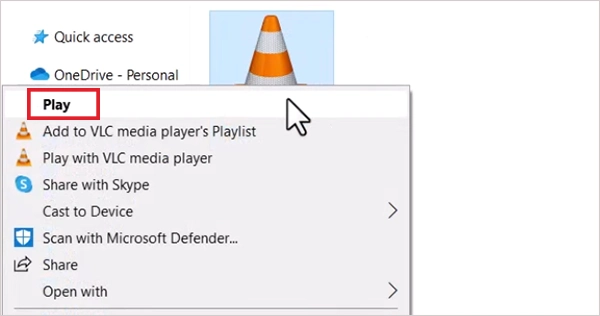
- Right-click the file and click on Play or Play with VLC media player.
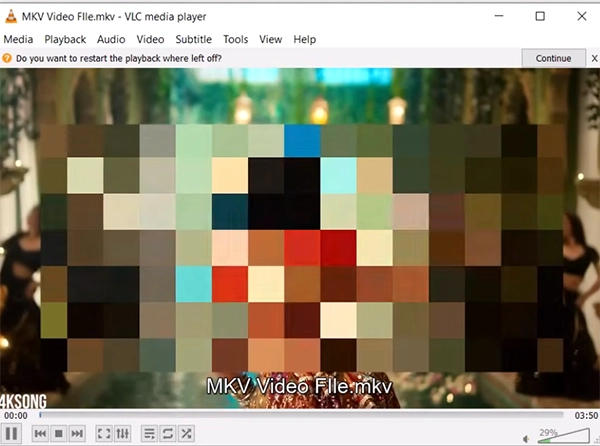
- Now it will start playing on the VLC player. You can also choose your preferred audio track or subtitle if available.
If the file does not play properly, the problem is usually an unsupported codec rather than the MKV video format itself.
How to Convert MKV to Other Formats?
Although MKV is highly flexible, some devices and platforms work better with MP4. You can convert MKV files using free online tools such as HandBrake, VLC Media Player, Freemake Video Converter, and Any Video Converter.
The process is simple; here’s how you can convert the file:
- Open the conversion tool.
- Import the MKV file.
- Select an output format like MP4 or AVI.
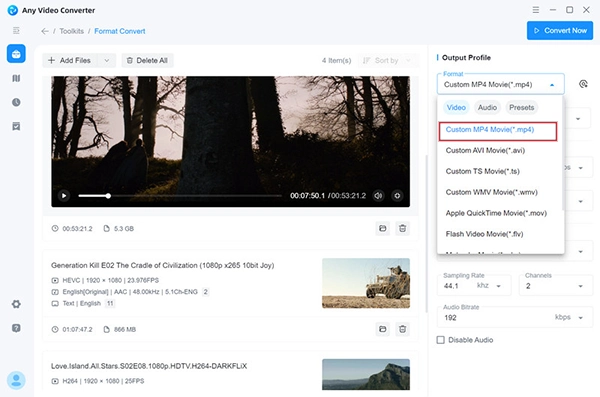
- Once you choose the quality and other settings, click on Convert Now to start the conversion.
Converting MKV files can improve compatibility with smartphones, gaming consoles, video editing software, and online platforms.
MKV vs MP4: What is the Difference?
Both MKV and MP4 can store video and audio, but they are not the same. Matroska video file offers more features and flexibility, while MP4 delivers better compatibility and easier playback.
The comparison below highlights the difference between these two popular video formats:
| Feature | MKV | MP4 |
| Audio tracks | Multiple tracks are supported | Supported but less flexible |
| Subtitles | Excellent subtitle support | Basic support |
| Chapters | Built-in chapter support | Limited use |
| Video Quality | Excellent for archiving | Excellent for sharing |
| Compatibility | Good | Excellent |
| Streaming | Good streaming support | Better |
| Editing software support | Moderate support | Widely supported |
| Best use case | Movies, archives, multilingual content | Streaming, sharing, everyday playback |
In simple terms, choose MKV if you want flexibility, subtitles, multiple audio tracks, and media preservation. Choose MP4 if you want maximum compatibility across devices and platforms.
Pros and Cons of .mkv Files
Like any file format, MKV has its own advantages and limitations. Here’s a quick pros and cons table to help you with your decision:
Pros
- Supports multiple audio and subtitle tracks.
- It can store chapters and metadata.
- Maintains high video quality.
- Open-source and free to use.
- Works with both compressed and high-quality video formats.
- Can include menus and chapter navigation.
- Offers error recovery during interrupted downloads.
Cons
- Not supported by every device.
- Some video editing software prefers MP4.
- Files can be larger than other formats.
- Certain files may require additional codecs for playback.
For most users who prioritize quality and flexibility, the advantages outweigh the drawbacks.
Final Thoughts
MKV is much more than a video file extension. It is a powerful multimedia container that can store video, audio, subtitles, chapters, and metadata within a single file.
That flexibility has made it a preferred format for movies, TV shows, media archives, and multilingual content. If preserving quality and keeping everything organized matter to you, MKV is an excellent choice.
However, if your priority is compatibility across devices and platforms, converting the file to MP4 may be the better option for you.
Frequently Asked Questions
What is the .mkv file type?
Is MKV better than MP4?
Ans. Neither video format is universally better for everyone. MKV offers greater flexibility and subtitle support, while MP4 provides wider compatibility across devices and platforms.
Can I play MKV files on Windows?
Ans. Yes, you can play MKV files on Windows using media players like VLC, PotPlayer, or newer versions of Windows Media Player.
Why are MKV files commonly used for movies?
Ans. MKV files can store multiple audio tracks, subtitle options, and chapter information in one file, making them ideal for movies, TV shows, and web series.
Can I convert MKV files to MP4?
Ans. Yes, you can use video conversion tools like HandBrake, VLC Media Player, or Any Video Converter to convert MKV files to MP4 or any other video format.
Related Posts

Protecting Inventory Data: Why Warehouses Need Digital Audit Trails
Sometimes, a warehouse manager opens the inventory spreadsheet on Monday morning and finds that 400 units of a fast-moving product…

Data Integration Services: One View From Many Systems
With the expansion of business, data often gets scattered to different places and systems. Customer details are found in a…
How to Delete a File That Won’t Delete in Windows?
Deleting a file should be simple, but sometimes Windows refuses to remove it. You may see messages saying the “folder…

What Should Businesses Do After Recovering From a Major Data Loss?
Businesses nowadays have entered a new level in terms of storing data, leading to a completely new structure. Customer service,…
How to Protect Your Files From Unexpected Data Loss
Imagine you opened your device and suddenly found out that all the important files are not there. Sounds scary, right?…
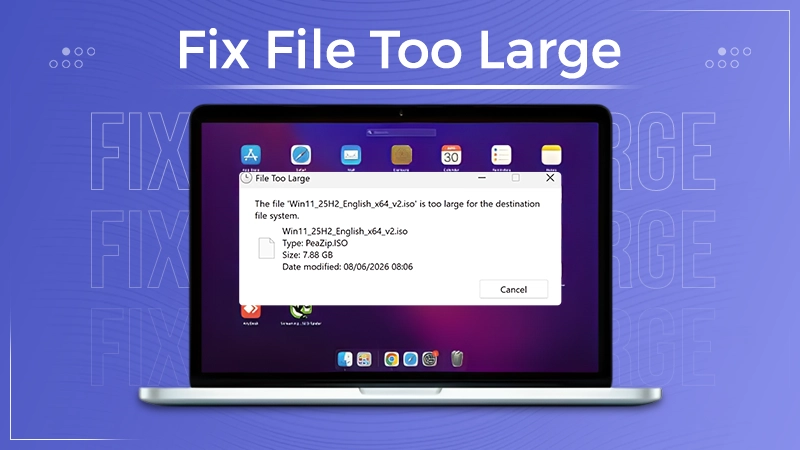
How to Fix “File Too Large for Destination File System” on Windows?
Have you ever tried copying a large file to a USB drive or external hard disk, and Windows stopped the…
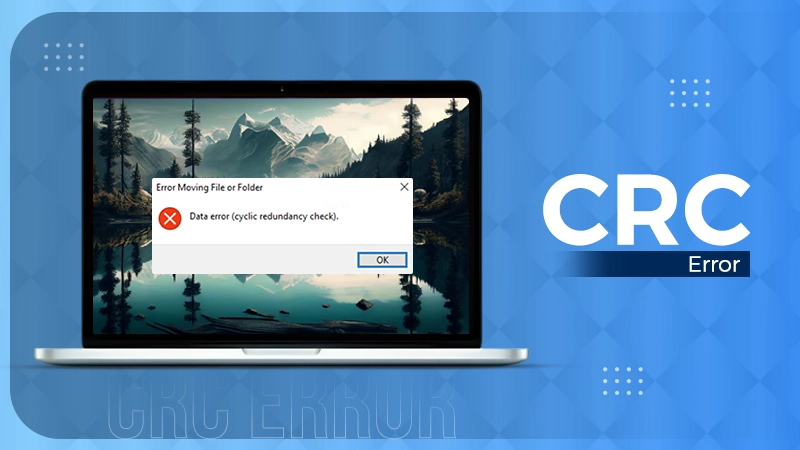
What is a CRC Error? Meaning, Causes, and How to Fix It
A CRC error can appear when you are copying files, opening a folder, extracting an archive, or accessing a storage…
Symbolic Links in Windows: A Complete Guide to Creating Symlinks
Have you ever wished to keep a file or folder in one location while making Windows think it exists somewhere…
Data Recovery in 2026: How to Restore Lost Files From Phones, PCs, and Cloud…
Alt: Old Hard Disk Drives Nearly one-third of all data loss is caused by accidental deletion, hardware failure, or a…