Is your Mac Desktop/Finder a mess of random files and screenshots? Don’t worry. You are at the right place because the easiest way to fix the clutter is to start using folders. Whether you are a new Mac user learning the differences between MacBook vs Windowsor just need to organise the files, here we will see the easiest and fastest ways to create a folder on a Mac. It only takes seconds and makes finding your stuff so much easier.
In this guide, I’ll show you how to make a folder on Mac and even how to use Smart Folders, which automatically group your files.
Here is a quick-reference table of all the methods to create a folder on a Mac:
Method
How to Do it
Best For
Keyboard Shortcut
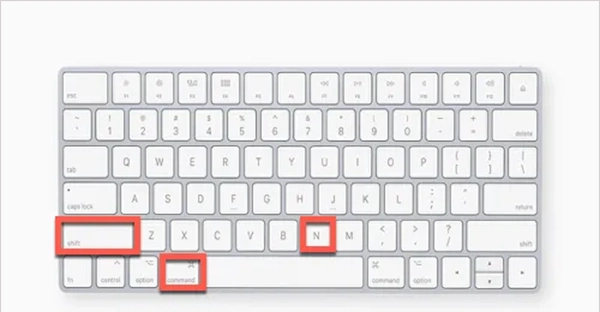
Press Command (⌘) + Shift + N
Maximum speed anywhere in Finder.
Right-Click
Right-click (or two-finger tap) on empty space
Quick organization.
File Selection
Highlight files > Right-click > New Folder with Selection
Instant grouping of existing clutter.
Finder Menu
Go to File > New Folder in the top menu bar
Standard users who prefer menu.
Action Button
Click the three-dot icon in Finder
Organising while browsing directories.
Save Dialog
Click the New Folder button when saving a file
Organising while you work.
Terminal
Type mkdir “Folder Name” and hit Return
Power users and tech-savvy workflows.
Smart Folder
Go to File > New Smart Folder
Automatic sorting based on file rules.
How to Make a Folder on Mac Desktop?
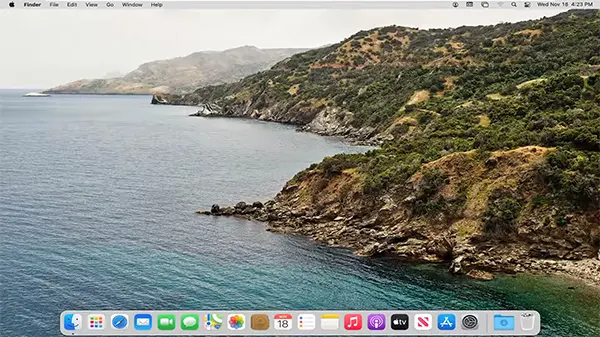
The desktop is the first place that gets messy with saved images, videos, etc., so making a folder right there on your main screen is the quickest fix.
There are 3 ways for how to create folder on Mac. You can use a quick right-click, a keyboard shortcut, or a top menu bar.
Here’s how to do it:
The Right-Click Method
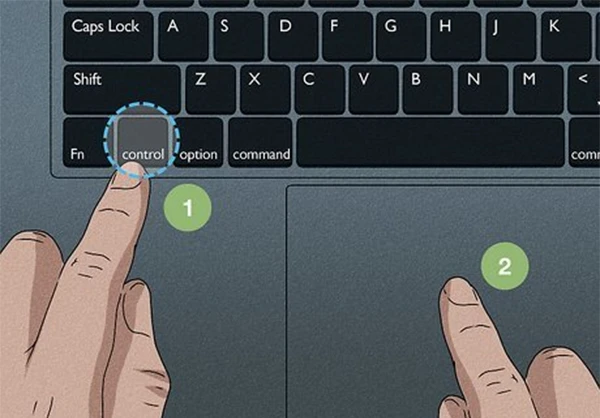
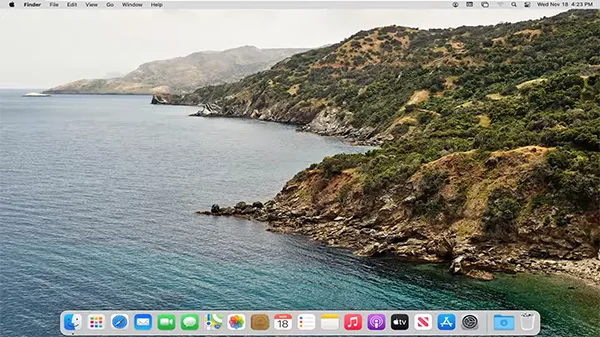
Find an empty spot on your Mac desktop and right-click (or tap with two fingers on the trackpad).
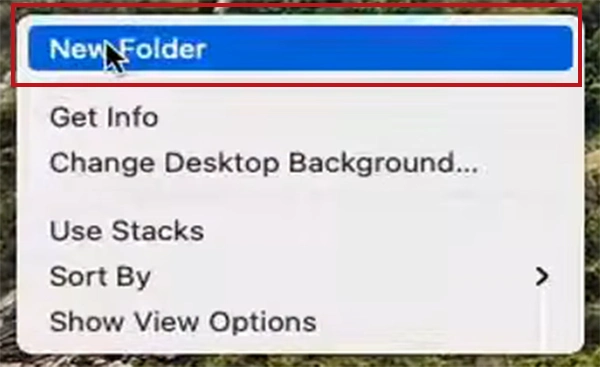
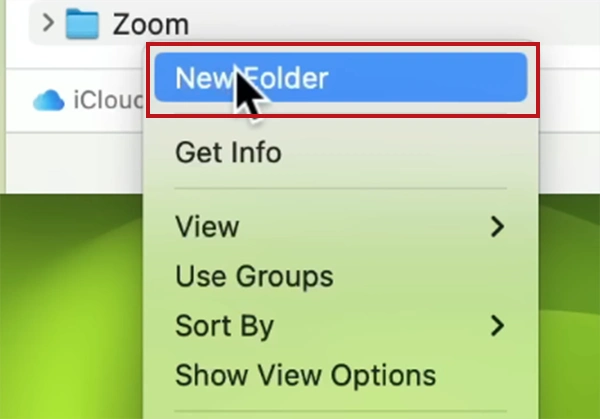
A menu will pop up. Click New Folder.
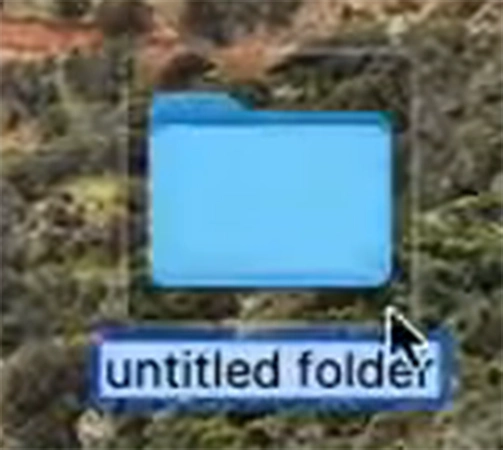
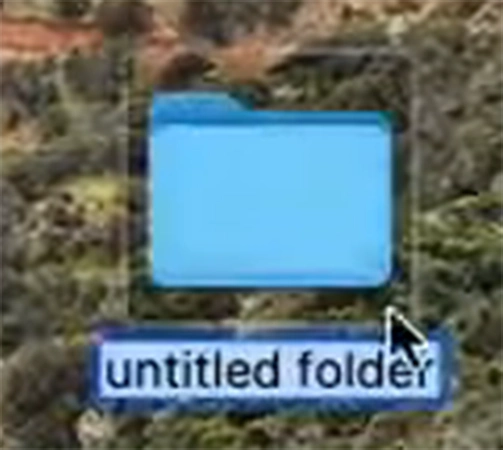
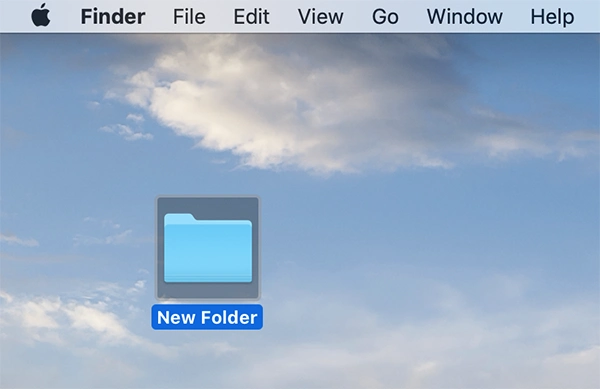
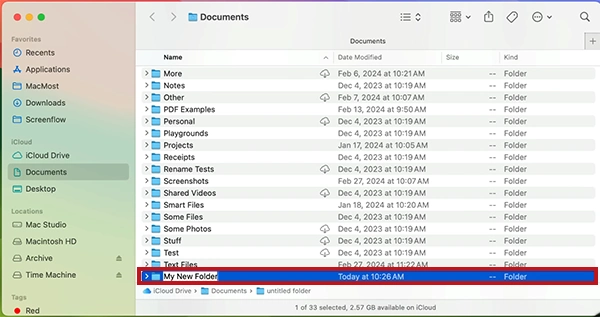
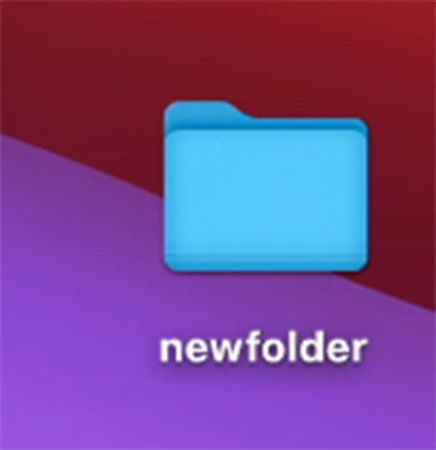
The folder is created, highlighting the “untitled folder” name. Type a new name for your folder and press Return.
You have just created a new folder on your Mac desktop.
Using the Keyboard Shortcut
Stay on your desktop on your Mac.
Press Command (⌘) + Shift + N on your keyboard.
A new folder will instantly appear on your desktop.
It will create a new folder on your desktop. Enter a name for your folder and click on Desktop.
You have created a new folder that you can access by double-clicking on it.
Tip: Anytime you create a folder, its name will be highlighted. Just start typing the name and hit Return.
How to Make a New Folder on Mac Finder?
Once you start moving files off your desktop, you will spend most of your time on Finder. This is where your Mac stores everything. Creating a folder inside Finder is just as easy as doing it on the desktop.
Here’s how to create new folder on Mac while browsing your files:
Creating New Folder Within Directories
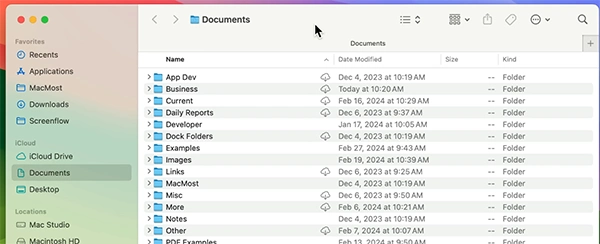
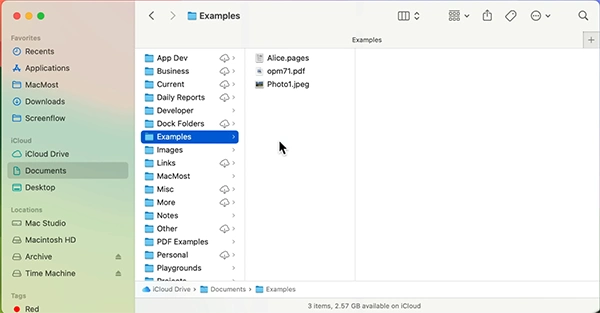
Open Finder from your dock on your Mac.
Go to the folder where you want to make a new folder.
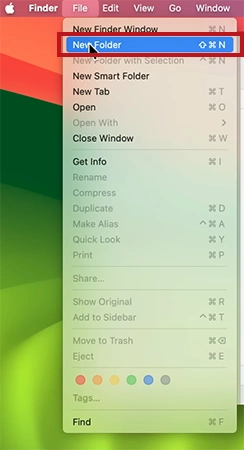
Click on the File Menu on the Menu Bar.
Click New Folder to create a folder in the Finder.
Enter the name for the folder and press Return.
Using the Action Menu Tool
Open Finder on your Mac.
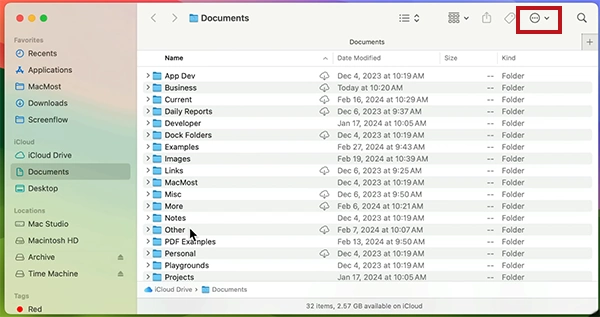
Click on the Action button (• • •) at the top of the Finder window.
Select New Folder.
Your new folder will be created. Enter the name of the folder.
Tip: You can also create a folder in Finder using the shortcut Command (⌘) + Shift + N or right click > New Folder.
How to Make New Folder on Mac Using a Mouse/Trackpad?
If you prefer using your hands over memorising keys, this is the most natural way for how to create new folder on a Mac.
Move your cursor to an empty spot.
Click the right side of your mouse or simply tap with 2 finders on your trackpad.
A menu will appear, click the New Folder, and your folder will be created.
Ways to right-click in Mac:
Right-click on the mouse
Tap with two fingers on the trackpad
Hold the Command (⌘) key and click using the mouse or trackpad.
How to Create a Folder on Mac Via File Selection?
Instead of making an empty folder and dragging files into it one by one, you can do it all in a single step using this method. This is a secret shortcut that saves a ton of time.
Open Finder from the dock.
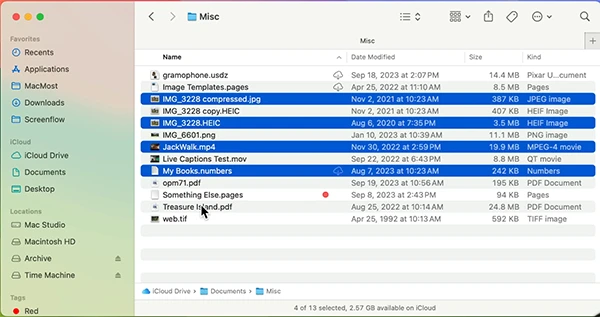
Click and drag your mouse over the files you want to group or hold the Command (⌘) key and click them individually.
Now there are 2 ways to create folder with selection. Once they are all highlighted (blue):
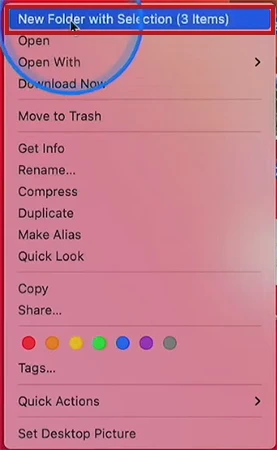
Right-click on any one of them and select New Folder with Selection.
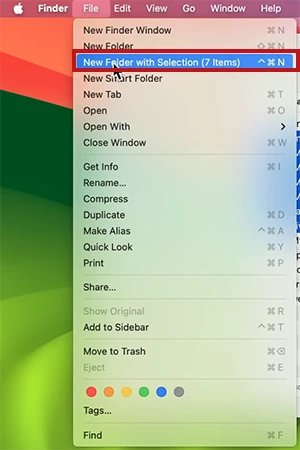
Click the File menu on the menu bar and select New Folder with Selection.
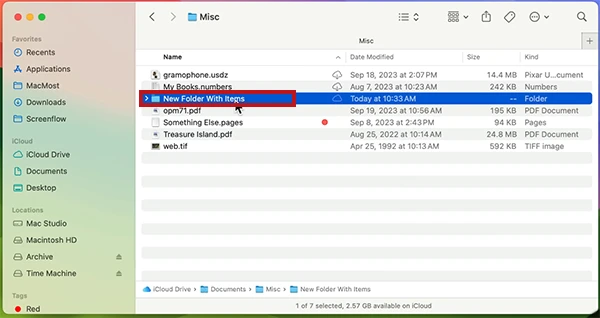
Your Mac will instantly create a new folder and move all those selected files inside it for you.
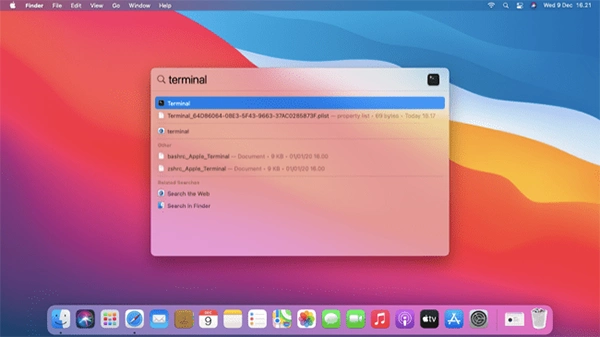
If you are familiar with terminal commands or if you want to stay on the keyboard, you can use the Terminal. This is a text-based way to create a folder on Mac.
Here is how to make a folder on Mac using a simple command:
Press Command (⌘) + Space, type “Terminal” and hit Return.
In the terminal, type “cd “ and drag and drop the folder path where you want to create the folder.
Type “mkdir” followed by a space and the name you want to give to your folder (for example: mkdir MyFolder).
Press Return, and your new folder will be instantly created.
Notes
If you want your folder name to have a space in between, like “My Folder”, enter the command: mkdir “My Folder”.
How to Make a Folder on Mac Using the “New Folder” Button in the Save Dialog?
You don’t always have to go to your desktop or Finder to make a folder. Sometimes, you need a folder right in the middle of saving a document, you won’t go back, create a folder, then come back save again and select the folder.
So here are the steps to make a folder using the “New Folder” button while saving:
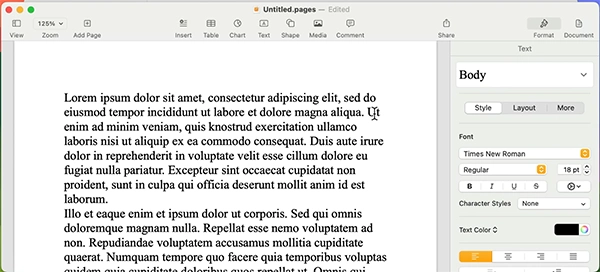
Open the work file you want to save (it can be any Word file, an image edited or any video). Let’s suppose you want to save a document.
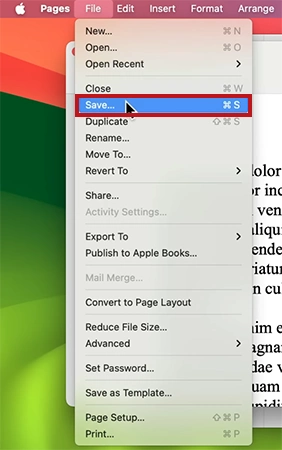
Go to the File menu and select Save or press Command (⌘) + S.
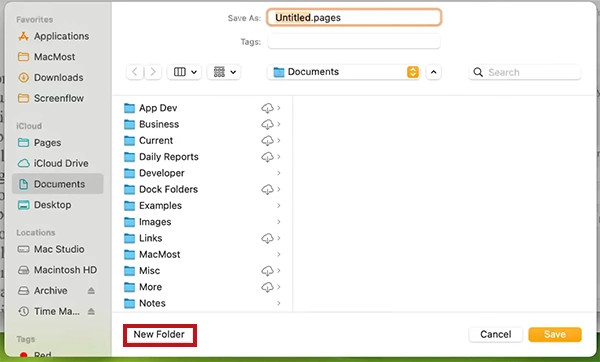
Once the save box pops up, look at the bottom left corner of the window for the New Folder button. Click the New Folderbutton.
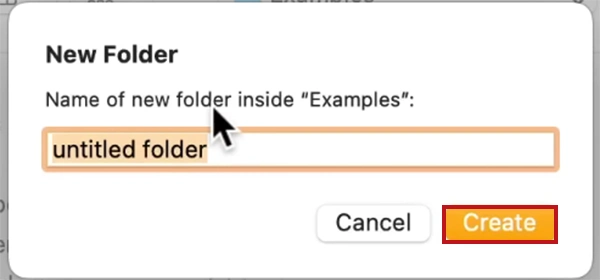
A small box will appear for you to type the folder’s name. Type the name and click Create.
Your new folder is now ready and selected. Click the save button to put your file right inside.
This method is also useful when you recover unsaved Word document and want to save it to another location to prevent overwriting. You can instantly create a new folder using this method.
Now that we have listed every method to answer “how to make a folder on a Mac?” Let’s proceed to a new feature of Mac called Smart Folder.
A Smart Folder isn’t actually a folder; it’s more like a saved search. Instead of you moving files into it, the folder automatically grabs the files from all over your Mac based on the rules you set.
Here’s how to set one up:
Open Finder from your dock.
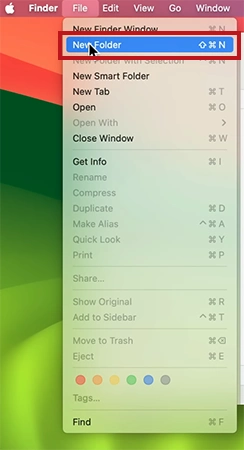
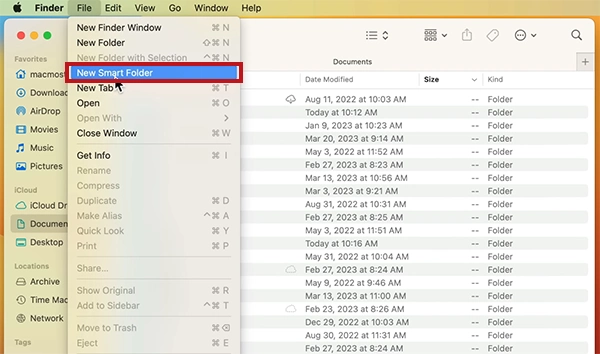
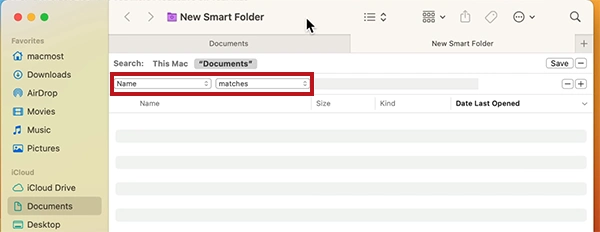
Go to the top menu bar and click File. Select New Smart Folder.
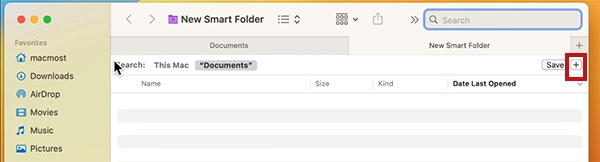
A new window will open. Look for the small plus (+) button on the top right side next to the save button. Click it.
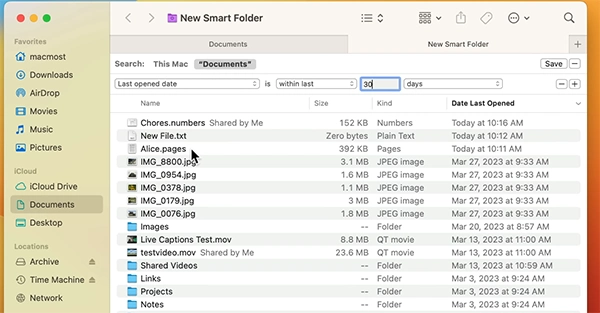
You will see 2 fields: [name] [matches], which turns into: ___ is ___, when entered. Use the drop-down menus to choose what you are looking for. You can choose Kind, file size, content, etc.
Once selected, you will see all the files listed according to your criteria.
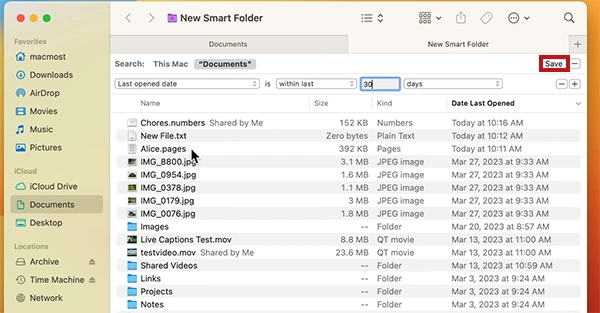
Once you’re happy with the results, click the Save button at the top.
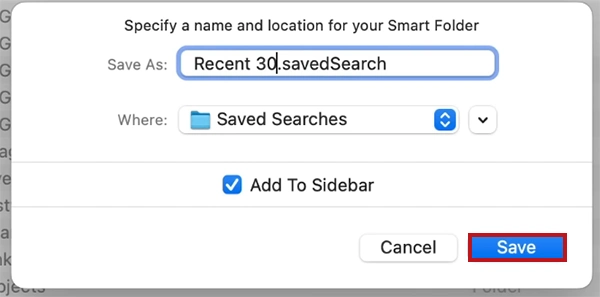
Give your New Smart Folder a name and click the Save button.
If you later on create a file that matches your rules, it will automatically appear in this folder. Smart Folders can be configured to include system or hidden files by adjusting the criteria. This is a great alternative method for how to show hidden files on Mac.
Conclusion: Maintaining a Clutter-Free Mac
So now you have your files organised in folders using the listed methods by Datarecovee on how to make folder on Mac, your Mac should feel much more manageable and productive.
By applying these keyboard shortcuts, Finder options, terminal commands, and Smart Folder automations, you have turned your cluttered Finder into a professional workspace. These methods help you to keep organised and make your Mac easy to navigate.
Frequently Asked Questions
How to make a folder on Mac?
To create a new folder on Mac, right-click on the location and select New Folder. You can also make a folder using the shortcut: Command + Shift + N.
What is the quickest way to make a folder?
The quickest method to make a folder is using the keyboard shortcut: Command + Shift + N.
What is the shortcut key to create a folder on a Mac?
The shortcut key to create a folder on a Mac is: Command + Shift + N.
How do I make a folder on a Mac without a mouse?
You can use the shortcut key Command + Shift + N, or use the terminal command mkdir to create a new folder without using the mouse.
How to organize files on Mac?
Use folders in Mac to organise the files.
How to make a Smart Folder in Mac?
To create a Smart Folder, open Finder and go to the File menu. Select New Smart Folder, set your search criteria. Click Save.