


Ans. Close the app using it, restart Windows, or run del /f in Command Prompt as administrator.
How to Delete a File That Won’t Delete in Windows?
Deleting a file should be simple, but sometimes Windows refuses to remove it. You may see messages saying the “folder in use cannot delete”, “file won’t delete”, “access is denied”, or “the item cannot be found”.
The cause could be an open application, insufficient permissions, unusual file attributes, file system errors, or an unusually long file path. Instead of changing random settings or deleting system files, explore this guide that explains how to delete files that won’t delete safely.
Quick Answer: How to Force Delete a File That Won’t Delete?
- Close the program using the file or restart Windows and try again.
- Use the del command to force delete a file.
- Use the rmdir command to remove a folder and its contents.
- If the file is locked, use Microsoft’s Handle to identify the process using it.
- Use takeown and icacls only when permission issues prevent deletion.
- Double-check the file path before using deletion commands, and avoid force-deleting Windows system files.
Why Can’t I Delete a File or Folder in Windows?
A file can refuse to disappear for several reasons, and the error message does not always explain what’s actually blocking the deletion. Here are some possible causes:
- The File is Open or In Use: An application may still have an active handle to the file.
- You Don’t Have Permission: Your account may not have sufficient rights to delete the file or folder. The file may also be protected by an access control list (ACL).
- The File Has Unusual Attributes: Read-only, hidden, or system attributes can interfere with normal file operations.
- File System Corruption: Errors on the drive can make files inaccessible or prevent Windows from deleting them normally.
- The File Path is Too Long: Deeply nested folders can create paths that some Windows tools have difficulty handling.
So, repeatedly pressing Delete usually won’t solve the problem. The right solution depends on what’s preventing Windows from removing the file.
How to Delete a File That Won’t Delete?
Try the simplest fixes first, then move on to the Command Prompt delete file method or system-level troubleshooting if the problem continues.
This approach helps prevent unnecessary permission changes or accidental deletion of files you still need. Here’s how to delete a file on PCs:
1. Close the Program Using the File
If Windows says, “The action can’t be completed because the file is open in another program,” an application or background process still has the file open.
Close the application that may be using it. Also, close any File Explorer windows displaying the file and try deleting it again. If you can’t determine which application is using the file, restart Windows. A restart closes running applications and usually releases their file handles.
2. Delete the File From Command Prompt
Command Prompt can delete a file when File Explorer refuses to do so. Here’s how to delete a file using cmd:
- Run Command Prompt as an administrator.
- Use the cd command to move to the folder containing the file.
- Then, run the following command:Replace filename.ext with the actual file name.
del /f “filename.ext” - You can also provide the complete path:
del /f “C:\Users\YourName\Downloads\example.txt”
The “/f” parameter forces deletion of read-only files. Be careful using “del” because it does not provide the normal Recycle Bin recovery option, so verify the file path before pressing Enter.
Tip: Avoid wildcards such as *.* unless you are completely certain about the files they will match.
3. Remove File Attributes
Unusual file attributes can prevent deletion. So, check a file’s attributes, open an elevated Command Prompt, and run:
| attrib “C:\Path\To\File.ext” |
If the file is marked as read-only, hidden, or a system file, you can remove these attributes with:
| attrib -r -h -s “C:\Path\To\File.ext” |
Then, try deleting the file again. Also, don’t remove the system attribute from Windows files simply to force deletion. If the file belongs to Windows or another application, identify its purpose before changing its attributes.
4. Delete a Folder With Command Prompt
If an entire folder refuses to delete, the rmdir command can remove the directory and its contents.
- Open Command Prompt as administrator and run:
rmdir /s “C:\Path\To\Folder” - Use /q to skip confirmation:
rmdir /s /q “C:\Path\To\Folder”
And if you are inside the folder, run “cd” first and then run rmdir.
5. Find Which Process is Locking the File
Sometimes closing the obvious application is not enough. A background process may still have the file open.
Microsoft’s Handle utility from Sysinternals can identify which running process has an open handle to a specific file or folder. After identifying the process, close the associated applications normally and try deleting the file again.
6. Take Ownership If Windows Denies Permission
If Windows displays an Access Denied message, you may need to take ownership of the file or folder before changing its permissions. Here’s how to force remove files:
- Open Command Prompt as administrator and run:
takeown /f “C:\Path\To\File.ext” - For a folder and its contents, run:The takeown command changes the owner to the administrator account.
takeown /f “C:\Path\To\Folder” /r /d y - Ownership alone may not grant full access, so you may need to update the file’s permissions:The icacls command grants the Administrators group full control of the file.
icacls “C:\Path\To\File.ext” /grant Administrators:F
Use these commands only when necessary, especially for files under C:\Windows, C:\Program Files, or other protected locations. It can disrupt Windows or installed applications.
7. Try Safe Mode
If a background application or third-party service locks the file, start Windows in Safe Mode and try deleting it.
To enter Safe Mode:
- On the sign-in screen, hold Shift and select Restart.
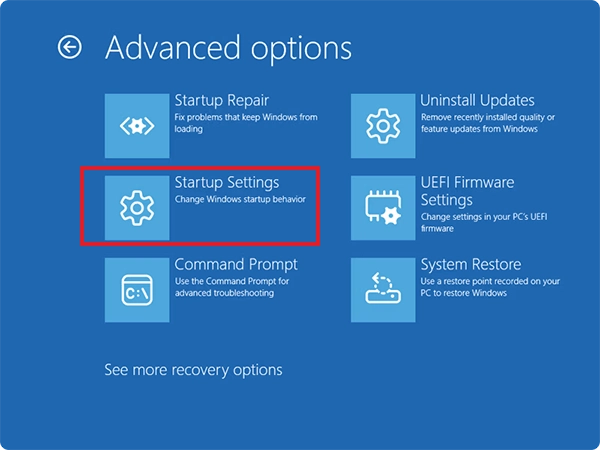
- Then, go to Troubleshoot > Advanced options > Startup Settings.
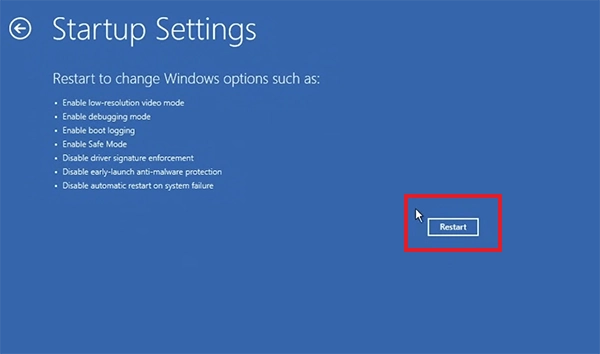
- Click Restart.
- Press F4 (Safe Mode) or F5 (Safe Mode with Networking).
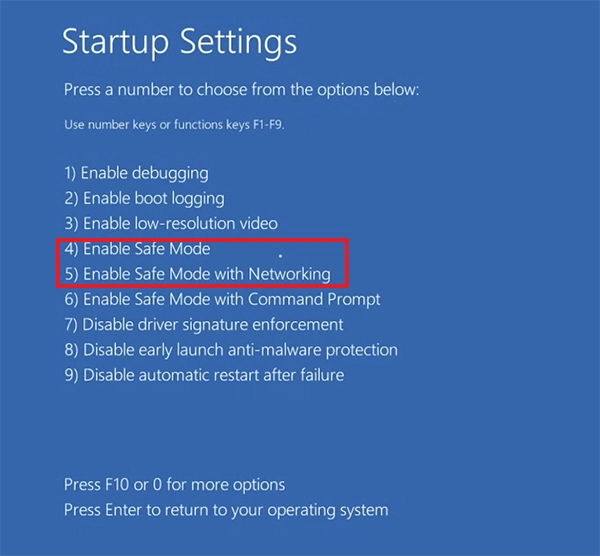
This is an effective method to learn how to erase files from computers. Safe Mode loads only essential drivers and services, preventing many startup programs from running.
8. Check the Drive for File System Errors
If the file system is corrupted, Windows may continue having trouble accessing or deleting the file even after you close applications and fix permissions.
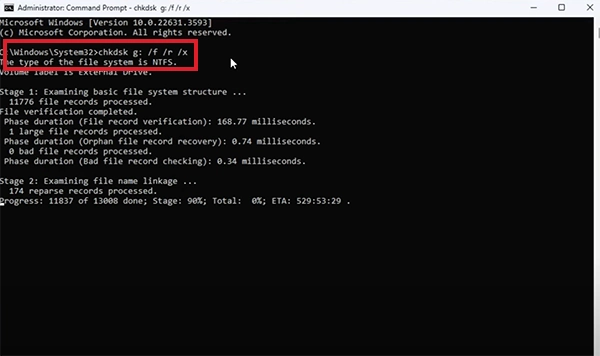
You can use CHKDSK to check the drive for file system errors. Open Command Prompt as administrator and run: chkdsk g: /f /r /x (replace ‘g’ with your drive’s letter).
9. Shorten an Extremely Long File Path
To shorten the path, move or rename one or more parent folders. For example, change “C:\Users\John\Documents\Projects\2026\Old\Client\Archive\Reports\January\Final\Backup\file.txt” to “C:\Temp\file.txt”.
Then try deleting the file again. Unusual file names can cause similar problems. Standard Windows commands may fail when a filename contains trailing spaces or a reserved name. These files may require special path syntax.
Wrapping Up
When a file won’t delete, try to close the application or restart Windows first. If that does not work, try the cmd delete file options like del or rmdir.
Use tools such as Handle, takeown, icacls, Safe Mode, or CHKDSK only when simpler fixes don’t work. Most importantly, don’t force-delete Windows system files unless you are certain what they are and that removing them won’t affect Windows or another application.
Frequently Asked Questions
How to get rid of a file that won’t delete?
How do you force delete a file in Windows?
Ans. Run del /f ”C:\Path\To\File.ext” to delete a file, and for folders, use rmdir /s.
How do I delete a file that says it is in use?
Ans. Close the related app or restart Windows. If it remains locked, use Microsoft’s Sysinternals Handle utility to identify the process using it.
How do I remove a folder in Windows?
Ans. Right-click the folder and select Delete. If that fails, run rmdir /s “C:\Path\To\Folder”.
How to delete things from a computer permanently?
Ans. You can delete the file and empty the Recycle Bin, or use Shift + Delete to bypass the Recycle Bin.
Related Posts
How to Search for Multiple File Types in Windows Explorer
Finding a specific document in a folder full of mixed files can take longer than expected. You might need PDFs,…

What is a TIFF File? Definition, Uses, and How to Open It
Some image formats prioritize small file sizes and quick loading, while others focus on preserving image details for editing, printing,…

How to Migrate Business Files Without Losing Originals or Version History
Small agencies usually face issues when they move client projects to a new storage platform, and the client requests a…

Protecting Inventory Data: Why Warehouses Need Digital Audit Trails
Sometimes, a warehouse manager opens the inventory spreadsheet on Monday morning and finds that 400 units of a fast-moving product…

Data Integration Services: One View From Many Systems
With the expansion of business, data often gets scattered to different places and systems. Customer details are found in a…
How to Protect Your Files From Unexpected Data Loss
Imagine you opened your device and suddenly found out that all the important files are not there. Sounds scary, right?…
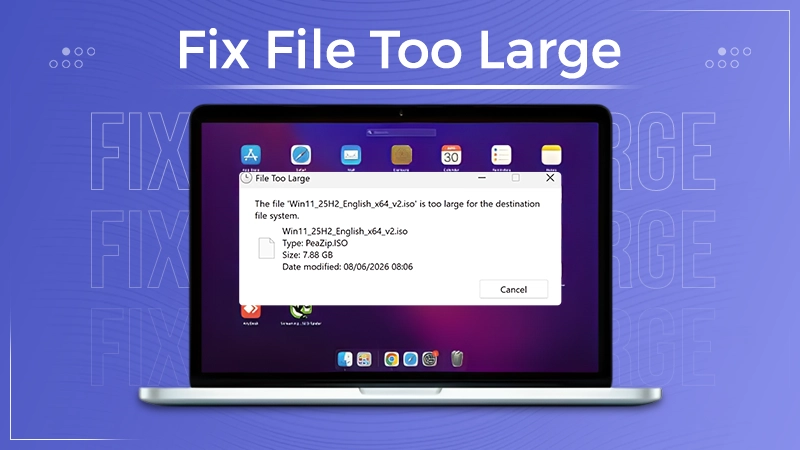
How to Fix “File Too Large for Destination File System” on Windows?
Have you ever tried copying a large file to a USB drive or external hard disk, and Windows stopped the…
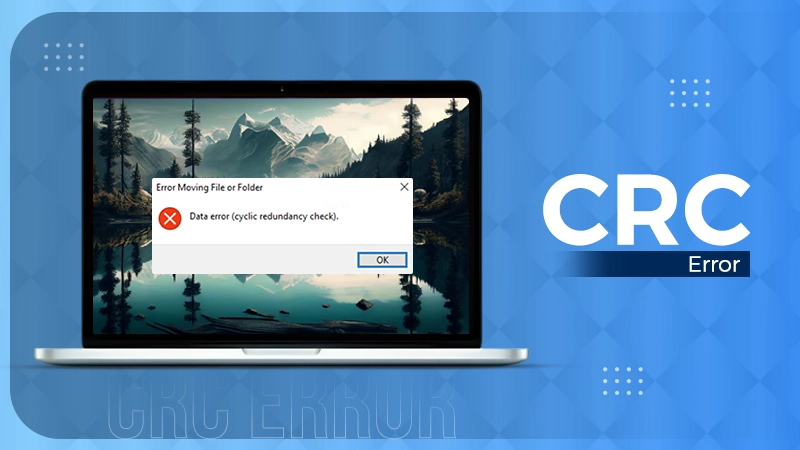
What is a CRC Error? Meaning, Causes, and How to Fix It
A CRC error can appear when you are copying files, opening a folder, extracting an archive, or accessing a storage…
What is an MKV File? Meaning, Uses, and How It Works
You can often identify a video file by its extension. MP4 is the most common, AVI is an older format,…