


Ans. Open File Explorer, select the folder or drive you want to search, and enter ‘ext:docx OR ext:pdf OR ext:xlsx’ in the search box. Press Enter to find matching files. Replace the query with the file extensions you want to search.
How to Search for Multiple File Types in Windows Explorer
Finding a specific document in a folder full of mixed files can take longer than expected. You might need PDFs, Word documents, and Excel spreadsheets for the same project, but searching for each format separately wastes time.
Windows File Explorer allows you to combine file extensions in a single search query and narrow the results using filename or modification-date filters. Let’s learn how to search for multiple file types in Windows Explorer at once and refine the results to find what you need.
How to Search for Multiple File Types in Windows Explorer?
Windows File Explorer search for multiple file types can be done using the OR operator. This allows you to find different formats in one search instead of repeating the process for Windows search by file type.
Here is how to search for multiple file types in Windows Explorer:
- Press Windows + E to open File Explorer.
- Navigate to the folder or drive you want to search. Or just select This PC to search across your PC.
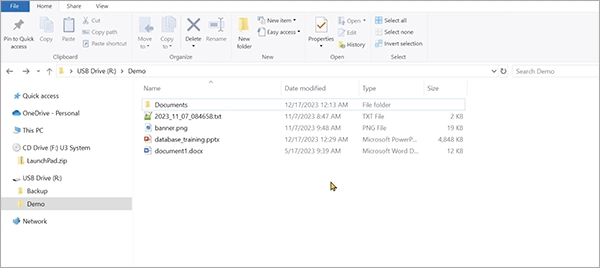
- Click the search box in the upper-right corner.
- Enter the following query:
ext:xls OR ext:doc OR ext:ppt 
- Press Enter to display matching files.
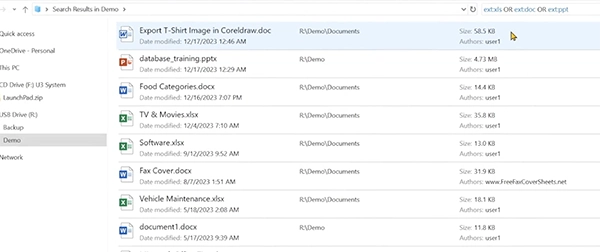
This query searches for PDF files, Word documents, and Excel spreadsheets within the selected location. Replace the extensions with the formats you need. Enter them without the leading periods and keep OR in uppercase.
Here are some other examples of search queries for better understanding:
| File Types | Search Query |
| PDF and Word documents | ext:pdf OR ext:docx |
| JPG and PNG images | ext:jpg OR ext:png |
| Excel and CSV files | ext:xlsx OR ext:csv |
| PowerPoint and PDF files | ext:pptx OR ext:pdf |
| MP4 and AVI videos | ext:mp4 OR ext:avi |
If the combined query does not return the expected results, try searching for each extension separately. This helps you determine whether the problem is the query or the selected search location.
How to Refine Your Windows Search for File Types?
Once you have combined file extensions, you can add other search conditions to narrow the results. This is useful when a folder contains many files of the same format.
- Search for a Specific File Type
To find PDF files in the selected location, enter:ext:pdf You can also search using a wildcard:
*.pdf The first query filters by file extension, while the second looks for filenames ending in .pdf. You can replace the pdf with the extension you are looking for.
- Combine File Types With a Filename
If you remember part of a file’s name, combine it with the extension filter. For example:
filename:report ext:(pdf OR docx) This narrows the search to files matching the filename condition and either extension. Here you can replace “report” with a word from the filename you want to search.
- Filter Results by Date
You can also combine file extensions with a modification-date filter:
ext:(pdf OR docx) datemodified:this week This searches for PDF and Word files modified during the current week. You can change the date condition to suit your search.
These filters help you narrow the results without opening folders individually. If expected files still don’t appear, check that you are searching the correct location and that Windows indexing includes the relevant folders.
Final Thoughts
Searching for multiple file types in Windows File Explorer is easier when you combine extensions with the OR operator. For example, ‘ext:pdf OR ext:png OR ext:jpg’ finds several document formats in one query, while filename and date filters can further refine the results.
Start with the simplest query and add filters only when needed. If files are missing from the results, check the search location and indexing settings before assuming the files are gone.
Frequently Asked Questions
How do I search for multiple file types in Windows Explorer?
Can I search for PDF and Word files at the same time?
Ans. Yes, enter ext:pdf OR ext:docx in the File Explorer’s search box for both formats in one query.
How to search Windows Explorer by file type?
Ans. Enter ext:pdf in the search box to find PDF files. You can also use a wildcard search such as *.pdf to find the filenames ending with .pdf.
Why is File Explorer not finding all my files?
Ans. The files may be outside the selected search location, or Windows indexing may not include the relevant folders. Check your search scope and indexing settings, then try again.
Can I search for multiple file types and a specific filename together?
Ans. Yes, try filename:report ext:(pdf OR docx) to find files matching the filename condition and either extension. Replace ‘Report’ with a relevant word from the filename.
Related Posts

What is a TIFF File? Definition, Uses, and How to Open It
Some image formats prioritize small file sizes and quick loading, while others focus on preserving image details for editing, printing,…

How to Migrate Business Files Without Losing Originals or Version History
Small agencies usually face issues when they move client projects to a new storage platform, and the client requests a…

Protecting Inventory Data: Why Warehouses Need Digital Audit Trails
Sometimes, a warehouse manager opens the inventory spreadsheet on Monday morning and finds that 400 units of a fast-moving product…

Data Integration Services: One View From Many Systems
With the expansion of business, data often gets scattered to different places and systems. Customer details are found in a…

How to Delete a File That Won’t Delete in Windows?
Deleting a file should be simple, but sometimes Windows refuses to remove it. You may see messages saying the “folder…

How to Protect Your Files From Unexpected Data Loss
Imagine you opened your device and suddenly found out that all the important files are not there. Sounds scary, right?…
How to Fix “File Too Large for Destination File System” on Windows?
Have you ever tried copying a large file to a USB drive or external hard disk, and Windows stopped the…
What is a CRC Error? Meaning, Causes, and How to Fix It
A CRC error can appear when you are copying files, opening a folder, extracting an archive, or accessing a storage…
What is an MKV File? Meaning, Uses, and How It Works
You can often identify a video file by its extension. MP4 is the most common, AVI is an older format,…