


Ans. An EXE file is a Windows executable used to launch programs, installers, or utilities.
How to Open EXE Files on Mac: 5 Ways to Run Windows Apps
If you have downloaded a Windows .exe file on your Mac, double-clicking it won’t make it run. macOS does not natively execute Windows programs, but you don’t necessarily need a Windows PC to use them.
In this guide, I will explain how to open EXE files on Mac in detail. Depending on your Mac and the application, you can use a compatibility layer, run Windows in a virtual machine, use Boot Camp on an Intel Mac, or connect to another Windows Computer.
Can You Open EXE Files on Mac?
Yes, but you can’t open .exe on macOS directly. An .exe file is a Windows executable that runs within Windows. macOS uses a different application environment, with Mac applications typically packaged as .app bundles. That’s why double-clicking an .exe in Finder doesn’t launch it like a Mac application.

You also can’t normally turn an EXE into a Mac application simply by converting an EXE to Mac files or changing its extension. Instead, you need to provide the Windows program with an environment it can run in.
Here are the main options:
| Method | Intel Mac | Apple Silicon Mac | Requires Windows? | Best For |
| CrossOver | Yes | Yes | No | Running individual Windows apps |
| Wine | Yes | Yes, compatibility varies | No | Technical users and lightweight apps |
| Parallels + Windows 11 | Yes | Yes | Yes | A fuller Windows environment |
| Boot Camp | Yes | No | Yes | Running Windows natively on Intel Macs |
| Remote Desktop | Yes | Yes | Yes, on another PC | Accessing Windows software remotely |
The right approach depends mainly on your Mac’s processor and the Windows application you are trying to run.
How to Open EXE Files on Mac?
You can learn how to open .exe on macOS in several ways. If you don’t want to install Windows, start with a compatibility layer such as CrossOver or Wine. If the application needs a fuller Windows environment, use a virtual machine. Intel Mac users also have the option of Boot Camp.
Here’s how to run .exe on Mac:
1. Use CrossOver
CrossOver is a compatibility tool that allows you to run many Windows applications on a Mac without installing Windows. It uses Wine technology underneath to translate Windows commands so compatible applications can work with macOS.
Here’s how to run an .exe on a Mac with CrossOver:
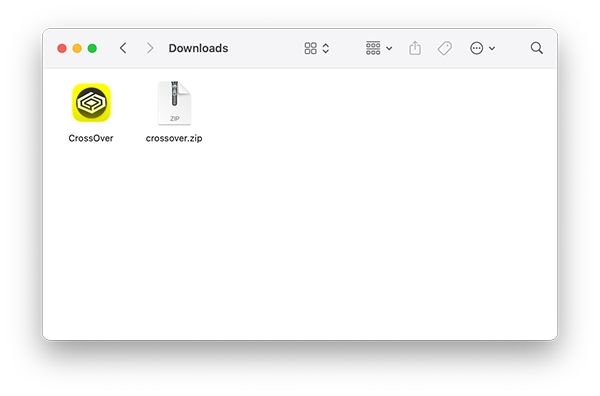
- Download and install CrossOver on your Mac.
- Double-click CrossOver to launch.
- Select the Windows application you want to install.
- If you already have the EXE, choose it as the installer file.
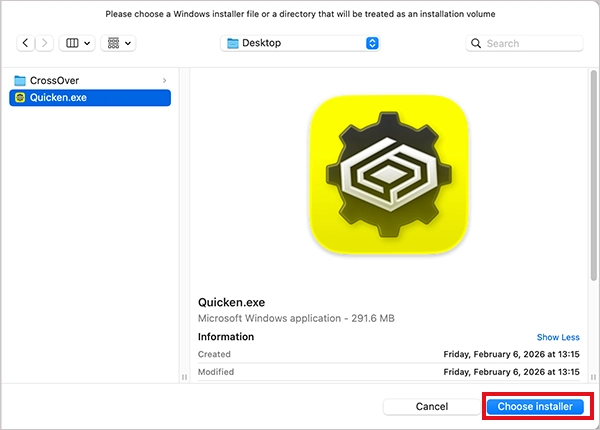
- Follow the installation instructions and launch the Windows application from CrossOver.

For a standalone EXE that does not require installation, you can create a bottle, choose Run Command, select the EXE, and run it.
Compatibility varies between applications, so check CrossOver’s compatibility information before relying on it for important software.
2. Use Wine
Wine is an open-source compatibility layer that allows Windows applications to run on macOS without installing Windows. Instead of running an entire Windows system, Wine translates Windows API calls into instructions macOS can work with.
Wine generally requires more technical setup than CrossOver, but it can be useful if you prefer an open-source solution or want more control over the configuration.
Here’s how to open a .exe on Mac with Wine:
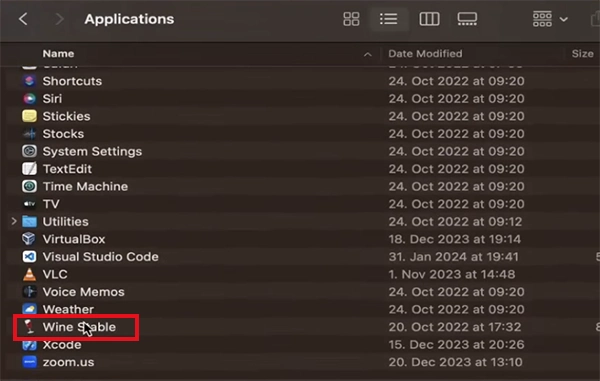
- Install a macOS-compatible Wine distribution.
- Once installed, move it to the Applications folder.
- Locate your .exe file and open the EXE with Wine.
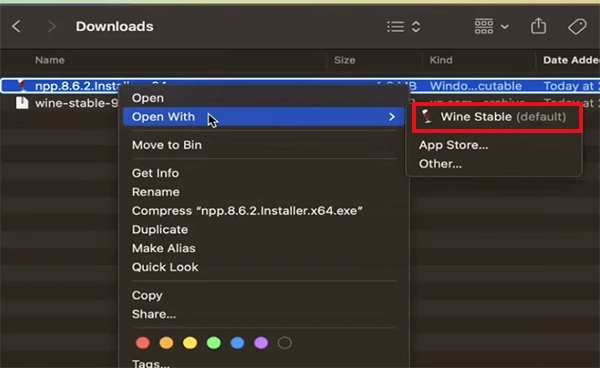
- Install any dependencies the application requires, and you will be able to run the app on your Mac.
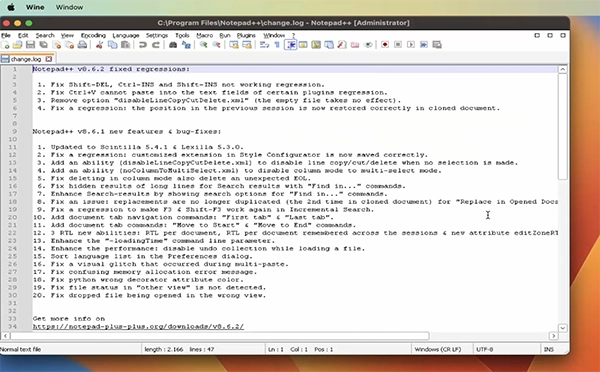
Wine does not support every Windows application. Programs that depend on Windows-specific drivers, advanced copy protection, or other components that Wine cannot reproduce may fail to run correctly.
3. Run Windows in a Virtual Machine
If the EXE needs a more complete Windows environment, you can install Windows in a virtual machine using software such as Parallels Desktop.
A virtual machine runs Windows inside macOS, allowing you to install and use Windows applications much like you would on a Windows PC.
On Apple Silicon Macs, this means running Windows 11 for ARM. Windows 11 on ARM includes Microsoft’s Prism compatibility technology, which allows many x86 and x64 Windows applications to run on ARM-based Windows systems.
Here’s how to execute EXE files on a Mac:
- Install a virtualization application, like Parallels Desktop.
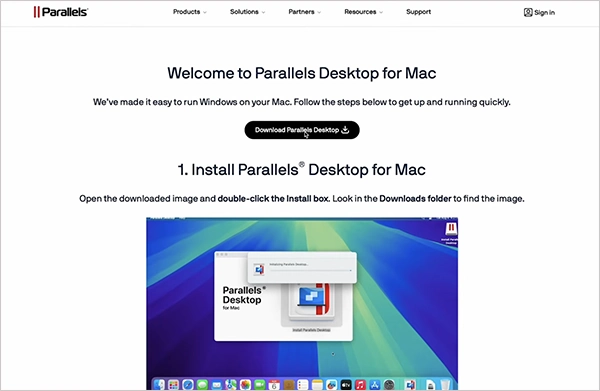
- Create a Windows 11 virtual machine.
- Complete the Windows setup.
- Transfer the EXE into the Windows environment.
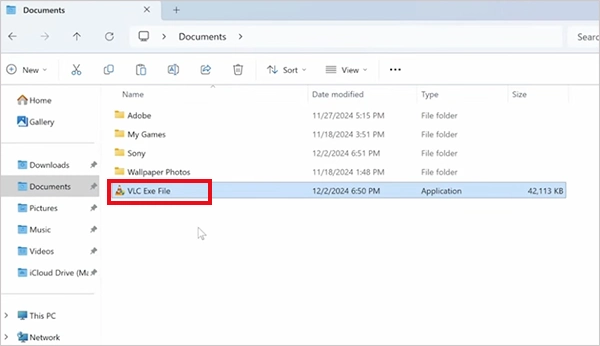
- Now just install and run the application normally.
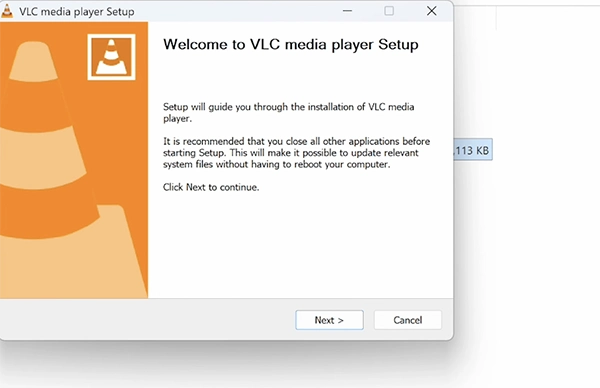
This approach is useful when an application does not work properly through Wine or CrossOver but can run within Windows.
4. Use Boot Camp on an Intel Mac
If you have an older Intel-based Mac, you can use Boot Camp to install Windows on a separate partition. You can then start your Mac in either macOS or Windows. Here’s how to open .exe files on macOS using Boot Camp:
- Back up your Mac and make sure you have enough free storage.
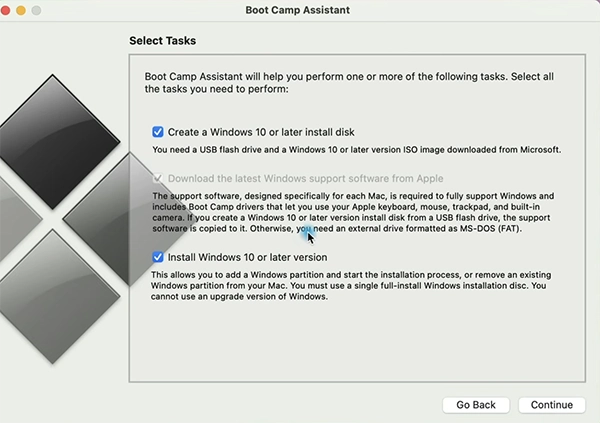
- Open Boot Camp Assistant from Applications > Utilities, check both options, and click Continue.
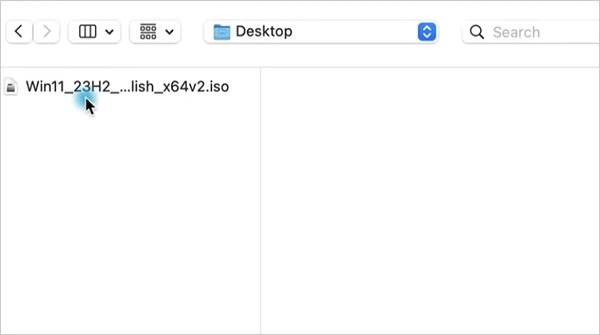
- Select your Windows 10 ISO or Windows 11 ISO and choose the storage space for Windows.
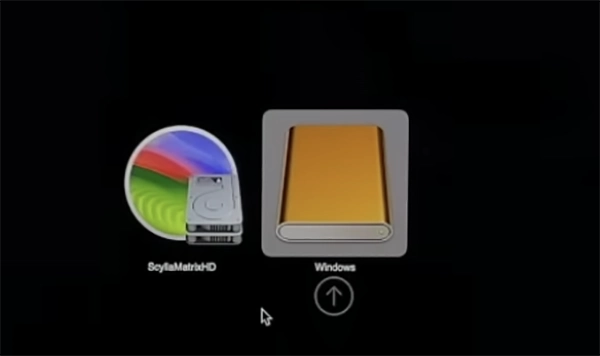
- Follow the on-screen instructions to install Windows. It will create a different partition.
- Once Windows starts, complete the Boot Camp driver installation.
Once you are running Windows through Boot Camp, you can install and run EXE files just as you would on a Windows PC.
5. Use a Remote Windows PC
If you already have access to Windows Pro, you can run the EXE there and access it remotely from your Mac.
- On Windows, go to Start > Settings > System > About and check that the Windows edition is Pro.
- Then, go to Settings > System > Remote Desktop.
- Turn on Remote Desktop and select Confirm.
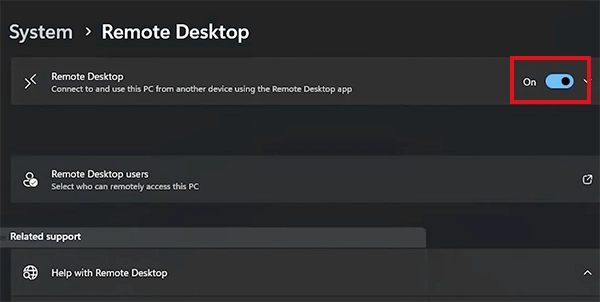
- Note the PC name, which you will need when connecting from your Mac.
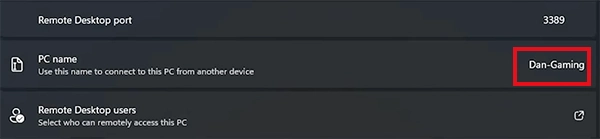
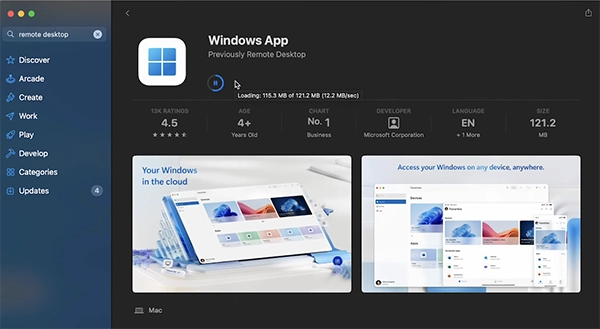
- Install the Windows App on your Mac.
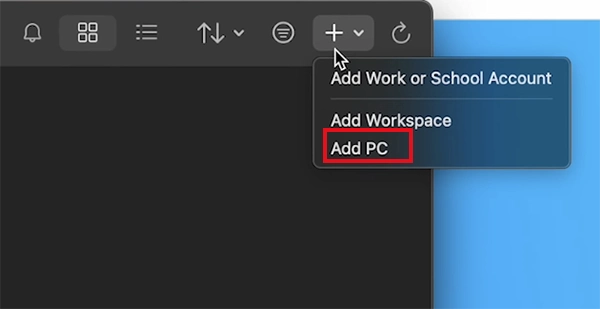
- Open it, click on the plus icon, and select Add PC.
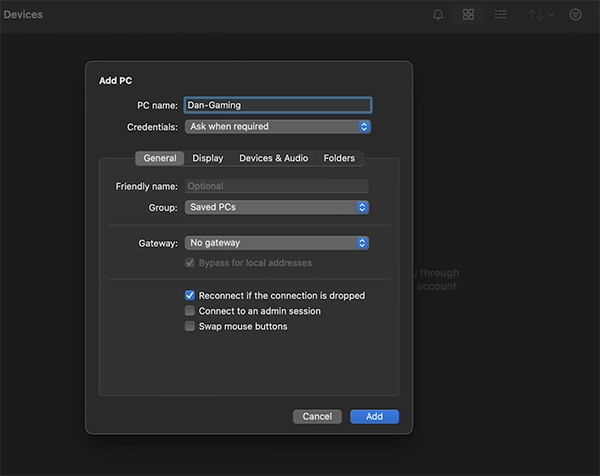
- Now use the PC name to connect.
- Transfer the EXE to the Windows PC and run it there.
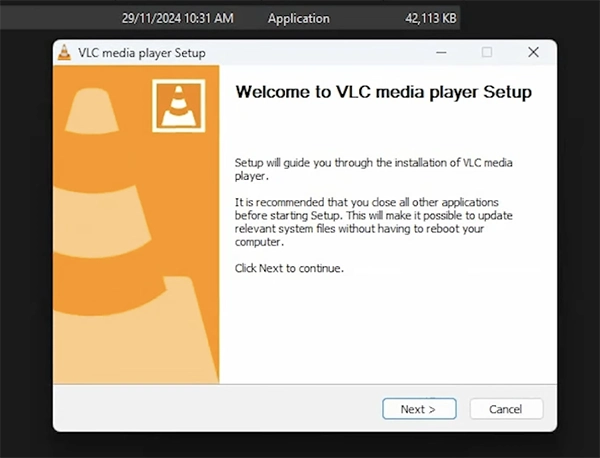
The application runs on the Windows PC, while your Mac displays and controls the remote Windows session. If you don’t have a Pro version, you can use a third-party remote desktop tool.
This can be useful for business software, older applications, or programs that depend on Windows-specific hardware or drivers.
What to Do If You Can’t Run EXE on macOS?
If an EXE won’t run, the problem may not be with the file itself. Try these checks before changing your setup:
- Check Compatibility: Make sure your Windows application is supported by CrossOver, Wine, or your virtualization software.
- Check Your Mac: Go to the Apple menu > About This Mac to see whether you have an Intel or Apple Silicon Mac.
- Try Another Method: An app that fails with Wine or CrossOver may work inside a Windows virtual machine.
- Check Dependencies: Some programs require additional runtimes, libraries, fonts, or other Windows components.
Also make sure you avoid any unknown .exe files; only run executables from trusted sources. Be particularly cautious with installers, cracks, and unofficial copies of software.
Conclusion
You can run many Windows EXE files on a Mac, but macOS cannot execute them natively. CrossOver and Wine can run compatible apps without Windows, while a virtual machine provides a fuller Windows environment. Intel Mac users can also use Boot Camp, and a remote Windows PC can handle applications that need Windows-specific hardware or software. The right method depends on the application and your Mac’s hardware.
Frequently Asked Questions
What is an .exe file?
Can I open an EXE file directly on a Mac?
Ans. No, you need a compatibility layer such as CrossOver or Wine, a Windows virtual machine, Boot Camp on an Intel Mac, or a remote Windows PC.
How do I open an EXE on Mac computers without Windows?
Ans. You can use a compatibility layer such as CrossOver or Wine. These tools can run compatible Windows applications without installing Windows.
Is there a way to convert an EXE file into a Mac application?
Ans. You cannot convert it simply by changing its file extension. An EXE is built for Windows and requires a compatible Windows environment or Mac version of the software.
Can I use Boot Camp to run EXE files on an M-series Mac?
Ans. No, Boot Camp is designed for Intel-based Macs only. Apple Silicon Macs need alternatives such as Windows virtualization or compatibility software.
Related Posts

How to Fix DISM Error 87 in Windows?
DISM Error 87 usually appears when Windows cannot understand a DISM command or one of its parameters. You may see…

How to Restart Explorer.exe in Windows?
A frozen taskbar, missing desktop icons, or an unresponsive File Explorer can make Windows feel stuck even when your computer…
![How to Reopen Closed Tabs on Mac [Easy Ways to Restore Tabs]](https://datarecovee.com/knowledge-base/wp-content/uploads/2026/10/how-to-reopen-closed-tabs-ftd-img.webp)
How to Reopen Closed Tabs on Mac [Easy Ways to Restore Tabs]
Accidentally closing the wrong tab can be super annoying, especially when you were in the middle of something important. You…

What Is a .BAT file and How Do You Create One?
You may have seen a file ending in .bat and wondered why opening it brings up a Command Prompt window…

How to Disable Microsoft Edge in Windows? 4 Quick Methods
Microsoft Edge can feel difficult to “turn off” because several Windows and Edge settings control when it starts and what…

How to Sign Out of iMessage on Mac?
Your Mac can quietly become another place where your private conversations appear. That’s convenient until you are using a shared…

What is Windows Fast Startup and How Does It Work?
Fast Startup can make your PC boot noticeably faster after a shutdown. Instead of completely rebuilding the Windows kernel state…

How to Unzip Files on Mac: 3 Easy Ways to Extract ZIP Files
A ZIP file has a funny way of making a simple task feel more complicated than it is. On a…
How to Delete Files Completely in Mac Terminal?
Finder makes deleting files simple, but sometimes you need Terminal to remove a file or folder by its exact path…