


Ans. A batch file is a simple text script containing Windows Command Prompt commands. It typically uses the .bat extension and executes multiple commands in sequence.
What Is a .BAT file and How Do You Create One?
You may have seen a file ending in .bat and wondered why opening it brings up a Command Prompt window instead of a normal application. A .bat file is a plain-text script containing Windows commands that can be executed through Command Prompt.
This makes it useful for automating repetitive tasks without entering every command manually. However, a BAT Windows file can also make changes to files, settings, and Windows itself, so you should understand what it does before running one.
What is a BAT File?
A BAT file is short for batch file. Now, what’s a batch file?
It is a plain-text script containing a series of commands for Windows Command Prompt. Instead of entering commands one at a time, you can save them in a .bat file and run them together. For example:
@echo off
echo Hello, World!
pause
The .bat extension tells Windows that the file is a batch script. When you run it, Windows passes the commands to cmd.exe, which processes them in sequence.
Unlike an .exe file, a BAT file is not compiled into a standalone executable. You can open it in a text editor and inspect the commands inside.
How Does a .BAT File Work?
A BAT file works by giving cmd.exe a predefined sequence of commands. Windows processes those commands in the order specified by the script.
Batch files can also include basic programming logic. For example, ‘if’ can run a command only when a condition is met, while ‘for’ can repeat an operation for multiple files or items.
Here are some commonly used batch commands:
| Command | Purpose |
| echo | Displays text or controls whether commands are shown |
| set | Creates or changes variables |
| if | Runs commands based on a condition |
| for | Repeats a command for multiple files or items |
| goto | Jumps to a labeled section of the script |
| call | Runs another batch file or batch section |
| cd | Changes the current directory |
| dir | Lists files and folders |
| mkdir | Creates a directory |
| copy | Copies files |
| move | Moves files |
| del | Deletes files |
| start | Launches a program, file, or new Command Prompt window |
| pause | Pauses the script until the user presses a key |
| rem | Adds comments to the script |
| cls | Clears the Command Prompt screen |
Batch scripts can also use variables, labels, command-line arguments, and operators. For example:
@echo off
mkdir Backu
pecho Backup folder created
This creates a folder named Backup and then displays a message. More advanced scripts can combine many commands to automate a complete workflow.
How to Create a .BAT File?
You can create a BAT file with a basic text editor such as Notepad. Here’s what you need to do:
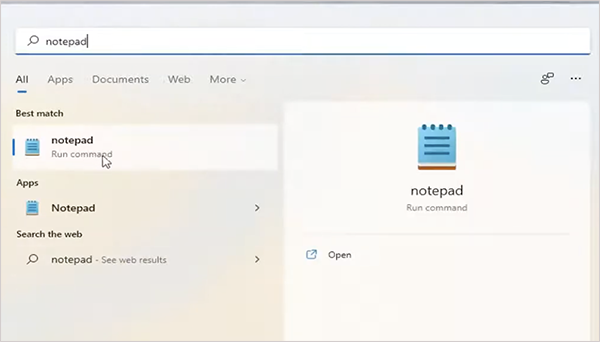
- Open Notepad.
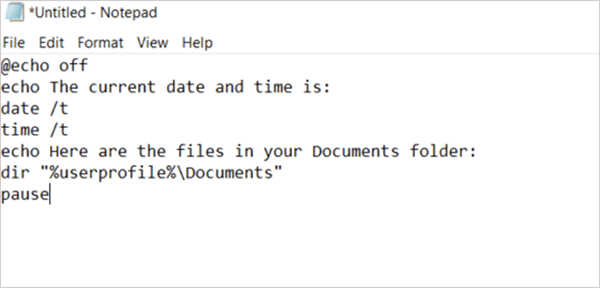
- Enter the commands you want to run.
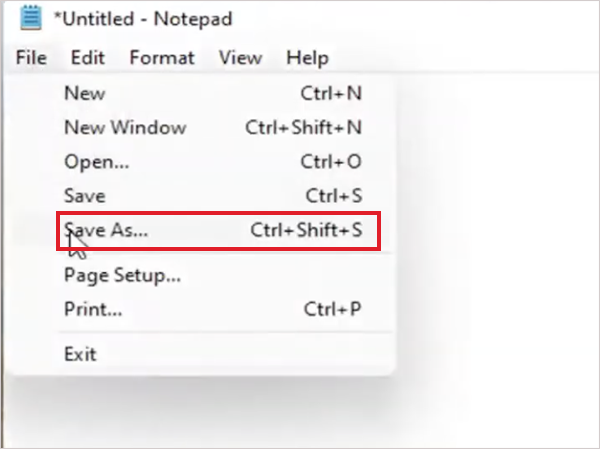
- Now, select File > Save As.
- Enter a filename ending in .bat, such as batch file.bat.
- Set Save as type to All Files, and click Save.
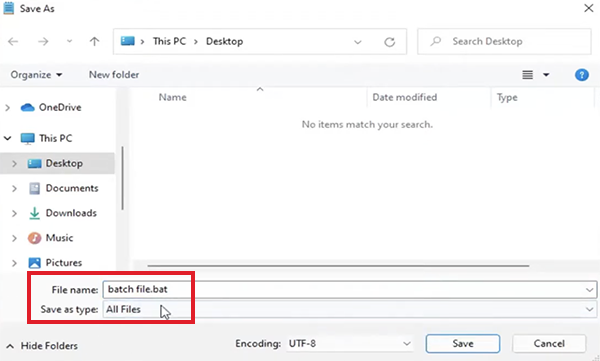
Important: Make sure Windows does not add .txt to the filename. If the extensions are hidden, a file that appears as test.bat could actually be saved as test.bat.txt.
How to Run and Edit a BAT File?
The easiest way to run a BAT file is to double-click it in File Explorer. Windows opens Command Prompt and executes the commands in the script.
You can also run it from Command Prompt by navigating to its folder and entering the filename, such as “example.bat”.
Some BAT files require administrator privileges to modify protected files or system settings. In those cases, you may need to run the script from an elevated Command Prompt.
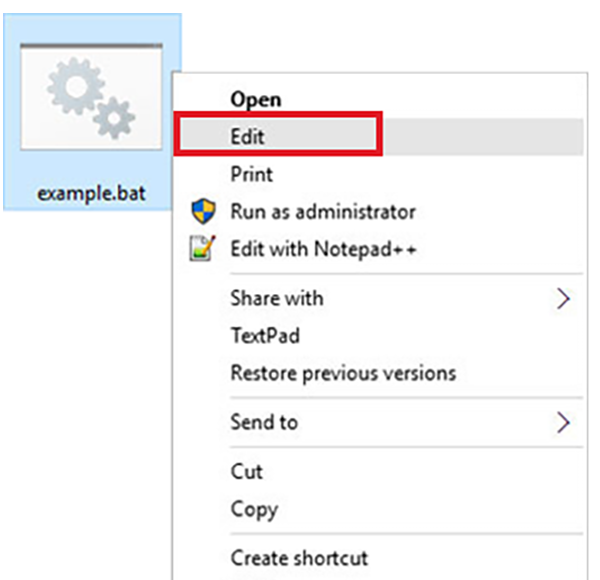
To edit a .bat file without running it, right-click the file and select Edit, or just open it with Notepad. This is also the safest way to inspect an unfamiliar BAT file before executing it.
What are BAT Files Used For?
BAT files are useful when you need to repeat a set of Windows commands. Common uses include:
- File Management: Creating, copying, moving, renaming, or deleting files and folders.
- Routine Maintenance: Running several system commands as part of a maintenance task.
- Application Launching: Opening multiple programs or files with one script.
- Automation: Running repetitive Command Prompt tasks without entering each command manually.
- Troubleshooting: Running a predefined series of diagnostic or repair commands, like DISM commands.
- Batch Processing: Applying the same operation to multiple files.
Windows provides many command-line tools that can be combined in batch scripts, making BAT files useful for straightforward automation.
Are .BAT Files Safe?
A .bat file is not inherently dangerous. The risk depends on the commands it contains.
Batch scripts can execute Windows commands, so a malicious BAT file could delete files, change system settings, download additional files, or launch other programs.
Before running an unfamiliar BAT file:
- Check where it came from.
- Right-click it and select Edit to inspect its commands.
- Be cautious with commands you do not understand.
- Do not give an unknown script administrator privileges.
- Keep Windows Security or another trusted security solution enabled.
Treat an unfamiliar BAT file with the same caution you would give an unfamiliar executable. Being a text file does not make it automatically safe.
Pros and Cons of .BAT Files
BAT files remain useful for simple Windows automation, but they have a few limitations.
Pros
- Easy to create and edit
- No special editor is required
- Useful for repetitive Windows tasks
- Built into Windows
- Can combine multiple commands
Cons
- Limited compared with modern scripting languages
- Complex scripts can become difficult to maintain
- Errors can affect file or system settings
- Not ideal for large or complex automation
- Malicious scripts can cause serious damage
For straightforward Command Prompt automation, BAT files can still be practical. For more complex Windows automation, PowerShell provides a more capable scripting environment.
Conclusion
A .bat file is a plain-text script that allows you to run multiple Windows commands as a single task. You can create one with Notepad, edit it like a text file, and run it through Command Prompt.
These files are useful for simple automation, file management, and routine tasks, but they can also make significant changes to your system. Always inspect unfamiliar scripts before running them, especially if they request administrator privileges.
Frequently Asked Questions
What is a batch file?
Are .BAT files still relevant today?
Ans. Yes, they are still useful for simple Windows automation, file management, application launching, and repetitive Command Prompt tasks.
How do I create a .BAT File?
Ans. Open Notepad, enter your commands normally, and save the file with a .bat extension. Select All Files under Save as type to prevent Windows from adding .txt.
What are the common commands used in batch files?
Ans. Common commands include echo, set, if, for, goto, call, cd, mkdir, copy, and del. The commands you need depend on what you want the script to do.
Can I open a BAT file without running it?
An. Yes, right-click the BAT file and select Edit, or you can just open it with Notepad. This allows you to inspect the commands without executing the script.
Related Posts

How to Disable Microsoft Edge in Windows? 4 Quick Methods
Microsoft Edge can feel difficult to “turn off” because several Windows and Edge settings control when it starts and what…

How to Open EXE Files on Mac: 5 Ways to Run Windows Apps
If you have downloaded a Windows .exe file on your Mac, double-clicking it won’t make it run. macOS does not…

How to Sign Out of iMessage on Mac?
Your Mac can quietly become another place where your private conversations appear. That’s convenient until you are using a shared…

What is Windows Fast Startup and How Does It Work?
Fast Startup can make your PC boot noticeably faster after a shutdown. Instead of completely rebuilding the Windows kernel state…

How to Unzip Files on Mac: 3 Easy Ways to Extract ZIP Files
A ZIP file has a funny way of making a simple task feel more complicated than it is. On a…
How to Delete Files Completely in Mac Terminal?
Finder makes deleting files simple, but sometimes you need Terminal to remove a file or folder by its exact path…
How to Add Widget in Mac: A Step-by-Step Guide
Your Mac desktop can give you useful information without turning into another dashboard to manage. A weather update, calendar reminder,…
The macOS Installation Couldn’t Be Completed? Learn How to Fix It
You are halfway through a macOS update when the progress bar stops, and a message says the macOS installation couldn’t…
How to Restart Bluetooth Service Windows 11? (Fix Bluetooth Issues)
Bluetooth stopped working in Windows 11? It can suddenly stop working even when your headphones, mouse, or keyboard work perfectly…