


Open Messages, then select Messages (from the menu bar) > Settings > iMessage. Click Sign Out and confirm.
How to Sign Out of iMessage on Mac?
Your Mac can quietly become another place where your private conversations appear. That’s convenient until you are using a shared Mac, handing it to someone else, or simply don’t want your messages showing up there.
You don’t need to sign out of your Apple Account to disconnect iMessage. macOS provides a separate sign-out option in the Messages app. In this guide, you will learn how to sign out of iMessage on MacBook and what to check if messages continue appearing.
Quick Answer: How Do You Sign Out of Messages on Mac?
Open Messages > Settings > iMessage, click Sign Out, and confirm. This signs your Mac out of iMessage without signing you out of your Apple Account. If messages still appear on your Mac, check Messages in iCloud and Text Message Forwarding.
Why Sign Out of iMessage on Mac?
Your Mac can receive iMessages alongside your iPhone, which can be useful. On a shared or borrowed Mac, however, you may not want your conversations accessible through the Messages app.
You may want to learn how to log out of Messages on MacBook if:
- You use a shared or borrowed Mac.
- You are preparing the Mac for another person.
- You want to stop receiving iMessages on the computer.
- You are troubleshooting an iMessage account or iCloud syncing problem.
- You no longer want personal conversations accessible through Messages on that Mac.
Signing out of iMessage disconnects the Messages app from your account on that Mac without signing you out of your entire Apple Account.
Important: If you are selling or giving away the Mac, signing out of iMessage alone is not enough. You should also sign out of your Apple Account and follow Apple’s recommendations for preparing a Mac for a new owner.
How to Sign Out of iMessage on Mac?
How do I sign out of iMessage on Mac? Well, you can sign out directly from the Messages app without changing your broader Apple Account settings.
Here’s how to sign out of Messages on MacBook:
- Open the Messages app on your Mac.
- Click Messages in the menu bar and select Settings.
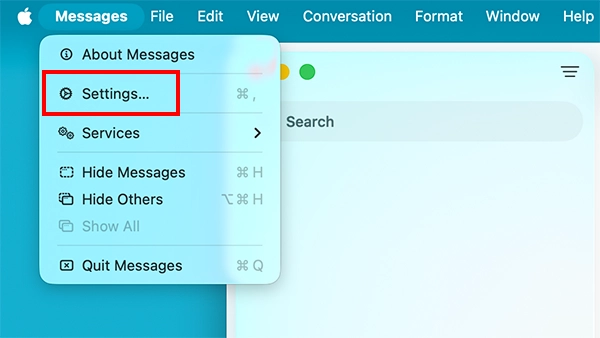
- Then, click on iMessage.
- Here, click Sign Out and then confirm when prompted.
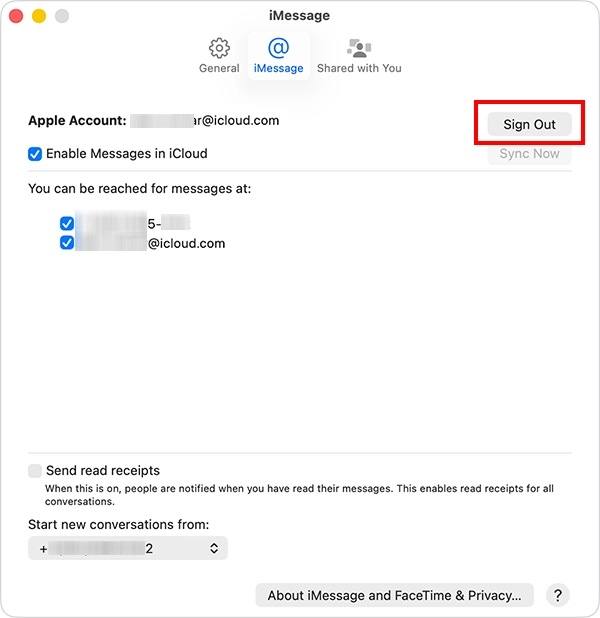
On older versions of macOS, Settings may be labeled as Preferences. Once you sign out, the Mac is no longer signed in to iMessage. If you want to use iMessage on that Mac again, you will need to sign back in with your Apple Account.
What Happens After Signing Out of iMessage on Mac?
Now that you know how to log out of iMessage on MacBook computers, you should know that it stops the Mac from receiving messages through the account you signed out of. It does not delete your Apple Account or sign you out of iMessage on your other Apple devices.
Your message history is also separate from your iMessage account. If Messages in iCloud is enabled, your messages can remain synchronized across devices where the feature is turned on. Signing out of Messages on one Mac does not delete conversations.
If messages still appear after signing out, check how they are reaching the Mac. SMS, MMS, and RCS messages can be delivered through your iPhone’s Text Message Forwarding and Messages in iCloud. These are not simply the same as incoming iMessages.
What to Do If You Can’t Sign Out of iMessage on Mac?
If the Sign Out option does not work or Messages continues behaving unexpectedly, try these checks before changing any broader account settings.
- Restart Your Mac: Close Messages and restart your Mac. Then open Messages and check Messages > Settings > iMessage again.
- Check Your Internet Connection: Make sure your Mac is connected to the internet. Connectivity problems can interfere with Messages and account-related actions.
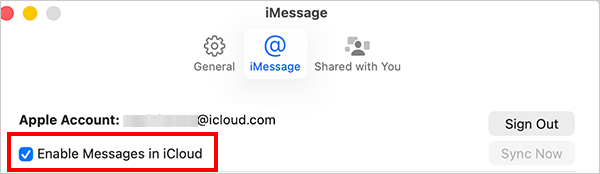
- Check Messages in iCloud: If your concern is that conversations are still appearing or syncing, check whether Messages in iCloud is enabled. On your Mac, go to Messages > Settings > iMessage and look for Enable Messages in iCloud.
- Check Text Message Forwarding: If the messages appearing on your Mac are green rather than blue, they may be SMS, MMS, or RCS messages forwarded from your iPhone.
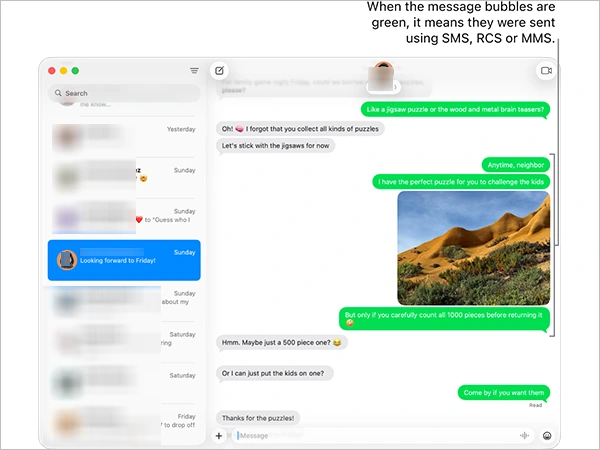
On your iPhone, go to Settings > Apps > Messages > Text Message Forwarding and check whether your Mac is enabled. Turn it off if you don’t want those messages forwarded to the Mac.
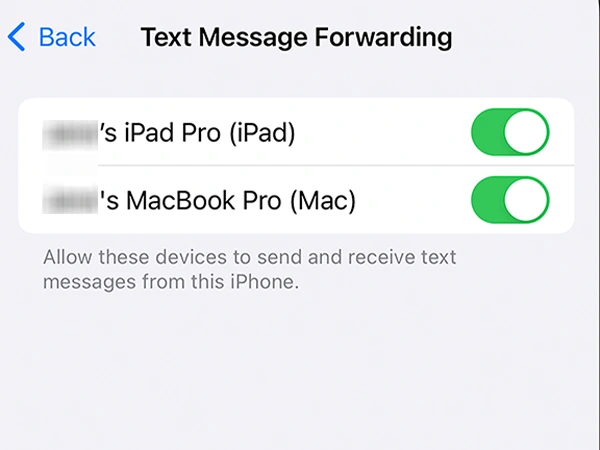
If you only want to disconnect iMessage, don’t sign out of your Apple Account unless necessary. A full Apple Account sign-out is broader and also disconnects iCloud and other Apple services, including iMessage and FaceTime, from the Mac.
Final Thoughts
Signing out of iMessage on a Mac takes just a few steps. You can easily disconnect iMessage from the Mac without requiring you to sign out of your entire Apple Account.
If messages continue appearing, check Messages in iCloud and Text Message Forwarding settings to see how they are reaching the Mac. If you are giving the Mac to someone else, remember that signing out of iMessage is only one part of preparing the device.
Frequently Asked Questions
How do I sign out of Messages on Mac?
Will signing out of iMessage on Mac delete my messages?
No, signing out of iMessage on your Mac does not delete your iMessage account or automatically remove conversations from your other Apple devices. Messages in iCloud handles message synchronization separately when enabled.
Can I unlink my iMessage from my Mac?
Yes, you can do that by signing out of iMessage from the Messages app settings. If messages other than iMessage still appear, check the Text Message Forwarding setting on your iPhone.
How do I stop iPhone messages from appearing on Mac without signing out?
To stop SMS, MMS, or RCS messages from your iPhone, check Settings > Apps > Messages > Text Message Forwarding. Messages in iCloud can also keep message history synchronized between devices.
How do I sign out of my Apple Account on a Mac?
Go to the Apple menu > System Settings, click your name, scroll down, and select Sign Out.
Related Posts

What Is a .BAT file and How Do You Create One?
You may have seen a file ending in .bat and wondered why opening it brings up a Command Prompt window…

How to Disable Microsoft Edge in Windows? 4 Quick Methods
Microsoft Edge can feel difficult to “turn off” because several Windows and Edge settings control when it starts and what…

How to Open EXE Files on Mac: 5 Ways to Run Windows Apps
If you have downloaded a Windows .exe file on your Mac, double-clicking it won’t make it run. macOS does not…

What is Windows Fast Startup and How Does It Work?
Fast Startup can make your PC boot noticeably faster after a shutdown. Instead of completely rebuilding the Windows kernel state…

How to Unzip Files on Mac: 3 Easy Ways to Extract ZIP Files
A ZIP file has a funny way of making a simple task feel more complicated than it is. On a…
How to Delete Files Completely in Mac Terminal?
Finder makes deleting files simple, but sometimes you need Terminal to remove a file or folder by its exact path…
How to Add Widget in Mac: A Step-by-Step Guide
Your Mac desktop can give you useful information without turning into another dashboard to manage. A weather update, calendar reminder,…
The macOS Installation Couldn’t Be Completed? Learn How to Fix It
You are halfway through a macOS update when the progress bar stops, and a message says the macOS installation couldn’t…
How to Restart Bluetooth Service Windows 11? (Fix Bluetooth Issues)
Bluetooth stopped working in Windows 11? It can suddenly stop working even when your headphones, mouse, or keyboard work perfectly…