


Ans. Yes, you can run Windows using virtualization software, Boot Camp on compatible Intel Macs, or a cloud PC. Apple Silicon Macs require virtualization or remote access.
How to Run Windows on Mac: 4 Methods That Actually Work
Buying a Mac does not mean you have to give up Windows. You might need a Windows-only work application, open EXE files on Mac, a university tool, or software without a suitable macOS version. Fortunately, you can do that without buying another computer.
So, how can I install Windows on Mac? Depending on your Mac’s processor and your needs, you can choose from the different available methods. In this guide, I will explain how to run Windows on MacBooks in detail.
Can You Run Windows on a Mac?
Yes, you can run Windows OS on MacBook Air, Pro, iMac, or Mac mini, but the available methods depend on its processor. Macs generally fall into two categories:
- Apple Silicon Macs: Models with M-series chips, including M1, M2, M3, M4, and newer generations.
- Intel Macs: Older models with Intel processors.
Apple Silicon Macs cannot use Boot Camp. Instead, you can run compatible Windows software through virtualization or connect to a remote Windows computer.
Compatible Intel Macs support virtualization, and certain models also support Boot Camp, which installs Windows on a separate partition. However, Apple’s documented Boot Camp installation uses Windows 10, whose standard support ended on October 14, 2025. This makes Boot Camp less suitable for a new setup unless you understand the support limitations.
So, how do you run Windows on a Mac? For most users, virtualization is the most practical way to operate Windows on Macs locally. It allows you to use Windows applications alongside macOS without restarting your Mac.
How to Run Windows on Mac?
There are four practical ways to learn how to get Windows on Mac. Choose one based on your processor, budget, and whether you need Windows installed locally.
Method 1: Run Windows Using Parallels Desktop
Parallels Desktop creates a virtual machine that runs Windows inside macOS. You can switch between operating systems, open Windows applications, and share files without restarting your Mac.
It is a practical option for office software, everyday productivity, and many business applications. Here’s how to put Windows on a Mac:
- Download the compatible version of Parallels Desktop from its official website
- Install and open the application.
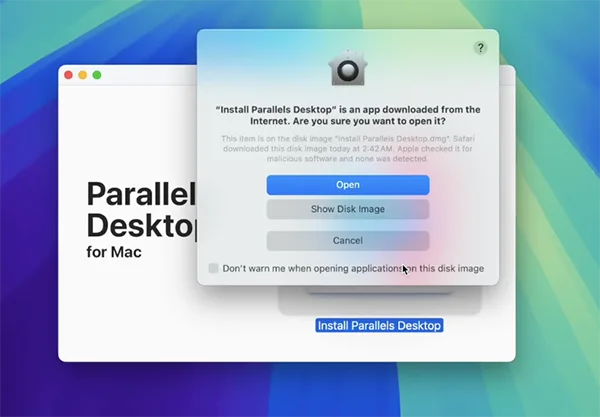
- Select the option to install Windows.
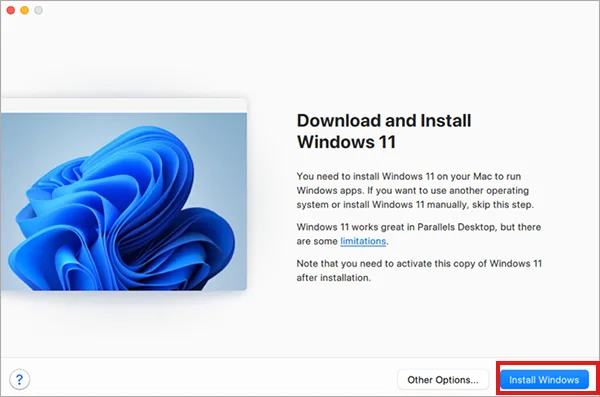
- Follow the installation assistant to download and configure Windows.
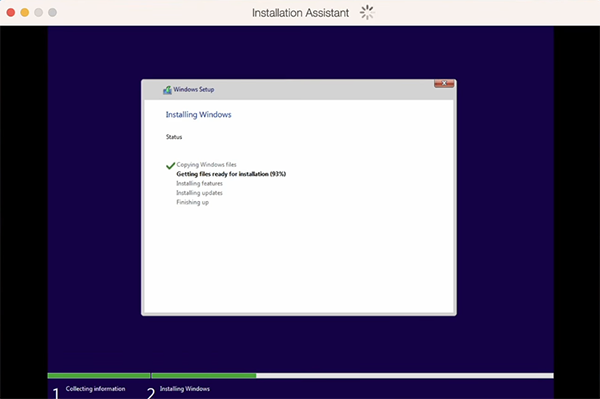
- Complete Windows setup and activate with an appropriate license.
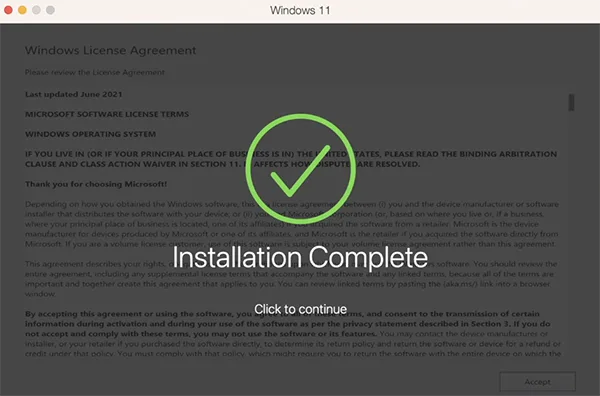
- Install your applications and test the software.
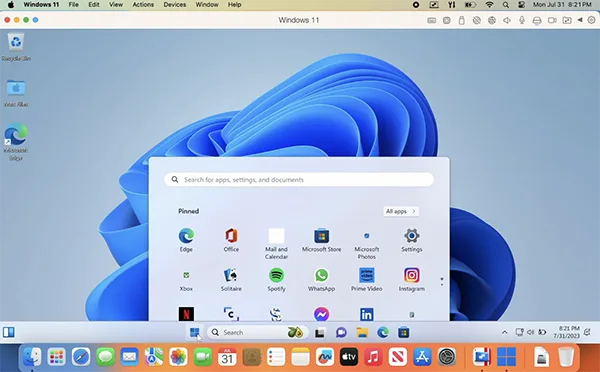
On Apple Silicon Macs, you need Windows 11 on Arm, not the standard x86 version. Parallels can guide you through setting up a compatible virtual machine. Microsoft recognizes a supported version of Parallels as an authorized solution for running Windows 11 Pro and Enterprise on supported Silicon Macs.
Parallels Desktop is paid software, although a trial may be available. Windows licensing is a separate cost, so check both before installing.
Method 2: Run Windows Using VMware Fusion
VMware Fusion is another virtualization application that allows you to run Windows inside macOS. Here’s how to run Windows on a Mac using VMware:
- Download VMware Fusion from its official website.
- Install and open the application.
- Next, select the installation method to create a new virtual machine.
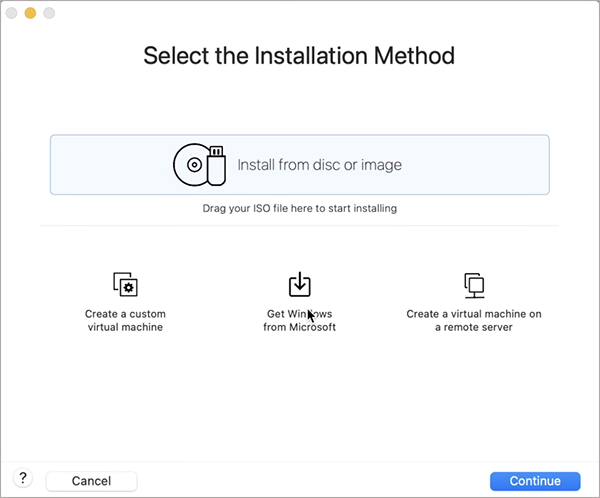
- Select a Windows installation image compatible with your Mac’s processor.
- Configure the virtual machine and follow the Windows installation prompts.
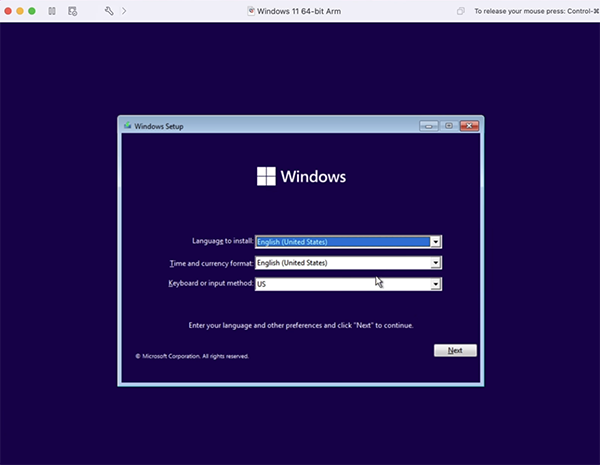
Now you can install and try to run what you want and check that they work correctly. VMware Fusion is worth considering if you prefer its interface or features. However, its setup process and integration options differ from Parallels.
Check the current documentation before choosing it, especially if your applications depend on specialized drivers, graphics features, or hardware.
Method 3: Install Windows Using Boot Camp
Boot Camp installs Windows on a separate partition of a compatible Intel Mac. Unlike virtualization, it runs Windows directly on the hardware. But you must restart your Mac to switch between Windows and macOS.
Here’s how to install Windows on Macs:
- First, back up your important files.
- Confirm that your Intel Mac supports Boot Camp.
- Obtain the supported Windows installation media.
- Open Boot Camp Assistant from Applications > Utilities, check both options, and click Continue.
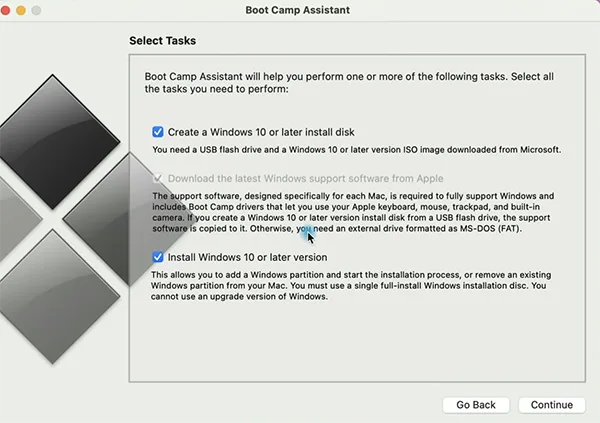
- Follow the instructions to create a Windows partition.
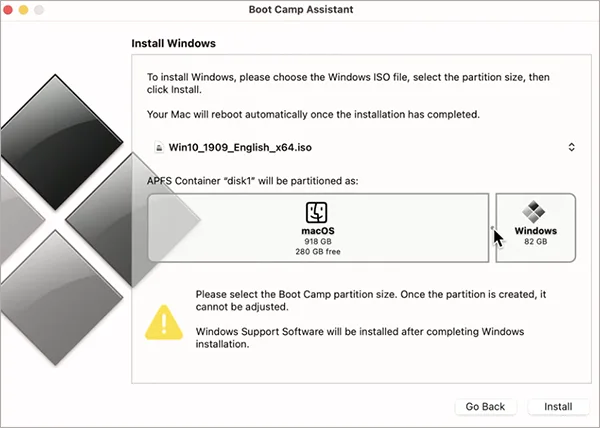
- Install Windows on the designated BOOTCAMP partition.
- Complete setup and install Apple’s Windows support software.
After installation, you can choose which operating system to start when you turn on your Mac.
Method 4: Use Windows Through a Cloud PC
A cloud PC lets you use Windows hosted on a remote computer. Instead of installing Windows on your Mac, you connect through a supported application or browser.
Microsoft Windows 365 is one good option, particularly if your employer or organization provides access. Let’s look at how to get Windows apps on a Mac:
- Obtain access to a Windows 365 Cloud PC or another Windows computer configured for remote access.
- Open the supported client or web portal on Mac.
- Sign in with the account associated with your Windows environment.
- Select your available computer and connect.
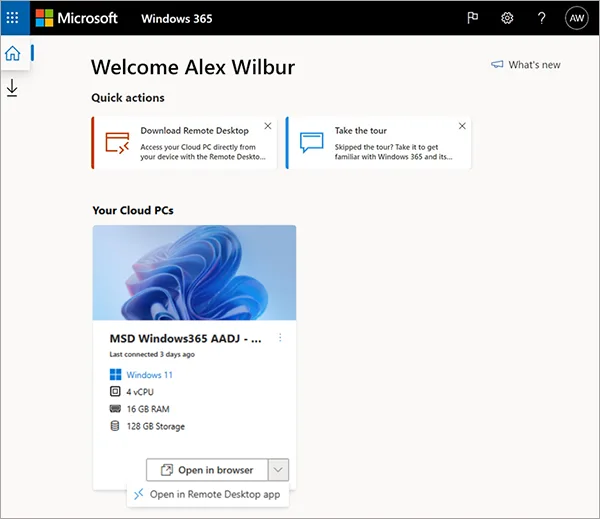
- Open the application installed on that Windows system.
A cloud PC is useful when you need a managed work environment or want to avoid allocating storage and memory to a local virtual machine.
The main drawback is internet dependence. A weak connection can cause delays, while demanding applications require sufficient resources on the remote computer. Cloud PCs may also involve a recurring subscription.
Which Method Should You Choose to Run Windows in macOS?
Now you know how to use Windows on Mac in multiple ways. The best method to run or emulate Windows on Mac depends on your Mac’s processor, the applications you need, and whether you want Windows running locally or remotely.
| Your Situation | Recommended Method |
| Apple Silicon Mac and everyday Windows applications | Parallels Desktop |
| You prefer an alternative virtualization tool | VMware Fusion |
| Compatible Intel Mac with an existing Boot Camp setup | Boot Camp, subject to Windows support limitations |
| Your employer provides a Windows desktop | Remote access or Windows 365 |
| You need only one Windows application occasionally | Check for a macOS or browser-based version first |
Before paying for any software, verify that your essential applications work with your chosen setup. Installing Windows successfully doesn’t guarantee every Windows program will run.
Final Thoughts
Running Windows on a Mac is no longer difficult. You can do that without replacing macOS or buying another computer. For most Apple Silicon users, Parallels Desktop is a practical starting point, while VMware Fusion provides an alternative. Compatible Intel Macs may offer additional legacy options, and cloud PCs allow you to access Windows without installing it locally.
Before choosing a method, check your processor, application compatibility, storage requirements, and Windows licensing. These checks will help you find a setup that meets your needs without unnecessary expense or troubleshooting.
Frequently Asked Questions
Can I run Windows on a Mac?
How do I run Windows on a MacBook Air?
Ans. On supported Apple models, install compatible virtualization software such as Parallels Desktop and follow its instructions to install Windows 11 on Arm.
Is Windows free to install on a Mac?
Ans. You may be able to install Windows without entering a product key immediately, but activation and licensing requirements still apply. Virtualization software may also require a paid subscription.
Is it legal to use a MacBook with Windows OS?
Ans. Yes, if you use a legitimate Windows copy and follow Microsoft’s licensing terms and the requirements of your chosen virtualization or remote-access software.
Does Boot Camp work on Apple Silicon Macs?
Ans. No, Boot Camp supports compatible Intel-based Macs, not Macs with Apple Silicon chips such as the M1, M2, M3, M4, or later generations.
Related Posts

How to Fix DISM Error 87 in Windows?
DISM Error 87 usually appears when Windows cannot understand a DISM command or one of its parameters. You may see…
How to Restart Explorer.exe in Windows?
A frozen taskbar, missing desktop icons, or an unresponsive File Explorer can make Windows feel stuck even when your computer…
How to Reopen Closed Tabs on Mac [Easy Ways to Restore Tabs]
Accidentally closing the wrong tab can be super annoying, especially when you were in the middle of something important. You…
What Is a .BAT file and How Do You Create One?
You may have seen a file ending in .bat and wondered why opening it brings up a Command Prompt window…
How to Disable Microsoft Edge in Windows? 4 Quick Methods
Microsoft Edge can feel difficult to “turn off” because several Windows and Edge settings control when it starts and what…
How to Open EXE Files on Mac: 5 Ways to Run Windows Apps
If you have downloaded a Windows .exe file on your Mac, double-clicking it won’t make it run. macOS does not…
How to Sign Out of iMessage on Mac?
Your Mac can quietly become another place where your private conversations appear. That’s convenient until you are using a shared…
What is Windows Fast Startup and How Does It Work?
Fast Startup can make your PC boot noticeably faster after a shutdown. Instead of completely rebuilding the Windows kernel state…
How to Unzip Files on Mac: 3 Easy Ways to Extract ZIP Files
A ZIP file has a funny way of making a simple task feel more complicated than it is. On a…