


Windows Explorer is the Task Manager name for the explorer.exe process. It manages the Windows desktop interface, including the taskbar, desktop icons, and File Explorer.
How to Restart Explorer.exe in Windows?
A frozen taskbar, missing desktop icons, or an unresponsive File Explorer can make Windows feel stuck even when your computer is still running. Before rebooting your PC, try restarting explorer.exe.
This process manages key parts of the Windows interface, and restarting File Explorer can resolve temporary glitches without restarting the entire system. You can do this through Task Manager, Command Prompt, or PowerShell. If the .exe file is missing entirely, you can also launch it manually.
What is Explorer.exe in Windows?
Explorer.exe is the Windows process that manages the desktop interface, including the taskbar, desktop icons, and File Explorer. It helps you navigate folders, browse files, and interact with the Windows desktop.
In Task Manager, the process usually appears as Windows Explorer, although its executable file is named explorer.exe.
When Explorer becomes unresponsive, the taskbar might stop responding, desktop icons may disappear, or folder windows may freeze. Restarting Windows Explorer reloads the Windows interface and can resolve temporary problems without restarting Windows itself.
How to Restart Explorer.exe in Windows?
You can reboot explorer.exe through Task Manager, Command Prompt, or PowerShell. Windows Explorer Task Manager is the simplest option for most users, while the command-line methods are useful when the usual interface is not responding.
Method 1: Restart Explorer.exe Using Task Manager
This is usually the quickest way in Windows 10 or 11. Here is how to restart Windows Explorer:
- Press Ctrl + Shift + Esc to open the Task Manager.
- Select the Processes tab if it is not already open.
- Find Windows Explorer in the process list.
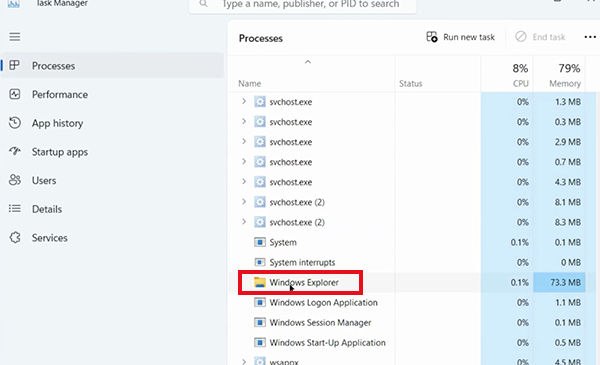
- Right-click it and select Restart.
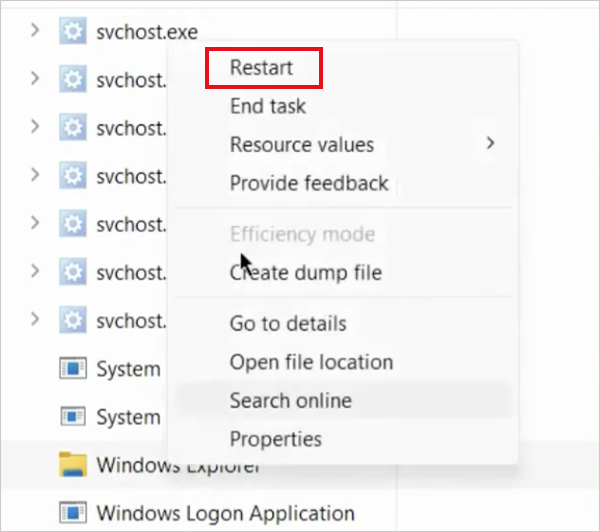
- Wait a few seconds for the taskbar and desktop to reload.
While Windows Explorer is restarting, your screen may briefly flicker, and the taskbar or desktop icons may disappear before returning. This is normal while Windows reloads the interface.
Method 2: Restart Explorer.exe Using Command Prompt
Use Command Prompt if Task Manager’s Restart option is unavailable or you need to stop and relaunch Explorer manually. Here’s how to restart File Explorer using Windows Command Prompt commands:
Press Windows + R to open the Run dialog.
- Type cmd and press Enter.
- Enter the following command and press Enter:
taskkill /f /im explorer.exe
- After the process stops, run:
start explorer.exe
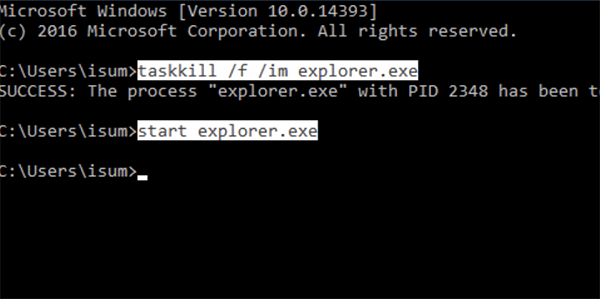
The first command forcibly stops Explorer, while the second starts it again. Your taskbar and desktop may disappear after the first command, so keep the Command Prompt window open until you run the second command.
If Windows reports that Explorer cannot be found, the process may already be stopped. Try running “start explorer.exe” directly.
Method 3: Restart Explorer.exe Using PowerShell
PowerShell provides another way to stop and relaunch Explorer, particularly if you already use it for Windows troubleshooting. Here’s how to run explorer.exe to fix the underlying issues:
- Press Windows + X and select Terminal or Windows PowerShell, depending on your Windows version and menu options.
- Run this command to stop Explorer:
Stop-Process -Name explorer -Force
- Enter this command to launch it again:
Start-Process explorer.exe
Run the commands separately. The first command terminates Explorer, and the second launches it again.
Which method should you use?
Start with Task Manager because its Restart option handles both steps for you. Use Command Prompt or PowerShell when you need to relaunch Explorer manually.
When Should You Restart Explorer.exe?
Restart explorer.exe when the Windows interface becomes unresponsive, but the computer is otherwise running. It can help in situations such as:
- Frozen Taskbar: Start, search, or pinned applications stop responding.
- Missing Desktop Icons: Your wallpaper remains visible, but desktop icons disappear.
- Unresponsive File Explorer: Folder windows freeze or stop responding to clicks.
- Blank Desktop with a Visible Cursor: Windows appears to have loaded, but the taskbar and desktop are missing.
- Desktop Not Refreshing: Icons or other interface elements fail to update correctly.
Restarting Explorer is intended to fix temporary interface problems. If the same symptoms keep returning, investigate the underlying cause rather than repeatedly restarting the process.
How to Start Explorer.exe If It Is Missing?
If Windows Explorer is missing from Task Manager or you accidentally ended the process, you can launch it manually without restarting your PC.
- Press Ctrl + Shift + Esc to open Task Manager.
- Select Run new task. Depending on your Task Manager version, this option may be under the File menu.
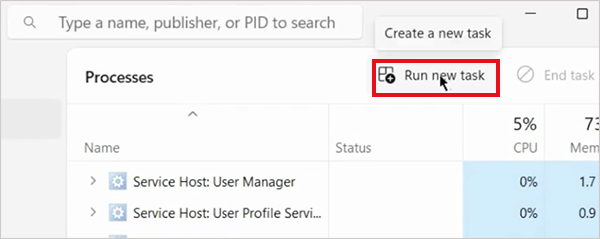
- Type explorer.exe.
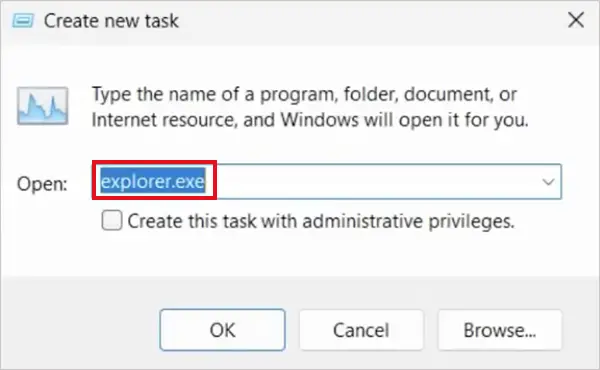
- Press Enter.
Windows should reload the desktop interface, including the taskbar and desktop icons. If Explorer starts but immediately crashes again, install any pending Windows updates and restart your PC.
If the problem continues, check whether recently installed software or customization tools are causing the issue. You can also run the DISM command followed by System File Checker (SFC) to check for Windows component or system-file corruption.
Final Thoughts
Restarting explorer.exe can restore a frozen taskbar, missing desktop icons, or an unresponsive File Explorer without requiring a full system reboot. For most situations, Task Manager’s Restart option is the easiest method.
If Explorer is missing entirely, launch explorer.exe through Task Manager’s Run new task option. Command Prompt and PowerShell offer alternatives when you need to stop and relaunch the process manually.
If Explorer keeps crashing, investigate the underlying software or system issue instead of relying on repeated restarts.
Frequently Asked Questions
What is Windows Explorer in Task Manager?
How do I restart explorer.exe?
Press Ctrl + Shift + Esc, find Windows Explorer in Task Manager, right-click it, and select Restart. If it is missing, select Run new task, enter explorer.exe, and press Enter.
How to reset File Explorer in Windows 11 in PowerShell?
Open Terminal or PowerShell and run these commands separately: “Stop-Process -Name explorer -Force” and “Start-Process explorer.exe”. This restarts Explorer but does not reset File Explorer’s settings or folder preferences.
What should I do if Windows Explorer keeps restarting?
Install pending Windows updates, restart your PC, and check whether the problem began after installing an application or customization tool. If Explorer continues crashing, run DISM followed by SFC in an elevated Command Prompt to check for Windows component and system-file corruption.
Does restarting explorer.exe close apps or delete files?
Restarting Explorer does not normally close other running applications or delete files. However, it may interrupt file operations, and the desktop can disappear briefly. Save your work and allow file transfers to finish before restarting.
Related Posts
How to Fix DISM Error 87 in Windows?
DISM Error 87 usually appears when Windows cannot understand a DISM command or one of its parameters. You may see…
How to Reopen Closed Tabs on Mac [Easy Ways to Restore Tabs]
Accidentally closing the wrong tab can be super annoying, especially when you were in the middle of something important. You…

What Is a .BAT file and How Do You Create One?
You may have seen a file ending in .bat and wondered why opening it brings up a Command Prompt window…

How to Disable Microsoft Edge in Windows? 4 Quick Methods
Microsoft Edge can feel difficult to “turn off” because several Windows and Edge settings control when it starts and what…

How to Open EXE Files on Mac: 5 Ways to Run Windows Apps
If you have downloaded a Windows .exe file on your Mac, double-clicking it won’t make it run. macOS does not…

How to Sign Out of iMessage on Mac?
Your Mac can quietly become another place where your private conversations appear. That’s convenient until you are using a shared…

What is Windows Fast Startup and How Does It Work?
Fast Startup can make your PC boot noticeably faster after a shutdown. Instead of completely rebuilding the Windows kernel state…

How to Unzip Files on Mac: 3 Easy Ways to Extract ZIP Files
A ZIP file has a funny way of making a simple task feel more complicated than it is. On a…
How to Delete Files Completely in Mac Terminal?
Finder makes deleting files simple, but sometimes you need Terminal to remove a file or folder by its exact path…