


A dark corner can be caused by a backlight problem, LCD panel damage, pressure, or a display connection issue. If it stays in the same location, the screen hardware may be responsible.
How to Fix Black Shadow on Laptop Screens?
A black shadow on laptop screens can look like a Windows glitch, but the shape and location of the dark area often tell a different story.
A small dark spot on monitors, a dark corner, or a large uneven patch can result from pixel damage, backlight problems, pressure, loose display connections, or graphics driver issues.
In this guide, I will show you how to identify whether the problem is caused by Windows or the physical display, and what you can safely try before considering a repair.
Why is There a Black Shadow on Laptop Screen?
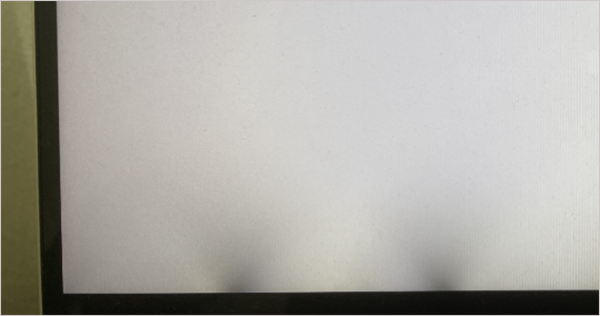
A dark shadow on monitor screens can have several causes. The appearance of the affected area is an important clue. Common causes include:
- Dead or Damaged Pixels: A small and fixed black dot may indicate a dead pixel or damaged subpixel.
- LCD Panel Damage: Pressure, drops, or physical impact can create dark spots or larger patches.
- Backlight Problems: A failing or uneven backlight can make part of the screen appear darker than the rest.
- Loose Display Connections: A damaged cable or connector can cause abnormal display output.
- Graphics Driver Problems: Windows or graphics driver issues can sometimes cause display problems, especially if the issue appears only after Windows loads.
It is also important to distinguish a black shadow on the screen from backlight bleed or light leakage. Light leakage usually appears as a brighter or grayish glow around the edges or corners, particularly when viewing a dark screen. The appearance of the shadow can help narrow down the cause.
How to Fix the Black Shadow on Laptop Screens?
The right fix for the monitor shadow problem depends on what is causing it. Start with simple checks before considering screen repair.
1. Check the Shadow Against Different Backgrounds
Open a plain white page or image and look at the affected area. Then display a black or dark background. Check whether the shadow on the screen:
- Stays in exactly the same position
- Becomes more visible on light backgrounds
- Only appears on dark backgrounds
- Changes with screen brightness
- Changes when you move the laptop lid
A fixed mark that remains visible across different apps and backgrounds is more likely to be related to the physical display.
2. Take a Screenshot
A screenshot can help determine whether the problem comes from the display or the graphics output. Take a screenshot while the shadow is visible, then open the image on another monitor or device.
- Shadow appears in the screenshot: The graphics output, driver, or software may be responsible.
- Shadow does not appear in the screenshot: The problem is more likely to be somewhere in the physical display path, such as the panel or backlight.
3. Connect an External Monitor
Connect the laptop to a known-working external monitor or TV. If the external display looks normal while the laptop’s built-in screen still shows the shadow, the problem is more likely limited to the laptop’s display assembly or connection.
If the same monitor shadow issue appears on both screens, investigate the graphics driver, GPU, or Windows display settings.
4. Reset the Graphics Driver
If the shadow appeared suddenly and looks like a display glitch, reset the graphics driver before trying more complicated fixes.
Just press: Windows + Ctrl + Shift + B
The screen may flicker briefly, and Windows may play a short beep. Check whether the shadow disappears afterward. If it does, check for an available graphics driver update as well.
5. Update or Roll Back the Display Driver
A graphics driver problem is more likely if the shadow appeared after a Windows update, driver installation, or software change. To update the driver:
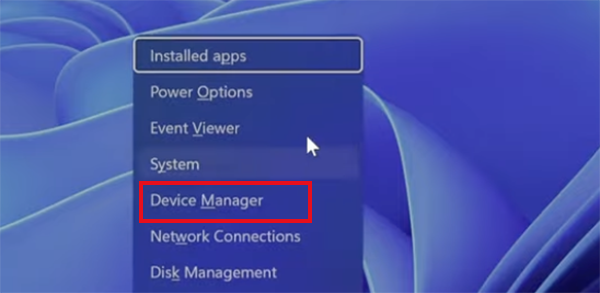
- Press Windows + X and select Device Manager.
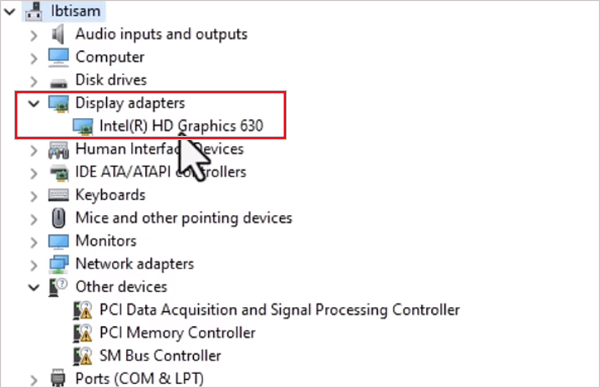
- Expand Display adapters.
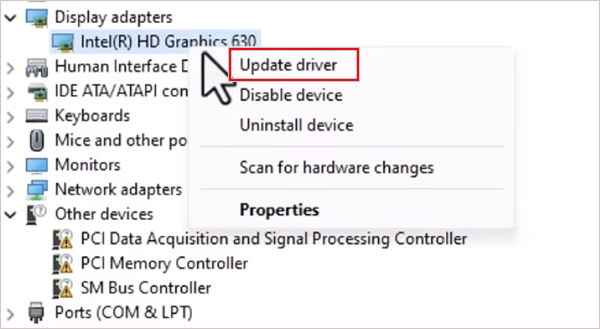
- Right-click your graphics device and select Update driver.
- Select Search automatically for drivers, and follow the on-screen instructions.
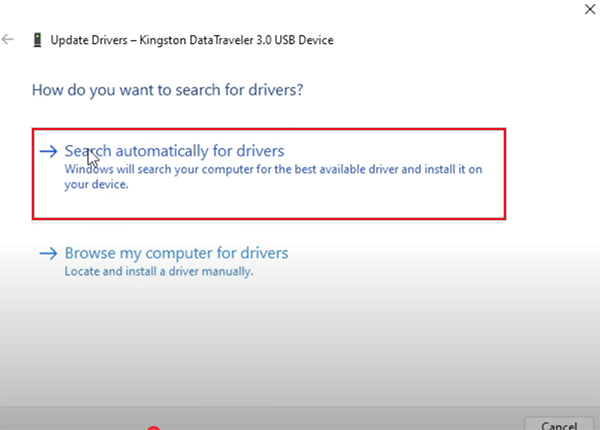
If the problem started immediately after a driver update, Roll Back Driver may be more appropriate than installing another version. Go to that Device > Properties > Driver > Roll Back Driver.
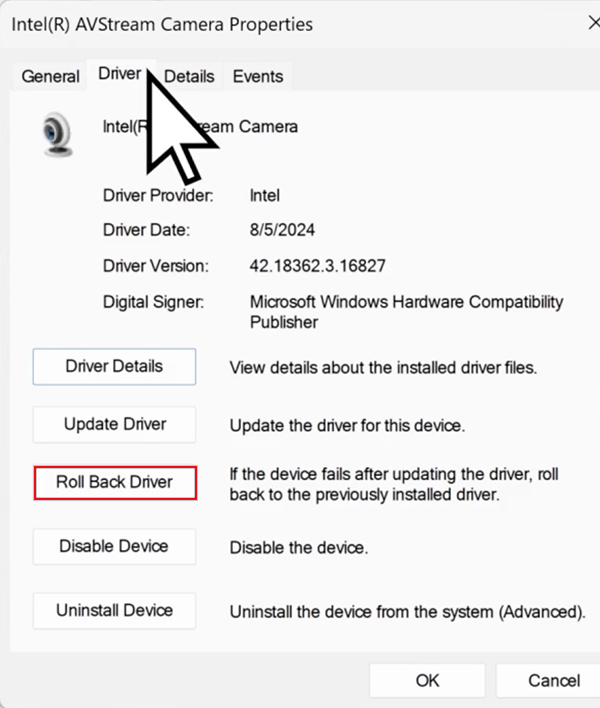
For laptops, you can also check the manufacturer’s support website for the correct graphics driver for your model.
6. Check Whether the Shadow Appears Before Windows Starts
Restart the laptop and look at the manufacturer’s logo or BIOS screen.
If the dark spot or shadow is already visible before Windows loads, the problem is more likely to be related to the display hardware rather than Windows or the graphics driver.
If the screen looks normal during startup and the shadow appears only after Windows loads, software and driver troubleshooting becomes more relevant.
7. Don’t Press or Rub the Screen
Avoid online fixes that tell you to press, rub, or massage the affected area. Applying pressure to an already damaged display can make the problem worse and may damage the panel or its internal components. A screen that already has a dark patch needs proper diagnosis rather than additional physical force.
8. Check for Physical or Liquid Damage
Think about what happened before the shadow appeared. Was the laptop dropped, squeezed inside a bag, exposed to liquid, or pressed against something? These details can help identify the cause.
If the shadow appeared immediately after physical or liquid damage, software troubleshooting is unlikely to resolve the problem. The display assembly should be inspected instead.
When Should You Get the Laptop Screen Repaired?
Consider professional repair when the shadow remains after the software checks or when the evidence points towards a hardware problem. Repair is especially worth considering when:
- The shadow is visible during the boot logo or BIOS.
- The mark stays in exactly the same physical location.
- An external monitor works normally.
- The issue appeared after a drop or pressure on the screen.
- The dark area is growing or spreading.
- Part of the screen has become significantly darker.
- You notice lines, flickering, discoloration, or additional dead pixels.
A damaged LCD or OLED panel may require screen replacement. However, the panel is not always the problem. A display cable, connector, or backlight component can also cause display issues.
Before paying for a screen replacement, have the laptop properly diagnosed. Also check the warranty before opening the device yourself, especially if the problem appeared without any obvious physical damage.
Final Thoughts
A black shadow on a laptop screen is not one specific problem. A small fixed spot may point to pixel damage, while a large dark patch can involve the panel, backlight, or physical damage. If the problem appears only after Windows loads, a graphics driver or software issue can also be responsible. Start with the basic checks provided in the article and only move on to the advanced fixes if required.
Frequently Asked Questions
Why is my laptop screen dark in the corner?
How do I get rid of dark spots on laptop screens?
First, check for graphics driver issues and test the laptop with an external monitor. If the dark spot remains after restarting and troubleshooting the driver, the screen may need professional repair.
Can a laptop screen shadow be fixed without replacing the screen?
Yes, if the cause is a graphics driver, software issues, a loose connection, or another repairable component. A damaged LCD or OLED panel may require screen replacement.
Is the black spot on my laptop screen a dead pixel?
Yes, it can be, especially if it is a small and fixed black dot. Larger dark patches are more likely to be caused by the display panel, backlight, or physical damage.
How can I tell if a shadow on the screen is caused by hardware?
If the shadow appears before Windows starts, stays in the same physical location, or remains visible while an external monitor works normally, the laptop’s display hardware is more likely to be responsible.
Related Posts

8 Best Online Tools to Identify Unknown Callers
When a call comes on your screen with no name or context, you just zone out, thinking you should pick…

Fixing Broken IP Allowlists With a Dedicated Static Address
IP allowlisting is one of the easiest security controls available. Tell a service to accept connections only from addresses you…

What is DumpStack.log and Can You Delete It in Windows?
If you have noticed a file named DumpStack.log in the root of your Windows drive, you may wonder why it…

How eSIM Fits Into Your Global Travel Itineraries
Multi-country trips can be exciting, but sometimes mobile device data makes it concerning. Whenever you cross a border, there will…

How to Pick the Right Data Structure Before You Build Your Database
Every application that stores information depends on a structure chosen long before the first row of data arrives. That structure…

Standardizing React Component Iconography Across Distributed Product Teams
Creating a common React component library is essentially a losing battle. During a cross-team review, I shared my screen. I…

Antimalware Service Executable: What It Is and How to Fix High CPU Usage
You open Task Manager and notice Antimalware Service Executable using a surprising amount of CPU or memory. It may keep…

Keeping Your Website Healthy: A Practical Guide to Long Term Success
Introduction The website may appear to be finished once it is launched; however, making sure that the site remains reliable…
How to Fix the ene.sys Driver Cannot Load Error?
A Windows update can suddenly turn a harmless RGB utility into a startup warning: “A driver cannot load on this…