


Yes, Windows automatically installs many recommended drivers through Windows Update. Some driver updates may appear under Optional updates, which you can install manually.
How to Update Drivers in Windows 11 and Windows 10 (2026 Guide)
An outdated driver can cause a range of problems, from Wi-Fi issues and audio glitches to display and Windows update errors. While Windows installs many drivers automatically, it does not always provide the latest versions.
Knowing when and how to update drivers in Windows can improve hardware compatibility, fix common issues, and keep your PC running smoothly. In this blog, I will explain the safest ways to update Windows device drivers using Microsoft’s recommended methods.
Quick Answer: How to Update Drivers on PC?
- Open Settings and go to Windows Update. Install any available drive updates, including those under Optional updates.
- If Windows can’t find the driver you need, use Device Manager or download it from your device manufacturer’s official website.
What are Windows Drivers?
Windows drivers are small software programs that allow your operating system to communicate with hardware devices such as graphics cards, Wi-Fi adapters, printers, keyboards, webcams, or Bluetooth devices.
You can think of a driver as a translator. Your hardware and Windows need a common language to work together, and the driver makes that communication possible.
Windows automatically installs many drivers when you connect new hardware. However, manufacturers regularly release updated drivers to fix bugs, improve compatibility, enhance security, and add support for new features.
Keeping the important drivers up to date helps your devices perform reliably and reduces the chances of various Windows issues like Kernel Security Check Failure.
How to Update Drivers on Windows 11?
Microsoft recommends starting with Windows Update. If the required driver is not available there, you can use other methods mentioned below. Let’s see how to upgrade drivers on PCs.
Method 1: Update Drivers Using Windows Update
For most users, this is the safest and easiest method. Here’s how to update drivers on computers with Windows 11:
- Open Settings from the Start Menu.
- Then, go to Windows Update and click on Advanced options.
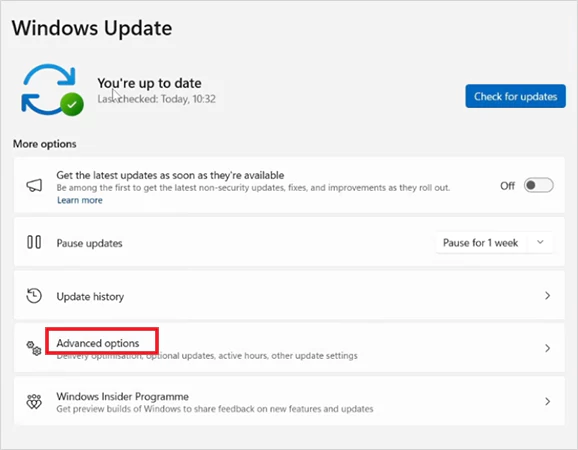
- Open Optional updates (if available).
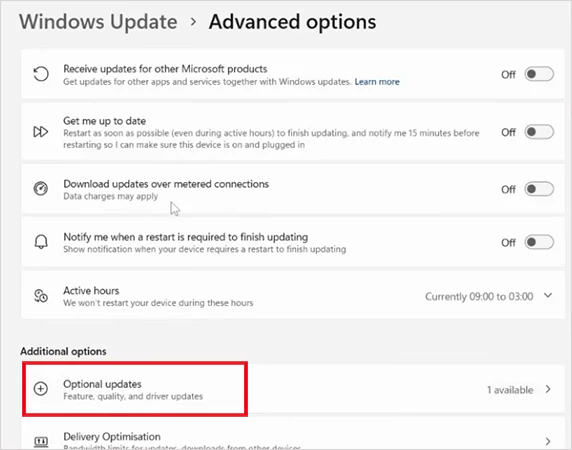
- Select the driver updates you want to install, and click on Download & Install.
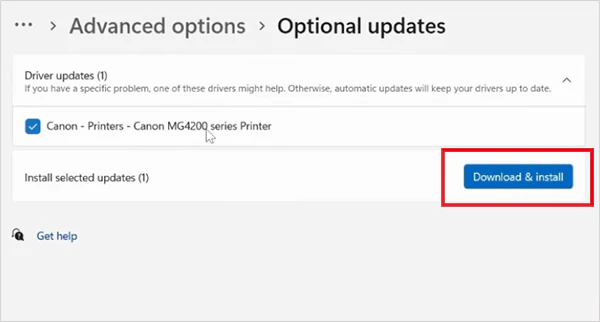
Now, just restart your PC when prompted, and your driver will be updated.
Method 2: Update Drivers Using Device Manager
If Windows Update does not find the driver you need, here’s how to update computer drivers manually using Device Manager:
- Press Windows + X and select Device Manager.
- Expand the category that contains your device.
- Now, right-click the device and choose Update driver.
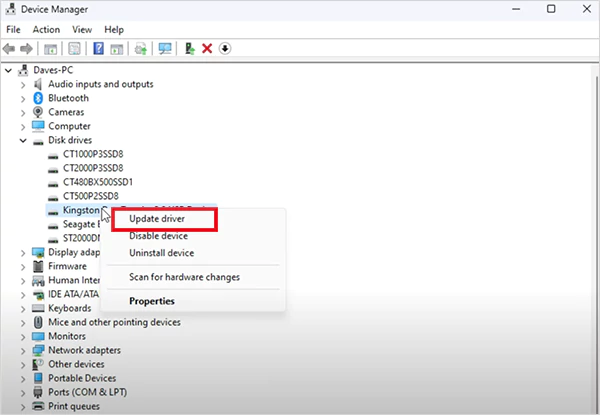
- Select Search automatically for drivers, and follow the on-screen instructions.
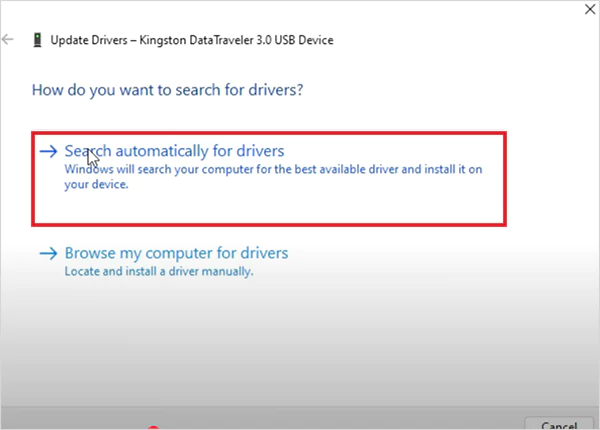
If Windows does not find a newer driver, you will need to install it manually using the manufacturer’s latest driver files.
Method 3: Download Drivers from the Manufacturer
This method is useful for graphics cards, chipsets, network adapters, and other hardware that receives frequent updates. Let’s understand how to update drivers on laptops with manufacturer support:
- First, identify your device model using Device Manager or System Information.
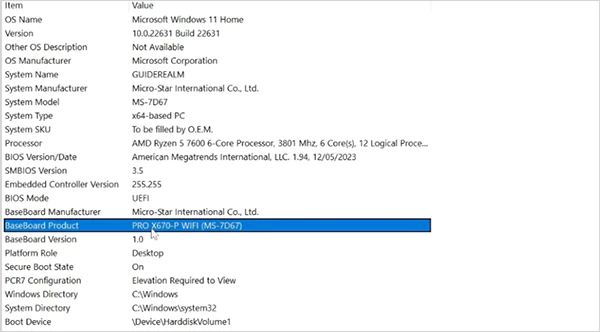
- Next, visit the official support page of the hardware manufacturer.
- Download the latest driver that is compatible with your Windows version.
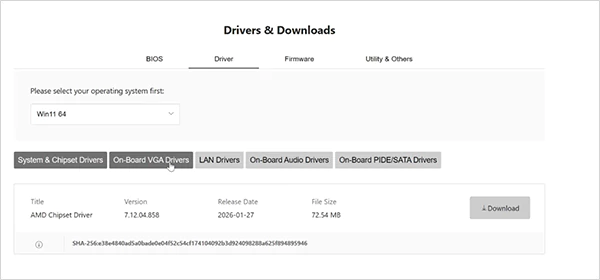
- Run the installer and just complete the setup.
For example, graphics drivers are best downloaded directly from NVIDIA, AMD, or Intel, while laptop drivers should usually come from your laptop manufacturer’s support page.
Method 4: Use Your PC Manufacturer’s Update Tools
Many PC manufacturers provide their own software to simplify driver updates. Some popular options include:
These tools scan your system, identify outdated drivers, and install compatible updates automatically. They are generally a safer choice than any third-party driver updater software.
How to Update Drivers on Windows 10?
Although Windows 10 has reached the end of mainstream support, many PCs still use it. The process for updating drivers is almost the same as in Windows 11. Here’s how to update your PC drivers in Windows 10:
- Method 1: Using Windows Update
- Open Settings.
- Go to Update & Security > Windows Update.
- Now, click on Check for updates.
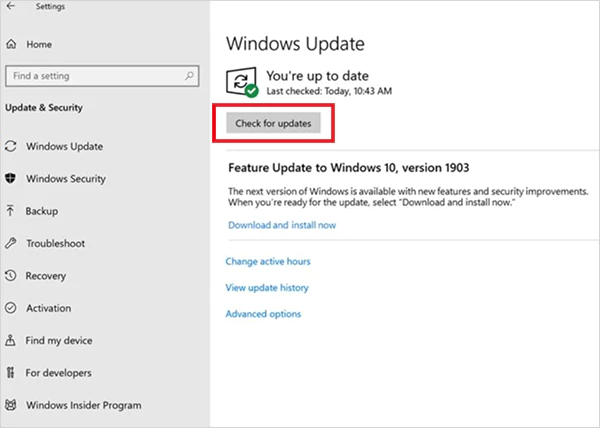
- Click on Install now to download any available updates.
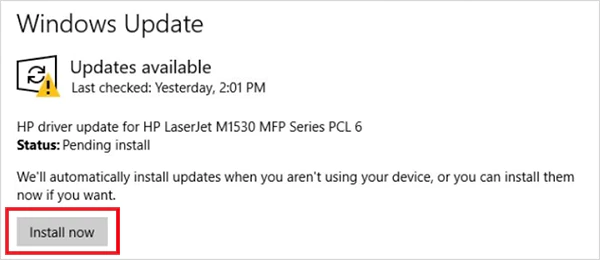
- Restart your PC if prompted.
- Method 2: Using Device Manager
- Open Device Manager.
- Locate the device you want to update.
- Right-click it and select Update driver.
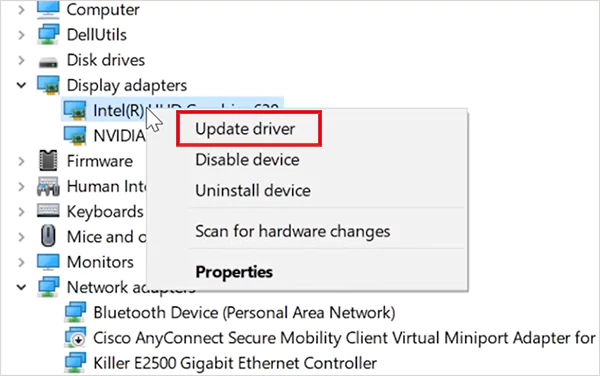
- Choose Search automatically for drivers.
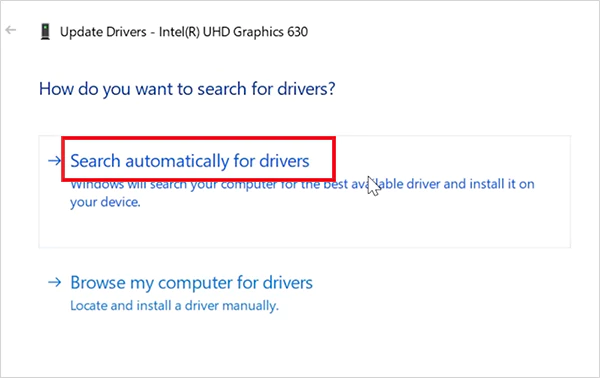
- Follow the on-screen instructions.
If Windows can’t find a newer version, download the latest compatible driver from your PC or your hardware manufacturer’s official support page and install it manually.
When Should You Update Your Drivers?
What drivers do I need to update? You don’t need to update every driver whenever a new version is released.
In most cases, Windows handles driver updates automatically, and a stable driver is often better than constantly installing the latest one. Consider updating your drivers if:
- A hardware device stops working properly, or you see a warning icon in Device Manager.
- Your PC experiences crashes, freezes, or Blue Screen (BSOD) errors.
- You have installed new hardware.
- The manufacturer releases a driver that fixes a known bug, security issue, or compatibility problem.
- Windows Update recommends a newer driver.
If everything on your PC is working normally, there’s usually no need to update drivers for the sake of having the latest version.
Best Practices for Updating Drivers on PC
Now that you know how to update all drivers in Windows 11 and 10, following a few simple practices can help you avoid installation issues.
- Use the Windows Update option first because it is the safest place to get tested updates.
- Download drivers only from official manufacturers and avoid any unknown driver download websites.
- Create a System Restore Point before manually updating important drivers, such as graphics or chipset drivers.
- Update one driver at a time when troubleshooting hardware issues.
- Do not replace a stable driver unnecessarily; update drivers only when there is a valid reason.
- Keep Windows up to date, as many driver improvements are included in regular Windows updates.
These habits help reduce compatibility problems and improve your PC’s long-term stability.
Final Takeaway
Updating drivers does not have to be complicated. In most cases, Windows Update is all you need to keep your drivers updated. If it can’t find the right driver, Device Manager or the official support page are the next best options. The key is to update drivers when it is necessary, not every time a new version is released.
Frequently Asked Questions
Can your PC automatically update drivers?
How do I update drivers on my computer?
The easiest way is through Windows Update. Just go to Advanced options and install any optional driver update you want.
How to manually update drivers?
Download the correct driver from the manufacturer’s website, open Device Manager, select Update Driver, choose Browse my computer for drivers, and install the downloaded driver.
What should I do if a driver update causes problems?
Open Device Manager, go to the device’s Properties, select the Driver tab, and use the Roll Back Driver option if it is available. You can also reinstall the previous stable driver if needed.
Is it okay to use third-party driver update tools?
It is generally best to avoid them. You should always prefer official tools, as third-party updaters may install incorrect or unnecessary drivers.
Related Posts
How to Run Windows on Mac: 4 Methods That Actually Work
Buying a Mac does not mean you have to give up Windows. You might need a Windows-only work application, open…

How to Fix DISM Error 87 in Windows?
DISM Error 87 usually appears when Windows cannot understand a DISM command or one of its parameters. You may see…

How to Restart Explorer.exe in Windows?
A frozen taskbar, missing desktop icons, or an unresponsive File Explorer can make Windows feel stuck even when your computer…
![How to Reopen Closed Tabs on Mac [Easy Ways to Restore Tabs]](https://datarecovee.com/knowledge-base/wp-content/uploads/2026/10/how-to-reopen-closed-tabs-ftd-img.webp)
How to Reopen Closed Tabs on Mac [Easy Ways to Restore Tabs]
Accidentally closing the wrong tab can be super annoying, especially when you were in the middle of something important. You…

What Is a .BAT file and How Do You Create One?
You may have seen a file ending in .bat and wondered why opening it brings up a Command Prompt window…

How to Disable Microsoft Edge in Windows? 4 Quick Methods
Microsoft Edge can feel difficult to “turn off” because several Windows and Edge settings control when it starts and what…

How to Open EXE Files on Mac: 5 Ways to Run Windows Apps
If you have downloaded a Windows .exe file on your Mac, double-clicking it won’t make it run. macOS does not…

How to Sign Out of iMessage on Mac?
Your Mac can quietly become another place where your private conversations appear. That’s convenient until you are using a shared…

What is Windows Fast Startup and How Does It Work?
Fast Startup can make your PC boot noticeably faster after a shutdown. Instead of completely rebuilding the Windows kernel state…