


Ans. Edge may be enabled as a Windows startup app, or features such as Startup Boost may allow its processes to run in the background.
How to Disable Microsoft Edge in Windows? 4 Quick Methods
Microsoft Edge can feel difficult to “turn off” because several Windows and Edge settings control when it starts and what it does in the background.
Turning off Edge in Windows Startup stops it from launching when you sign in, while disabling Startup Boost prevents it from keeping processes ready in the background. You can also change your default browser if you simply want another browser to open links.
In this guide, I will explain how to disable Microsoft Edge from Windows 10/11 without removing Windows components.
Quick Answer: How to Disable MS Edge?
- Go to Settings > Apps > Startup and turn off Microsoft Edge.
- Open Edge, go to edge://settings/system, and turn Startup boost off.
- If Edge keeps reopening, check Settings > Accounts > Sign-in options and disable automatic app restart.
- To stop Windows from opening links in Edge, set another browser as your default browser.
How to Disable Microsoft Edge in Windows?
You don’t need to uninstall Edge just because you don’t want it launching automatically. Start with Windows built-in startup settings and then change Edge’s own background options if needed. Let’s see how to turn off Microsoft Edge in different ways:
1. Disable Edge From Windows Startup
Windows allows you to control which apps launch automatically when you sign in. Here’s how to turn Microsoft Edge off:
- Press Windows + I to open Settings.
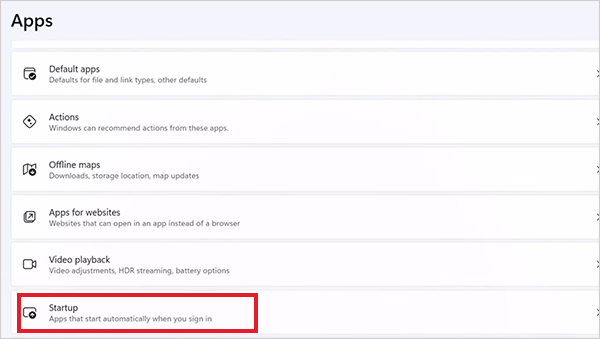
- Go to Apps > Startup.
- Find Microsoft Edge.
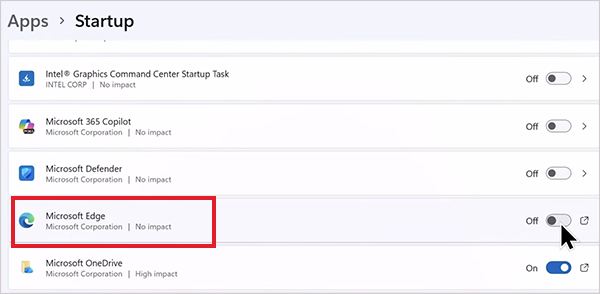
- Now just turn its toggle off.
You can also get Microsoft Edge disabled through Task Manager:
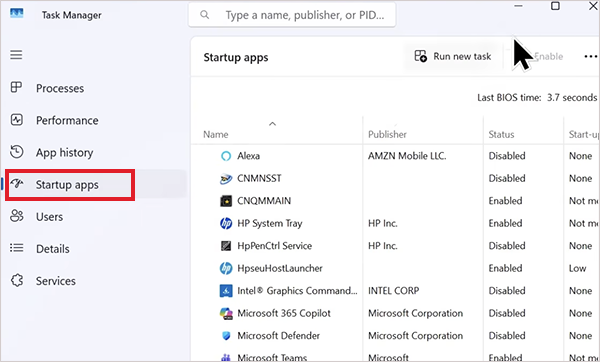
- Press Ctrl + Shift + Esc.
- Select Startup apps.
- Find MS Edge, select it, and click Disable.
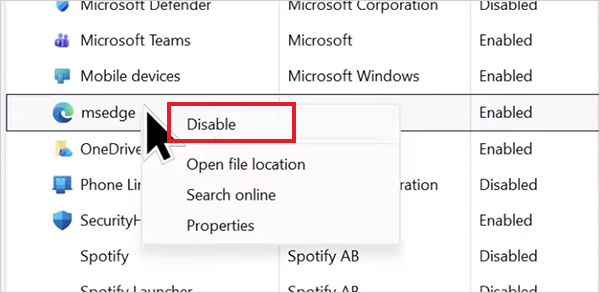
This prevents Edge from launching through the normal Windows startup process. It does not uninstall the browser, and you can still open Edge manually whenever you want.
2. Change Your Default Browser
If your main problem is that Windows keeps opening links in Edge, you may not need to disable Edge at all. Instead, change your default browser.
- Go to Settings > Apps > Default apps.
- Search for your preferred browser, and click on it.
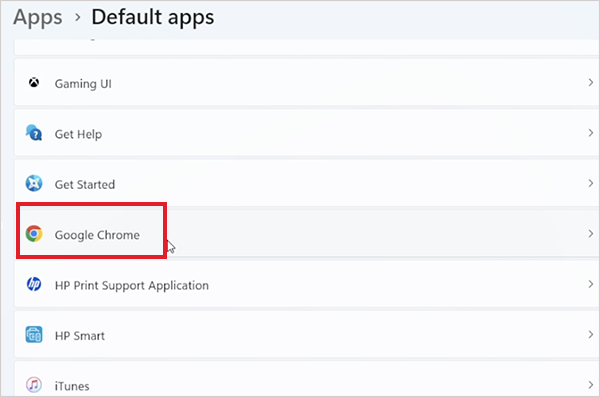
- Now just set it as the default for the relevant web links and file types.
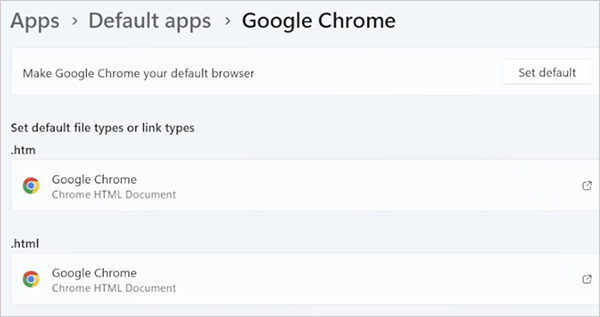
This does not disable or uninstall Edge. It simply tells Windows to use another browser when opening supported links.
3. Stop Windows From Restoring Apps After Sign-In
Windows can restore certain apps when you sign back in. If Edge keeps returning even after you disable its startup entry, check your sign-in settings.
Go to Settings > Accounts > Sign-in options. Look for the option that allows Windows to automatically save restartable apps and restart them when you sign back in, then turn it off.
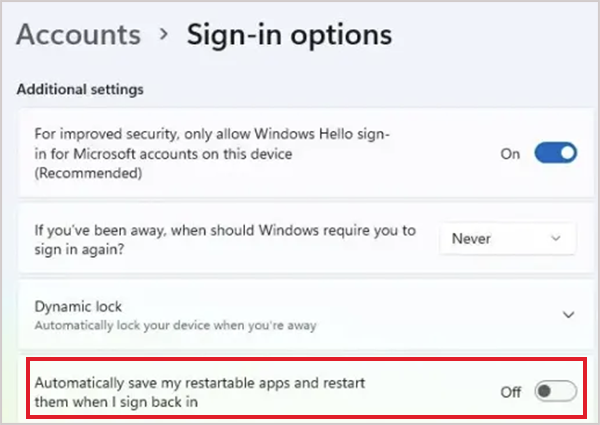
This can help when Edge is being restored rather than launched through a normal startup entry.
4. Manage Edge Startup With Group Policy
If you are using a work or school computer, administrators can control Edge’s startup behavior through Microsoft Edge policies.
Microsoft provides policies such as Launch Microsoft Edge on Windows startup and StartupBoostEnabled, which administrators can use to control Edge’s startup behavior and Startup Boost.
This method is mainly intended for managed Windows computers. For most home users, the normal Windows Startup settings and Edge’s own settings are enough to learn how to deactivate Microsoft Edge.
How to Stop Microsoft Edge From Running in the Background?
How can I disable Microsoft Edge if it continues using resources after I close the browser? Turning off Edge in Windows Startup does not necessarily stop all of its background activity. Startup Boost can keep Edge processes ready, so the browser opens faster later.
Here’s how to turn off Microsoft Edge on Windows 10 or 11 from Startup Boost:
- Open Microsoft Edge.
- Enter “edge://settings/system” in the address bar.

- Find Startup Boost and turn it off.
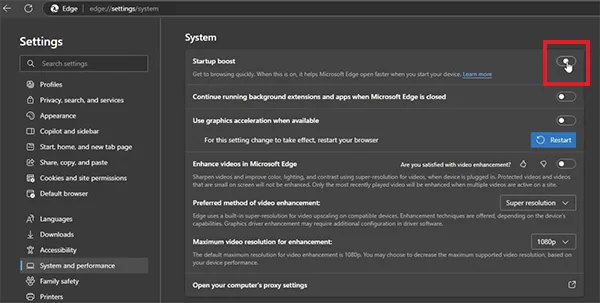
- If available, turn off Continue running background extensions and apps when Microsoft Edge is closed.
- Close Edge and check Task Manager again.
Startup Boost can start Edge processes at Windows sign-in and keep processes running after the last browser window closes.
If you are using a work or school computer, an administrator may control these settings. In that case, the option may be unavailable or may revert after you change it.
Can You Uninstall Microsoft Edge?
Disabling Microsoft Edge and uninstalling it are two different things. On most Windows installations, Microsoft does not provide a standard option to uninstall Edge. Edge is also used by some Windows features and web-based applications, so removing its components can affect other parts of the system.
There is an important regional exception. Microsoft provides Edge uninstall support for eligible Windows devices in the European Economic Area (EEA). Whether the uninstall option is available depends on factors such as your Windows version, region, edition, and device configuration.
If Edge cannot be uninstalled through Windows, don’t try to remove its folders manually or use random third-party removal scripts. If your goal is simply to stop Edge from launching or using resources unnecessarily, changing its startup and background settings is the safer approach.
Conclusion
If you want to disable Microsoft Edge, start with Windows Startup apps and turn off Edge. If it continues running after you close it, disable Startup Boost and background activity from Edge’s system settings.
You usually do not need to uninstall Edge to keep it from launching automatically. For most users, controlling when Edge starts and what it does in the background is enough.
Frequently Asked Questions
Why does Microsoft Edge keep opening?
How do I disable Microsoft Edge in Windows 10?
Ans. Go to Settings > Apps > Startup and turn off Microsoft Edge. You can also open Task Manager, select Startup apps, and disable Edge there.
What should I do if I can’t disable Microsoft Edge?
Ans. Check whether Edge’s startup or background settings are controlled by a work or school administrator. You can also try turning off Startup Boost from edge://settings/system if the option is available.
Can I completely remove the Edge browser from Windows?
Ans. Usually, not through the standard Windows uninstall process. Microsoft supports Edge removal in certain conditions, including eligible Windows devices in the EEA.
Does disabling Microsoft Edge affect Windows?
Ans. Disabling Edge from startup does not remove the browser or prevent you from opening it manually. Completely uninstalling Edge, where supported, can affect Windows features, widgets, and web apps that rely on its components.
Related Posts
How to Run Windows on Mac: 4 Methods That Actually Work
Buying a Mac does not mean you have to give up Windows. You might need a Windows-only work application, open…

How to Fix DISM Error 87 in Windows?
DISM Error 87 usually appears when Windows cannot understand a DISM command or one of its parameters. You may see…

How to Restart Explorer.exe in Windows?
A frozen taskbar, missing desktop icons, or an unresponsive File Explorer can make Windows feel stuck even when your computer…
![How to Reopen Closed Tabs on Mac [Easy Ways to Restore Tabs]](https://datarecovee.com/knowledge-base/wp-content/uploads/2026/10/how-to-reopen-closed-tabs-ftd-img.webp)
How to Reopen Closed Tabs on Mac [Easy Ways to Restore Tabs]
Accidentally closing the wrong tab can be super annoying, especially when you were in the middle of something important. You…

What Is a .BAT file and How Do You Create One?
You may have seen a file ending in .bat and wondered why opening it brings up a Command Prompt window…

How to Open EXE Files on Mac: 5 Ways to Run Windows Apps
If you have downloaded a Windows .exe file on your Mac, double-clicking it won’t make it run. macOS does not…

How to Sign Out of iMessage on Mac?
Your Mac can quietly become another place where your private conversations appear. That’s convenient until you are using a shared…

What is Windows Fast Startup and How Does It Work?
Fast Startup can make your PC boot noticeably faster after a shutdown. Instead of completely rebuilding the Windows kernel state…

How to Unzip Files on Mac: 3 Easy Ways to Extract ZIP Files
A ZIP file has a funny way of making a simple task feel more complicated than it is. On a…