


Ans. Press Windows + R, type services.msc, and press Enter. Right-click Bluetooth Support Service and select Restart. If it isn’t running, select Start.
How to Restart Bluetooth Service Windows 11? (Fix Bluetooth Issues)
Bluetooth stopped working in Windows 11? It can suddenly stop working even when your headphones, mouse, or keyboard work perfectly with other devices.
The Bluetooth toggle may disappear, Windows may fail to detect nearby devices, or a previously connected accessory may refuse to pair. Restarting the service can fix temporary issues, but it is not the only thing to check.
This guide explains how to restart Bluetooth service Windows 11 and troubleshoot other common issues.
Why is Bluetooth Not Working in Windows 11?
Bluetooth problems in Windows may result from stopped services, outdated drivers, incorrect settings, Windows updates, connection issues, or hardware problems.
Common symptoms include:
- Bluetooth is Missing: Windows may not be detecting or enabling the Bluetooth adapter.
- Bluetooth not detecting devices in Windows 11: The accessory may be out of range, not in pairing mode, or affected by driver issues.
- Bluetooth Suddenly Stopped Working: A temporary service, driver, or system issue may be responsible.
- Bluetooth Keeps Disconnecting: The device, driver, interference, power settings, or connection may need attention.
Restart the Bluetooth service when it suddenly stops responding. If Windows does not detect the adapter, troubleshoot the driver or hardware instead.
How to Restart Bluetooth Service Windows?
Windows includes the Bluetooth Support Service, which supports the discovery and association of Bluetooth devices. You can restart it through the Services console.
Here’s how to restart the Bluetooth service in Windows 11:
- Press Windows + R to open the Run dialog.
- Type services.msc and press Enter.
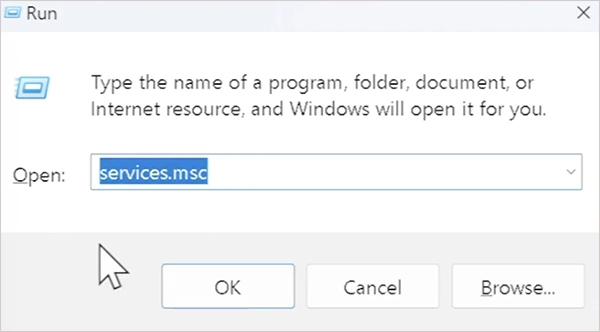
- In the Services window, find Bluetooth Support Service.
- Right-click it and select Restart.
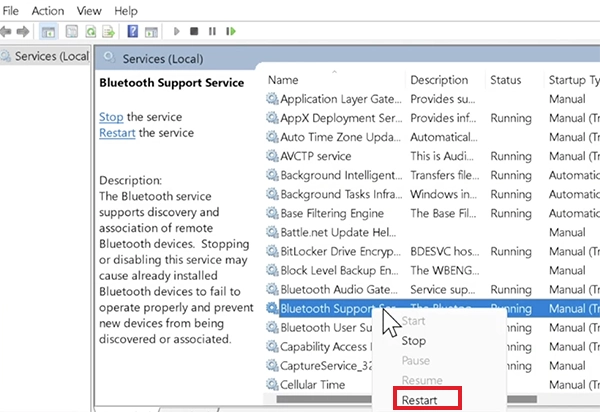
- If the service is not running, select Start instead.
Wait a few seconds, then try turning Bluetooth off and on again.
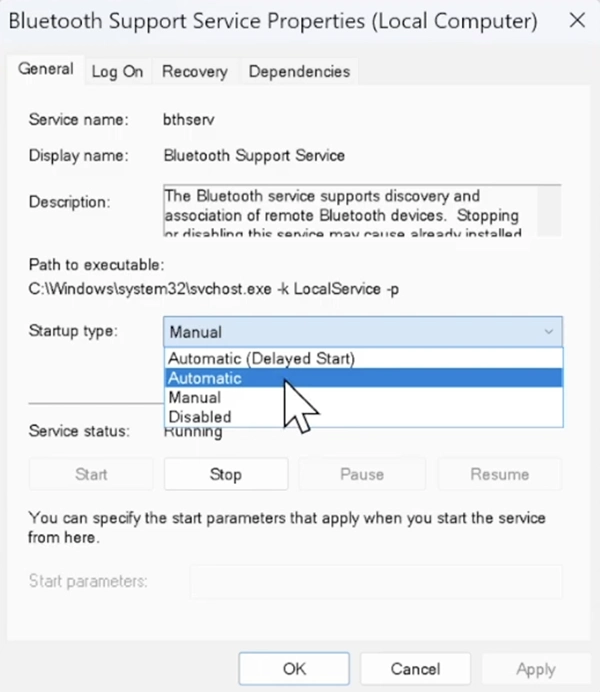
If Bluetooth stops working after every restart, check the service’s startup configuration.
- Right-click Bluetooth Support Service.
- Select Properties and find Startup type.
- Select Automatic > Apply > OK, and restart your PC.
Don’t change unrelated Windows services while troubleshooting Bluetooth. Different services support different parts of Windows, and changing the wrong settings can create additional problems.
How to Fix Windows 11 Bluetooth Not Working Issues?
Restarting the Bluetooth service won’t solve every problem. If Bluetooth is still not working in Windows 11, try these fixes based on the symptoms you are experiencing.
1. Turn Bluetooth Off and On
Before changing drivers or other system settings, go to Settings > Bluetooth & devices and turn Bluetooth off. Wait about 10 seconds, then turn it back on.
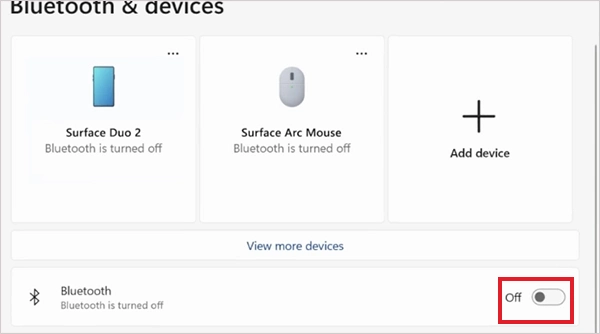
You can also use the Bluetooth control in Quick Settings. This can clear a temporary connection or service issue without changing anything else on your PC.
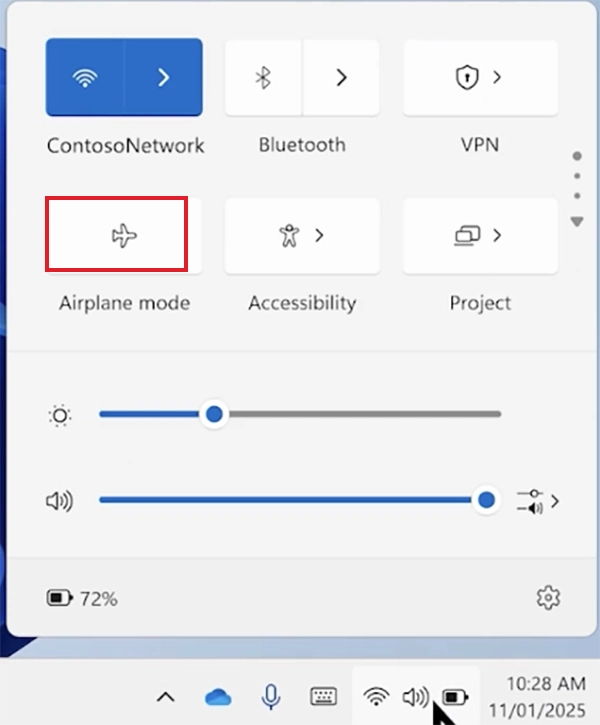
2. Make Sure Airplane Mode Is Off
Airplane mode can disable wireless connections, including Bluetooth. Press Windows + A and make sure Airplane mode is turned off. If it was already off, continue with the other troubleshooting steps.
3. Run the Bluetooth Troubleshooter
Windows 11 includes an automated Bluetooth troubleshooter through the Get Help app.
Open Get Help from Windows Search and search for Bluetooth troubleshooting. Follow the prompts and allow Windows to check for common Bluetooth problems.
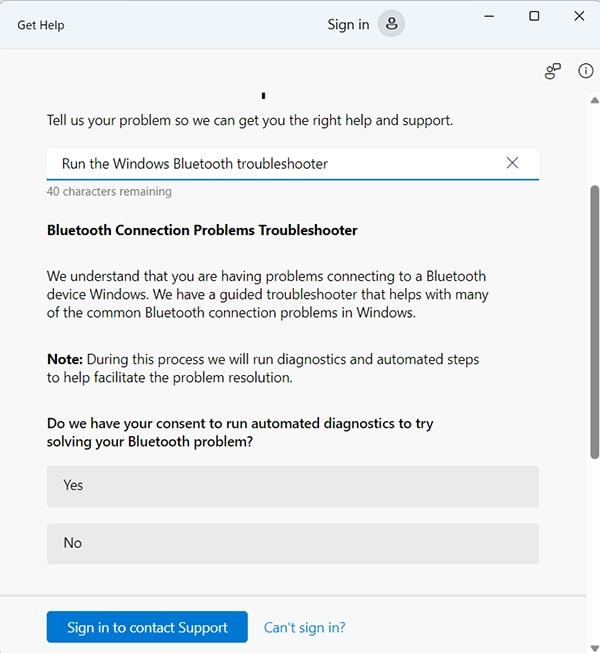
This is worth trying before manually changing system settings or drivers.
4. Update the Bluetooth Driver
Bluetooth driver missing in Windows 11? A missing, outdated, or incompatible driver can cause it to disappear or stop working correctly. To update the driver:
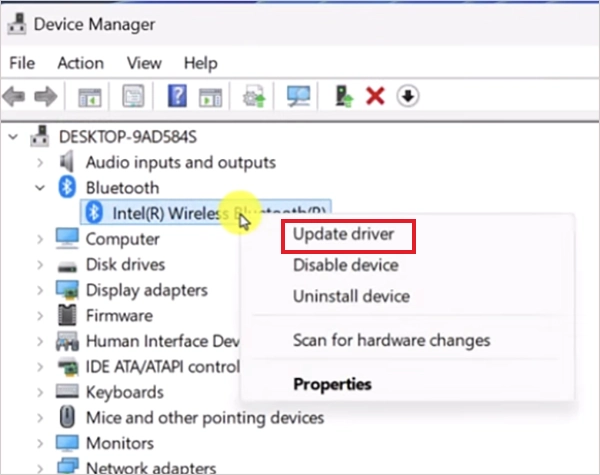
- Search for Device Manager and open it.
- Expand Bluetooth and find your Bluetooth adapter.
- Right-click the adapter and select the Update driver.
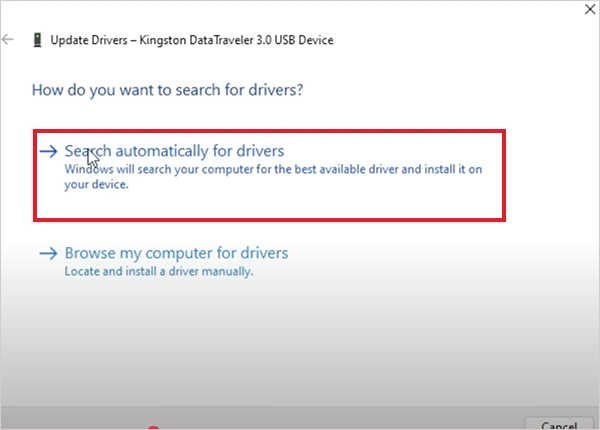
- Select Search automatically for drivers.
- Restart your PC if Windows asks you to.
If Windows can’t find an updated driver, visit your computer manufacturer’s official support site and download the Bluetooth driver for your exact model. Avoid downloading driver packages from unknown sources or third-party websites.
5. Reinstall the Bluetooth Driver
If updating the driver does not help, reinstalling it can clear problems caused by a damaged driver installation.
- Open Device Manager and expand Bluetooth.
- Right-click your Bluetooth adapter.
- Select Uninstall device and restart your computer.
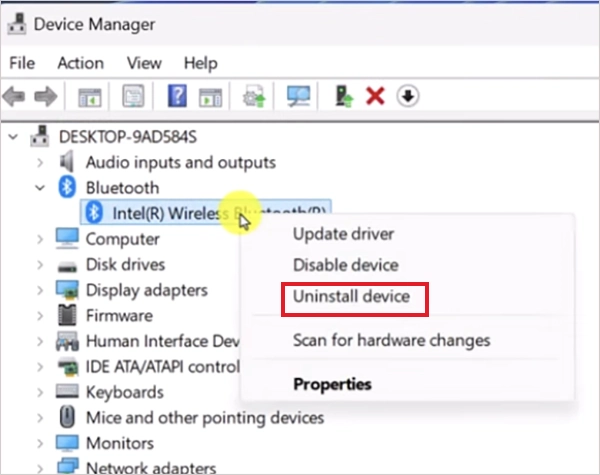
Windows should automatically reinstall the Bluetooth driver after the restart. If Bluetooth remains unavailable, check your computer manufacturer’s support website for the latest compatible driver.
6. Remove and Pair the Bluetooth Device Again
If Windows detects Bluetooth but won’t connect to a particular device, remove the existing pairing and pair the device again.
- Go to Settings > Bluetooth & devices > devices.
- Find the problematic device, select … > Remove device, then select Add device to pair it again.
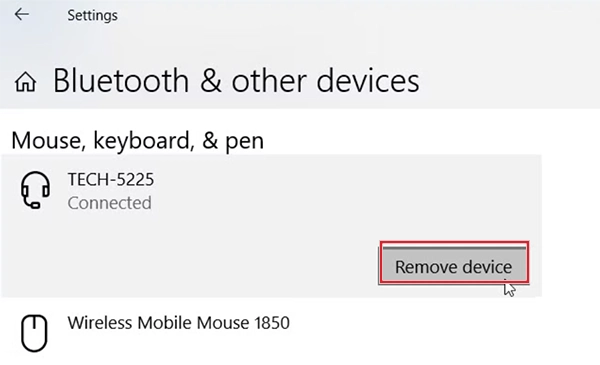
Before pairing, make sure the accessory is turned on, sufficiently charged, within range, and in pairing mode.
7. Change Bluetooth Device Discovery
Sometimes Windows isn’t showing a device because of its discovery settings rather than a problem with Bluetooth itself.
- Go to Settings > Bluetooth & devices > Devices.
- Under Device settings, find Bluetooth device discovery and change it to Advanced.
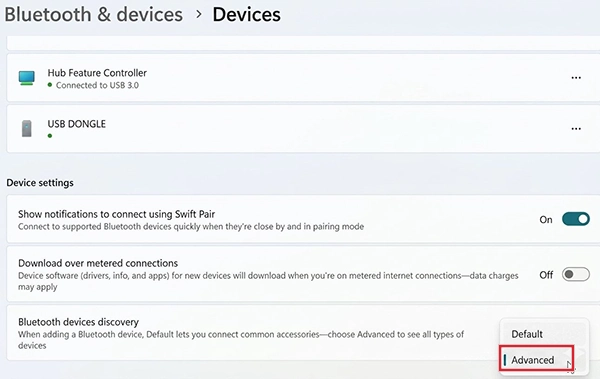
This allows Windows to display more types of Bluetooth devices instead of limiting discovery to common device types.
8. Check Windows Updates
Bluetooth drivers and other components can be delivered through Windows Update, so make sure your Windows is up to date.
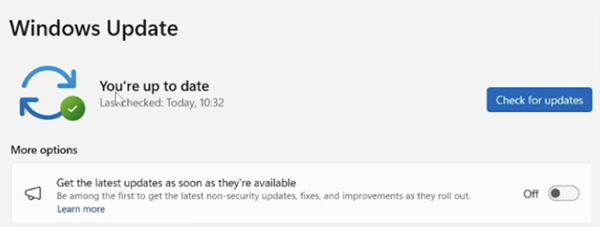
Go to Settings > Windows Update and select Check for updates. If your Bluetooth problem started immediately after a Windows update, pay attention to that timing. Installing another update may not necessarily fix the issue if the update itself introduced the problem.
Final Thoughts
When Bluetooth stops working in Windows 11, restarting the Bluetooth Support Service is a sensible first step, especially if Bluetooth was working normally before the problem appeared.
If that does not help, check whether Windows detects the Bluetooth adapter, update or reinstall its driver, make sure Airplane mode is off, and re-pair the affected device when necessary. The key is to match the fix to the symptom.
Frequently Asked Questions
How do I restart Bluetooth in Windows 11?
What should I do if Bluetooth won’t turn on in Windows 11?
Ans. Turn off Airplane mode, then toggle Bluetooth under Settings > Bluetooth & devices. If it still won’t turn on, run the Bluetooth troubleshooter in the Get Help app and update the Bluetooth driver in Device Manager.
Why is Bluetooth not detecting devices in Windows 11?
Ans. It may not detect devices that are out of range, turned off, not in pairing mode, or low on battery.
How do I fix a corrupted Bluetooth driver?
Ans. Open Device Manager > Bluetooth, right-click the Bluetooth adapter, and select Uninstall device. Restart the PC to reinstall the driver. If the issue continues, download the latest driver from your PC manufacturer’s official support website.
Why is my Bluetooth connected but there is no sound in Windows?
Ans. Your Bluetooth device may be connected but not selected as the audio output. Go to Settings > System > Sound and select it. If there’s still no sound, reconnect the device, run the Bluetooth troubleshooter, or install available drivers and Windows updates.
Related Posts

How to Fix DISM Error 87 in Windows?
DISM Error 87 usually appears when Windows cannot understand a DISM command or one of its parameters. You may see…

How to Restart Explorer.exe in Windows?
A frozen taskbar, missing desktop icons, or an unresponsive File Explorer can make Windows feel stuck even when your computer…
![How to Reopen Closed Tabs on Mac [Easy Ways to Restore Tabs]](https://datarecovee.com/knowledge-base/wp-content/uploads/2026/10/how-to-reopen-closed-tabs-ftd-img.webp)
How to Reopen Closed Tabs on Mac [Easy Ways to Restore Tabs]
Accidentally closing the wrong tab can be super annoying, especially when you were in the middle of something important. You…

What Is a .BAT file and How Do You Create One?
You may have seen a file ending in .bat and wondered why opening it brings up a Command Prompt window…

How to Disable Microsoft Edge in Windows? 4 Quick Methods
Microsoft Edge can feel difficult to “turn off” because several Windows and Edge settings control when it starts and what…

How to Open EXE Files on Mac: 5 Ways to Run Windows Apps
If you have downloaded a Windows .exe file on your Mac, double-clicking it won’t make it run. macOS does not…

How to Sign Out of iMessage on Mac?
Your Mac can quietly become another place where your private conversations appear. That’s convenient until you are using a shared…

What is Windows Fast Startup and How Does It Work?
Fast Startup can make your PC boot noticeably faster after a shutdown. Instead of completely rebuilding the Windows kernel state…

How to Unzip Files on Mac: 3 Easy Ways to Extract ZIP Files
A ZIP file has a funny way of making a simple task feel more complicated than it is. On a…