


Ans. Press Command + Shift + T. Your browser will reopen the most recently closed tab. Press the shortcut again to restore another recently closed tab. And you can keep doing that until you find the tab you want to reopen.
How to Reopen Closed Tabs on Mac [Easy Ways to Restore Tabs]
Accidentally closing the wrong tab can be super annoying, especially when you were in the middle of something important. You usually don’t need to search for the page again, though.
On a Mac, a simple keyboard shortcut can help you reopen recently closed tabs in seconds. You can also use your browser’s History when you need an older page, multiple tabs, or an entire browsing session. Let’s see how to reopen closed tabs in Safari, Chrome, and Firefox on Mac computers.
Quick Look: How to Open a Closed Tab on Mac?
- Fastest Method: Press Command + Shift + T to reopen your most recently closed tab.
- Restore Multiple Tabs: Press the shortcut repeatedly to reopen tabs in the order they were closed.
- Restore a Window: Holding the shortcut keys can also reopen a recently closed browser window in supported browsers.
- Find Older Tabs: Use your browser’s History to find pages that are no longer in the recently closed list.
- Private Tabs: Recovery is more limited because private browsing usually does not save normal browsing history.
How to Reopen Closed Tabs on Mac?
Want to learn how to open a tab you just closed by mistake? The quickest way to restore is with a keyboard command to reopen closed tabs:
Press Command + Shift + T
This shortcut reopens the most recently closed tab in Safari, Chrome, and Firefox on Mac. If you close several tabs, press the shortcut repeatedly to restore them in reverse order.
In some browsers, holding the Command + Shift + T shortcut can also restore a recently closed window along with its tabs.
If the shortcut is not reopening the closed tab you need, you can check your browser’s history. This is especially useful when the tab was closed some time ago.
How to Restore Tabs on Mac (Safari, Chrome, and Firefox)?
The basic shortcut for opening closed tabs works across the three browsers, but each one has additional options for recovering tabs and browsing sessions.
Safari
Safari is the default browser on Mac. It allows you to restore tabs and windows through its history menu. Here’s how to restore tabs on a MacBook’s Safari browser:
- Open Safari on your Mac.
- Click History in the menu bar.
- Now, select Recently Closed.
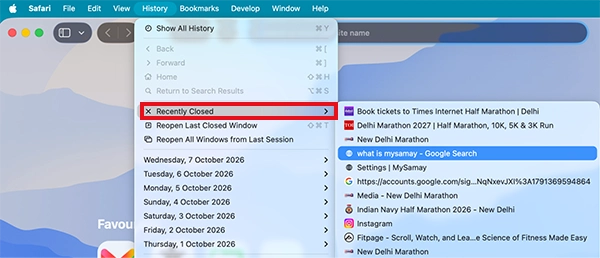
- Choose the tab or window you want to reopen.

You can also select History > Reopen Last Closed Tab or History > Reopen Last Closed Window.
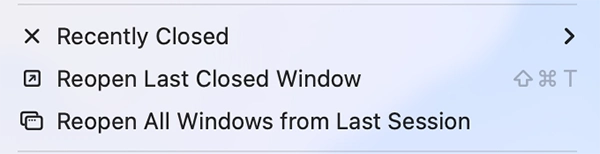
If you want to restore tabs and windows from your previous session, select History > Reopen All Windows from Last Session. And of course, for a faster option, you can use the Command + Shift + T shortcut option.
If you are looking for an older tab, just press Command + Y to open the browser history. Here, locate and select the page you are looking for.
Chrome
In Chrome, the shortcut reopens the most recently closed tab. You can press it again to restore another recently closed tab.
Here’s how to reopen recently closed tabs on Chrome:
- Open the Chrome browser.
- Click on the three-dot menu.
- Select or hover over History.
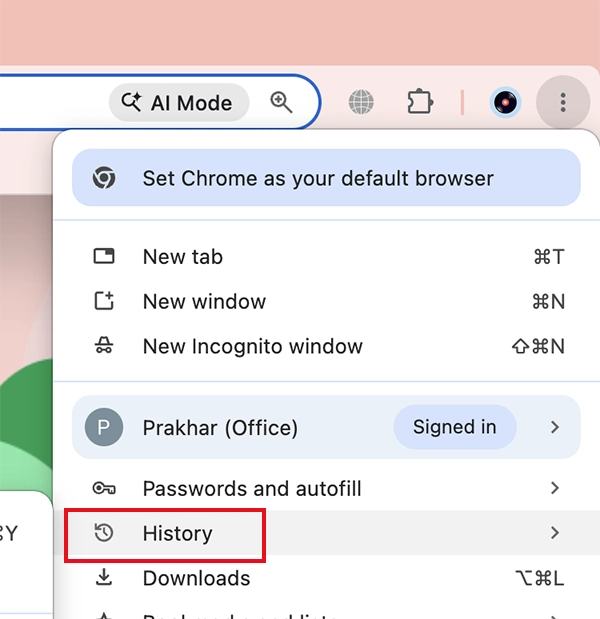
- Here, find the recently closed tabs or windows you are looking for.
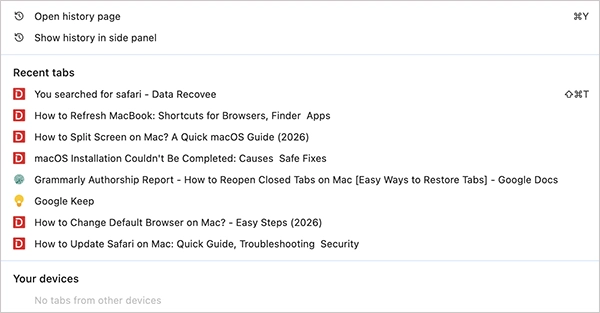
- Now just select it to reopen it.
If the page is no longer listed as recently closed, open History and manually search for the website or page you visited to restore Chrome tabs.
Firefox
Firefox also supports the same shortcut for reopening recently closed tabs. Let’s see how to open previously closed tabs on Mozilla Firefox.
- Open Firefox.
- Click the menu button.
- Select History and choose Recently Closed Tabs.
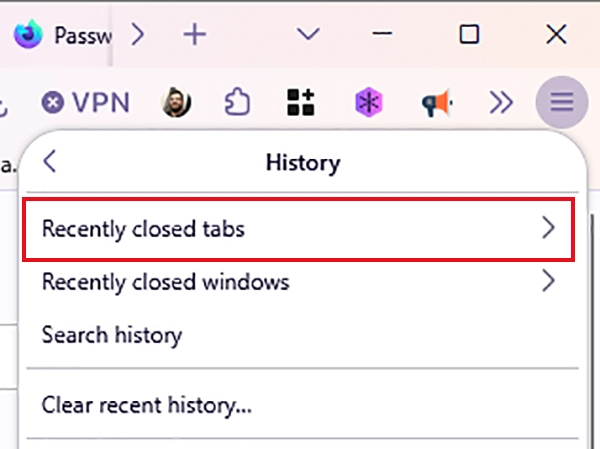
- Select the page you want to restore.
Firefox also provides the Restore Previous Session option under History, which can bring back tabs and windows from your previous browsing session.
If you want Firefox to restore your previous session automatically, enable Open previous windows and tabs in Firefox settings.
What to Do If You Can’t Find a Closed Tab?
If the tab does not appear through the normal restore options, it may no longer be available. This can happen if you have cleared your browsing history, the browser has discarded its session data, or the tab was opened in a private browsing window.
Private browsing is different because browsers are designed not to retain normal browsing history from private sessions. For example, Safari does not save details of pages visited in a Private Browsing window, so you generally cannot use its normal History to recover a closed private tab.
If the browser no longer has the relevant session information, the closed tab may not be recoverable through its standard restore features.
Final Thoughts
You usually do not need to panic after closing the wrong tab on your Mac. Command + Shift + T is the quickest way to restore a recently closed tab, while History can help you find older pages or previous sessions.
The menus vary slightly between Safari, Chrome, Firefox, and other web browsers, but the basic process is the same. Try the shortcut first, then check History if you can’t find the tab.
Frequently Asked Questions
How to open a tab I just closed on Mac?
How to reopen a tab you just closed in Safari?
Ans. You can press Command + Shift + T in Safari. You can also use History > Recently Closed to find a recently closed tab or window.
How to put the app page back on MacBook if closed?
Ans. If you mean a webpage or browser tab, use the Command + Shift + T shortcut inside the browser. If you closed an entire app, reopen it from the Dock or Applications folder. Restoring its previous window depends on the app.
Can I reopen a tab that I closed a while ago?
Ans. Yes, it is possible. Search your browser’s History for the website or page. If you cleared the history or the browser no longer has the required session information, the tab may not be recoverable.
Can I recover a closed private tab on Mac?
Ans. Recovery is more limited for private browsing because browsers are designed not to retain normal private browsing history. You generally should not rely on History to recover a closed private tab.
Related Posts
How to Fix DISM Error 87 in Windows?
DISM Error 87 usually appears when Windows cannot understand a DISM command or one of its parameters. You may see…
How to Restart Explorer.exe in Windows?
A frozen taskbar, missing desktop icons, or an unresponsive File Explorer can make Windows feel stuck even when your computer…

What Is a .BAT file and How Do You Create One?
You may have seen a file ending in .bat and wondered why opening it brings up a Command Prompt window…

How to Disable Microsoft Edge in Windows? 4 Quick Methods
Microsoft Edge can feel difficult to “turn off” because several Windows and Edge settings control when it starts and what…

How to Open EXE Files on Mac: 5 Ways to Run Windows Apps
If you have downloaded a Windows .exe file on your Mac, double-clicking it won’t make it run. macOS does not…

How to Sign Out of iMessage on Mac?
Your Mac can quietly become another place where your private conversations appear. That’s convenient until you are using a shared…

What is Windows Fast Startup and How Does It Work?
Fast Startup can make your PC boot noticeably faster after a shutdown. Instead of completely rebuilding the Windows kernel state…

How to Unzip Files on Mac: 3 Easy Ways to Extract ZIP Files
A ZIP file has a funny way of making a simple task feel more complicated than it is. On a…

How to Delete Files Completely in Mac Terminal?
Finder makes deleting files simple, but sometimes you need Terminal to remove a file or folder by its exact path…