


Ans. Go to System Settings> Desktop & Dock on Ventura or later and choose your preferred browser under the Default Web Browser setting. On older versions, go to System Preferences > General.
How to Change Default Browser on Mac: A Simple Mac Guide
Table of Contents
- How to Check Your macOS Version?
- How to Change Default Browser on Mac in Ventura 13 or Later?
- How to Change Default Browser in Mac (Older macOS Versions)?
- Why You May Want to Change Default Browser on macOS?
- How to Make Safari the Default Browser on Mac Again?
- What to Do If Your Browser is Not Showing Up?
- Simple Tips to Manage Browsers on Mac Effectively
- Final Thoughts
- Frequently Asked Questions
When you first use a Mac, Safari automatically opens every link you click. But you can easily change your Mac’s default browser. Apple allows you to switch to Chrome, Firefox, Edge, Brave, or any other supported browser with just a few clicks.
The only confusing part is that the setting appears in different locations depending on your macOS version. That is why I will show you how to change default browser on Mac properly, and how to switch back to Safari if needed.
Quick Answer: How to Set the Default Browser on Macs?
To change the default browser on Mac, go to:
- System Settings > Desktop & Dock > Default Web Browser on macOS Ventura or later.
- System Preferences> General > Default Web Browser on older macOS versions.
Then, select any installed browser from the dropdown menu. Now, all links will open in the selected browser by default.
How to Check Your macOS Version?
Before changing the default web browser on Macs, it is a good idea to check which macOS version your Mac is running. Apple moved several settings around over the years, so the steps may look different depending on your operating system. Here’s how you can check:
- Click the Apple logo in the top-left corner.
- Now, select About This Mac.
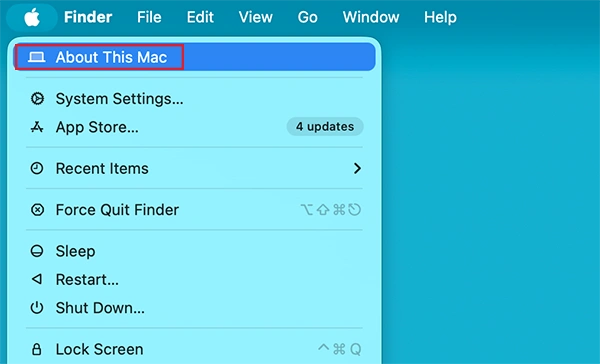
- Here, you will see your macOS name and version number.
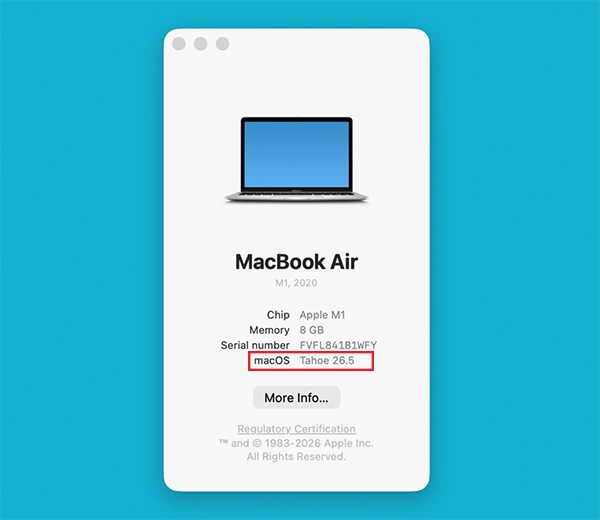
You may see versions like Ventura, Sonoma, Sequoia, Monterey, etc. Knowing your macOS version helps you follow the correct method without confusion.
How to Change Default Browser on Mac in Ventura 13 or Later?
Apple redesigned System Settings in Ventura, which also changed where the browser settings appear. If your Mac runs Ventura, Sonoma, Sequoia, or newer versions, here’s how to change default browser on Mac:
- First, make sure the browser you prefer is already installed on your Mac. If the browser is not installed, it will not appear in the list.
- Now, click the Apple logo and go to System Settings.
- From the left sidebar, select Desktop & Dock.
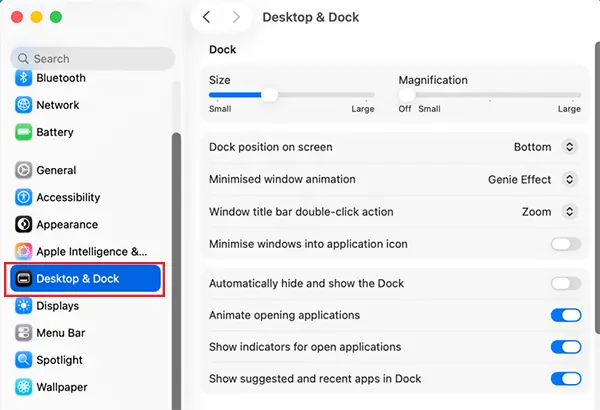
- Scroll down until you see Default Web Browser.
- Click on the drop-down menu and select your preferred browser.
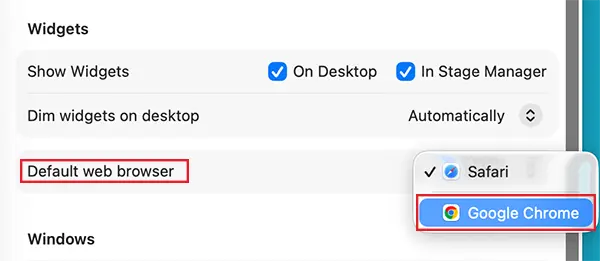
The changes apply immediately. From now on, any links opened from Mail, Messages, Notes, or other apps will launch in the selected macOS default browser.
How to Change Default Browser in Mac (Older macOS Versions)?
If you are using Monterey, Big Sur, Catalina, or older macOS versions, the process is slightly different. Here’s how to change the browser on Mac’s older versions:
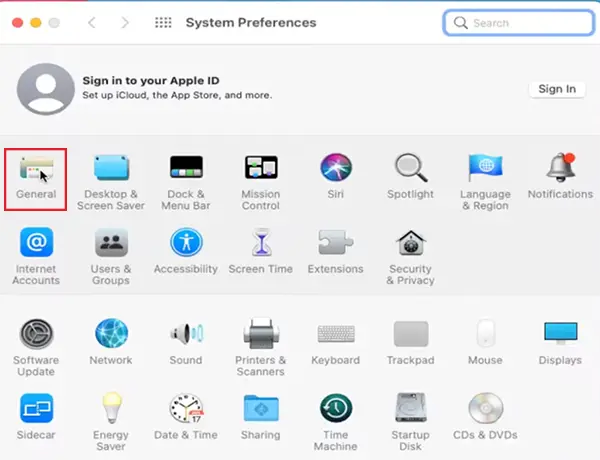
- Click on the Apple logo, choose System Preferences, and go to General.
- Then, locate the Default Web Browser section.
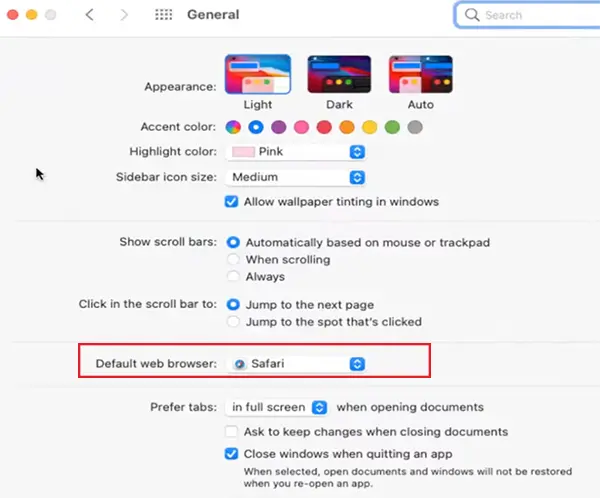
- Click the drop-down menu and select the web browser you want to use.
The changes will apply instantly, and future links should now open in the selected browser instead of Safari.
Why You May Want to Change Default Browser on macOS?
People switch browsers for different reasons, and each option offers its own strengths depending on how you use your Mac daily. Here are some common reasons:
- Chrome works well with Google services and is a popular choice across generations.
- Firefox focuses heavily on privacy and gives users more control over tracking and security settings.
- Edge includes productivity and AI features, along with strong performance and integration with Microsoft services.
- Brave blocks ads and trackers automatically, which can protect your privacy online and speed up browsing.
- Safari may not support certain extensions or web tools that some users rely on for work or customization.
The best browser depends on your workflow, browsing habits, and personal experiences; some users even use multiple browsers for different tasks.
How to Make Safari the Default Browser on Mac Again?
Many users try Chrome, Firefox, or Edge, and later switch back to Safari. I did the same for its smooth integration with the Apple ecosystem. Here’s how you can set Safari as the default again:
- Open System Settings or System Preferences.
- Then, go to Desktop & Dock or General (as per your macOS version).
- Now, choose Safari under Default Web Browser.
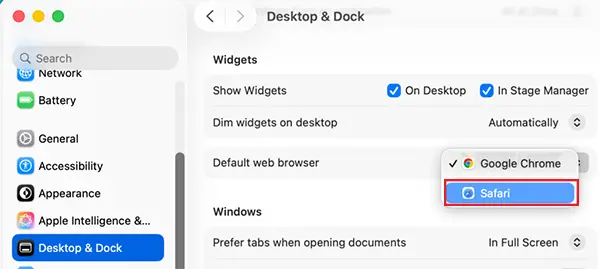
That’s it. Safari will once again open links across your Mac. Safari remains popular, and users return to it because it is optimized for Apple hardware and uses less battery than Chrome in many cases.
It also syncs smoothly with iPhone and iPad, supports iCloud keychain and passkeys, and includes built-in privacy protections. For many users, these benefits matter more than extra browser features.
What to Do If Your Browser is Not Showing Up?
Sometimes, a newly installed browser does not appear immediately in the default browser options on your Mac. Usually, the issue is easy to fix. Try the following fixes:
- Make sure the browser is fully installed inside the Applications folder.
- Open the browser at least once after installation so macOS can recognize it properly.
- Restart your Mac to refresh application registrations and system settings.
- Update the browser to the latest version to avoid compatibility issues.
Also, check Screen Time restrictions, as they can sometimes limit browser-related settings and permissions.
Simple Tips to Manage Browsers on Mac Effectively
Changing the default browser is only part of maintaining a smooth browsing experience. These simple habits can help you in the long term.
- Keep only the browsers you use because too many browsers create clutter and confusion. If you rarely use one, consider removing it,
- Browser updates improve security, performance, and stability. Plus, keeping browsers updated reduces compatibility problems.
- Enable sync across devices to make switching between devices much smoother. Most modern browsers support syncing passwords, bookmarks, tabs, and browsing history.
- Review extensions occasionally and remove anything you no longer need. Unused extensions can slow down performance, increase memory usage, and create security risks.
I would advise you to use one primary browser. Constantly switching browsers can disrupt workflows. So, keeping one main browser creates a more consistent experience.
Final Thoughts
Changing the default browser on Mac is a small setting, but it can make everyday browsing much smoother. Whether you prefer Chrome for Google integration, Firefox for privacy, Edge for productivity features, or Safari for Apple ecosystem support, macOS gives you the flexibility to choose what works best for you.
Once you select your preferred browser, every link you open across your Mac will feel more consistent and familiar.
Frequently Asked Questions
How do I change the default browser on my Mac?
How do I make Chrome the default browser on Mac?
Ans. Install Chrome, then select it under Default Web Browser inside System Settings or System Preferences.
How to set Safari as the default browser on Mac?
Ans. Open System Settings > Desktop & Dock and choose Safari from the Default Web Browser menu.
Why is Safari still opening links after I changed my default browser?
Ans. Restart your Mac and confirm that the browser settings were saved correctly. Some apps may still open links in their own preferred browser.
Which browser is best for Mac users?
Ans. Safari works best for battery life and Apple ecosystem integration, while Chrome, Firefox, Edge, and Brave offer different features depending on your preferences.
Related Posts

How to Fix Black Shadow on Laptop Screens?
A black shadow on laptop screens can look like a Windows glitch, but the shape and location of the dark…

Fixing Broken IP Allowlists With a Dedicated Static Address
IP allowlisting is one of the easiest security controls available. Tell a service to accept connections only from addresses you…

What is DumpStack.log and Can You Delete It in Windows?
If you have noticed a file named DumpStack.log in the root of your Windows drive, you may wonder why it…

How eSIM Fits Into Your Global Travel Itineraries
Multi-country trips can be exciting, but sometimes mobile device data makes it concerning. Whenever you cross a border, there will…

How to Pick the Right Data Structure Before You Build Your Database
Every application that stores information depends on a structure chosen long before the first row of data arrives. That structure…

Standardizing React Component Iconography Across Distributed Product Teams
Creating a common React component library is essentially a losing battle. During a cross-team review, I shared my screen. I…
Antimalware Service Executable: What It Is and How to Fix High CPU Usage
You open Task Manager and notice Antimalware Service Executable using a surprising amount of CPU or memory. It may keep…

Keeping Your Website Healthy: A Practical Guide to Long Term Success
Introduction The website may appear to be finished once it is launched; however, making sure that the site remains reliable…
How to Fix the ene.sys Driver Cannot Load Error?
A Windows update can suddenly turn a harmless RGB utility into a startup warning: “A driver cannot load on this…