


It is a Windows diagnostic file used for dump-stack logging and bug-check management. It records information related to crash processing and is different from a .dmp memory dump.
What is DumpStack.log and Can You Delete It in Windows?
If you have noticed a file named DumpStack.log in the root of your Windows drive, you may wonder why it is there and whether it is safe to remove.
Windows creates this file as part of its crash-dump and bug-check handling, and you may also see a DumpStack.log.tmp file beside it. Neither file is an application or a memory dump.
In this guide, I will explain what these files do, what they contain, and when you can safely delete them.
What is DumpStack.log in Windows?
What is DumpStack on my PC? Well, it is a Windows-generated diagnostic log associated with bug checks and crash-dump handling. It is usually found as a hidden file in the root of the system drive, such as: “C:\DumpStack.log”.
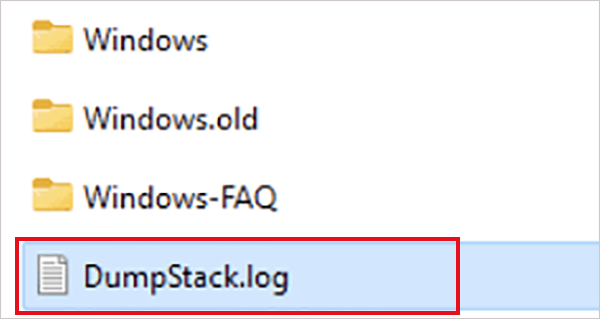
The file contains information related to Windows’ dump-stack logging process. It is not an executable, application, or memory dump.
You may notice DumpStack.log after a Blue Screen of Death (BSOD) or another serious system error, but its presence does not necessarily mean your PC has recently crashed; Windows maintains the file as part of its diagnostic infrastructure.
It is also different from actual crash dump files such as Memory.dmp and files stored in the Minidump folder. Those files capture system or process information that can be used for more detailed crash analysis.
What Does a DumpStack.log File Contain?
DumpStack text files contain information related to Windows bug checks and the processing of crash-dump data. Depending on the system and circumstances, the entries can include either one.
However, it is not a complete record of everything that happened before a crash. If you are trying to find the cause of recurring BSODs, like Critical Process Died or WHEA Uncorrectable Error, DumpStack.log alone may not provide enough information.
Windows can also create dedicated crash dump files. Depending on the dump type, these files can contain information such as the stop message, loaded drivers, processor context, processes, and kernel call stacks.
So, if you are investigating repeated system crashes, treat the DumpStack file as supporting information rather than the primary crash-analysis file.
What is DumpStack.log.tmp?
DumpStack.log.tmp is a temporary file associated with the same dump-stack logging mechanism. It is typically found alongside the primary DumpStack file in the root of the Windows system drive.
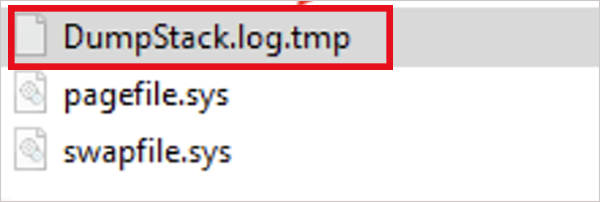
The important difference is that Windows may keep the .tmp file in use. As a result, you may see an error saying the file is being used by another process when you try to delete it.
There is usually no reason to force its deletion. The file takes up very little space, and a file that Windows is actively using is best left alone.
Can You Delete DumpStack.log?
Yes, you can generally delete the file without affecting normal Windows operation.
However, deleting it is usually not necessary. The file is a small diagnostic artifact, so removing it won’t provide any meaningful performance or storage benefit for most users.
If you are investigating a recent BSOD or system crash, it is better to keep the file until you have finished troubleshooting for the error. Deleting DumpStack.log removes the existing log, but it does not fix the underlying cause of the crash.
The same caution applies to DumpStack.log.tmp. If Windows reports that the file is in use, don’t force-delete it.
How to Delete DumpStack.log and DumpStack.log.tmp?
If you want to remove these files, start with DumpStack.log. Windows may allow you to delete it normally. Here’s what you should do:
Open File Explorer.
Go to your system drive, usually “C:”.
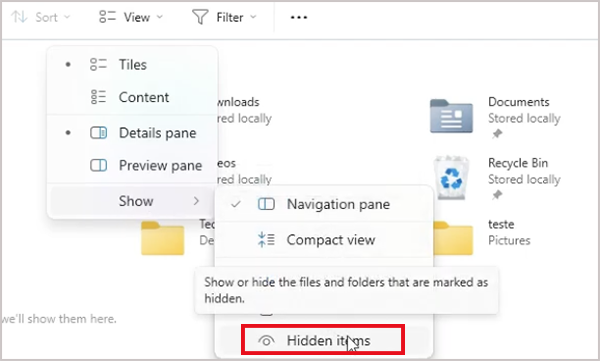
If you don’t see the file, enable Hidden items from the View menu.
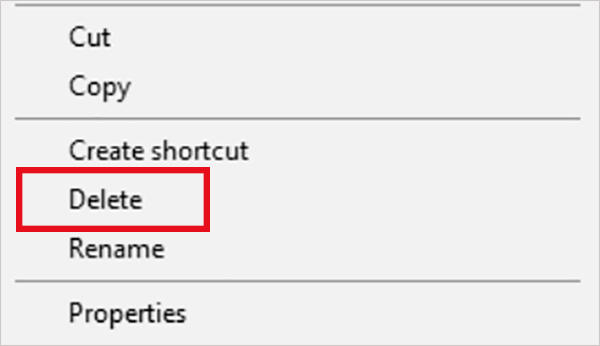
Right-click DumpStack.log and select Delete.
Approve the administrator prompt if Windows asks for permission.
You can also enter the following path directly into File Explorer: C:\DumpStack.log. If Windows allows you to delete the file, you do not need to do anything else.
You can also try to delete the temporary file in the same way. However, if Windows says the file is being used by another process, don’t force the deletion. Windows may have the file open as part of its dump-stack logging process.
There is an advanced workaround that involves disabling dump-stack logging through the Registry. This is not a routine cleanup step, so use it only if you have a specific reason to remove the file.
Before modifying the Registry, create a backup or restore point. Then, follow the steps below:
Press Windows + R.
Type regedit and press Enter.
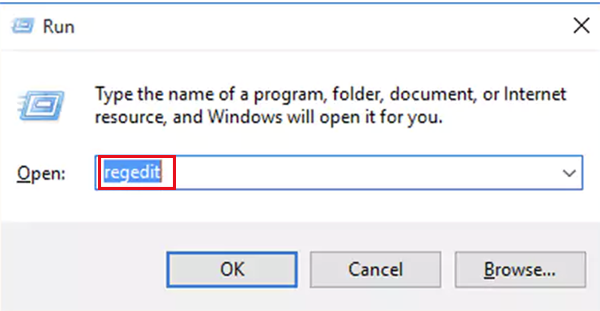
Go to: HKEY_LOCAL_MACHINE\SYSTEM\CurrentControlSet\Control\CrashControl
Find EnableLogFile.
Set its value to 0.
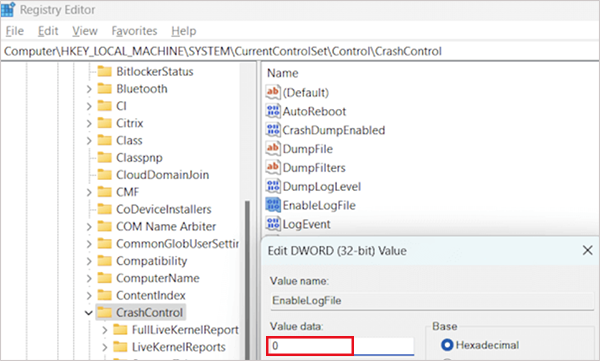
Close Registry Editor and restart Windows.
Now, try deleting the file again.
Treat it as an advanced workaround, not standard Windows maintenance. If you want Windows to continue using dump-stack logging afterward, restore EnableLogFile to its previous value.
Conclusion
DumpStack.log is a Windows diagnostic log used as part of bug-check and crash-dump handling. It is not a virus, executable, or the same thing as a memory dump.
You can generally delete the main file, but there is usually little reason to do so. On the other hand, the temporary file may be locked by Windows, so leave it alone if the system says it is currently in use.
If you are troubleshooting recurring BSODs, keep these logs while investigating and check the actual crash dump files as well. They can provide much more useful information for identifying what caused the crash.
Frequently Asked Questions
What is a DumpStack file?
Is DumpStack.log a virus?
No, it is not a virus. It is a Windows-generated diagnostic file normally found in the root of the system drive. If a file with the same name appears elsewhere, check its location and properties.
Is it safe to delete the DumpStack log file?
Yes, you can mostly delete DumpStack files safely. However, keep it if you are troubleshooting a recent BSOD because it may contain useful diagnostic information.
What is the difference between DumpStack.log and DumpStack.log.tmp file?
DumpStack.log is the main diagnostic log, while DumpStack.log.tmp is a temporary file used by the dump-stack logging mechanism. Windows may keep the .tmp file in use, which can prevent you from deleting it.
How do I read a DumpStack file?
You can open DumpStack.log with Notepad or another text editor. For deeper crash analysis, use the relevant Windows crash dump files with WinDbg.
Related Posts

8 Best Online Tools to Identify Unknown Callers
When a call comes on your screen with no name or context, you just zone out, thinking you should pick…
How to Fix Black Shadow on Laptop Screens?
A black shadow on laptop screens can look like a Windows glitch, but the shape and location of the dark…

Fixing Broken IP Allowlists With a Dedicated Static Address
IP allowlisting is one of the easiest security controls available. Tell a service to accept connections only from addresses you…

How eSIM Fits Into Your Global Travel Itineraries
Multi-country trips can be exciting, but sometimes mobile device data makes it concerning. Whenever you cross a border, there will…

How to Pick the Right Data Structure Before You Build Your Database
Every application that stores information depends on a structure chosen long before the first row of data arrives. That structure…

Standardizing React Component Iconography Across Distributed Product Teams
Creating a common React component library is essentially a losing battle. During a cross-team review, I shared my screen. I…

Antimalware Service Executable: What It Is and How to Fix High CPU Usage
You open Task Manager and notice Antimalware Service Executable using a surprising amount of CPU or memory. It may keep…

Keeping Your Website Healthy: A Practical Guide to Long Term Success
Introduction The website may appear to be finished once it is launched; however, making sure that the site remains reliable…
How to Fix the ene.sys Driver Cannot Load Error?
A Windows update can suddenly turn a harmless RGB utility into a startup warning: “A driver cannot load on this…