


Ans. It is a Windows blue screen error with bug check 0x0000003B. It occurs when an exception happens while Windows is executing a system service.
How to Fix the System Service Exception BSOD Error in Windows
A sudden Windows blue screen can bring everything to a stop, and the System Service Exception error does not tell you much about what actually went wrong.
This Windows stop code, 0x0000003B, can be linked to faulty drivers, unstable memory, damaged system files, hardware changes, or other low-level problems. Don’t stress! In this guide, I will explain the likely causes of this Blue Screen of Death (BSOD) error and the fixes worth trying first.
What Causes the System Service Exception Error?
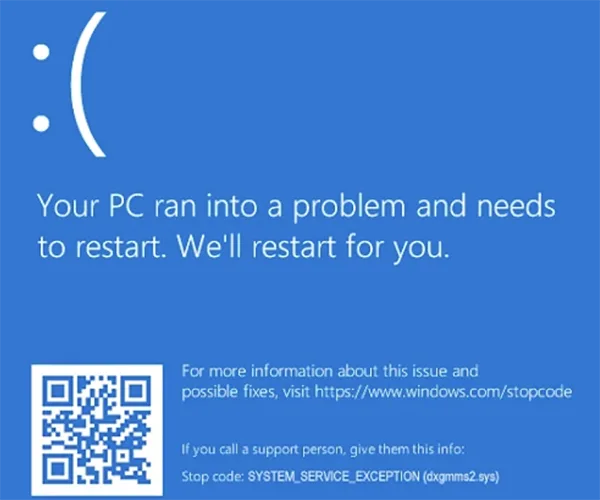
SYSTEM_SERVICE_EXCEPTION is a Windows bug check with the code 0x0000003B. It occurs when an exception happens while Windows is running a system service.
The code identifies the type of failure, but not the exact component responsible. Common causes include:
- Faulty or incompatible drivers, especially outdated, corrupted, or recently updated ones.
- Unstable or faulty RAM that corrupts data and triggers crashes.
- Recently installed hardware, such as RAM, graphics cards, storage drives, or USB devices.
- Corrupted Windows system files that make the operating system unstable.
- Low-level software, including security tools and system utilities that interact closely with Windows.
- Outdated or incompatible BIOS and firmware.
Recent changes are especially important. If the Windows blue screen System Service Exception began after a driver update, hardware installation, Windows update, or software change, investigate that change first.
How to Fix System Service Exception in Windows 11?
No single fix works for every Windows 11 System Service Exception error. Start with anything that changed recently, then move through drivers, memory, and Windows checks.
Fix 1: Remove Recently Added Hardware
If you installed new RAM, a graphics card, storage drive, USB device, or another component shortly before the BSOD started, shut down the PC and remove it if possible.
Restart Windows and check whether the crashes continue. If they stop, check the hardware’s compatibility, physical connections, firmware, and drivers.
Fix 2: Start Windows in Safe Mode
If Windows keeps crashing during normal startup, Safe Mode can help determine whether a third-party driver or service is involved.
- Go to the Windows Recovery Environment.
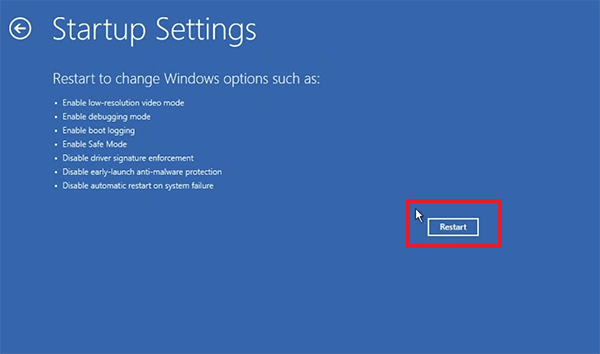
- Next, navigate to Troubleshoot > Advanced Options > Startup Settings, and click Restart.
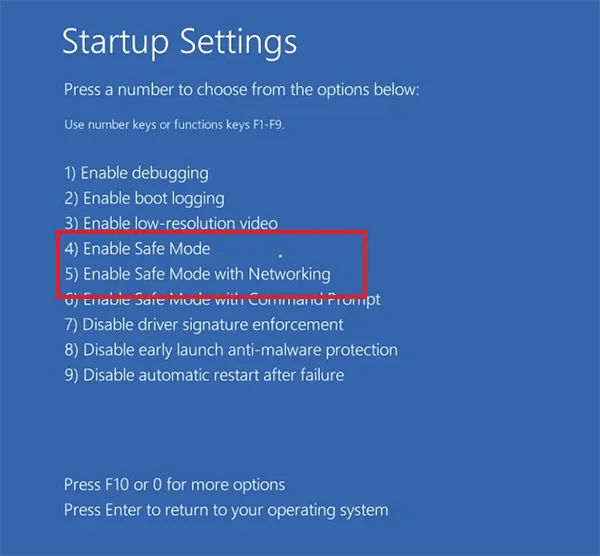
- Select Safe Mode by pressing F4 or Safe Mode with Networking by pressing F5.
If Windows stays stable in Safe Mode, focus on recently installed drivers, services, and startup software.
Fix 3: Update or Roll Back Drivers
Open Device Manager and look for devices with a warning icon. Pay particular attention to graphics, network, storage, and chipset drivers.
If the BSOD started after a driver update:
- Right-click the affected device in Device Manager.
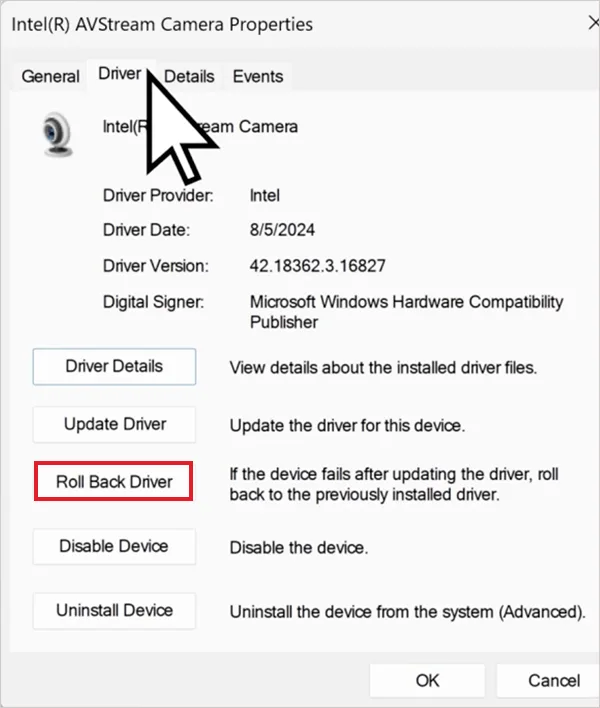
- Select Properties > Driver > Roll Back Driver, if available.
If rolling back is not an option, check the PC or hardware manufacturer’s official support page for a compatible driver.
If there is an official update available, try to update the driver. Make sure you avoid generic driver-update utilities. Installing drivers directly from the manufacturer gives you better control over what you are putting on the system.
Fix 4: Check Windows Update
Go to Settings > Windows Update and select Check for updates. Install available updates and restart the PC.
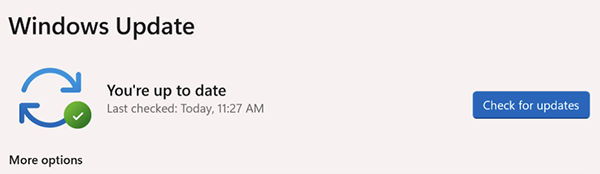
Keep an eye on when the BSOD started. If the crashes began immediately after a Windows update, investigate that update rather than assuming another update will fix the problem.
Fix 5: Test Your RAM
Faulty or unstable RAM can cause memory corruption and system crashes. Windows includes a built-in memory test you can use to check it.
- Press Windows + R, type “mdsched.exe”, and press Enter.
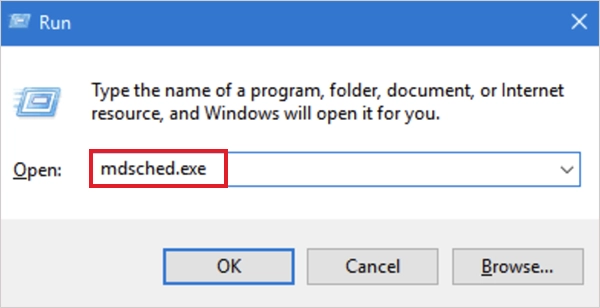
- Now click Restart now and check for problems.
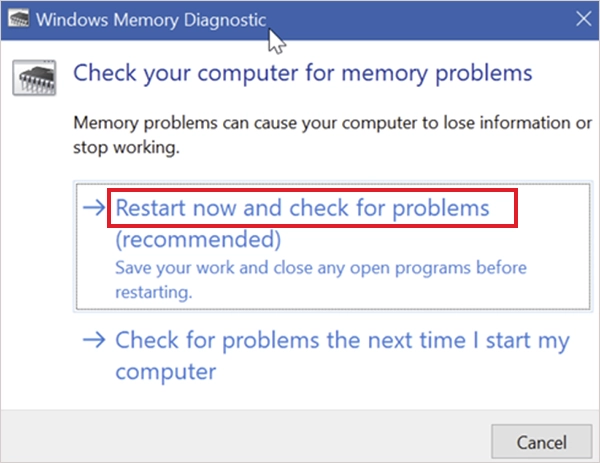
Windows will restart and test the installed memory. If errors are reported, investigate the RAM modules and their configuration. If you recently upgraded the memory, pay particular attention to the new hardware.
Fix 6: Repair Windows System Files
If Windows itself has corrupted files, repairing them may resolve related system instability and help you get rid of the stop code System Service Exception,
- Open Command Prompt as administrator and run: “DISM /Online /Cleanup-Image /RestoreHealth”.
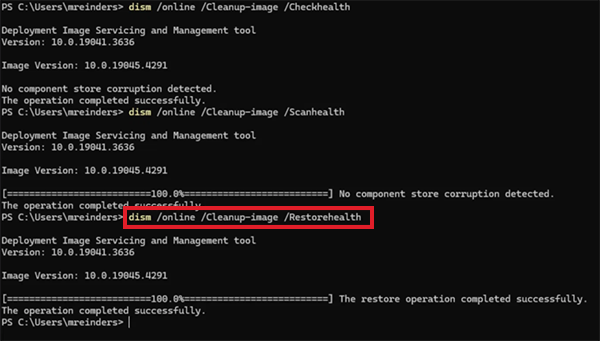
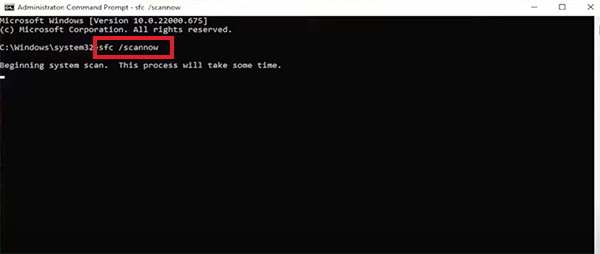
- Wait for the DISM command to finish, then run: “sfc /scannow”.
- Restart your computer after both scans are finished.
DISM repairs the Windows component store, while SFC checks and repairs system files. These tools won’t fix defective RAM or a faulty third-party driver, so don’t rely on them when the problem points to hardware or drivers.
Fix 7: Check Event Viewer
Event Viewer can help you spot a driver, device, or service that repeatedly appears around the time of the crash.
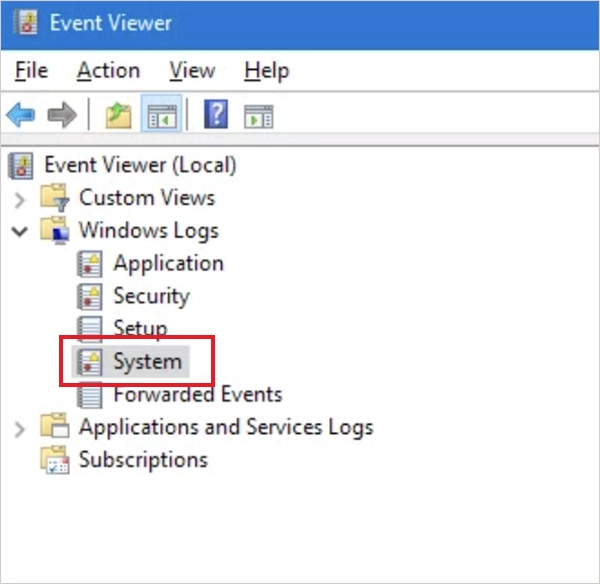
Open Event Viewer and go to Windows Logs > System. Look for critical or error events around the time of the BSOD. Pay attention to entries that repeatedly point to the same device.
Do not assume every warning in the log caused the crash. What matters is a consistent pattern around the failure.
Fix 8: Use System Restore for a Recent System Change
If the System Service Exception BSOD started after installing software, drivers, or making another system change, System Restore can take Windows back to an earlier restore point.
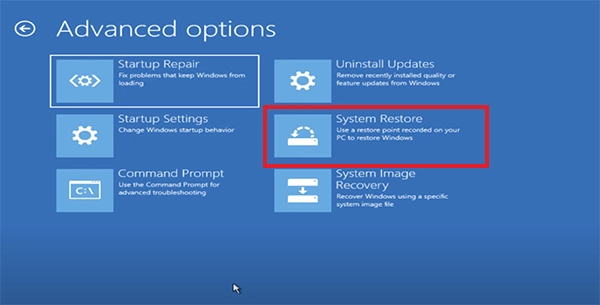
- Open Windows Recovery Environment (WinRE).
- Go to Troubleshoot > Advanced Options > System Restore.
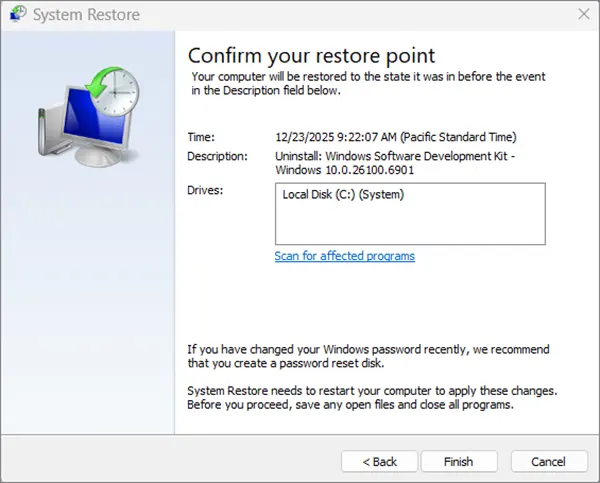
- Choose a restore point created before the error appeared.
- Confirm the restore and wait for Windows to restart.
This is most useful when you know the PC was working normally before the change. Before using recovery options, back up any important files you can access.
Best Practices to Prevent Windows System Service Exception Errors
You can’t prevent every BSOD, but a few habits can reduce the chances of recurring SYSTEM_SERVICE_EXCEPTION errors.
- Install Drivers from Reliable Sources: Use your PC or hardware manufacturer’s official support page instead of generic driver-update tools.
- Check hardware Compatibility: Before installing RAM, storage, graphics cards, or other components, make sure they are compatible with your system.
- Keep Windows and Firmware Updated: Install available Windows updates and keep your BIOS and firmware updated.
- Keep Important Files Back Up: Recurring crashes can eventually cause filesystem or data problems, while some recovery steps can also affect system settings.
One unexpected error may be temporary, but repeated crashes with the same stop code are worth investigating instead of simply restarting the PC each time.
Final Thoughts
The System Service Exception error does not necessarily mean Windows itself is broken. The stop code describes what happened during the crash, but the underlying cause could be anything.
Start by looking at what changed before the crashes began. Then work through drivers, Safe Mode, RAM testing, Windows repairs, and Event Viewer. This approach gives you a better chance of finding the actual cause than jumping straight to a Windows reset.
Frequently Asked Questions
What is System Service Exception?
Can faulty RAM cause a System Service Exception?
Ans. Yes, faulty or unstable RAM can cause memory corruption and unexpected crashes.
How do I fix SYSTEM_SERVICE_EXCEPTION in Windows 11?
Ans. Check recent hardware and driver changes first. Then try Safe Mode, RAM testing, Windows updates, DISM and SFC, and Event Viewer to narrow down the cause.
Is System Service Exception a hardware or software problem?
Ans. It can be caused by software or hardware. Common causes include faulty drivers, damaged system files, bad RAM, or recently installed hardware.
How do I fix System Service Exception in Windows 10?
Ans. Start by checking recent hardware and driver changes, and use Safe Mode if needed. Test your RAM, install available updates, and repair Windows system files with DISM and SFC.
Related Posts

How to Fix DISM Error 87 in Windows?
DISM Error 87 usually appears when Windows cannot understand a DISM command or one of its parameters. You may see…

How to Restart Explorer.exe in Windows?
A frozen taskbar, missing desktop icons, or an unresponsive File Explorer can make Windows feel stuck even when your computer…
How to Reopen Closed Tabs on Mac [Easy Ways to Restore Tabs]
Accidentally closing the wrong tab can be super annoying, especially when you were in the middle of something important. You…

What Is a .BAT file and How Do You Create One?
You may have seen a file ending in .bat and wondered why opening it brings up a Command Prompt window…

How to Disable Microsoft Edge in Windows? 4 Quick Methods
Microsoft Edge can feel difficult to “turn off” because several Windows and Edge settings control when it starts and what…

How to Open EXE Files on Mac: 5 Ways to Run Windows Apps
If you have downloaded a Windows .exe file on your Mac, double-clicking it won’t make it run. macOS does not…

How to Sign Out of iMessage on Mac?
Your Mac can quietly become another place where your private conversations appear. That’s convenient until you are using a shared…

What is Windows Fast Startup and How Does It Work?
Fast Startup can make your PC boot noticeably faster after a shutdown. Instead of completely rebuilding the Windows kernel state…

How to Unzip Files on Mac: 3 Easy Ways to Extract ZIP Files
A ZIP file has a funny way of making a simple task feel more complicated than it is. On a…