


It is a Windows Blue Screen of Death that occurs when a critical system process stops unexpectedly or becomes corrupted.
Critical Process Died: What It Means and How to Fix It on Windows
Seeing the Critical Process Died error can be frustrating, especially when your PC suddenly crashes and restarts without warning. Although this Blue Screen of Death (BSOD) looks serious, it does not always mean your Windows installation is beyond repair.
The problem is mostly caused by corrupted system files, faulty drivers, storage issues, or a Windows update error. This guide explains what the BSOD Critical Process Died error means, why it occurs, and the best ways to fix it on Windows.
What Does Critical Process Died mean in Windows?
The Critical_Process_Died error is a Windows Blue Screen of Death error that appears when an essential system process stops unexpectedly. Microsoft identifies this error as bug check 0xEF.
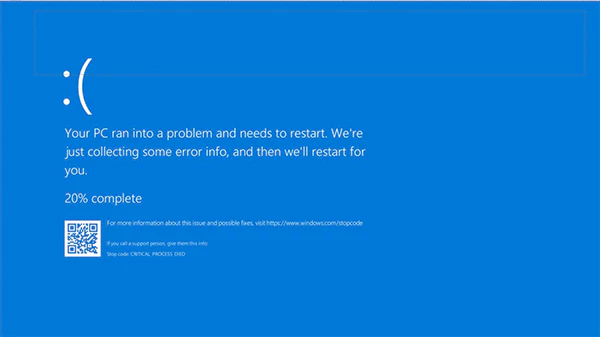
Windows relies on several background processes to boot, manage memory, communicate with hardware, and run applications. If one of these processes crashes, becomes corrupted, or is terminated unexpectedly, Windows shuts down to prevent further system damage or data corruption.
Although the Blue Screen of Death Critical Process Died error looks alarming, it does not always indicate a hardware failure.
What Causes the Stop Code Critical Process Died?
The Stop Code: Critical_Process_Died does not point to a single problem. Instead, it tells you that Windows detected a failure in one of its core processes.
Some of the most common causes include:
- Corrupted System Files: Missing or damaged Windows files can prevent critical processes from running correctly.
- Faulty or Outdated Drivers: Incompatible graphics, storage, chipset, or network drivers can interrupt essential Windows operations.
- Failed Windows Updates: An incomplete or corrupted update may replace important system files with faulty versions.
- Storage or Disk Errors: Bad sectors, SSD issues, or file system corruption can prevent the system from accessing required files.
- Recently Installed Hardware: New RAM, SSDs, GPUs, or external devices may introduce hardware or driver conflicts.
- Third-party Software Conflicts: Antivirus programs, system optimization tools, virtualization software, and similar utilities can sometimes interfere with Windows processes.
If the Windows 10 Critical Process Died error started after a recent change, such as installing a driver, updating Windows, or adding new hardware, start your troubleshooting there.
How to Fix Critical Process Died Error?
There is no single solution that fixes every Critical Process Died on Windows 10 or 11. Start with the simpler methods, then move on to advanced troubleshooting if the problem persists.
1. Disconnect Recently Installed Hardware
If the Windows Blue Screen Critical Process Died error appears after installing new hardware, such as RAM, an SSD, or even an external device, disconnect it temporarily and restart your PC. If the error returns after turning your PC back on, proceed with the next methods.
2. Boot into Safe Mode
Safe Mode starts Windows with only essential drivers and services. If the BSOD does not appear in Safe Mode, a third-party driver, startup program, or service is likely causing the issue.
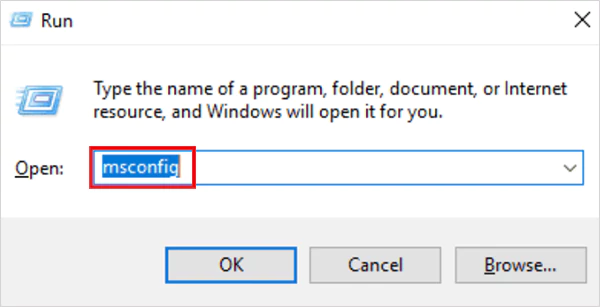
- Press Windows + R, type msconfig, and press Enter.
- Open the Boot tab.
- Check Safe Boot, click OK, and restart your PC.
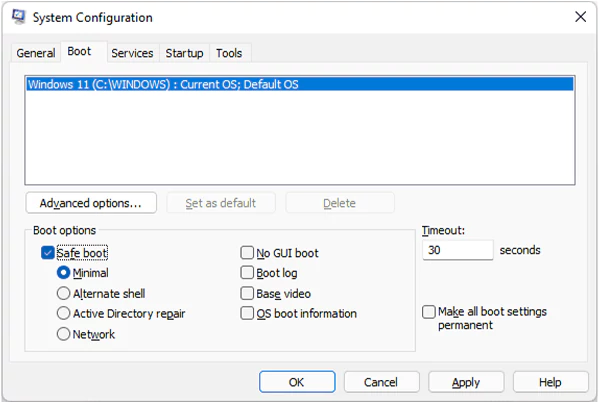
After troubleshooting, return to msconfig and disable Safe Boot to start Windows normally.
3. Update or Reinstall Device Drivers
Outdated or incompatible drivers are one of the most common causes of this Windows.com/stopcode Critical Process Died. Focus on graphics, storage, chipset, and network drivers, and download updates from your PC or hardware manufacturer’s official website whenever possible.
Here’s how to update drivers in Windows:
- Right-click the Start button and select Device Manager.
- Expand the hardware category you want to update.
- Right-click the device and select the Update driver.
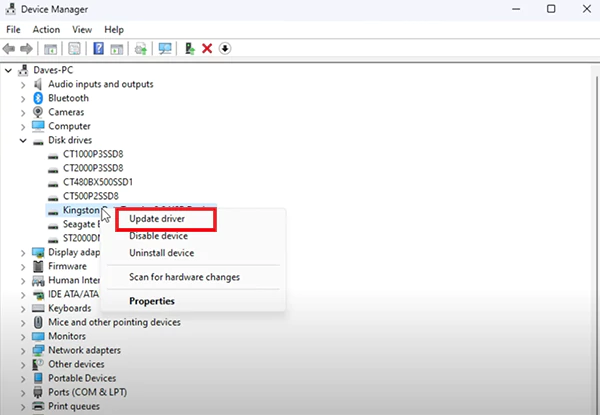
- Install available updates and restart your PC.
If the issue started after a recent driver update, consider rolling back the driver instead.
4. Run the System File Checker
The System File Checker (SFC) scans Windows for corrupted system files and automatically replaces damaged ones.
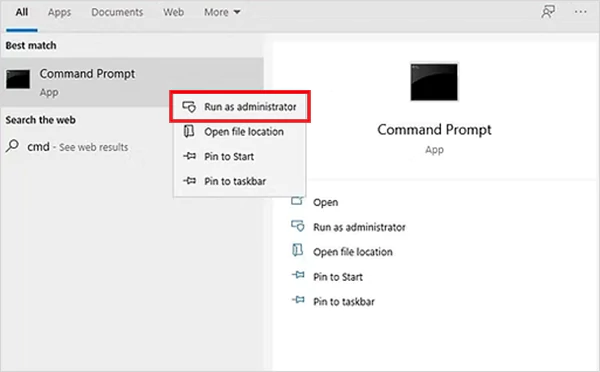
- Search for Command Prompt and select Run as administrator.
- Type sfc /scannow and hit Enter.
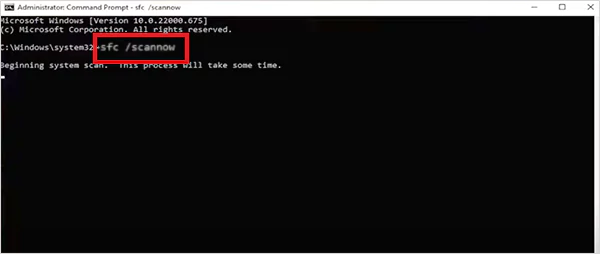
Wait for the scan to finish and restart your computer.
5. Repair the Windows Image Using DISM
If SFC can’t repair all corrupted files, use the Deployment Image Servicing and Management (DISM) command to repair the Windows system image first.
- Open Command Prompt as an administrator.
- Run the DISM Command: DISM/ Online/ Cleanup-Image/ RestoreHealth
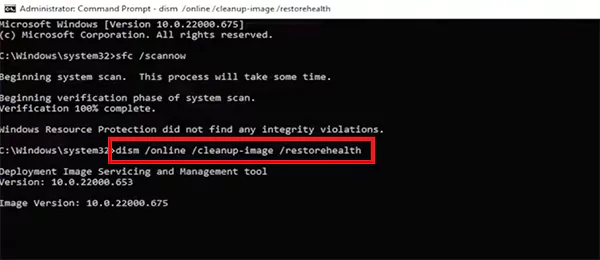
Wait until the scan is complete, and run the SFC command again to replace any remaining corrupted files.
6. Install the Latest Windows Update
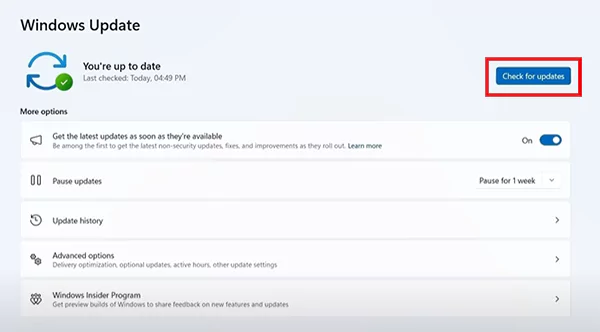
Microsoft regularly releases updates that fix known bugs, improve driver compatibility, and enhance system stability. If you can still access Windows, install any pending updates before trying more advanced solutions. Just go to Settings > Windows Update > Check for updates, and install any available updates.
7. Uninstall a Recent Windows Update
If the Windows 11 Critical Process Died error started immediately after a Windows update, uninstalling the latest update may resolve the issue.
- Open Settings > System > Recovery.
- Click Restart now under Advanced startup.
- Go to Troubleshoot > Advanced Options > Uninstall Updates.
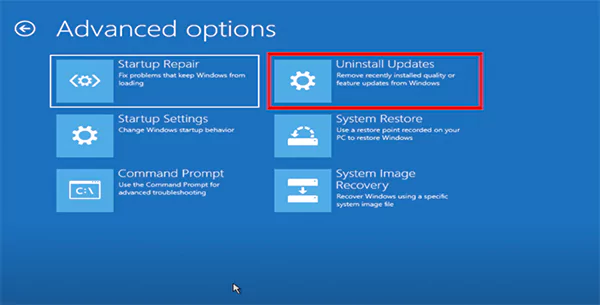
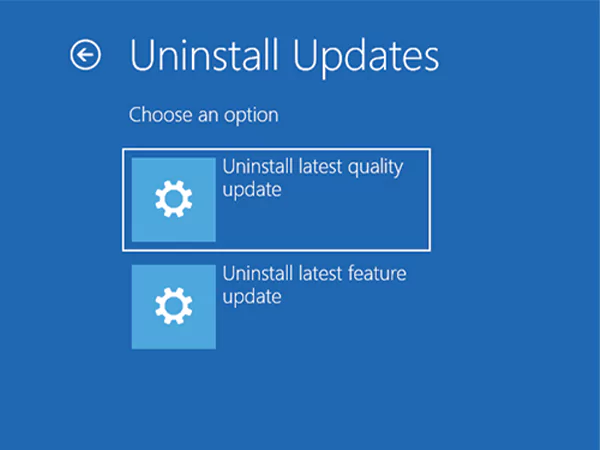
- Select Uninstall latest quality update, uninstall it, and restart your computer.
8. Run Startup Repair
If Windows won’t boot, use Startup Repair from the Windows Recovery Environment (WinRE). It automatically checks for startup problems and repairs missing or damaged boot files.
- Enter Windows Recovery Environment (WinRE) by interrupting startup a few times or using Advanced startup.
- Then, go to Troubleshoot > Advanced Options > Startup Repair.
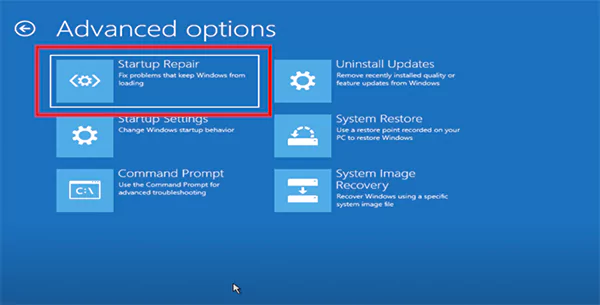
- Follow the on-screen instructions and restart your PC.
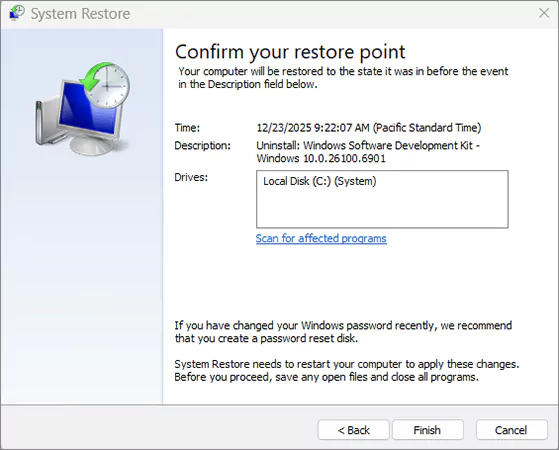
9. Perform a System Restore
If you created a restore point before the Blue Screen Critical Process Died problem started, restoring your system can undo recent driver installations, software changes, and registry modifications without affecting your personal files.
- Open Windows Recovery Environment (WinRE).
- Go to Troubleshoot > Advanced Options > System Restore.
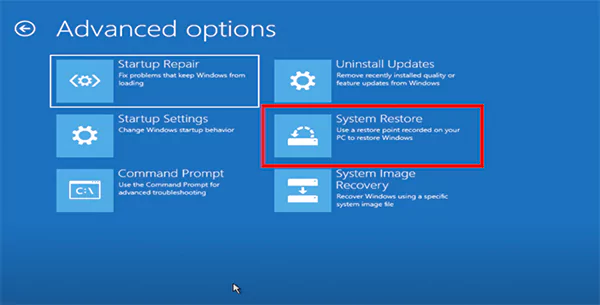
- Choose a restore point created before the error appeared.
- Confirm the restore and wait for Windows to restart.
10. Reset or Reinstall Windows
If none of the above methods work, resetting Windows may be your last option. Start with Keep my files to preserve your personal data while resetting Windows.
- Open Settings > System > Recovery.
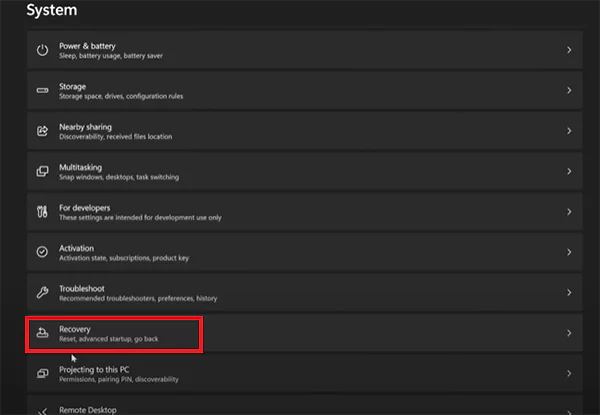
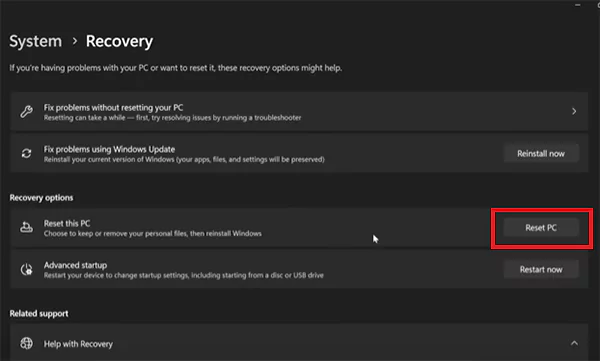
- Select Reset PC.
- Next, choose Keep my files or Remove everything.
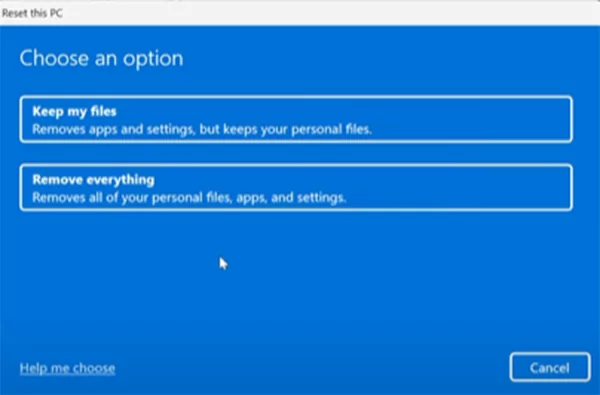
Now just follow the on-screen instructions to complete the reset. Back up important files before resetting or reinstalling Windows whenever possible.
How to Avoid the Windows Critical Process Died Error?
Although no PC is completely immune to Blue Screen errors, a few simple habits can reduce the chances of seeing the Critical Process Died on startup.
- Install Windows updates regularly without fail.
- Download drivers only from your PC or the hardware manufacturer’s official website.
- Keep enough free storage for Windows updates and everyday system tasks.
- Create a System Restore point before installing new drivers or making system changes.
- Avoid registry cleaners and aggressive system optimization tools.
- Scan your storage drive occasionally for file system errors.
- Update your BIOS or firmware only when your PC manufacturer recommends it.
These small practices help improve your PC’s overall stability and reduce the likelihood of system crashes.
Conclusion
In most cases, the Windows Stop Code Critical Process Died can be resolved by repairing system files, updating drivers, uninstalling problematic updates, or using Windows recovery tools.
Start with the simpler fixes, such as Safe Mode, SFC, and DISM, before moving on to advanced recovery options. Following a step-by-step approach gives you the best chance of fixing the error without reinstalling Windows or losing your files.
Frequently Asked Questions
What is the Critical Process Died BSOD error?
How do I fix the Critical Process Died blue screen?
Start by booting into Safe Mode, updating drivers, running SFC and DISM, and installing pending Windows updates. If Windows won’t boot, try Startup Repair or System Restore.
How bad is the stopcode Critical Process Died?
It is a serious Windows error, but it does not always mean your computer has permanent hardware damage. In most cases, it can be easily fixed by basic troubleshooting.
What is the fastest fix for Critical Process Died in Windows?
If Windows still boots, run SFC followed by DISM. If it does not, use Startup Repair or uninstall the latest Windows update from WinRE.
Can faulty drivers cause the Critical Process Died error?
Yes, outdated, corrupted, or incompatible drivers can interrupt essential Windows processes and trigger the Critical Process Died stop code.
Related Posts

8 Best Online Tools to Identify Unknown Callers
When a call comes on your screen with no name or context, you just zone out, thinking you should pick…
How to Fix Black Shadow on Laptop Screens?
A black shadow on laptop screens can look like a Windows glitch, but the shape and location of the dark…

Fixing Broken IP Allowlists With a Dedicated Static Address
IP allowlisting is one of the easiest security controls available. Tell a service to accept connections only from addresses you…

What is DumpStack.log and Can You Delete It in Windows?
If you have noticed a file named DumpStack.log in the root of your Windows drive, you may wonder why it…

How eSIM Fits Into Your Global Travel Itineraries
Multi-country trips can be exciting, but sometimes mobile device data makes it concerning. Whenever you cross a border, there will…

How to Pick the Right Data Structure Before You Build Your Database
Every application that stores information depends on a structure chosen long before the first row of data arrives. That structure…

Standardizing React Component Iconography Across Distributed Product Teams
Creating a common React component library is essentially a losing battle. During a cross-team review, I shared my screen. I…

Antimalware Service Executable: What It Is and How to Fix High CPU Usage
You open Task Manager and notice Antimalware Service Executable using a surprising amount of CPU or memory. It may keep…

Keeping Your Website Healthy: A Practical Guide to Long Term Success
Introduction The website may appear to be finished once it is launched; however, making sure that the site remains reliable…