


You can check SSD health using built-in tools in Windows, macOS, or Linux. Or with your SSD manufacturer’s software. Most SSDs also provide SMART data that reports their overall condition.
How to Check SSD Health: A Complete Guide for Windows, Mac, and Linux
An SSD can last for years, but it won’t last forever. Like any storage device, it gradually wears out as you use it. Fortunately, modern SSDs constantly monitor their own health, making it easier to detect potential problems before they lead to data loss.
Whether you are using Windows, macOS, or Linux, this guide explains how to check SSD health, how to extend its life, and know when it is time to replace your drive.
Quick Answer: How to Check SSD Drive Health?
- Windows: Use Storage settings, PowerShell, or your SSD manufacturer’s software.
- macOS: Check the SMART status in Disk Utility, or use Terminal for detailed diagnostics.
- Linux: Use the smartctl command from the smartmontools package to view SMART data.
- Review key metrics such as SMART status, remaining lifespan, temperature, and drive errors to assess your SSD’s condition.
What Does SSD Health Mean?
SSD health refers to your drive’s overall condition and its remaining lifespan. Unlike traditional hard drives, modern SSDs (including NVMe and SATA) store data in flash memory cells with a limited number of write and erase cycles.
Over time, these cells wear out, which can eventually affect performance and reliability. To help monitor this, most modern SSDs use S.M.A.R.T (Self-Monitoring, Analysis, and Reporting Technology). It continuously tracks key health metrics, including:
- Remaining drive lifespan
- Temperature
- Power-on hours
- Read and write errors
- Total Bytes Written (TBW)
- Bad blocks and media errors
Performing SSD health checks regularly can help you detect potential issues early, back up important data before a failure, and decide when it is time to replace the drive.
How to Check SSD Health on Windows?
There are several Windows SSD health check methods, ranging from built-in utilities to dedicated manufacturer software. Here’s how to check SSD health in Windows 10 and Windows 11:
Method 1: Use Windows Settings
If you are using Windows 11 with a supported NVMe SSD:
- Open Settings.
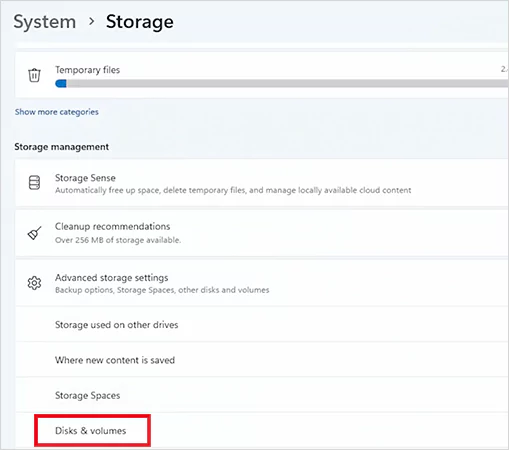
- Go to System > Storage > Advanced storage settings > Disks & Volumes.
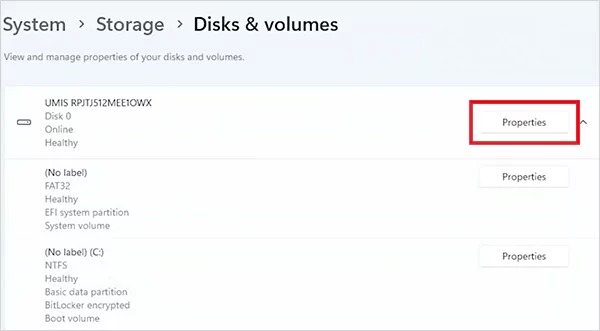
- Now, select your SSD and click on Properties.
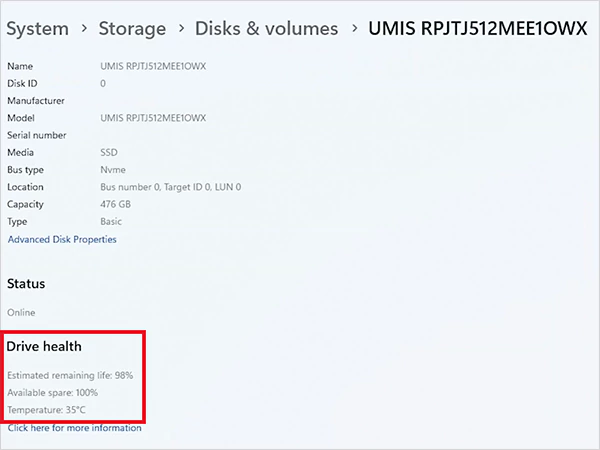
- Now, you can view the available health information.
If Windows reports a storage warning, back up your important files as soon as possible.
Method 2: Use PowerShell
PowerShell offers a quick way to check SSD status and whether Windows has detected any issues with your drive.
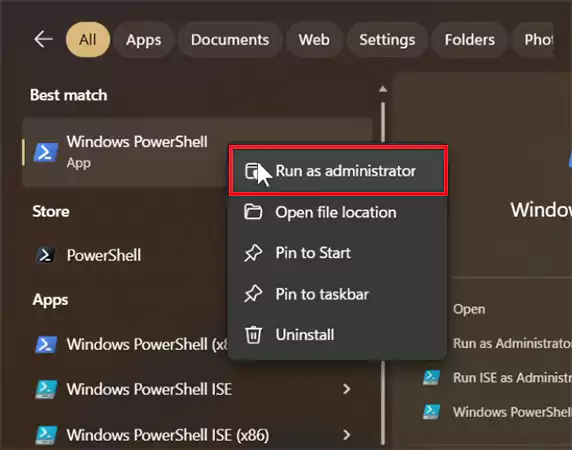
- Open PowerShell as Administrator.
- Run this command: “Get-PhysicalDisk”.
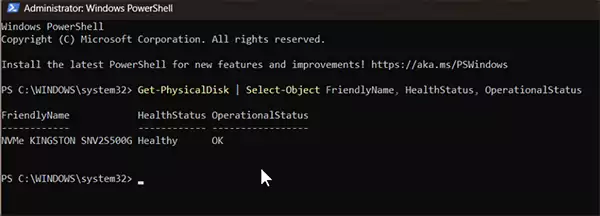
Check the HealthStatus and OperationalStatus fields. If either reports a warning or unhealthy status, investigate the drive further.
Method 3: Use Your SSD Manufacturer’s Software
For the most detailed SSD status check, use your SSD manufacturer’s official diagnostic tool. Popular options include Samsung Magician, Crucial Storage Executive, Kingston SSD Manager, WD Dashboard, and Solidigm Storage Tool.
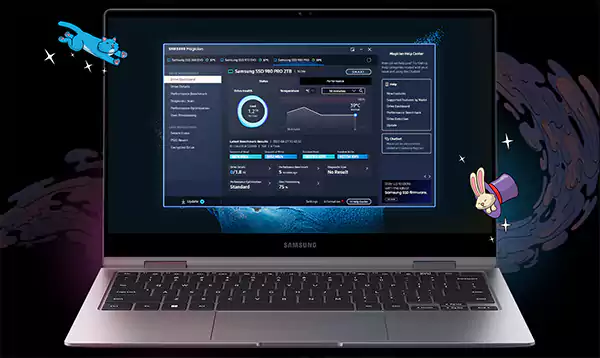
These utilities typically display SSD health percentage, SMART attributes, drive temperature, firmware version, remaining lifespan, and diagnostic scan results.
In most cases, they provide more detailed information than Windows’ built-in tools.
How to Check Your SSD Health on Mac?
macOS includes built-in tools that make SSD life checking simple. Here’s how to check the health of SSDs on a Mac:
Method 1: Check SMART Status in Disk Utility
- Open Disk Utility.
- Select your SSD from the sidebar.
- Now, just check the SMART Status.
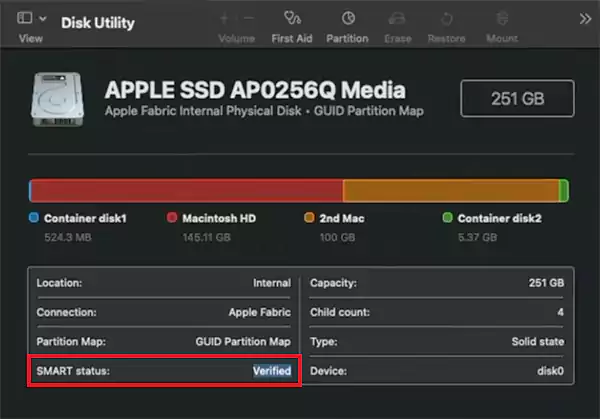
If it shows Verified, your SSD is functioning normally. If it reports failing or recommends service, back up your data immediately.
Method 2: Run First Aid
Disk Utility also includes First Aid, which scans the drive for file system issues and repairs logical errors where possible.
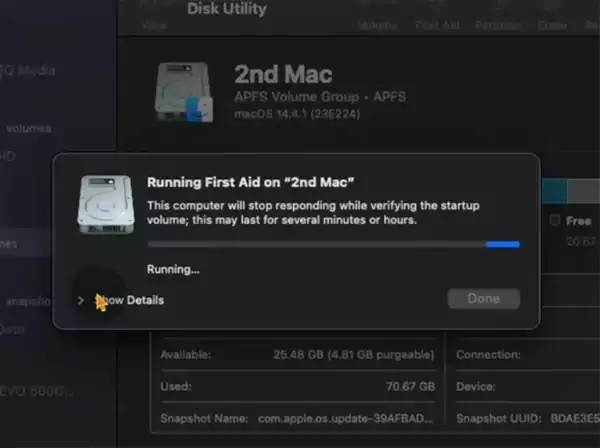
While it does not measure SSD wear, it helps identify storage problems that could affect reliability.
Method 3: Use Terminal
For more detailed diagnostics, install smartmontools and use the smartctl command from Terminal to view advanced SSD health information.
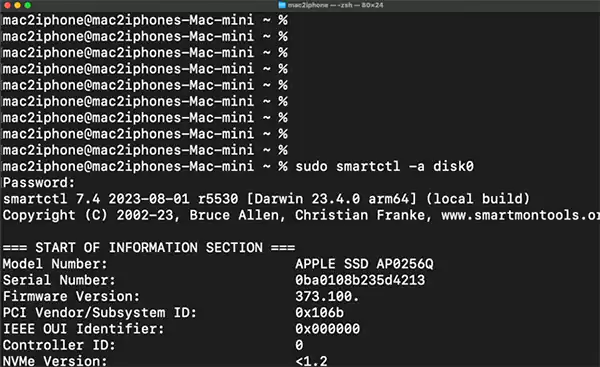
This displays additional SMART information such as remaining lifespan, temperature, power-on hours, media errors, and read and write statistics.
How to Test SSD Health on Linux?
Linux offers some of the most powerful SSD check health tools, with smartmontools being the most widely used.
- First, install smartmontools on Ubuntu or Debian using: “sudo apt install smartmontools”.
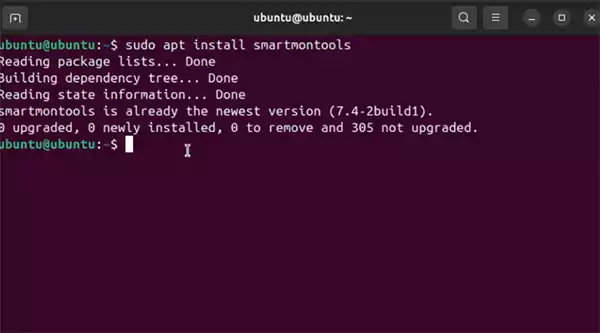
- Now, run “sudo smartctl -a /dev/sdX” to check overall SSD health. Replace sdX with your SSD’s device name.
The command returns the drive’s overall SMART health assessment, showing whether it has passed or failed.
- For a complete health report, run: “sudo smartctl -a /dev/sdX”.
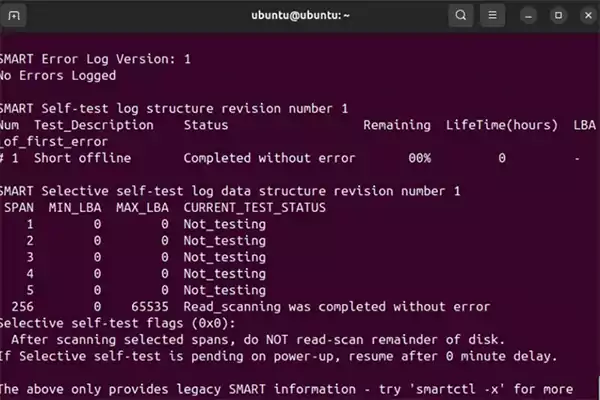
If you prefer a graphical interface, many Linux desktop environments also include disk utilities such as GNOME Disks, which display SMART information without requiring Terminal commands.
Common Signs of a Failing SSD
Unlike traditional hard drives, SSDs usually don’t make unusual noises before they fail. Instead, they often show warning signs that become more noticeable over time. So, watch out for these symptoms:
- Slower boot times and longer app loading times.
- Frequent system freezes or unexpected crashes.
- Files becoming corrupted or disappearing.
- Read or write errors while copying files.
- The SSD is not being detected by the BIOS or operating system.
- SMART warnings or a declining SSD health percentage.
These issues don’t always mean your SSD is failing, but they should not be ignored. Run an SSD health check tool as soon as possible and back up your important files if you notice any of these signs.
What to Do If Your SSD Health Is Poor?
If your SSD health reports show warnings or a low health percentage, don’t wait for the drive to fail completely. Take these steps as soon as possible:
- Back up your important files immediately.
- Update the SSD firmware using the manufacturer’s website, if available.
- Run a diagnostic scan to confirm the issue.
- Check for file system errors using your operating system’s repair tools.
- Replace the SSD if SMART reports critical errors, media failures, or end-of-life warnings.
Waiting too long can increase the risk of permanent data loss and make SSD data recovery much more difficult.
How to Extend the Lifespan of Your SSD?
Although SSDs eventually wear out, a few simple habits can help them last longer. Here’s what you should do:
- Keep at least 10% to 20% of the drive free.
- Make sure TRIM is enabled (it is on by default in most modern operating systems).
- Keep your SSD firmware updated.
- Avoid keeping the drive at 100% capacity for long periods.
- Maintain good airflow to prevent overheating.
- Check your SSD’s health every few months and back up important data regularly.
Modern SSDs are built to last for many years under normal workloads. These simple habits are usually enough to keep them running reliably.
Conclusion
Checking your SSD’s health takes only a few minutes, and it can help you avoid unexpected data loss and costly drive failures. Built-in utilities and SMART-based tools make it easy to monitor your drive’s condition.
By checking your SSD regularly and acting on warning signs early, you can protect your data and know when it is time to replace the drive before it fails.
Frequently Asked Questions
How to check my SSD health?
How to check SSD lifespan?
Look for SMART metrics such as Remaining Life, Percentage Used, or Total Bytes Written (TBW). Most SSD monitoring tools display these values.
How often should I check SSD health?
For most users, checking every two to three months is enough. If your SSD stores critical data, consider checking it monthly.
How to check an SSD for errors?
Use your operating system’s disk repair tools like DISM and SFC for file system errors. You can use SMART-based utilities to detect hardware issues such as media errors or failing memory cells.
Can an SSD fail without warning?
Yes, although many SSDs report problems through SMART data, some failures happen unexpectedly. That’s why regular checks and frequent backups are essential.
Related Posts
Best Tools for Recovering Deleted Files on a Mac
A wrong click can leave you sinking in grief and sorrow, just because that accidental click has deleted an important…

What to Back Up Before Migrating Your Business to New Software
Software migration hardly results in data loss during migration. It’s possible that you lose the data after a week or…

How Modern Enterprises Are Scaling Infrastructure with Custom AI
For many businesses, AI works as a collection of tiny experiments such as a chatbot, a coding assistant, or sometimes…

VMware vs. Sangfor aSV vs. Nutanix: Which Hypervisor Actually Saves You Money?
Selecting the right hypervisor isn’t simply an issue of technology; it could end up having a significant effect on your…

SD Card Corruption in IoT Devices: Why It Happens So Often and How to…
IoT devices can have good sensors, robust software, and an excellent housing, but all it takes is one small thing…

5 Best SaaS Platforms for Financial Services and Growing Businesses in 2026
In 2026, SaaS platforms have become essential for businesses that want to build smooth processes, automate routine tasks and clarify…

How Digital Records Support Workplace Injury Claims
An injury in the workplace does not necessarily mean that you have just a physical problem to overcome. It could…

What Happens When Your Office Emergency Plan Is a Drawer?
An office emergency plan should not end with the first aid box sitting in the last drawer. All employees should…

How Data Recovery and Recordkeeping Failures Cost Businesses More Than They Realize
Most businesses file data recovery issues and recordkeeping gaps under different headings, treating one as an IT problem and the…