


On Windows, use Disk Management, File Explorer, or DiskPart. On macOS, open Disk Utility, select the SSD, click Erase, and confirm your choice.
How to Format SSD on Windows and Mac: A Complete Step-by-Step Guide
Whether you have installed a new SSD, connected an external drive, or want to start fresh, formatting SSDs is often the first step before you can use it.
But should you format a brand-new SSD? Will formatting erase all your files? How to format SSDs on Windows and Mac? This guide answers all those questions, explains when to format the drive, how to initialize a new drive, and avoid common mistakes that could lead to data loss.
Quick Answer: How to Format an SSD?
To format an SSD:
- Open Disk Management on Windows or Disk Utility on Mac.
- Select the SSD and choose the appropriate file system
- Complete the formatting process.
- If it is a brand-new SSD, you may need to initialize it before formatting.
What Does Formatting an SSD Do?
Formatting prepares an SSD for use by creating a file system that Windows or macOS can recognize. Without a file system, your computer may detect the drive but won’t be able to save or access files on it.
Formatting also removes the existing file structure from a partition, which is why it is commonly done when setting up a new SSD, installing or reinstalling Windows, or reusing an SSD from another computer.
Remember that is not the same as securely erasing an SSD. A standard or quick format simply marks the storage space as available for new data, meaning your files may still be recoverable with the help of SSD data recovery software.
How to Format SSD on Windows?
Windows provides multiple ways to format an SSD. The best method depends on your situation. Here’s how to format SSDs in Windows 11 and 10.
Method 1: Using Disk Management (Recommended)
Disk Management is the easiest and most reliable option for most users. Let’s see how to format a drive:
- Right-click the Start button and select Disk Management.
- Locate the SSD you want to format.
- If the drive is unallocated, right-click it and select New Simple Volume.
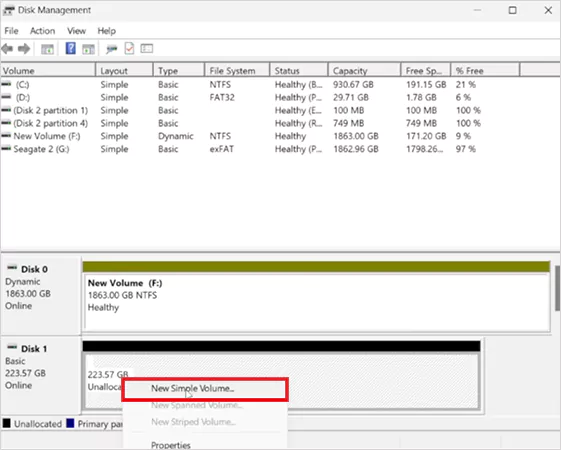
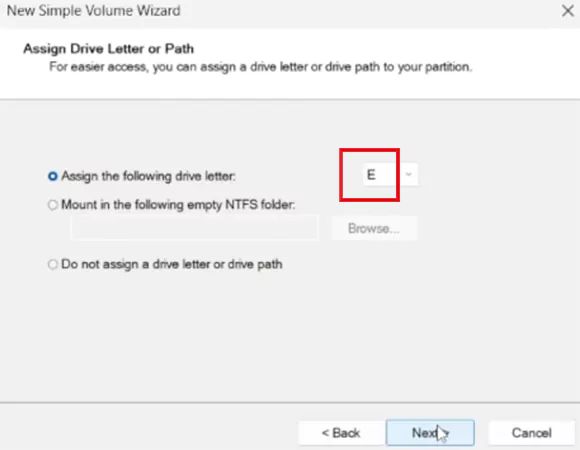
- Follow the setup wizard and assign a drive letter.
- Next, choose a file system (typically NTFS).
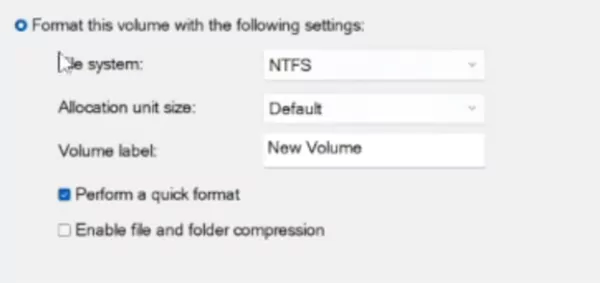
- Leave “Perform a quick format” selected for faster formatting, and click on Finish.
If Windows prompts you to initialize the SSD first, choose GPT (GUID Partition Table) unless you are using an older legacy BIOS system.
Method 2: Using File Explorer
If your SSD already has a drive letter and appears in This PC, here’s how to format SSDs in Windows 10 or 11 directly:
- Open File Explorer and go to This PC.
- Right-click the SSD and select Format.
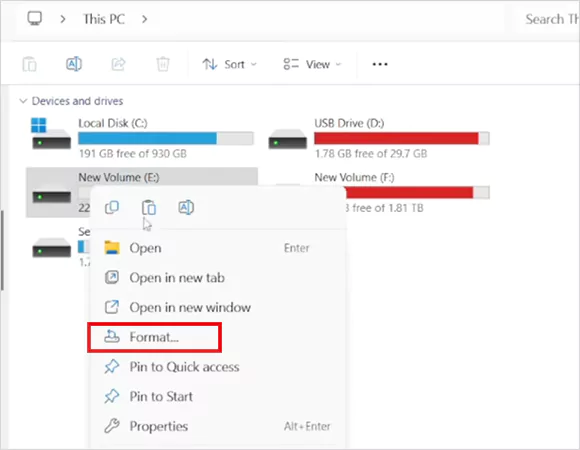
- Choose the file system and enter a volume label (optional).
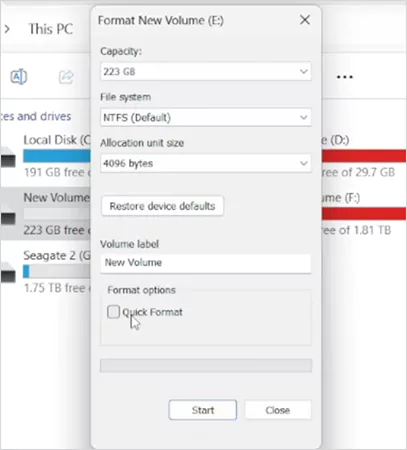
- Click on Start and confirm.
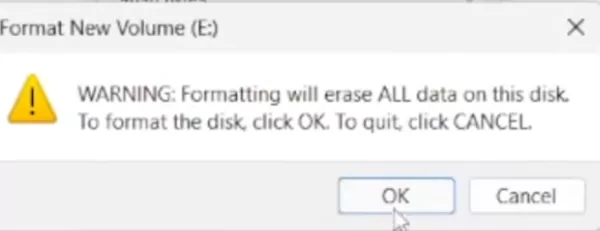
This is the quickest option for external SSDs and existing internal drives.
Method 3: Using DiskPart (Command Prompt)
If Disk Management can’t format the drive or the SSD has partition issues, DiskPart is a useful alternative. Here’s how to format external SSDs using Command Prompt:
- Open Command Prompt as an administrator.
- Next, type “diskpart”, press Enter, and then run “list disk”.
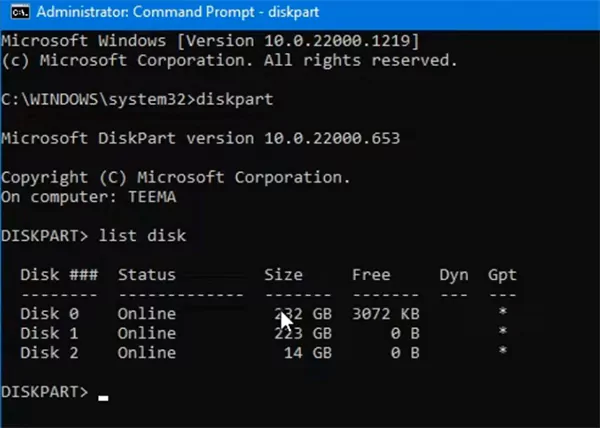
- Identify your SSD and enter “select disk X”. Replace X with the correct disk number.
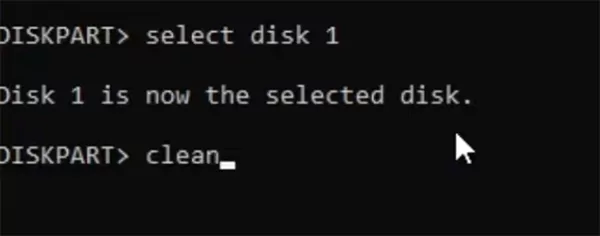
- If needed, create a partition, run “create partition primary”,
- Next, to format the partition, type “ format fs=ntfs quick”.
- Finally, type “assign” to assign a drive letter, and then “exit”.
I would advise you to double-check the disk number before running Diskpart commands. Selecting the wrong disk will erase the wrong drive.
How to Format an SSD on Mac?
On macOS, you can use Disk Utility. Let’s understand how to format an SSD for Mac:
- Go to Applications > Utilities > Disk Utility.
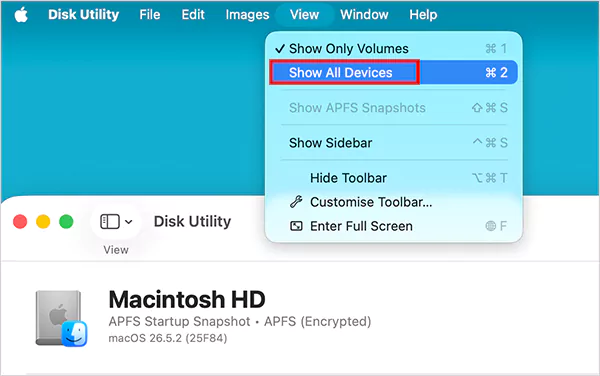
- Click View > Show All Devices so you can select the physical SSD instead of one of its volumes.
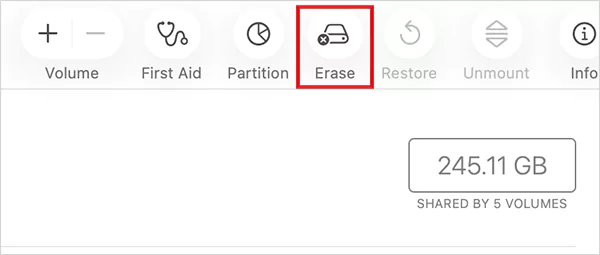
- Choose the SSD from the sidebar and click Erase.
- Next, select the file system based on how you will use the drive.
- Choose GUID Partition Map as the partition scheme, give the SSD a name, and click Erase.
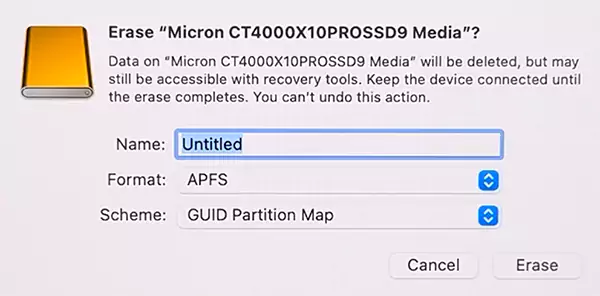
Once the process finishes, your SSD is ready to use. And if you are formatting the startup drive, restart your Mac in Recovery Mode, open Disk Utility, and follow the same steps.
How to Initialize an SSD?
A brand-new SSD often needs to be initialized before it can be formatted and used. Initialization creates the partition table, while formatting creates the file system.
In Windows, you will usually see an Initialize Disk prompt the first time a new SSD is detected. You will be asked to choose between MBR and GPT. GPT is best for modern Windows PCs with UEFI, while MBR is for older systems using legacy BIOS.
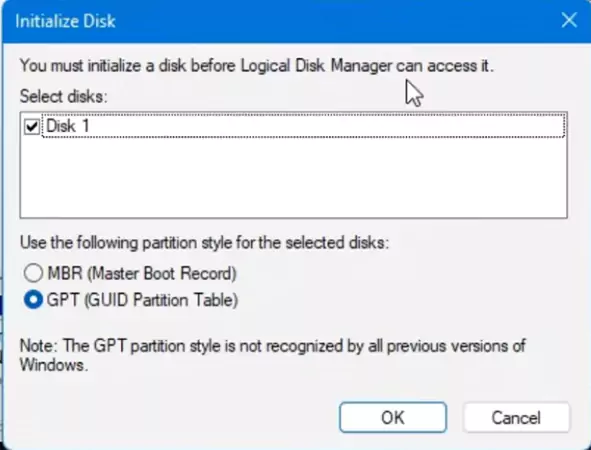
On macOS, initialization happens automatically when you erase a new drive in Disk Utility, so there’s no separate “Initialize Disk” option. Once the SSD has been initialized, simply follow the Windows or Mac formatting steps covered above.
When Should You Format an SSD?
Now that you know how to reformat an SSD, you should also understand that you don’t need to do that regularly. It is usually required only in specific situations, such as:
- Setting up a brand-new SSD.
- Installing or reinstalling Windows.
- Reusing an SSD from another computer.
- Changing the drive’s file system.
- Removing old partitions before creating new ones.
- Preparing external SSDs for Windows, macOS, or both.
If your SSD is working normally and you don’t need to reinstall the operating system or change the file system, there is usually no reason to format it.
Common SSD Formatting Mistakes to Avoid
Formatting an SSD is simple, but a few mistakes can lead to unnecessary problems. Here’s what you should keep in mind:
- Formatting removes the existing file system, making your files inaccessible. Always back up important data before you begin.
- Pick a file system that matches how you will use the drive. NTFS for Windows, APFS for modern Macs, and ExFAT for Windows and macOS.
- For most modern computers, GPT is the right choice because it supports larger drives and UEFI systems. Use MBR only if you need compatibility with older hardware.
- Before clicking Format, verify the drive’s capacity and disk number, especially when using DiskPart or Disk Management.
Also, do not assume that quick formatting permanently erases data. If you are disposing of or selling the drive, use the manufacturer’s secure SSD format tool instead.
Conclusion
Formatting an SSD is simple once you know which tools and settings to use. Whether you are preparing a new SSD, reinstalling Windows, or setting up an external drive, choosing the right file system and partition style helps ensure the best compatibility and performance.
I have given all the information required to successfully format the SSDs on Windows and Mac. Just follow the steps given carefully, and you will be able to seamlessly complete the formatting.
Frequently Asked Questions
How to format SSD drives?
Do I need to format a new SSD?
Yes, most new SSDs need to be initialized and formatted before they can store files.
How to format new m.2 SSDs?
The process is the same as any other SSD. Initialize it if required, create a partition, and format it using Disk Management on Windows or Disk Utility on Mac.
What is the difference between initializing and formatting an SSD?
Initializing creates the partition table, while formatting creates the file system that allows your operating system to store and manage files.
What is the best format for an external SSD?
Use NTFS for Windows-only use, APFS for Mac-only use, and ExFAT if you want the SSD to work with both Windows and macOS.
Related Posts
Best Tools for Recovering Deleted Files on a Mac
A wrong click can leave you sinking in grief and sorrow, just because that accidental click has deleted an important…

What to Back Up Before Migrating Your Business to New Software
Software migration hardly results in data loss during migration. It’s possible that you lose the data after a week or…

How Modern Enterprises Are Scaling Infrastructure with Custom AI
For many businesses, AI works as a collection of tiny experiments such as a chatbot, a coding assistant, or sometimes…
VMware vs. Sangfor aSV vs. Nutanix: Which Hypervisor Actually Saves You Money?
Selecting the right hypervisor isn’t simply an issue of technology; it could end up having a significant effect on your…

SD Card Corruption in IoT Devices: Why It Happens So Often and How to…
IoT devices can have good sensors, robust software, and an excellent housing, but all it takes is one small thing…

5 Best SaaS Platforms for Financial Services and Growing Businesses in 2026
In 2026, SaaS platforms have become essential for businesses that want to build smooth processes, automate routine tasks and clarify…

How Digital Records Support Workplace Injury Claims
An injury in the workplace does not necessarily mean that you have just a physical problem to overcome. It could…

What Happens When Your Office Emergency Plan Is a Drawer?
An office emergency plan should not end with the first aid box sitting in the last drawer. All employees should…

How Data Recovery and Recordkeeping Failures Cost Businesses More Than They Realize
Most businesses file data recovery issues and recordkeeping gaps under different headings, treating one as an IT problem and the…