


Ans. An iCloud backup can take a few minutes to several hours. The duration depends on the backup size, upload speed, and connection stability. A first backup often takes longer than subsequent backups.
How Long Does Backing Up to iCloud Take? Causes and Fixes for Slow Backups
Is your iCloud backup taking ages? When your backup keeps spinning, it can be hard to tell whether it’s making progress or stuck. That is why people often ask online: How long does backing up to iCloud take?
An iCloud backup may finish in minutes or take several hours, depending on how much data needs uploading and how fast your internet connection is. Here, I will explain how long an iCloud backup should take, what causes delays, and how to fix them without risking your existing data.
How Long Does Backing Up to iCloud Take?
So, how long does it take for iCloud to back up? Well, it depends on your backup size, upload speed, and connection stability. There cannot be a universal completion time because these factors vary between devices.
The first backup often takes longer because more data needs to be uploaded. Subsequent backups may finish faster, depending on what has changed since the previous backup.
To check your estimated backup size:
- Open Settings and tap your name.
- Go to iCloud and open Storage or Manage Account Storage.
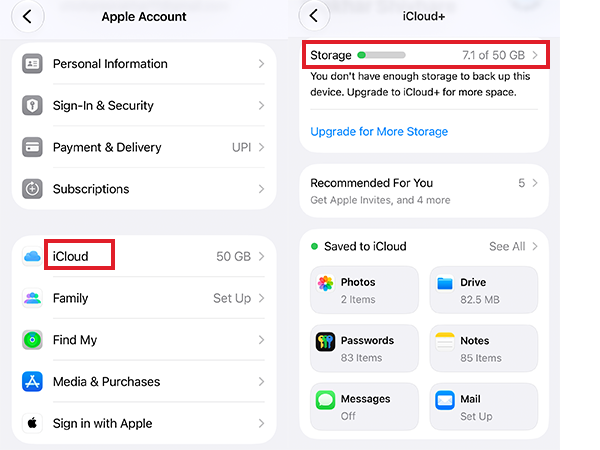
- Select Backups, then your iPhone.
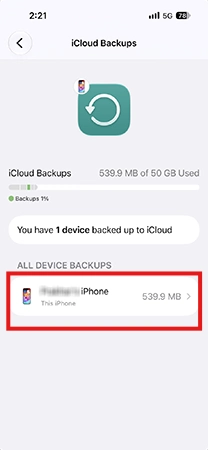
- Check Next Backup Size. It may take a few minutes to calculate.
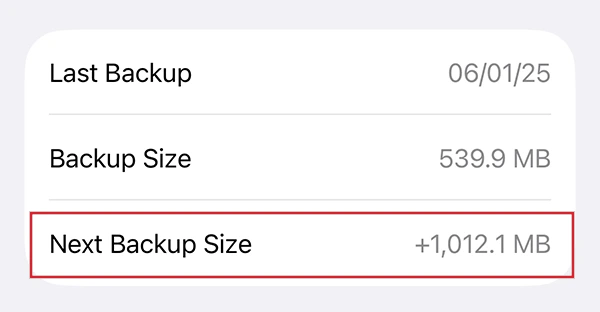
Your upload speed matters more than your advertised download speed because the backup sends data from your iPhone to iCloud. A large backup on a slow connection can take hours, while a smaller backup on reliable Wi-FI may finish much sooner.
How Long Does It Take to Restore From iCloud?
Now let’s address another common question: How long does restore from iCloud take? Restoring an iPhone from iCloud can take several minutes to an hour for the initial progress bar to finish. However, the full process may take several hours or even days because apps, photos, music, contacts, and other content can continue downloading in the background.
Again, the total time depends on your backup size, Wi-Fi speed, or the amount of content that needs to be downloaded. If your iPhone has reached the Home Screen but some apps or photos are missing, the restoration may still be running. Keep your device connected to Wi-Fi and power while the remaining content downloads.
Why is My iCloud Backup Taking So Long?
Is backing up to iCloud taking forever? As I have already briefly mentioned, several factors can slow down a backup. Here are some of the major causes:
- Slow Upload Speed: Your connection may download data quickly but upload it slowly.
- Large Backup Size: A first backup or one containing substantial app data takes longer to upload.
- Unstable Wi-Fi: Weak signals and frequent disconnections can interrupt the backup.
- Insufficient iCloud Storage: Your backup may fail if your account does not have enough available space.
- An Ongoing Restore: Your iPhone may need to finish restoring before another backup can begin.
- Software or Service Issues: Outdated iOS software or a temporary iCloud service problem can interfere with the process.
Start by checking your backup size, upload speed, and available iCloud storage. These checks can help identify the cause before you try more disruptive fixes.
How to Fix a Slow iCloud Backup?
Work through these steps to fix slow iCloud backups, starting with your internet connection and storage.
1. Check Your Wi-Fi and Upload Speed
Connect your iPhone to a reliable Wi-Fi network and check its upload speed using a reputable speed-test service.
If the connection is weak, move closer to your router or restart or reset the router if necessary. You can also try another Wi-Fi network to see whether your current connection is causing the delay.
2. Keep Your iPhone Connected to Power and Wi-Fi
Connect your iPhone to a power source or leave it connected to Wi-Fi while the backup runs. For automatic backups, Apple recommends that your iPhone be connected to power and Wi-Fi and have its screen locked.
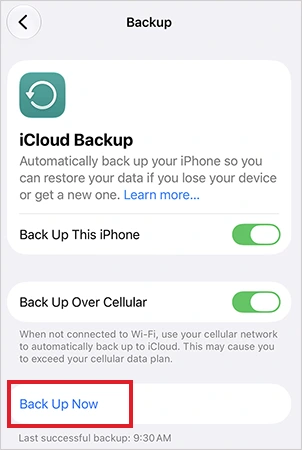
To start a manual backup, go to Settings > Your name > iCloud > iCloud Backup > Back Up Now. Keep the device connected until the process finishes.
3. Check Your Available iCloud Storage
Go to Settings > Your name > iCloud > Storage to review your storage usage.
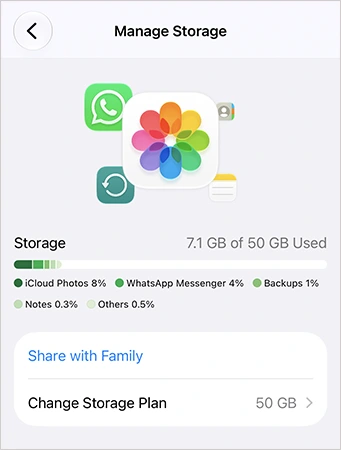
If you do not have enough space, identify which backups and files are using the most storage. Delete only data you no longer need, and avoid deleting your usable backup unless you have confirmed that another copy exists.
To clear iCloud storage, you can also review the apps included in your device backup and turn off backup for apps whose data you do not need to preserve in that backup.
4. Update Your iPhone
An outdated iOS version can sometimes contribute to backup or connectivity problems.
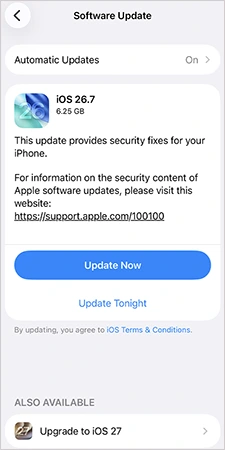
Open Settings > General > Software Update and install an available update if appropriate. Connect your iPhone to power and Wi-Fi, and make sure you have enough device storage before updating.
5. Try a Different Wi-Fi Network
If the backup keeps failing or making little progress, connect to another reliable network and try again. This can help determine whether your router, network congestion, or connection settings are contributing to the problem.
6. Give the Backup Time to Finish
Large backups can take a while, especially on slower connections. Apple recommends leaving an unexpectedly slow backup connected to Wi-Fi and power for up to 24 hours.
If the backup still has not completed, preserve important data separately where possible and review Apple’s troubleshooting guidance. If the problem continues, contact Apple Support rather than repeatedly deleting backups or resetting your iPhone.
Conclusion
An iCloud backup can finish in minutes or take several hours, while a full iPhone restoration may continue downloading content for days. The time depends on your data, connection, and whether you are backing up or restoring.
If your backup is taking too long, check your upload speed and available iCloud storage first. Keep your iPhone connected to power and Wi-Fi, and allow the process time to finish. If it remains incomplete after 24 hours, follow Apple’s troubleshooting guidance before attempting more disruptive fixes.
Frequently Asked Questions
How long does a backup take on iCloud?
Why is iCloud backup taking so long?
Ans. Slow Wi-Fi, a large backup, insufficient iCloud storage, or an interrupted connection can delay the process.
How long does restoring from iCloud take?
Ans. The initial restore may take minutes to an hour, while apps, photos, and other content can continue downloading for hours or longer.
Can I use my iPhone while it’s backing up to iCloud?
Ans. Yes, once the initial setup allows access. Some apps, photos, and other content may still be downloading in the background.
What should I do if my iPhone backup is taking ages to finish?
Ans. You should use a stable Wi-Fi connection, connect your iPhone to power, free up iCloud storage if needed, and keep iOS updated.
Related Posts
How MSPs Package Backup and Recovery as a Subscription That Actually Restores
An MSP technician checks nightly backup job results across several client accounts Some businesses often try to own a backup.…
Best Tools for Recovering Deleted Files on a Mac
A wrong click can leave you sinking in grief and sorrow, just because that accidental click has deleted an important…

What to Back Up Before Migrating Your Business to New Software
Software migration hardly results in data loss during migration. It’s possible that you lose the data after a week or…

How Modern Enterprises Are Scaling Infrastructure with Custom AI
For many businesses, AI works as a collection of tiny experiments such as a chatbot, a coding assistant, or sometimes…

VMware vs. Sangfor aSV vs. Nutanix: Which Hypervisor Actually Saves You Money?
Selecting the right hypervisor isn’t simply an issue of technology; it could end up having a significant effect on your…

SD Card Corruption in IoT Devices: Why It Happens So Often and How to…
IoT devices can have good sensors, robust software, and an excellent housing, but all it takes is one small thing…

5 Best SaaS Platforms for Financial Services and Growing Businesses in 2026
In 2026, SaaS platforms have become essential for businesses that want to build smooth processes, automate routine tasks and clarify…

How Digital Records Support Workplace Injury Claims
An injury in the workplace does not necessarily mean that you have just a physical problem to overcome. It could…

What Happens When Your Office Emergency Plan Is a Drawer?
An office emergency plan should not end with the first aid box sitting in the last drawer. All employees should…