


Ans. Your iPhone displays the iPhone Unavailable message after multiple incorrect passcode attempts to protect your data from unauthorized access.
iPhone Unavailable: What It Means and How to Fix It?
Seeing the iPhone Unavailable lock screen can be alarming, especially if you need immediate access to your device. Many people assume their iPhone is broken or that their data is gone, but that’s usually not the case.
This message is Apple’s built-in security feature that appears after several incorrect passcode attempts. In this guide, I will explain the iPhone Unavailable meaning, why it occurs, and the fastest ways to unlock your iPhone without making the situation worse.
What Does iPhone Unavailable Mean?
The iPhone Unavailable screen appears after too many incorrect passcode attempts. It is not a software bug or hardware problem. Instead, it is a built-in security feature that prevents unauthorized access to your personal data.
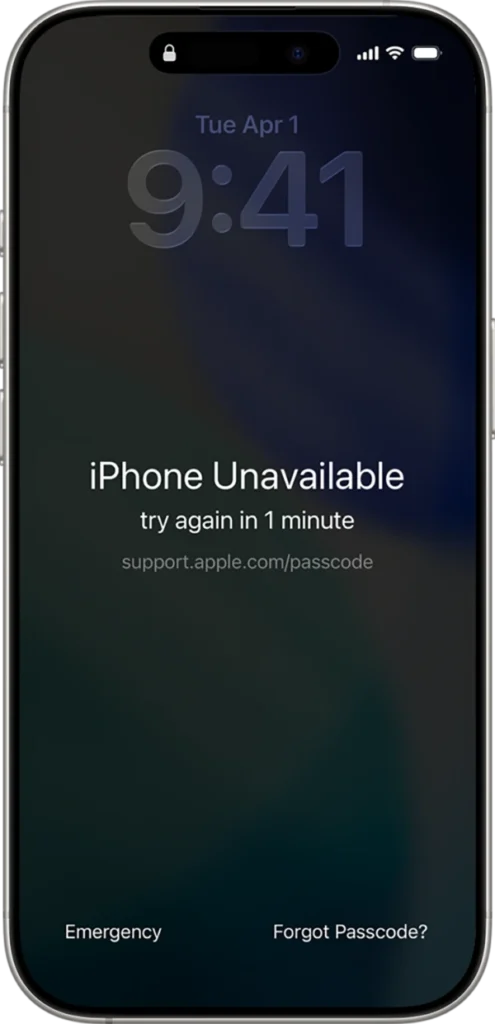
Depending on your iPhone model and iOS version, you may see messages such as:
- iPhone Unavailable
- iPhone Unavailable Try Again in 1 Minute
- Security Lockout
With each incorrect passcode attempt, the waiting time increases. If the wrong passcode is entered repeatedly, you may eventually get an iPhone Security Lockout screen, which usually requires you to erase and restore the device using your Apple Account or a computer.
In simple terms, the message means your iPhone is unavailable temporarily or permanently blocked access to protect the data stored on it.
Why Does My iPhone Say iPhone Unavailable?
An iPhone says unavailable on lock screen only after multiple incorrect passcode attempts. The most common scenarios include:
- You Entered the Wrong Passcode Repeatedly: This is the most common cause. Every incorrect attempt increases the waiting time before you can try again.
- Someone Else Tried to Unlock Your iPhone: A child, family member, or friend may accidentally enter the wrong passcode several times while trying to unlock your device.
- You Forgot Your Passcode: If you haven’t used your iPhone for a while or recently changed the passcode, it is easy to forget the correct one and trigger the lockout.
- Accidental Screen Input: Although less common, accidental taps in your pocket or bag can sometimes trigger repeated incorrect passcode attempts if the screen stays active.
Now that you know the potential lockout causes, find out the iPhone Unavailable fixes in the next section.
How to Fix iPhone Unavailable Message?
The iPhone Unavailable Solution depends on your iPhone, iOS version, and whether you recently changed your passcode. Here’s a quick table to help you choose the right recovery method:
| Situation | Recommended Method |
| You changed your passcode within the last 72 hours (iOS 17 or later) | Use your previous passcode |
| Forgot Passcode? appears on the lock screen | Reset your iPhone from the Lock Screen |
| You can’t reset the iPhone from the Lock Screen | Restore it using a Mac or Windows PC |
Method 1: Use Your Previous Passcode (iOS 17 or Later)
If you have changed your iPhone passcode within the last 72 hours, Apple allows you to use the previous passcode to create a new one. Here’s how to fix the iPhone unavailable error:
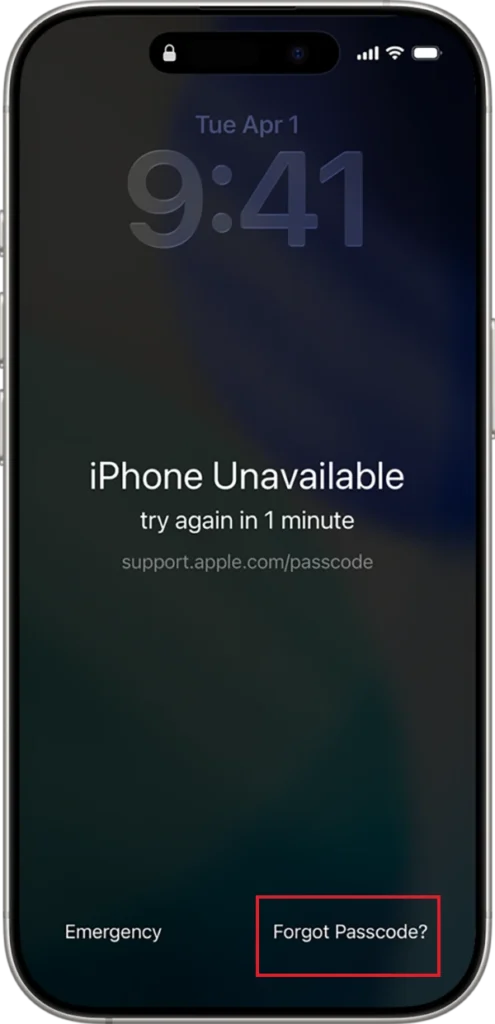
- Tap Forgot Passcode? on the Lock Screen.
- Select Enter Previous Passcode.
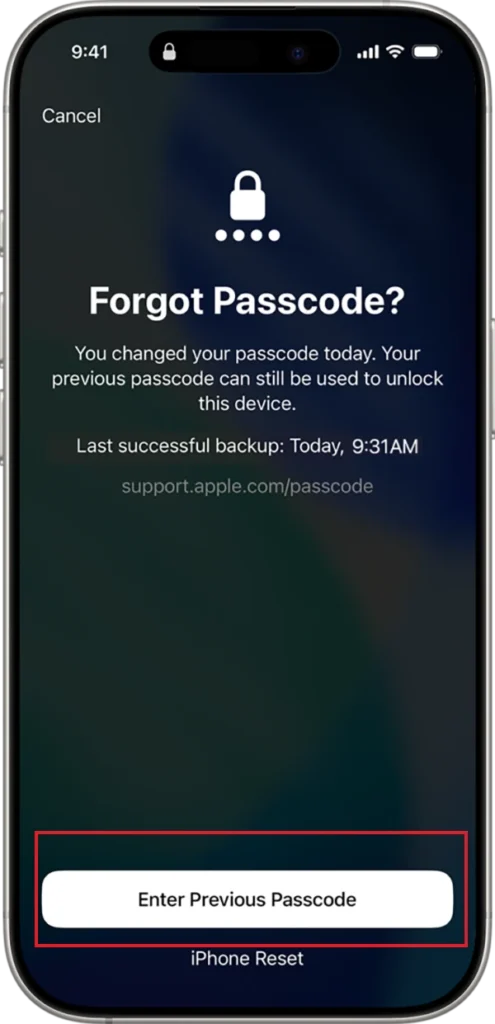
- Enter your old passcode and create a new passcode.
Method 2: Reset Your iPhone from the Lock Screen
If your iPhone runs iOS 17 or later, has Find My enabled, and is connected to Wi-Fi or cellular data, you can erase it directly from the Lock Screen. Follow these steps:
- Tap Forgot Passcode?
- Select iPhone Reset.
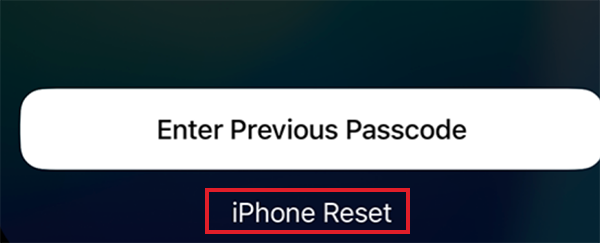
- Sign in with your Apple Account password and confirm that you want to erase the device.
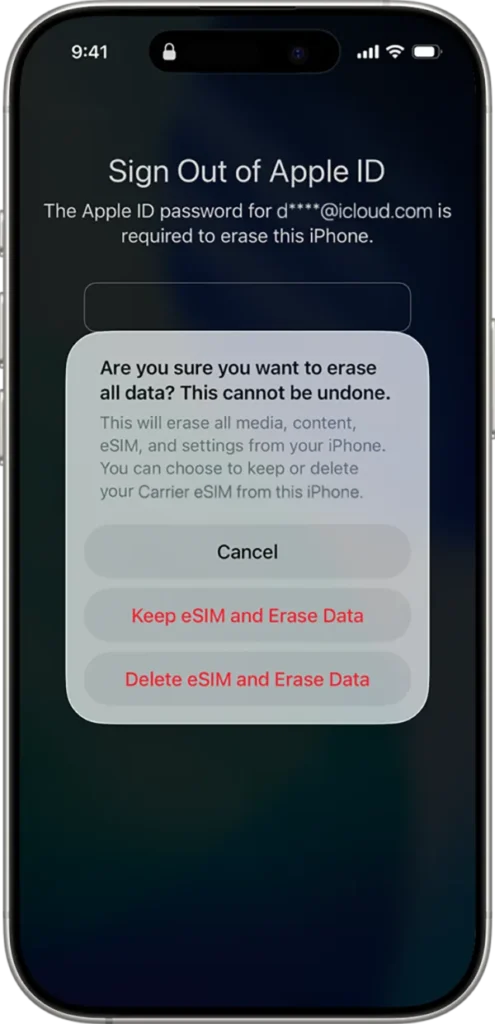
Once the reset is complete, restore your apps, photos, and settings from an iCloud or computer backup during setup.
Method 3: Restore Your iPhone Using a Mac or Windows PC
If the on-device reset is not available, you can restore your iPhone using a computer. The process is simple:
- Turn off your iPhone.
- Put it into Recovery Mode by pressing and holding the side button until you see the Connect to computer screen.
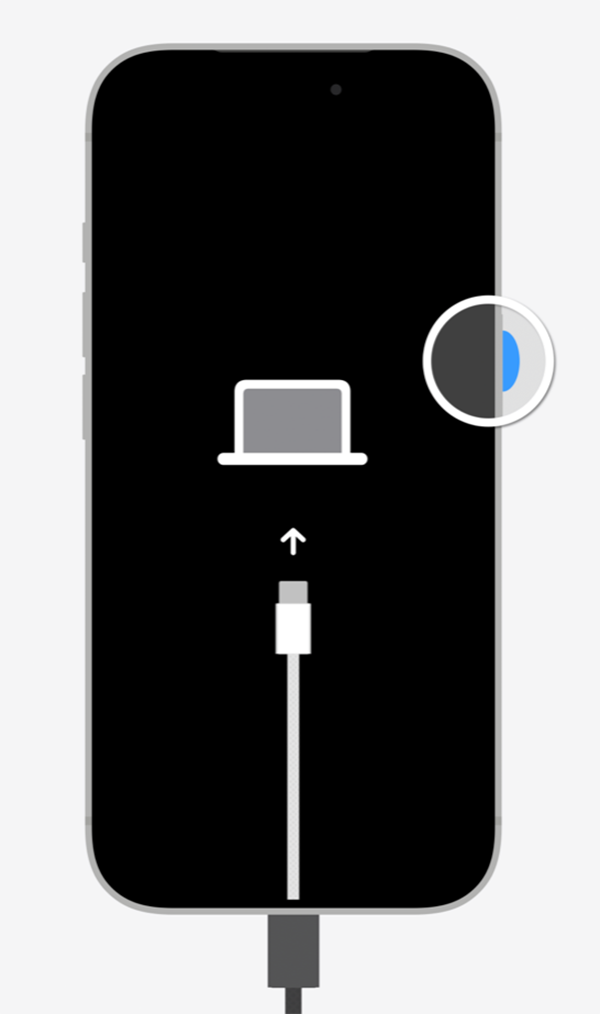
- Connect it to your Mac or Windows PC.
- Open Finder or Apple Devices/iTunes.
- Click on Restore.
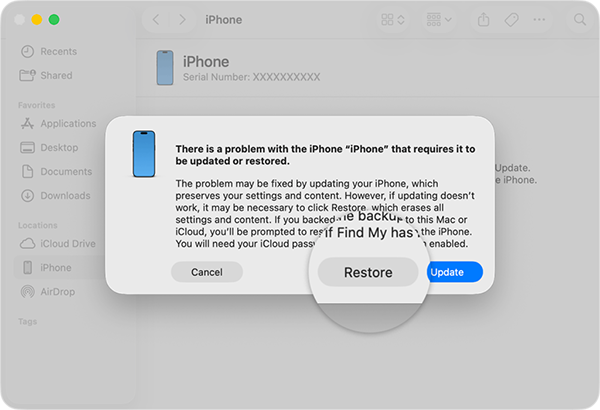
This reinstalls iOS and removes the forgotten passcode. Afterward, you can restore your data from a previous backup.
How to Stop the iPhone Unavailable Screen From Appearing Again?
Once you have regained access to your iPhone, a few simple habits can help prevent another lockout.
- Use a passcode that’s easy for you to remember but difficult for others to guess.
- Turn on Find My so you can reset your iPhone if you forget the passcode.
- Back up your iPhone regularly using iCloud or a computer.
- If you change your passcode, remember the previous one for the next 72 hours in case you need Apple’s passcode recovery feature.
- Avoid guessing your passcode repeatedly. If you can’t remember it, just use one of Apple’s recovery methods instead.
These simple precautions can save you time and help protect your data if you’re ever locked out again.
Conclusion
The iPhone not available message does not mean your device is damaged. It is Apple’s way of protecting your personal data after multiple incorrect passcode attempts.
If you recently changed your passcode, you may be able to unlock your iPhone using the previous one. Otherwise, you will need to erase and restore the device using Apple’s official recovery methods.
Frequently Asked Questions
Why is my iPhone saying unavailable?
Can you fix iPhone Unavailable without losing data?
Ans. Yes, if you changed your passcode within the last 72 hours on iOS 17 or later, you may be able to use your previous passcode to get rid of this without losing data.
Can I unlock an unavailable iPhone without a computer?
Ans. Yes, if “Forgot Password?” appears on the screen, Find My is enabled, and your iPhone is connected to Wi-Fi or cellular data, you can reset it without using a computer.
How to put my iPhone in recovery mode when unavailable?
Ans. Turn off your iPhone, connect it to a computer, then press and hold the side button until the Recovery Mode screen appears.
Will I lose everything if my iPhone says unavailable?
Ans. Erasing your iPhone removes the data stored on the device. However, you can restore your photos, apps, and settings if you have an iCloud or computer backup.
Related Posts

8 Best Online Tools to Identify Unknown Callers
When a call comes on your screen with no name or context, you just zone out, thinking you should pick…

How to Fix Black Shadow on Laptop Screens?
A black shadow on laptop screens can look like a Windows glitch, but the shape and location of the dark…

Fixing Broken IP Allowlists With a Dedicated Static Address
IP allowlisting is one of the easiest security controls available. Tell a service to accept connections only from addresses you…

What is DumpStack.log and Can You Delete It in Windows?
If you have noticed a file named DumpStack.log in the root of your Windows drive, you may wonder why it…

How eSIM Fits Into Your Global Travel Itineraries
Multi-country trips can be exciting, but sometimes mobile device data makes it concerning. Whenever you cross a border, there will…

How to Pick the Right Data Structure Before You Build Your Database
Every application that stores information depends on a structure chosen long before the first row of data arrives. That structure…

Standardizing React Component Iconography Across Distributed Product Teams
Creating a common React component library is essentially a losing battle. During a cross-team review, I shared my screen. I…

Antimalware Service Executable: What It Is and How to Fix High CPU Usage
You open Task Manager and notice Antimalware Service Executable using a surprising amount of CPU or memory. It may keep…

Keeping Your Website Healthy: A Practical Guide to Long Term Success
Introduction The website may appear to be finished once it is launched; however, making sure that the site remains reliable…