
It may happen due to a settings glitch, weak signal, router issues, outdated iOS, or incorrect network settings.
How to Fix an iPhone Not Connecting to Wi-Fi?
 Saipansab Nadaf
Updated on: Mar 13, 2026
Why can I not connect to Wi-Fi on my iPhone? It is frustrating, but the good news is that most Wi-Fi issues can be fixed quickly once you know where to look.
I will explain how to fix an iPhone not connecting to Wi-Fi and help you identify whether the problem is with your iPhone, your router, or the network itself.
We will start with fast checks, and by the end of this troubleshooting guide, you will clearly know what the issue is and how to approach it quickly without wasting time guessing.
Quick Look: How to Fix iPhone Wi-Fi Connection Problems?
- Why wouldn’t my phone connect to Wi-Fi?
- Settings glitch.
- Weak signals.
- Router issues.
- VPN interference.
- Outdated iOS.
- How to troubleshoot an iPhone not joining Wi-Fi?
- Turn Wi-Fi off and on.
- Toggle Airplane Mode for about 20 seconds.
- Restart your iPhone to clear temporary bugs.
- Restart your router and modem.
- Forget the Wi-Fi network and reconnect.
- Disable VPN temporarily if you use one.
- Update iOS to the latest version.
- Reset network settings.
- Factory reset as a last resort.
- Contact Apple support or your internet provider.
Why is Your iPhone Not Connecting to Wi-Fi?
If your Wi-Fi is not connecting on your iPhone, the reason is usually simple. Before jumping into fixes, let’s understand the common causes behind the iPhone not joining Wi-Fi:
Weak or Unstable Wi-Fi Signal
If you are too far from the router, your iPhone may struggle to detect or maintain a stable connection. Walls, interference from other devices, or crowded networks can also cause no network connection on iPhones.
Incorrect Wi-Fi Password
A small typo in the password can stop your iPhone from joining the network. Wi-Fi passwords are case-sensitive, so the letters, numbers, and symbols must match exactly.
Basic Settings Issues
Sometimes Wi-Fi may be turned off accidentally, or settings like Airplane Mode can interfere with the connection.
Router or Internet Problems
Your router might be experiencing a temporary glitch, or your internet service provider could be facing a network outage. If other devices also cannot connect, the issue is likely with the network.
VPN or Security Apps Interference
Certain VPNs or security apps can block or interrupt network access and cause the iPhone Wi-Fi no internet connection issue.
Software Bugs or Outdated iOS
Occasionally, a temporary software bug or an outdated iOS version can also be the reason behind the connectivity problems.
Network Configuration Errors
Saved network settings or IP configuration issues can sometimes prevent your iPhone from connecting to a Wi-Fi network.
Understanding why an iPhone is not connecting to the network makes troubleshooting much easier. Once you identify the possible issue, fixing iPhone not connecting to Wi-Fi usually takes only a few minutes.
How to Fix the iPhone Won’t Connect to Wi-Fi Issue?
If your iPhone or iPad won’t connect to Wi-Fi, start with the quick fixes and move to the advanced steps only if the problem continues. Here are the 12 possible solutions you can try:
Make Sure Wi-Fi is Turned On
If you can’t connect an iPhone to Wi-Fi, the first thing you should do is to confirm that Wi-Fi is enabled. If it is already on, switch it off for a few seconds and turn it back on again.
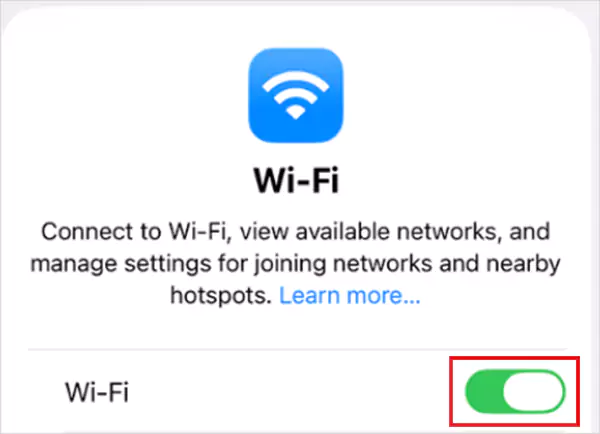
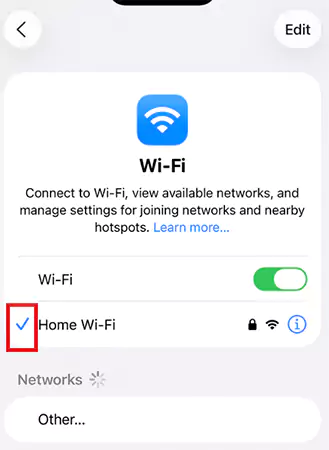
Make sure you are connecting to the correct network, as multiple networks may appear with similar names. Also, check if your network name has a blue checkmark next to it. That indicates your iPhone is connected to the network.
Turn Airplane Mode On and Off
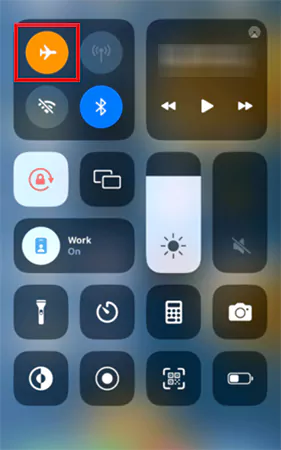
Airplane Mode resets all wireless radios on the device. This often fixes temporary connection glitches, including the iPhone not working with Wi-Fi issues. Open Control Center, turn Airplane Mode on, wait about 20-30 seconds, then turn it off again. After that, try to reconnect to Wi-Fi.
Restart Your iPhone
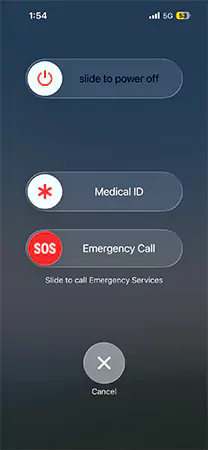
A quick restart clears background bugs that can affect network connections. To restart your iPhone, press and hold the side button and volume button, drag the power slider, and wait a few seconds. Then, turn the phone back on and try connecting to Wi-Fi again.
Restart Your Wi-Fi Router
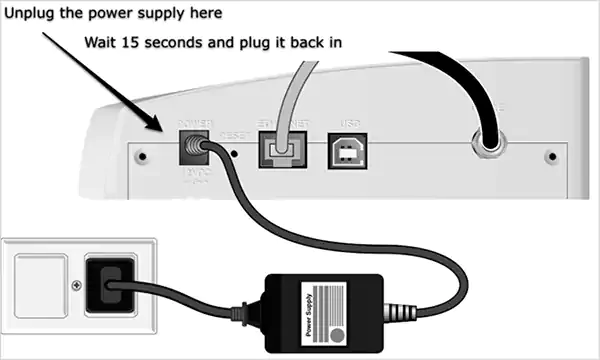
If you are still having trouble connecting to iPhone Wi-Fi, sometimes the issue might be the network itself. Unplug your router and modem, wait about 15 seconds, then plug them back in. Once the internet is back, reconnect your iPhone. In some cases, you might even have to reset your router to fix Wi-Fi problems.
Move Closer to the Router
I mentioned this in why won’t iPhone connect to Wi-Fi section. Weak signals can cause unstable connections. So, try moving closer to the router and reconnect. Thick walls, furniture, and electronics can interrupt signals, especially in large homes.
Forget the Wi-Fi Network and Reconnect
Sometimes your iPhone won’t connect to networks because of corrupted saved network data. To fix this:
- Go to Settings > Wi-Fi.
- Tap the “i” icon next to your network.
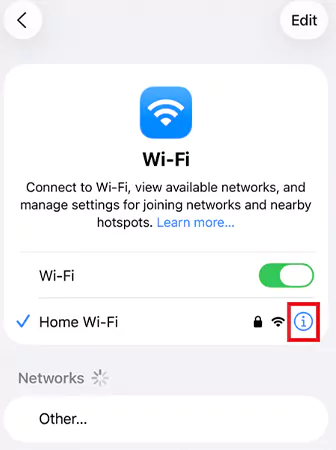
- Select Forget This Network.
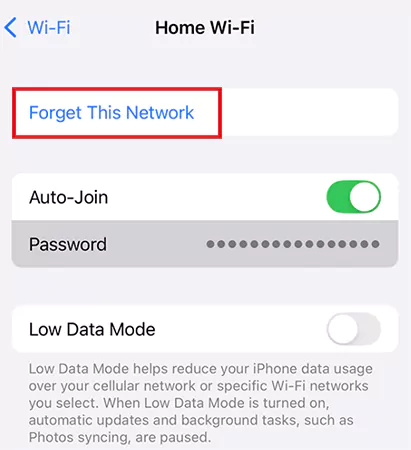
Now, just reconnect by entering the password again. This creates a fresh connection and often fixes the iPhone unable to connect to networks issues.
Turn Off VPN or Security Apps
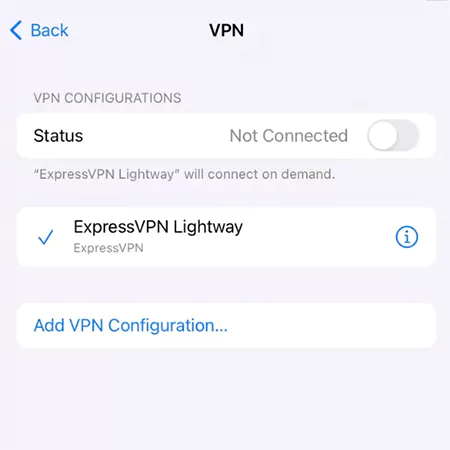
VPNs or certain security apps can interfere with Wi-Fi connections. Go to Settings > VPN and temporarily disable it. If Wi-Fi starts working, the VPN configuration may be causing the issue. Stop using the VPN or switch to a reliable provider.
Check Important Network Settings
A few system settings can quietly affect Wi-Fi connections. So, if your iPhone Wi-Fi is not connecting, make sure:
- Airplane Mode is off.
- Auto-Join is enabled for your network.
- Date & Time is set automatically (Settings > General > Date & Time).
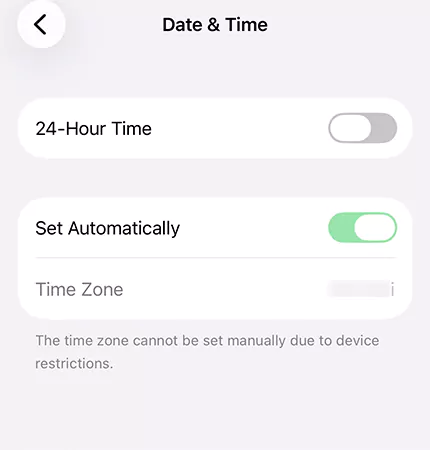
An incorrect system time can also block secure network connections.
Disable Private Wi-Fi Address (If Required)
iPhones and iPads use private Wi-Fi addresses to improve privacy by randomizing the device’s Mac address. However, some routers struggle with this feature. To test it:
- Go to Settings > Wi-Fi.
- Tap the “i” icon next to your network.
- Here, turn Private Address off.
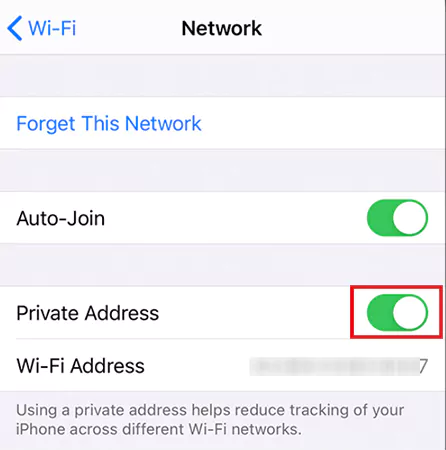
- Reconnect to Wi-Fi.
I would recommend that you do this only for trusted networks, like your home.
Update iOS to the Latest Version
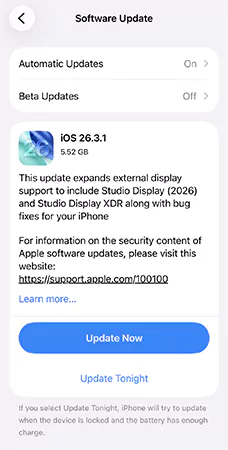
Still, if your iPhone can’t connect to Wi-Fi, try updating the iOS. Outdated software can create compatibility issues with modern routers. Go to Settings > General > Software Update and install any available update. After updating, try to reconnect to your network.
Reset Network Settings
If none of the previous fixes work, resetting network settings may resolve deeper configuration issues. Here’s how you can do that:
- Go to Settings > General > Transfer or Reset iPhone.
- Tap Reset.
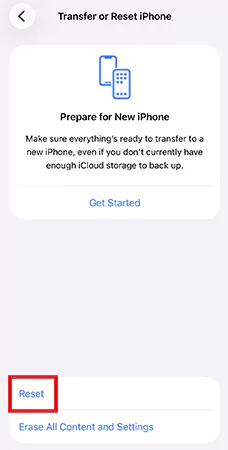
- Here, select Reset Network Settings.
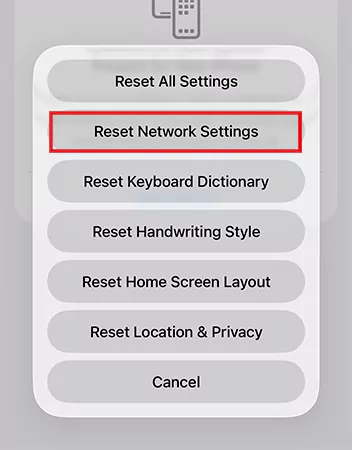
This will erase saved Wi-Fi networks, passwords, and VPN settings, so you will need to reconnect afterward.
Perform a Factory Reset (Last Resort)
If none of the fixes work, you may need to factory reset your iPhone. First, back up your data, then go to:
Settings > General > Transfer or Reset iPhone > Erase All Content and Settings.
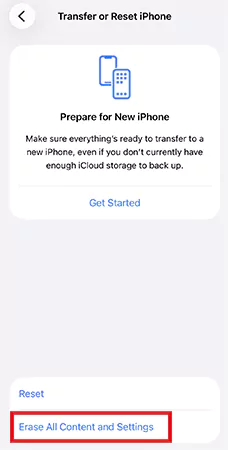
After the factory reset, set up the device again and reconnect to Wi-Fi. If the iPhone is not connected to Wi-Fi issue still continues, the problem could be hardware-related.
When to Contact Apple Support or Your Internet Provider?
Most iPhone Wi-Fi issues can be fixed with the help of the above-mentioned troubleshooting fixes. But if the problem continues, it may be time to contact support.
- Contact Your Internet Service Provider if:
The issue affects multiple devices in your home, not just your iPhone. Common signs include:
- None of your devices can access the internet.
- Your Wi-FI shows “No Internet Connection”.
- Your router displays connection errors or unstable signals.
Your ISP can check the connection remotely or confirm if there is an outage in your area.
- Contact Apple Support if:
The problem appears to be specific to your iPhone. For example:
- Your iPhone cannot connect to any Wi-Fi network, including hotspots.
- Wi-Fi is working on other devices but not on your iPhone.
- The issues started after an iOS update, and they are not going away after basic troubleshooting.
Apple support can run diagnostics and recommend repair options to you. Getting the right help early can save a lot of unnecessary troubleshooting.
How to Prevent iPhone Wi-Fi Not Connecting Issues?
While occasional Wi-Fi issues are normal, a few simple habits can reduce the chances of facing them again.
- Keep Your Phone Updated: Install the latest iOS updates regularly. Apple often fixes connectivity bugs and improves network stability through updates.
- Restart Your Router Occasionally: Routers run continuously for months. Restarting them from time to time helps in clearing temporary glitches.
- Remove Old Saved Networks: Too many saved networks can sometimes cause connection conflicts. Deleting unused networks keeps settings cleaner.
- Keep Router Firmware Updated: Updating your router firmware improves compatibility with modern devices and reduces network instability.
These small practices can prevent many network and connection issues before they hit you.
Final Thoughts
To fix an iPhone not connecting to Wi-Fi, you need to start with basic fixes like restarting your iPhone, reconnecting to the network, or restarting the router. If the problem continues, updating iOS or resetting network settings usually resolves deeper issues.
By following the steps in this guide, you can quickly identify the cause and restore your internet connection without unnecessary hassle.
Frequently Asked Questions
Why is my iPhone Wi-Fi not working?
How to reset Wi-Fi on an iPhone?
Go to Settings > General > Transfer or Reset iPhone > Reset > Reset Network Settings.
Will resetting network settings delete my data?
No, it will not delete personal data. However, it will remove saved Wi-Fi networks, passwords, and VPN configurations.
Why does Wi-Fi work on other devices but not on my iPhone?
The issue is likely related to your phone’s network settings, software bugs, or device-specific settings.
What to do if your iPhone connects to Wi-Fi but has no internet?
First, restart your router and reconnect to the network. If the issue continues, try forgetting the Wi-Fi network and joining it again.
Related Posts
How to Check for Malware on Mac in 2026?
Can Mac computers get viruses? Macs are not as safe as people think. Yes, macOS has built-in tools like XProtect…
10 Best Lightroom Preset Alternatives in 2026
“Photography is the story I fail to put into words.” — Destin Sparks (Landscape Photographer) For years, Lightroom presets have…
Elementor Hosting vs SiteGround: Which is Faster in 2026?
A website’s performance is mainly determined by its Speed. Even a slight delay can reduce conversions by a significant margin.…
10 Best Visual UGC Platforms for eCommerce Brands in 2026
“People influence people. Nothing influences people more than a recommendation from a trusted friend.” — Mark Zuckerberg (Meta CEO) That…

The Data Models Powering the Next Creative Revolution in Video Generation
Artificial intelligence has evolved from a mere tool to the cornerstone of advancements in the new era. Over the years,…
Solar Software Companies: How Platforms Improve Cross Team Collaboration
“If everyone is moving forward together, then success takes care of itself.” — Henry Ford (Industrialist & Business Magnate) Handoffs…

What Healthcare Leaders Expect From Digital Tools
Healthcare executives are under pressure to protect patient safety, clinician time, and data privacy while modernizing the delivery of care.…
How to Reset Android Phone When Locked? (Safe Factory Reset Methods)
Locked out of your Android phone or stuck on the screen? It happens more than you think. A forgotten PIN,…
How to Transfer Contacts from Android to iPhone: 4 Easy Methods
Switching from Android to iPhone should not feel like rebuilding your life from scratch. Restoring contacts on iPhone should be…