


AAE stands for Apple Aperture Edits (though Apple has never officially defined the acronym). It denotes an XML-based metadata sidecar file created by Apple Photos.
What Is an AAE File? Everything iPhone Users Need to Know
An AAE file is an Apple sidecar file that contains editing instructions, like crops and filters, applied to an iPhone photo. If you delete these files, your photos instantly lose all modifications and revert to their original state, which was unedited.
While transferring images to a Windows PC, these small text-based documents often appear as confusing duplicates. This article breaks down exactly what is an AAE file and how Apple’s non-destructive editing system works. You will learn whether you should delete the aae file in iPhone or not, and how to transfer the AAE files to any computer without losing your custom changes.
TL;DR
- What is an aae file on iPhone? A tiny text-based sidecar file created by Apple to store your photo edits.
- Why does it Exist? With this, non-destructive editing is possible, keeping your original photo untouched.
- Can you delete it? Yes. Deleting a .aae file on a PC is 100% safe, but doing so on an iPhone will revert the photo back to its original, unedited version.
What is AAE File in iPhone?
An AAE file is a lightweight XML document created by Apple devices to store photo editing instructions. Whenever you apply a filter, crop a picture, or adjust lighting on iPhone or iPad, the iOS Photos app keeps the original image untouched. Instead, it writes those specific adjustments into a separate .aae file that acts as an instructional manual for the exact photo.
Fact: Apple introduced AAE (Apple Aperture Edits) in 2014 with the release of iOS 18 and macOS 10.10 Yosemite.
Without this tiny file, your device cannot remember your custom changes. Now, let’s understand why Apple uses this system and exactly how it functions behind the scenes.
What is the Need for AAE File?
Apple uses AAE files for non-destructive photo editing across its ecosystem. Usually, the image editors overwrite your photo pixels and make permanent changes. Apple avoids this by saving your edits as external data. It comes with the following technical benefits:
- An AAE file protects your photo’s original pixels.
- Having an AAE file means that infinite reversibility of your photo editing is possible.
- Photos with AAE files prevent quality loss. Resaving compressed images multiple times degrades quality.
- An AAE file takes around 1 KB of space, which is far less than saving a duplicate 3 MB photo file.
After seeing what is .aae file in iPhone, and its need, now let us understand how the .aae file in iPhone works.
How AAE File Work?
Apple uses a system called non-destructive editing. This means your original photo is never altered. The edits live in a separate layer.
An AAE file works by storing your photo edits as text instructions instead of altering the original image. So, when you edit a photo, Apple keeps the master file untouched and creates a separate .aae sidecar file containing information about the editing. Every time you open that photo on an Apple device, the system reads both the files simultaneously and instantly displays your edited picture.
This non-destructive editing process completely breaks down when you transfer your photos to a non-Apple ecosystem like Windows or Android. Because Windows and Android devices lack the software to read Apple’s AAE file type, they simply separate the two.
- Displays your raw, unedited, original photograph.
- Leaves the .aae file as unrecognized text clutter.
Still, if you are looking for how to open AAE file type in Windows? These are the apps associated with AAE:
- Microsoft Notepad (Microsoft Corporation)
- Apple TextEdit (Apple)
- Apple Photos (Apple)
To open and see the edits inside an AAE file on Windows, you cannot double-click it like a normal photo. You must use a text editor to view the code.
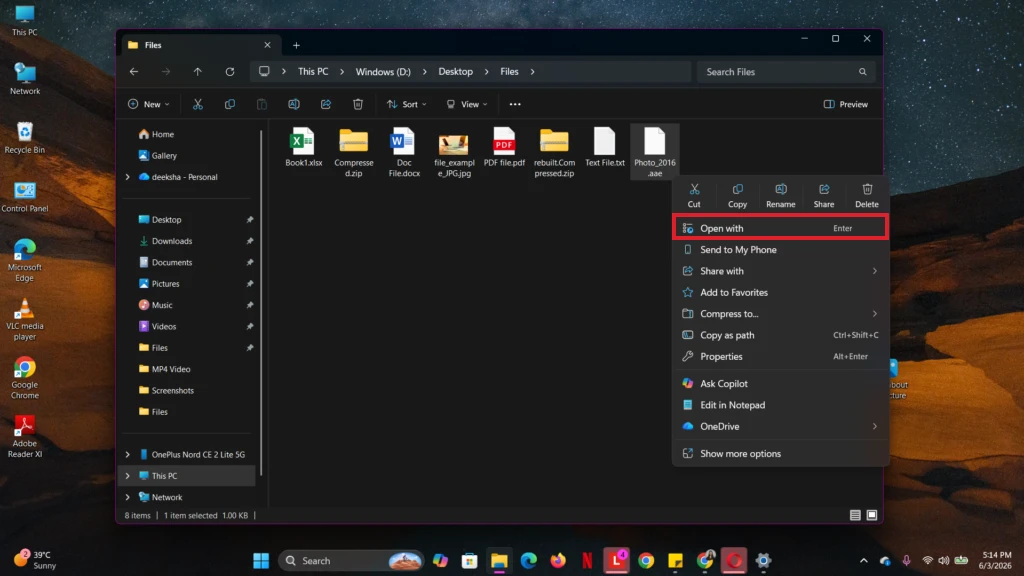
- Step 1: Right-click the .aae file on your Windows computer and click on Open with.
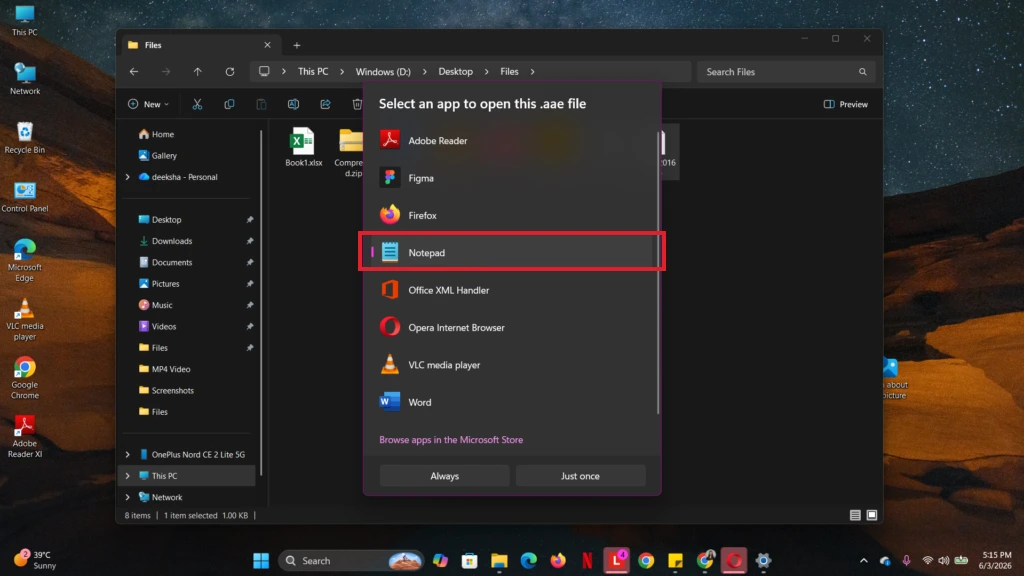
- Step 2: Select Notepad from the list of programs.
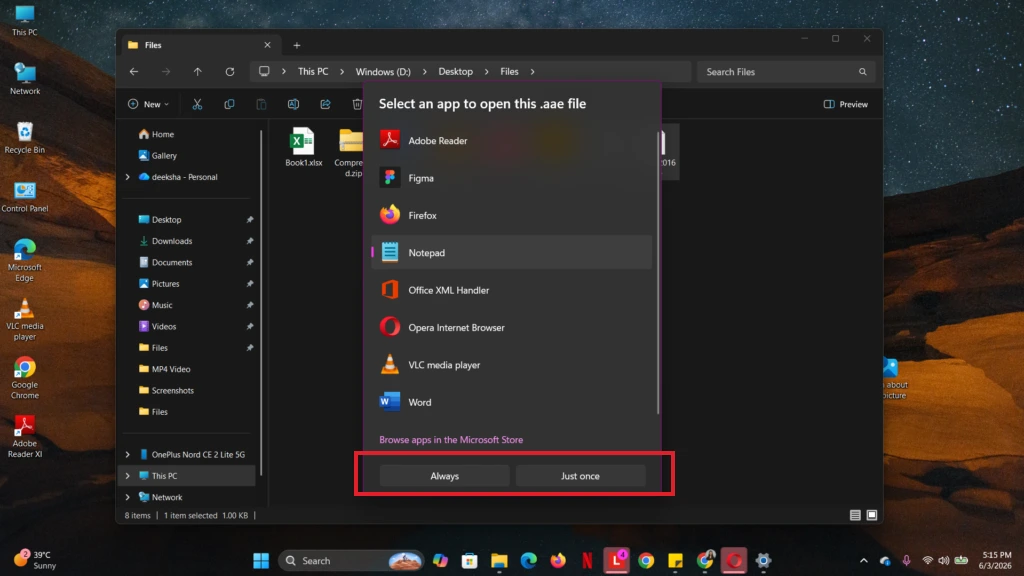
- Step 3: Click Always or Just once to open the file and view the text data.
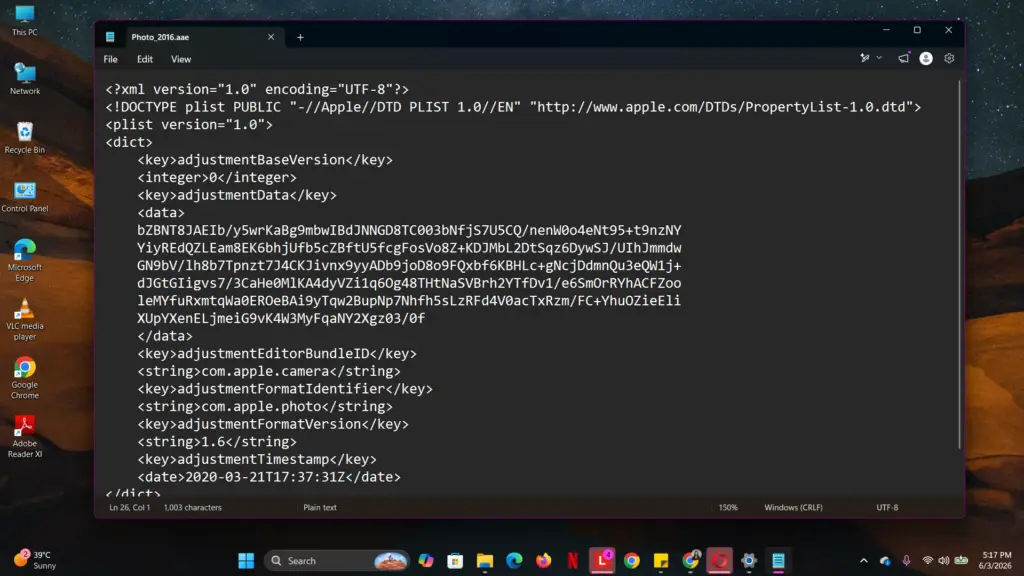
- Step 4: Your AAE file’s XML code will open in Notepad like this.
Can I Delete AAE Files Safely Without Losing Photos?
Yes, you can safely delete the AAE files without destroying the actual photo. Deleting an .aae file will never delete your core photograph because these files contain only the editing history. Removing them has direct consequences depending on the device you are using.
What happens if you delete them?
- On your iPhone/iPad/Mac: The associated photo immediately loses its filters and edits. It goes back to the original shot, an unedited photo.
- On a Windows PC or Android: Absolutely nothing changes when your delete the .aae file on Windows or Android because it cannot read Apple’s editing instructions anyway. So, deleting the AAE files simply clears the useless text clutter file. Your JPEGs are perfectly intact.
How to Transfer AAE File?
You cannot transfer an AAE file to a Windows PC or Android and expect it to apply your edits. Non-Apple systems cannot read Apple’s layout instructions in the AAE files.
To keep custom filters and edits when moving photos, you must use a transfer method that saves the edits directly into the image file.
Method 1: Use iCloud Web Download
Cloud syncing automatically processes your Apple edits so they display correctly on any web browser.
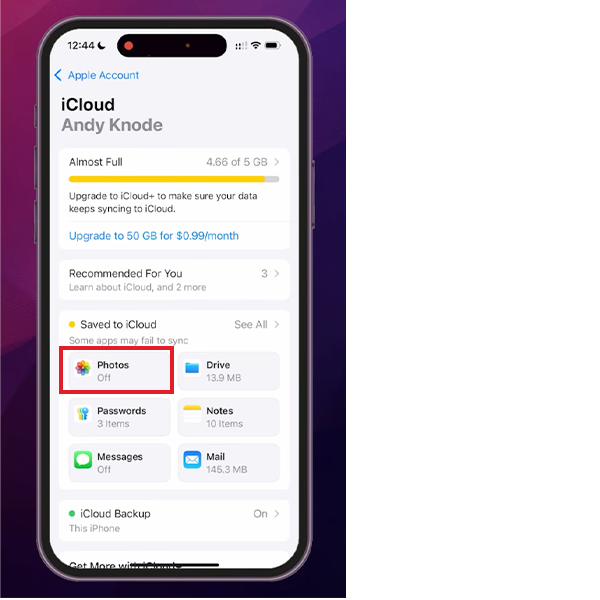
- Step 1: Turn on iCloud Photos on your iPhone.
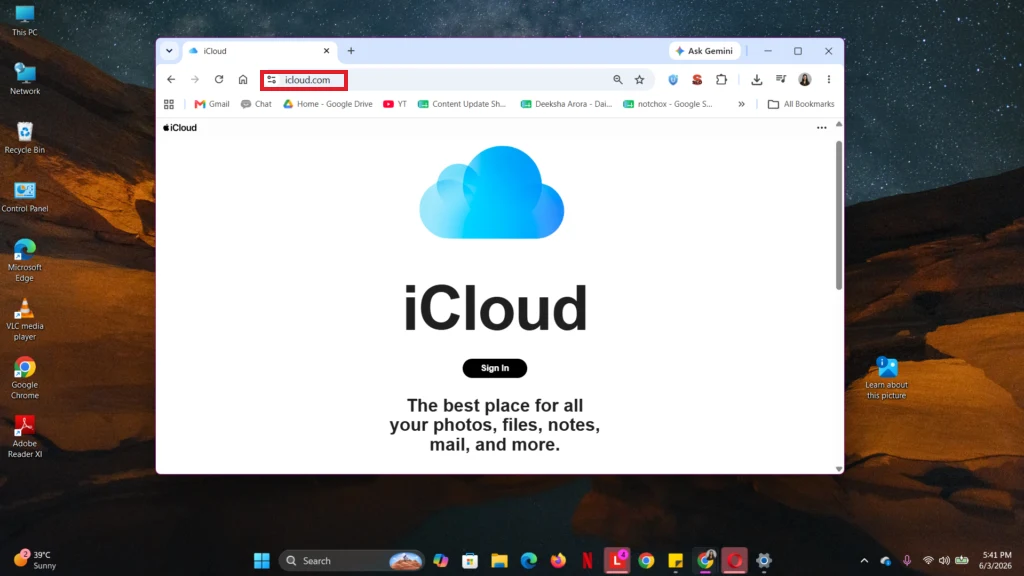
- Step 2: On your computer, open a web browser and go to iCloud.com.
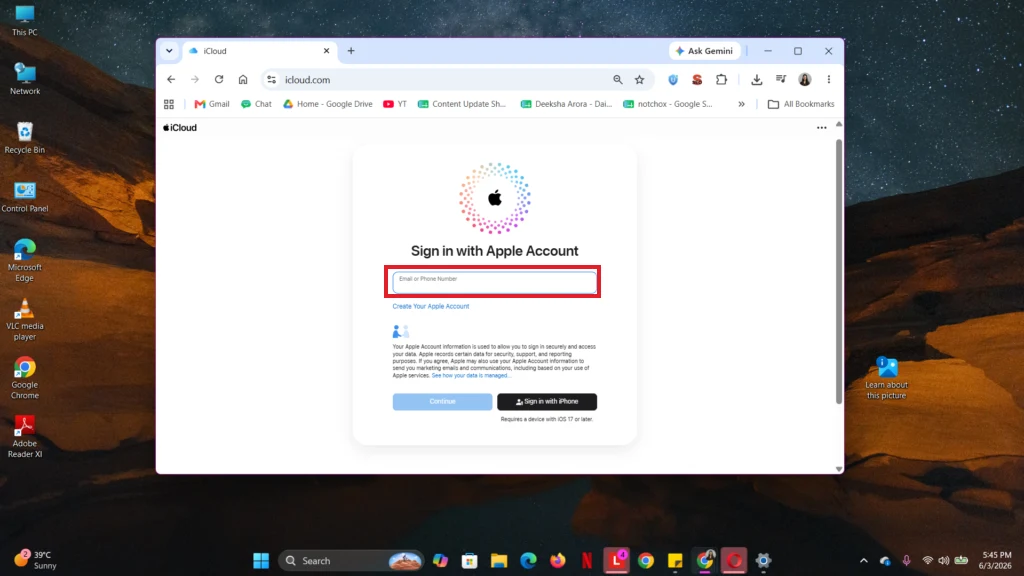
- Step 3: Sign in with your Apple ID.
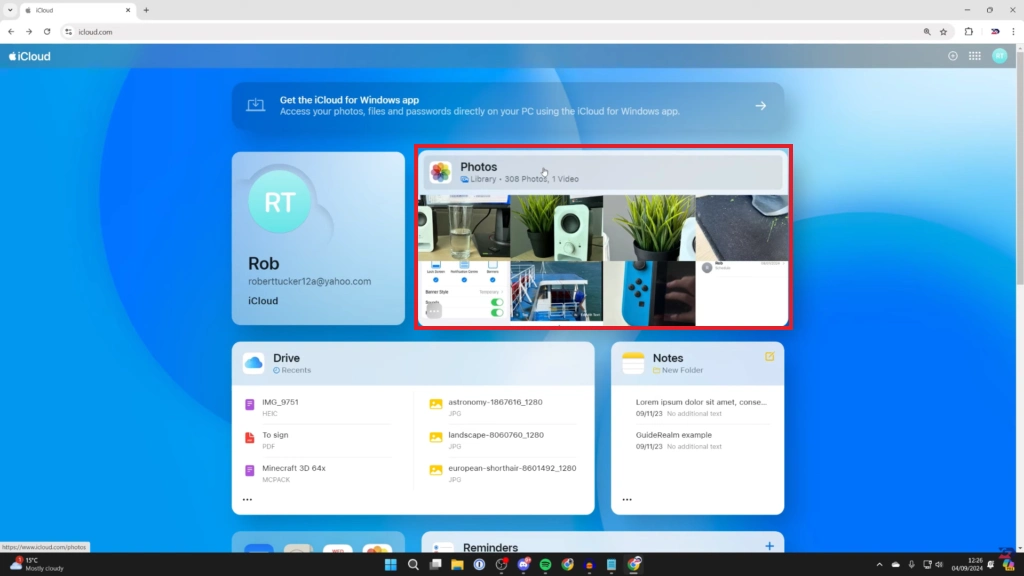
- Step 4: Click on the Photos App.
- Step 5: Select your edited photos.
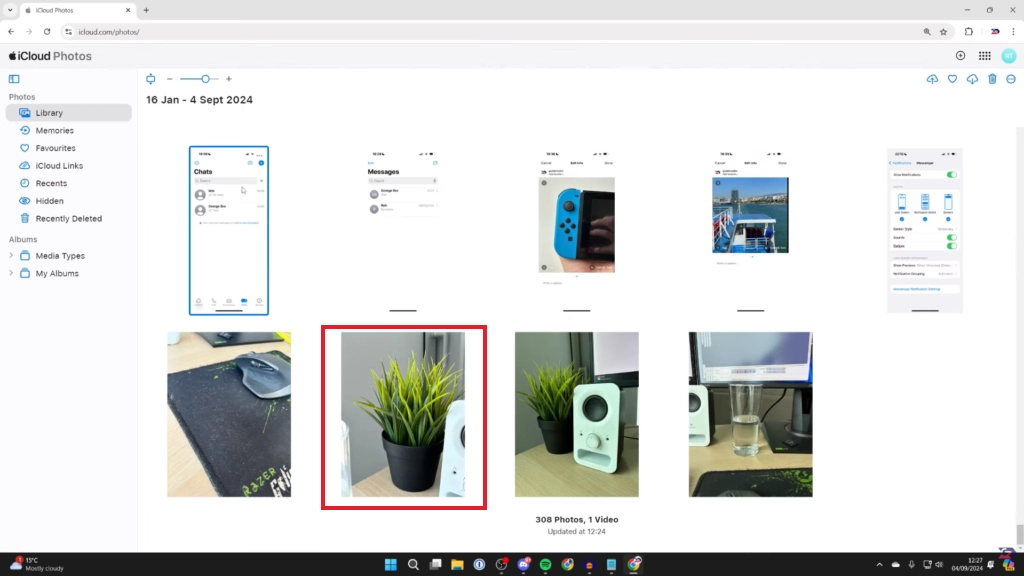
- Step 6: Click the Download icon at the top of the screen.
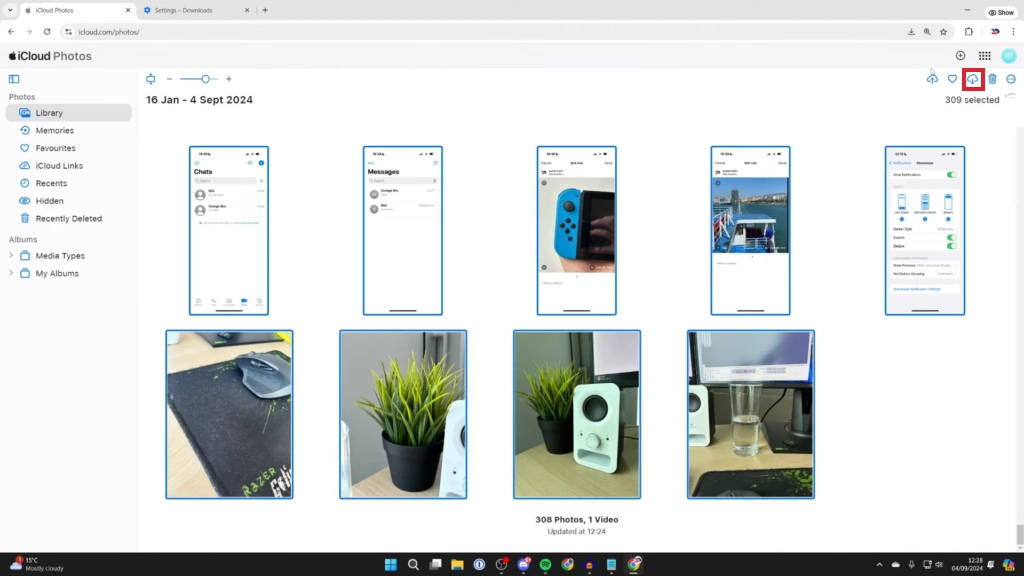
- Step 7: The cloud downloads the final edited image straight to your computer without any .aae text files.
Method 2: Change Your iPhone Settings
You can force your iPhone to automatically merge the .aae files into fully edited JPEG files during wired transfer.
- Step 1: Open the Settings app on your iPhone.
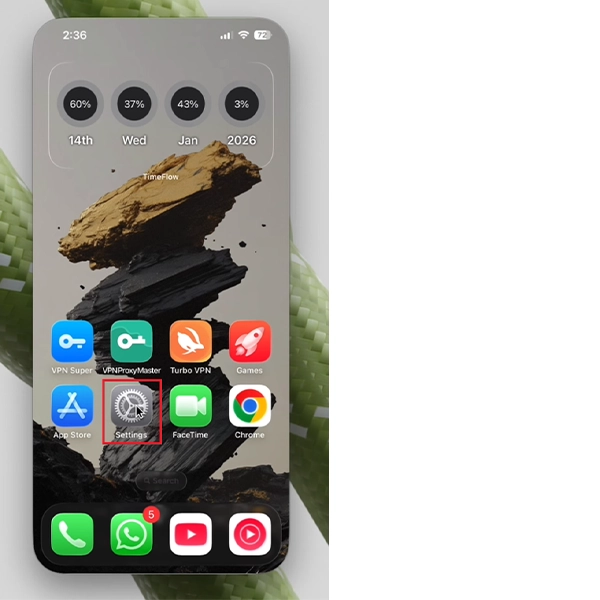
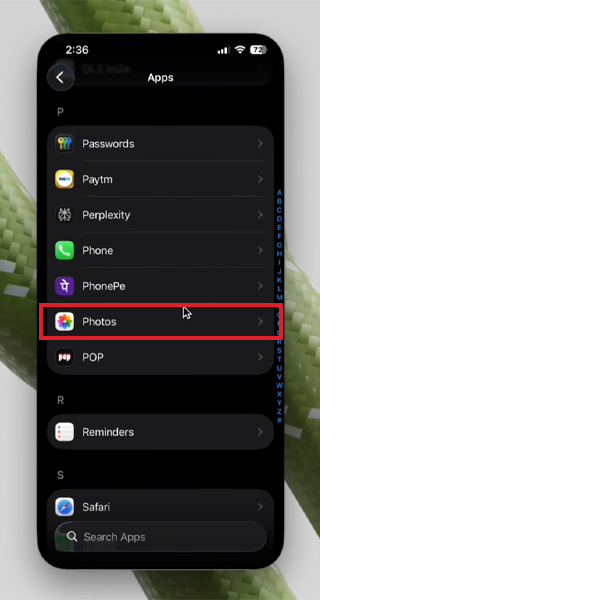
- Step 2: Scroll down and tap on Apps.
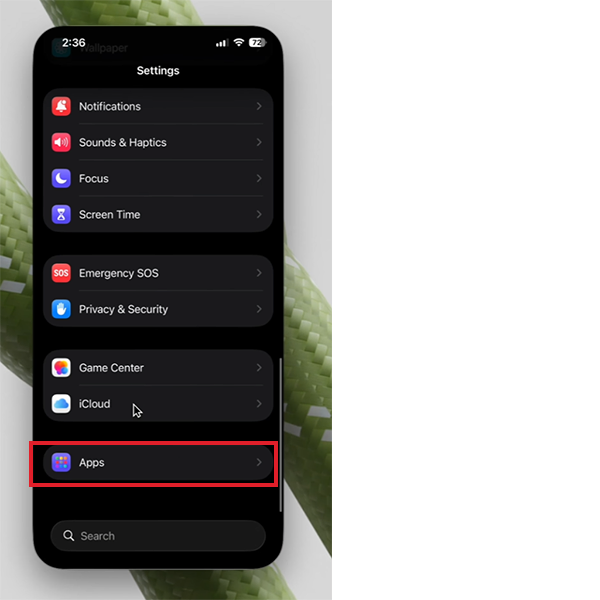
- Step 3: From the listed app, tap on Photos.
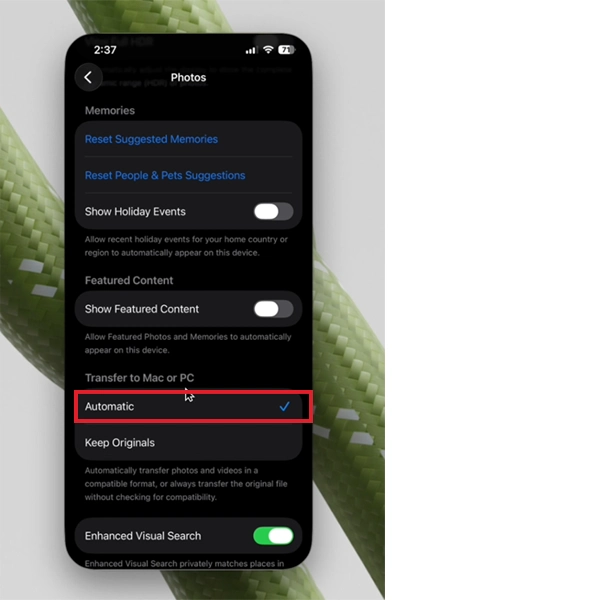
- Step 4: Scroll to the very bottom to find the Transfer to Mac or PC Section. Select Automatic ( this adjusts your photos so they work smoothly with your computer) instead of Keep originals.
- Step 5: Connect your USB cable to your PC and copy your photos over. Your edits are now permanently applied to the JPEGs.
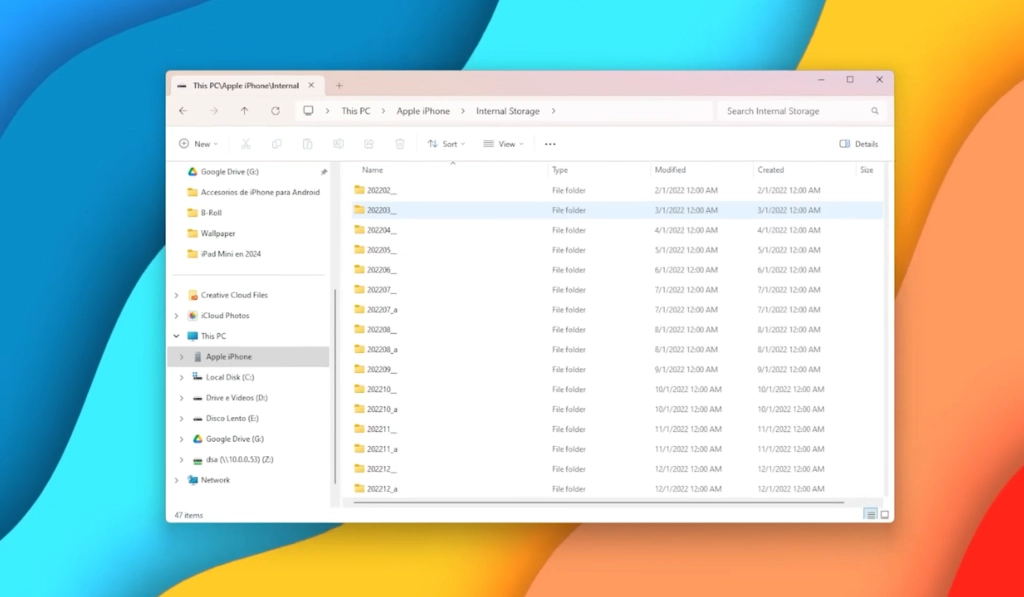
AAE vs. JPEG: Understanding the Core Differences
An AAE file does not contain actual image pixels. It is a tiny text-based sidecar file that only holds editing instructions. A JPEG file is the actual photograph containing all the image pixels and compressed visual data.
Differences Between AAE File Type and JPEG File Type
| Feature | AAE File | JPEG File (.JPG) |
| Full Form | Apple Aperture Edits | Joint Photographic Experts Group |
| Definition | A text-based XML instruction sheet | A compressed digital image file |
| File Size | Extremely small (~1 KB) | Larger (1 MB to 5 MB+) |
| Contains Pixels | No pixels, just textual data | Yes, contains all image pixels. |
| Windows Compatibility | Unreadable text clutter | Universally compatible and viewable |
| When Deleted | Resets photo to original state | Deleted the actual photo |
Quick Recap
Now you know exactly what is an AEE file and why it appears on your computer/phone. These tiny files are Apple’s way of protecting your original photos while maintaining filters and edits. You can safely delete them to clear unreadable clutter on Windows, but remember to use iCloud syncing or adjust your iPhone transfer settings if you want to keep your photos on a PC. For more quick fixes for your everyday file and storage problems, keep exploring Datarecovee.
Frequently Asked Questions
What is an AAE file extension?
Why do AAE files keep appearing on my Windows PC?
Windows can not read Apple’s proprietary photo-editing code. When you transfer photos to Windows without adjusting the iPhone’s settings, Windows separates the original image and the AAE file as an unreadable text file.
Will deleting AAE files delete my photo?
No, deleting an .aae file will never delete your actual photo. It only erases your editing adjustments, and the photo returns to its original, unedited form.
How do I open an AAE file to see the data inside?
To open and read the .aae file on a computer, select the file, right-click on it, select Open with, and choose a basic text editor like Notepad (Windows) or TextEdit (Mac).
What is the difference between JPG and AAE files?
A JPG file is a standard, universally compatible digital image that contains actual visual pixels. An AAE file contains no image data or pixels; it is a tiny text file that contains Apple-specific editing coordinates and instructions.
What happens if I lose AAE files?
If you lose or delete AAE files, your original photo remains completely safe, but you will lose your custom photo modifications and edits applied on your iPhone/iPad permanently.
Related Posts
How to Delete a File That Won’t Delete in Windows?
Deleting a file should be simple, but sometimes Windows refuses to remove it. You may see messages saying the “folder…

What Should Businesses Do After Recovering From a Major Data Loss?
Businesses nowadays have entered a new level in terms of storing data, leading to a completely new structure. Customer service,…

How to Protect Your Files From Unexpected Data Loss
Imagine you opened your device and suddenly found out that all the important files are not there. Sounds scary, right?…
How to Fix “File Too Large for Destination File System” on Windows?
Have you ever tried copying a large file to a USB drive or external hard disk, and Windows stopped the…
What is a CRC Error? Meaning, Causes, and How to Fix It
A CRC error can appear when you are copying files, opening a folder, extracting an archive, or accessing a storage…
What is an MKV File? Meaning, Uses, and How It Works
You can often identify a video file by its extension. MP4 is the most common, AVI is an older format,…
Symbolic Links in Windows: A Complete Guide to Creating Symlinks
Have you ever wished to keep a file or folder in one location while making Windows think it exists somewhere…
Data Recovery in 2026: How to Restore Lost Files From Phones, PCs, and Cloud…
Alt: Old Hard Disk Drives Nearly one-third of all data loss is caused by accidental deletion, hardware failure, or a…

How to Evaluate an SEO Agency’s GEO Capabilities Before Signing a Contract
Is SEO outdated? No, it has actually just changed or updated into other forms, such as GEO. The major question…