
How to Migrate Business Files Without Losing Originals or Version History


Small agencies usually face issues when they move client projects to a new storage platform, and the client requests a change after the editable documents, original images, and approval records remain scattered across old accounts, and you can not protect your business data from unwanted scrapers properly.
A successful migration should leave the team able to find, edit, verify, and restore its work. These six steps offer a starting point for a moving business content library.

Inventory the Whole Project
List what each project needs before choosing software. Include source documents, images, attachments, linked resources, and records showing which version received approval. There must be an assigned owner to resolve questions about missing and duplicate material.
Document the current location, planned destination, file type, and access requirements. Separate active projects from archives and prevent copy-pasting everything into a large folder.
Check version history explicitly. Microsoft’s SharePoint Migration Tool has a setting that determines whether earlier file versions migrate; turning it off transfers only the latest version. Do not assume the destination automatically receives the complete editing history.
Ask project owners which earlier versions remain necessary before setting retention rules.
Keep Editing Separate From Preservation
Use distinct locations for originals, working copies, and approved exports. Choose a naming convention that includes a project identifier and revision number, and explain it to everyone contributing files.
If a writer uses a humanizer to revise a document, save the result as a separate version. Preserve the source facts and approval record rather than replacing them with the latest polished draft.
The same workflow is also best for images. A request to remove AI watermark elements belongs in an authorized editing workflow; do not count it in an automatic migration setup. Preserve the original source and document the resulting version, including its generated origin.
Never combine moving, rewriting, converting, and deleting files into one operation. Make every change identifiable and reviewable.
Create a Backup You Can Restore
CISA recommends maintaining offline, encrypted backups of critical data and regularly testing their availability and integrity. So it is suggested to take a backup before reorganizing folders or starting the transfer.
Restore a project into a separate location, open its documents, and confirm that associated images and resources are available, just like a working exercise. Have the project owner check whether useful work could actually resume.
Record the backup date, its coverage, and who can authorize restoration. Store recovery credentials securely and make sure authorized staff can retrieve them during an outage.
Keep the migration destination separate from this fallback. Do not delete the backup simply because the transfer tool reports that its job finished.
Pilot the Move With Representative Files
Microsoft recommends pilot migrations to validate the process and gather user feedback, so start with a small selection that includes an ordinary document, a large media file, a restricted folder, and a project with several revisions.
Investigate each expectation rather than assuming that most files arriving means the process is ready. Review the migration tool’s reports for skipped items and warnings.
Ask users to complete normal tasks in the destination: find a project, open its source file, make an authorized edit, and locate an earlier version where required.
Agree when editing in the old location will stop and how subsequent changes will be transferred. Avoid leaving two locations that both appear to contain the authoritative version.
Verify Contents and Permissions Separately
Compare cryptographic hashes between source and destination for files that are copied without conversion. Microsoft’s Get-FileHash command uses SHA256 by default and supports checking whether file contents have changed.
Matching hashes provide strong evidence that the copied bytes agree. They do not establish that the source was correct or that the destination has suitable permissions. Review formatting and content separately because conversion changes the file.
Test access with ordinary user accounts, not only an administrator. Microsoft’s SharePoint migration documentation notes that special file share permissions, such as explicit denial of access, are not preserved.
Check both directions: employees should reach the material they need, while restricted projects should remain unavailable to unauthorized accounts.
Finish With a Recovery Plan
Keep the old source protected against changes for an agreed verification period, just like protecting inventory data. Name the person responsible for investigating missing files and define what would justify returning to the previous system.
Set realistic recovery targets with the team: how long can work pause, and how much recent work could be recreated? Use those answers to plan backup frequency and restoration priorities, rather than choosing settings solely for immediate storage savings.
Account for work created after the switch before any rollback. Decide how those changes will be preserved instead of overwriting them during restoration.
Retain migration logs, exception records, and project owner approvals. Schedule a follow-up restore test on the new environment and confirm that its backup routine covers newly created files.
The goal is a working library whose originals, revisions, permissions, and recovery options remain understandable to the people who depend on it, so only retire the previous storage after agreed checks are completed and retention requirements have been reviewed.
FAQs
- What does Microsoft recommend about pilot migration?
Microsoft recommends pilot migration to validate the process and gather user feedback by starting with a small selection that includes an ordinary document or a project with several revisions.
- Which tool is best to verify content and permissions separately?
Microsoft’s Get-FileHash command uses SHA256 by default, which supports checking changed file contents.
- What should never be combined during preservation?
Moving, rewriting, converting, and deleting files should never be combined in one operation. Every change should be identical and reviewable.

Sometimes, a warehouse manager opens the inventory spreadsheet on Monday morning and finds that 400 units of a fast-moving product…

With the expansion of business, data often gets scattered to different places and systems. Customer details are found in a…
Deleting a file should be simple, but sometimes Windows refuses to remove it. You may see messages saying the “folder…

Businesses nowadays have entered a new level in terms of storing data, leading to a completely new structure. Customer service,…
Imagine you opened your device and suddenly found out that all the important files are not there. Sounds scary, right?…
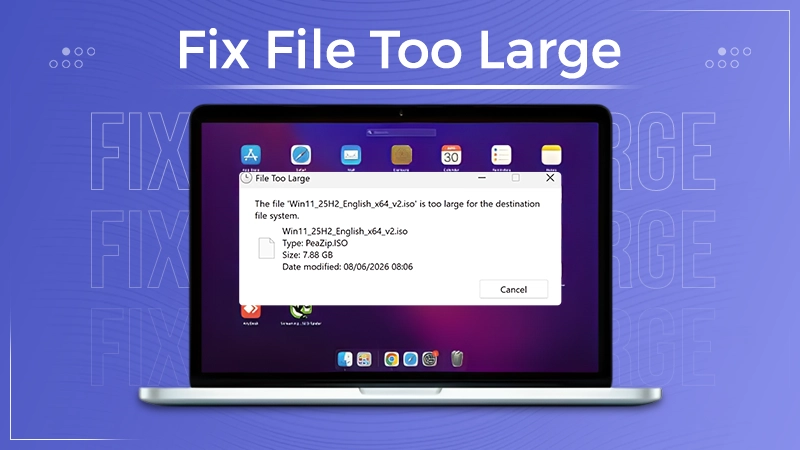
Have you ever tried copying a large file to a USB drive or external hard disk, and Windows stopped the…
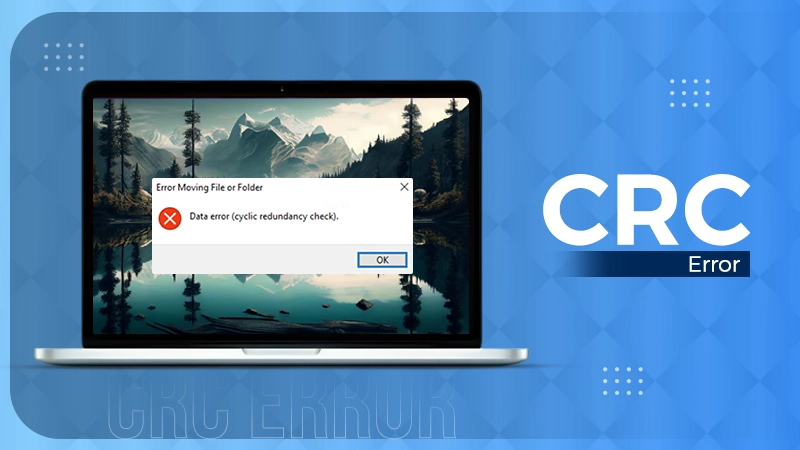
A CRC error can appear when you are copying files, opening a folder, extracting an archive, or accessing a storage…
You can often identify a video file by its extension. MP4 is the most common, AVI is an older format,…
Have you ever wished to keep a file or folder in one location while making Windows think it exists somewhere…