


Ans. It means the destination drive’s file system cannot store a file of that size. This most commonly happens when the drive is formatted as FAT32, which has a 4 GB single-file limit.
How to Fix “File Too Large for Destination File System” on Windows?
Have you ever tried copying a large file to a USB drive or external hard disk, and Windows stopped the transfer with the “File too large for destination file system” message? You may face this issue even when the drive has plenty of free disk space.
This usually is not a storage problem; it is a limitation of the drive’s file system. In this guide, I will explain why this happens, how to fix it, and how to prevent the error in the future.
TL;DR: “The File is Too Large for Destination File System” Error
- The error usually occurs because the destination drive is formatted as FAT32, which has a limit of 4 GB for a single file transfer.
- Convert the drive to NTFS without formatting to keep your data.
- Format the drive as NTFS or exFAT if you don’t need all the existing files.
- If you can’t change the file system, split or compress the file before copying it.
Why Does the File Too Large for Destination File System Error Occur?
This file is too large for the destination file system error appears when the destination drive’s file system can’t store a file of that size. In most cases, the drive is formatted as FAT32, which has a maximum single-file size limit of 4 GB.
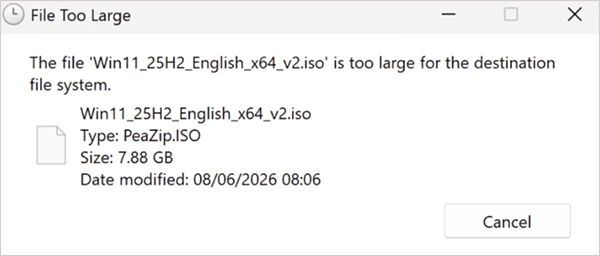
For example, if your 16 GB USB drive has 10 GB of free space but is formatted as FAT32, you still won’t be able to copy a 5 GB video because FAT32 does not support files larger than 4 GB.
So, common situations that can trigger this file too large error include:
- The destination drive uses an older file system such as FAT32.
- You are transferring large files like ISO images, system backups, virtual machines, or 4K videos.
- The USB drive came preformatted with FAT32 for compatibility with other devices.
- The device you are using requires a different file system.
The good news is that you usually don’t need a new USB drive. In most cases, changing or converting the file system is enough to solve the problem.
5 Ways to Fix the File is Too Large for the Destination File System Error
The right solution depends on how you use the drive and whether you need to keep the existing data.
Fix 1: Convert FAT32 to NTFS Without Formatting
If your USB drive already contains important files, converting from FAT32 to NTFS is the safest option because Windows can perform the conversion without deleting your data. Here’s how:
- Connect the USB drive to your computer.
- Open Command Prompt as Administrator.
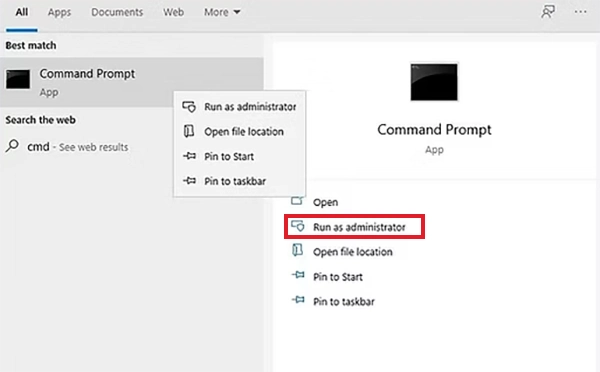
- Run the following command:
convert X: /fs:ntfs 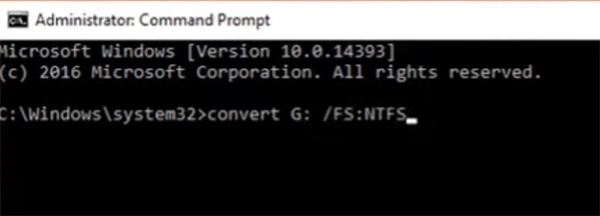
Replace X with your USB drive letter.
- Once the conversion is complete, try copying the file again.
Note that this method only works for converting FAT32 to NTFS. It does not support exFAT or other file systems.
Fix 2: Format the Drive to NTFS or exFAT
If you do not need the files already stored on the device, formatting the drive is the quickest fix. Just follow these steps to resolve the file size is too large issue:
- Open File Explorer.
- Right-click your USB drive and select Format.
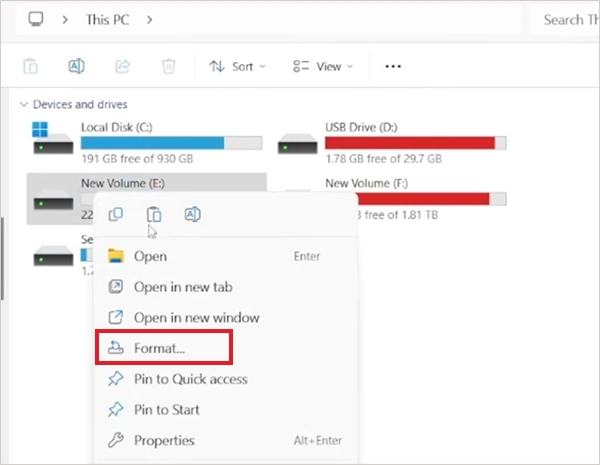
- Next, choose one of the following file systems:
- NTFS if you will only use the drive on Windows.
- exFAT if you will use it across multiple supported devices.
Then, click Start to begin formatting.
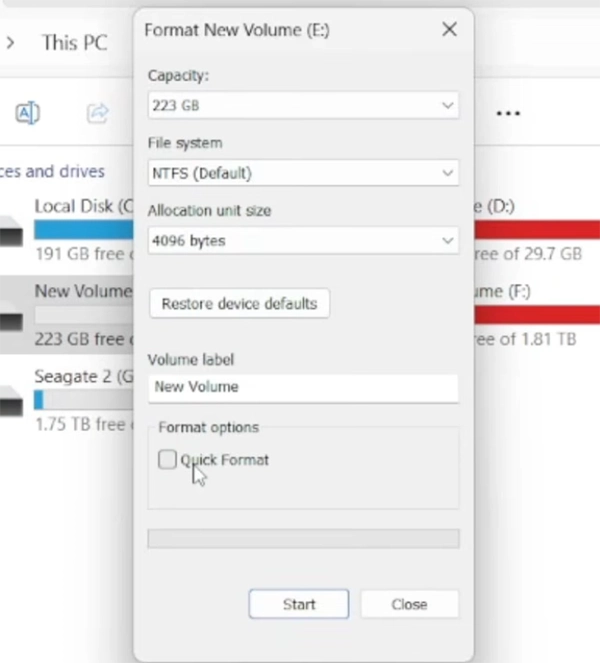
Remember formatting erases everything on the drive. So, make sure you have backed up important files first.
Fix 3: Split the File into Smaller Parts
Some users may want to continue with FAT32 because it is used with older devices. So, if you don’t want to reformat your SD card or any other drive, splitting the file is the next practical alternative.
Tools like WinRAR and 7-Zip allow you to divide a large file into smaller archive volumes (for example, 3.5 GB each), allowing you to copy them to a FAT32 drive without the “file is too large for the destination file system pendrive” errors. This method works well for large videos, ISO files, backup archives, and game files.
Fix 4: Compress the File Before Copying
If the file can be compressed significantly, creating a compressed archive may reduce its size enough to fit within the file system’s limit.
Simply right-click the file, choose Add to archive using a tool like WinRAR or 7-Zip, and create a compressed archive before copying it to the drive.
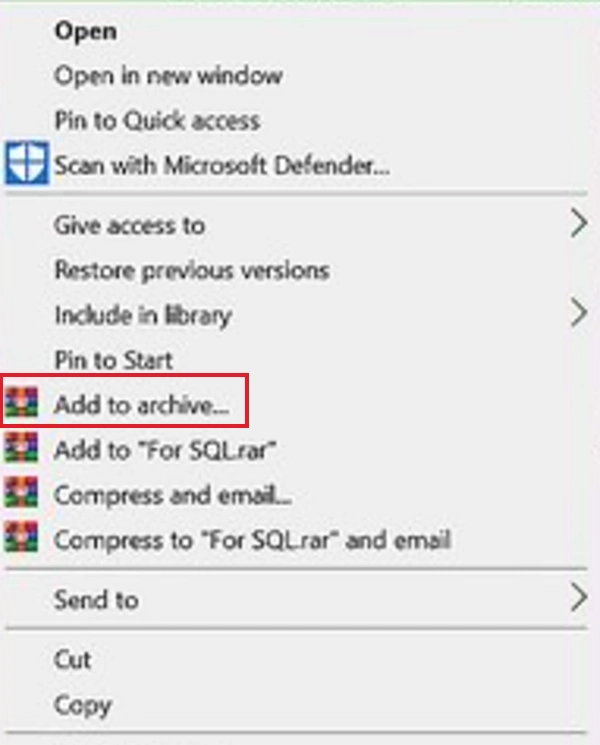
Keep in mind that this method is most effective for files that compress well. Already compressed files, such as videos or ZIP archives, may not become much smaller.
Fix 5: Use Another Storage Device
Sometimes the easiest solution is to use a drive that already supports larger files. If your current USB drive must stay formatted as FAT32, copy the file to another device using NTFS or exFAT instead.
Most modern USB flash drives and external SSDs support large files and are a better choice for transferring 4K videos, system backups, virtual machines, and large project files.
How to Avoid the File Too Large for the Destination File System Error?
Now that you know about the fixes, a few simple precautions can help you avoid this issue in the future:
- Format new USB drives as NTFS if you only use Windows.
- Choose exFAT when transferring files between different supported devices.
- Check the drive’s file system before copying files larger than 4 GB.
- Store large videos, backups, and ISO files on NTFS or exFAT instead of FAT32.
- Back up important data before formatting or converting a drive.
Taking a minute to verify the file system beforehand can save you from interrupted file transfers and unnecessary troubleshooting.
Final Thoughts
The “File too large for destination file system” error is usually caused by a file system limitation, rather than a lack of storage space. Once you know which file system your drive uses, fixing the problem becomes much easier.
If you mainly use Windows, converting or formatting the drive to NTFS is usually the best long-term solution. Otherwise, exFAT is a better choice because it supports large files while offering broader compatibility.
Frequently Asked Questions
What does “This file is too large for destination file system” mean?
Why is the file too large for USB?
Ans. The issue is usually the drive’s file system. If it is formatted as FAT32, it can’t store files larger than 4 GB.
How do I fix a USB file too large for the destination?
Ans. You can convert the drive from FAT32 to NTFS, format it to another compatible file system, split the file into smaller parts, or compress the file.
Should I format my USB drive to NTFS or exFAT?
Ans. Choose NTFS if you only use the drive with Windows PCs. Choose exFAT if you need better compatibility with multiple supported operating systems and devices while still supporting large files.
Can I fix the error without formatting?
Ans. Yes, you can convert a FAT32 drive to NTFS without formatting, split the file into smaller parts, compress it, or just use another compatible storage device.
Related Posts
How to Migrate Business Files Without Losing Originals or Version History
Small agencies usually face issues when they move client projects to a new storage platform, and the client requests a…
Protecting Inventory Data: Why Warehouses Need Digital Audit Trails
Sometimes, a warehouse manager opens the inventory spreadsheet on Monday morning and finds that 400 units of a fast-moving product…

Data Integration Services: One View From Many Systems
With the expansion of business, data often gets scattered to different places and systems. Customer details are found in a…
How to Delete a File That Won’t Delete in Windows?
Deleting a file should be simple, but sometimes Windows refuses to remove it. You may see messages saying the “folder…
What Should Businesses Do After Recovering From a Major Data Loss?
Businesses nowadays have entered a new level in terms of storing data, leading to a completely new structure. Customer service,…
How to Protect Your Files From Unexpected Data Loss
Imagine you opened your device and suddenly found out that all the important files are not there. Sounds scary, right?…
What is a CRC Error? Meaning, Causes, and How to Fix It
A CRC error can appear when you are copying files, opening a folder, extracting an archive, or accessing a storage…
What is an MKV File? Meaning, Uses, and How It Works
You can often identify a video file by its extension. MP4 is the most common, AVI is an older format,…
Symbolic Links in Windows: A Complete Guide to Creating Symlinks
Have you ever wished to keep a file or folder in one location while making Windows think it exists somewhere…