
Your Mac usually runs out of storage because of large files, unused apps, old downloads, device backups, and temporary system data building up over time.
How to Free Up Disk Space on Mac? 7 Easy Ways to Clear Storage Fast
 Saipansab Nadaf
Updated on: Apr 17, 2026
If your Mac is running out of storage, you may notice slower performance, lag, or even issues installing updates. And that’s the time you wonder how to free up disk space on Macs.
Well, the good news is that freeing up disk space is easier than most people think. From old downloads and unused apps to hidden system clutter, many files take up space without adding real value.
In this guide, I am going to explain how to clear disk space on Macs using practical and updated ways to make it smoother and faster.
Quick Answer: How to Clear Up Disk Space on Mac?
- Use Apple’s Built-In Storage Recommendations
- Delete Large Files You No Longer Need
- Uninstall Apps You No Longer Use
- Clean Your Downloads Folder
- Remove Old iPhone or iPad Backups
- Move Files to iCloud or External Storage
- Empty the Trash
How to Check Available Storage Space on a Mac?
Before you learn how to get more disk space on Macs, the first step is to see what is actually taking up space on your Mac. Apple gives you a built-in dashboard that shows how your storage is being used, so you can clear smartly instead of removing random files.
Here’s how to check your Mac storage:
- Click the Apple menu in the top-left corner.
- Open System Settings.

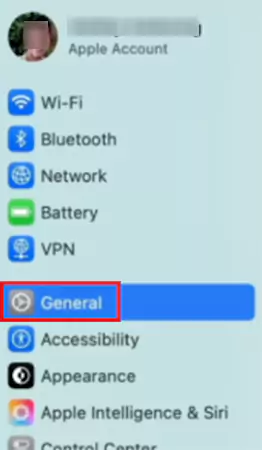
- Select General.
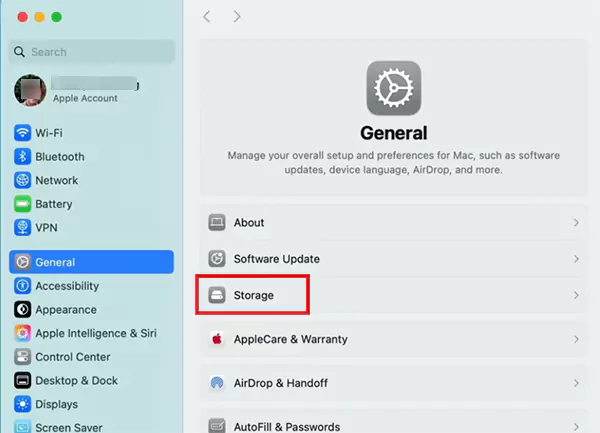
- Click on Storage.
Once opened, you will see a full breakdown of your storage categories, such as applications, documents, photos, mail, system data, and macOS.
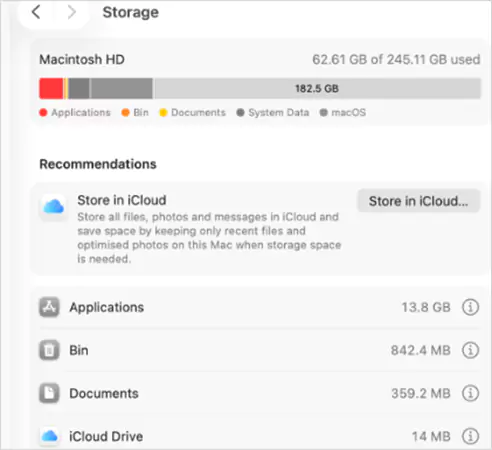
This view helps you quickly understand where your storage is going and which category needs attention first.
How to Free Up Disk Space on Mac?
The first thing you need to understand is that the best approach is not to delete files randomly. Instead, start with Apple’s built-in tools and then remove unnecessary space.
Here’s how to free disk space on Macs safely without deleting anything important:
Use Apple’s Built-In Storage Recommendations
Apple offers automatic storage suggestions based on your usage, and this is often the fastest way to clear storage in minutes. Let’s see how to clear MacBook space.
- Go to System Settings > General > Storage.
- Now, your Mac may suggest options like:
- Store in iCloud to move older files online.
- Optimize Storage to remove watched downloads.
- Review files to find clutter and large items.
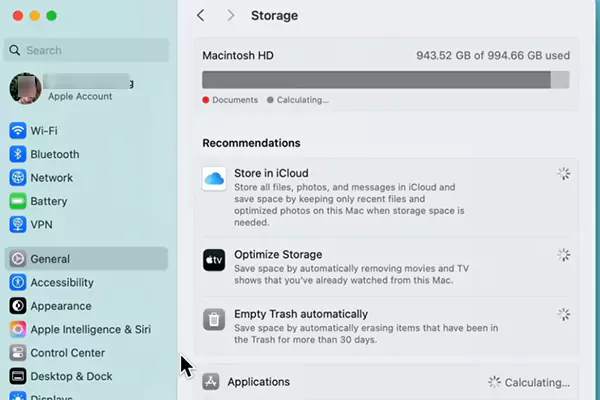
Just keep in mind that you may not see similar options in your dashboard. Apple shares recommendations on the basis of your usage.
Many users skip this method and start manual cleaning first, even though Apple’s recommendation often solves the problem quickly.
Delete Large Files You No Longer Need
Big forgotten files usually fill up storage faster than anything else. To find them:
- Open Finder.
- Now filter by File Size.
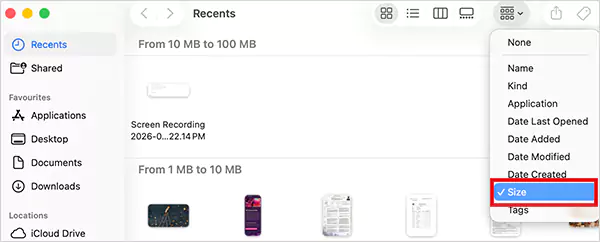
- Finally, just delete all large files you don’t need anymore.
Look for things like old screen recordings, downloaded movies, duplicate media, ZIP archives, and outdated work folders.
Always sort by size, not by name. Deleting one 5 GB file is more useful than deleting fifty tiny files.
Uninstall Apps You No Longer Use
Unused apps quietly eat storage, especially editing software, games, and trial tools. Here’s how to clear storage on Macs by deleting apps:
- Open Finder.
- Go to Applications.
- Now, review your installed apps.
- Select the app you want to remove.
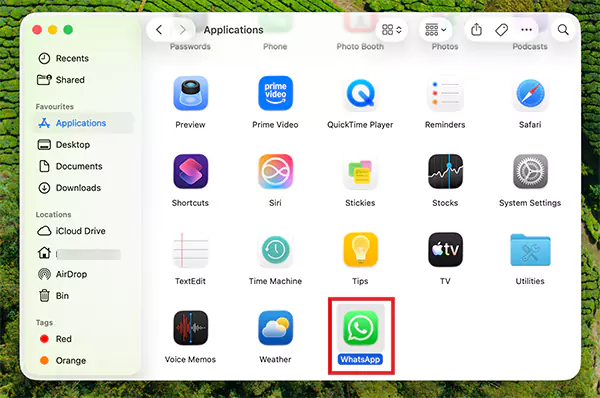
- Press the Command + Delete buttons or drag it to the trash or bin.
- Then, use your Touch ID to confirm.
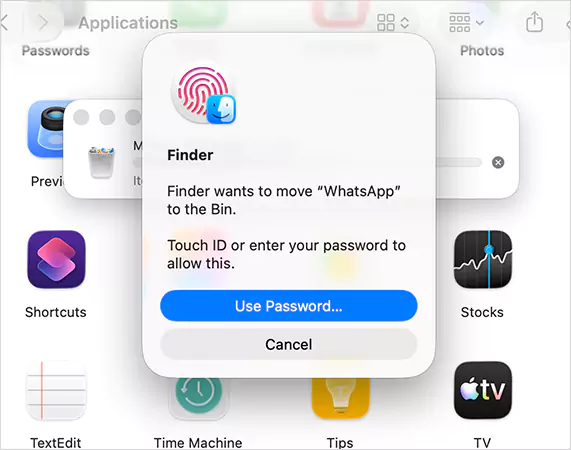
- Finally, just empty the Trash.
Some apps can take 5 to 20 GB without realizing it. That is why it is important to delete apps on a Mac to clear up space.
Clean Your Downloads Folder
The Downloads folder often becomes a hidden junk folder over time. To clean it, just sort by size or data added, and delete what you no longer need.
Common junk includes installer files, ZIP folders, screenshots, and downloaded media. Many people have several GB of useless files sitting here.
Remove Old iPhone or iPad Backups
If you back up Apple devices to your Mac, old backups can consume a surprising amount of space. Here’s how to free disc space on Macs by deleting old backups:
- Connect your iPhone or iPad to the Mac.
- Next, open Finder.
- Select your device.
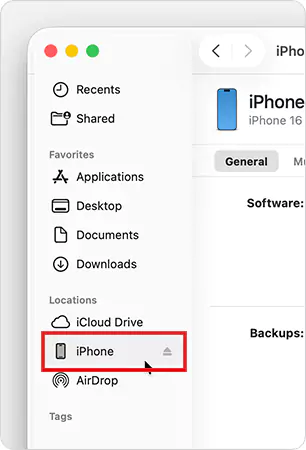
- Click on Manage backups and just delete the backup.
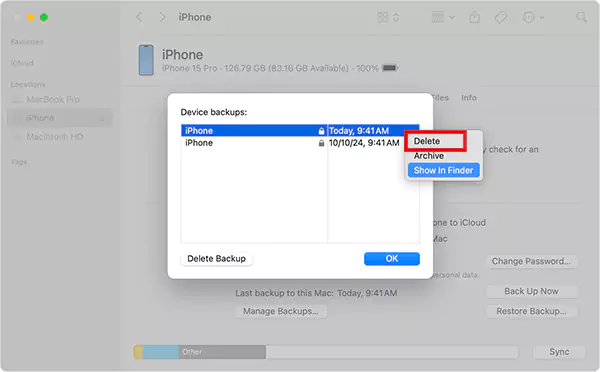
Some backups can be as large as 10 to 40 GB, especially from older devices. So this can benefit you a lot while clearing up space.
Move Files to iCloud or External Storage
If you still need your files but do not want them stored locally, move your files instead of deleting them. You can use iCloud or other cloud platforms. Otherwise, you can use an external drive to transfer large amounts of data. This works well for media-heavy users.
Empty the Trash
Deleting files does not free up storage until the Trash is emptied. To do that:
- Right-click the Trash icon.
- Select Empty Trash.
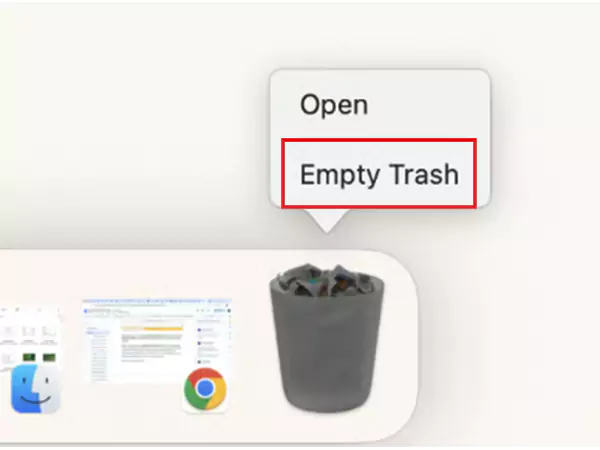
- Confirm your choice to delete.
A lot of users forget this final step and wonder why their storage has not changed for them.
Tips to Keep Your Mac Storage Clean
Cleaning your Mac once helps, but keeping it clean prevents future slowdowns and storage issues. So, here are a few things that you follow:
- Check your storage dashboard every few weeks so you catch issues before they build up.
- A nearly full drive can reduce performance and affect overall responsiveness. Keep at least 15 to 20% storage free to help your Mac run more smoothly.
- Move heavy files to cloud solutions or an external SSD, especially if you deal with a lot of photos, videos, and archived work.
- A quick weekly cleanup prevents your Downloads folder from turning into digital clutter.
Furthermore, be careful with third-party “Mac cleaner” tools. Many are unnecessary, and some can create more issues than they solve. Apple’s built-in tools are enough for most users.
Final Thoughts
Running out of storage on your Mac usually happens slowly through everyday use, whether that is downloads, apps, backups, or hidden files building up over time.
But you now know how to free up disk space on Macs effectively. Just check your storage, remove what you no longer need, and use Apple’s built-in tools to manage the rest.
If you follow even a few of these habits regularly, your Mac will stay cleaner, faster, and far less likely to run into storage problems again.
Frequently Asked Questions
Why does my Mac run out of Storage?
How to free up space on my Mac?
Start by using Apple’s built-in storage recommendations in System Settings > General > Storage. Then, try to delete unused files and apps, clean the downloads folder, remove old backups, and empty the trash.
What is the fastest way to free up disk space on a Mac?
The fastest way is to delete large unused files, remove old apps, clear downloads, and empty the Trash.
How do I check what is taking up space on my Mac?
Go to System Settings > General > Storage to see a full breakdown of your Mac’s storage usage.
How much free storage should I keep on my Mac?
Try to keep at least 15 to 20 percent of your storage free for smooth performance.
Related Posts

8 Best AI Presentation Makers for Business-Ready Slides
Making a presentation doesn’t just mean designing slides. It’s about defining a clear structure, using defined logic, useful visuals, and…

Queue Management Software Troubleshooting Guide: 8 Common Faults and Fixes
The long wait times and ineffective management of customer queues can have a significant impact on customer satisfaction and business…

How to Use Similarweb Website Traffic Data for Competitor Research
Competitor research without traffic data is guesswork. You can guess who your rivals are, guess how big they are, guess…

Choosing the Right Hosting Model for Scalable Digital Platforms
The performance of digital business is directly related to website speed, uptime, and scalability. Slow page performance has a negative…

How Data-Driven Performance Tools Are Transforming Employee Recognition in Tech Companies
“People work for money but go the extra mile for recognition, praise, and rewards.” — Dale Carnegie (Writer & Teacher)…

Why Businesses Struggle to Collect Reliable Data from the Web
Almost every company that depends on data runs into the same problem: although they can find the data they need,…

Why Financial Data Recovery Matters for Businesses
Financial data supports every part of a business, directly affecting cash flow, payroll, tax reports, audits, customer billing, and daily…

CMMC Compliance Is Coming for Manufacturers. Here Is What You Need to Do
“Cybersecurity is much more than a matter of IT.” — Stephane Nappo (Cybersecurity Professional) For manufacturers working within the defense…

How Data-Based Tools Influence Learning Performance
Learning has transformed in the modern age with the integration of new technologies to help students and professionals prosper in…