


Yes, if the error is caused by a loose cable, a corrupted download, or file system issues, you can often fix it without losing data. If the drive is failing, recover your important files first before trying any fixes.
What is a CRC Error? Meaning, Causes, and How to Fix It
A CRC error can appear when you are copying files, opening a folder, extracting an archive, or accessing a storage device. While the message looks technical, it simply means your computer cannot verify the integrity of the data.
In many cases, the problem can be fixed easily without losing your files. In this guide, I will explain “What is a CRC error”, what causes it, and the safest ways to fix it while protecting your data.
What is a CRC Error?
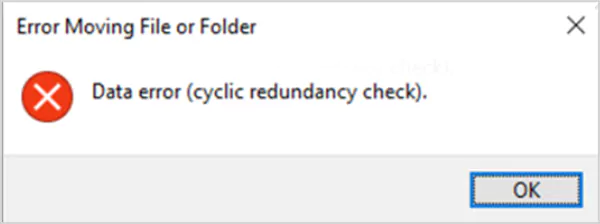
A CRC (Cyclic Redundancy Check) error occurs when Windows detects that the data it has read does not match the data that was originally written or transferred.
To verify data integrity, Windows calculates a checksum and compares it with the original value. If the two don’t match, you will see a CRC error or the message “Data Error (Cyclic Redundancy Check)”.
In simple terms, the error means Windows cannot confirm that the data is accurate because it appears to be corrupted. It can affect individual files, ZIP or RAR archives, USB flash drives, external hard drives, and internal HDDs and SSDs.
You will most commonly encounter it while copying or moving files, opening RAR files, extracting other compressed archives, installing software, and opening files from a storage device.
What Causes a Cyclic Redundancy Check Error?
A CRC check error is not the actual problem; it is a warning that Windows could not verify the data it read. The underlying cause can range from a temporary transfer issue to a failing storage device.
Here are some of the most common reasons:
- Bad Sectors on a Hard Drive: Bad sectors are damaged areas of a hard drive that become difficult or impossible to read. When Windows can’t verify the data stored in those sectors, it displays a cyclic redundancy check hard drive error.
- Corrupted Files: Files can become corrupted due to interrupted downloads, unexpected shutdowns, malware infections, or failed software installations.
- Damaged USB Cable or Faulty Port: External drives and USB flash drives rely on a stable connection. A damaged cable or unreliable USB port can interrupt data transfer, causing errors while reading or copying files.
- Corrupted ZIP or RAR Archive: If the error appears while extracting a compressed file, the archive itself may be incomplete or damaged. This usually happens when a download is interrupted, or a file transfer does not finish successfully.
- File System Corruption: Improperly removing a storage device, sudden power loss, or system crashes can damage the file system. As a result, Windows may be unable to verify stored data correctly.
- Aging or Failing Storage Device: Storage devices wear out over time. If CRC errors start appearing across multiple files or folders, the drive may be approaching failure.
In case of a failing drive, back up your important data as soon as possible before attempting further repairs.
How to Fix Cyclic Redundancy Check Errors?
The right data error cyclic redundancy check fix depends on what is causing the error. Start with simple troubleshooting steps before moving on to repair tools.
1. Check the USB Cable and Port
If the error occurs while accessing an external hard drive or USB flash drive, reconnect it using a different USB cable or port. An unstable connection can interrupt data transfer and trigger these errors.
2. Download the File Again
If the error appears while opening or extracting a downloaded file, delete the existing copy and download it again from the original source. “The archive is corrupted WinRAR” or an incomplete download is one of the most common causes.
3. Run CHKDSK
Windows includes the Check Disk (CHKDSK) utility to detect file system errors and locate bad sectors.
- Open Command Prompt as an administrator.
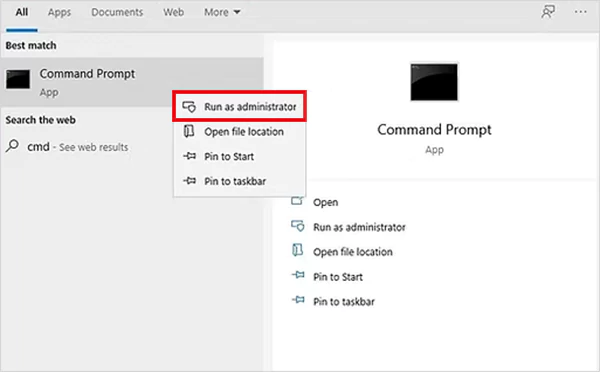
- Type chkdsk g: /f /r /x and press Enter. Replace ‘g’ with the affected drive letter.
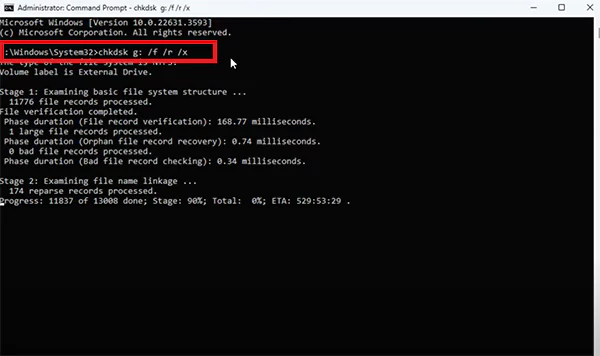
/f fixes file system errors, /r scans for bad sectors and attempts to recover readable data, and /x forces the drive to dismount before the scan if it is currently in use.
Note that running /r can take a long time on large drives, and /x will temporarily disconnect the drive while the scan is in progress.
4. Scan for Malware
Malware can corrupt files and interfere with normal system operations. Run a full antivirus scan to rule out malicious software as the cause of the hard drive cyclic redundancy check error.
5. Repair Windows System Files
If the error affects Windows system files instead of personal files, repair the operating system using the DISM commands and System File Checker (SFC) tools.
- Run the following command in Command Prompt as an administrator:
DISM /Online /Cleanup-Image /RestoreHealth
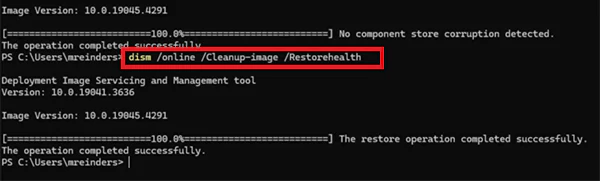
- Then, run “sfc /scannow”.
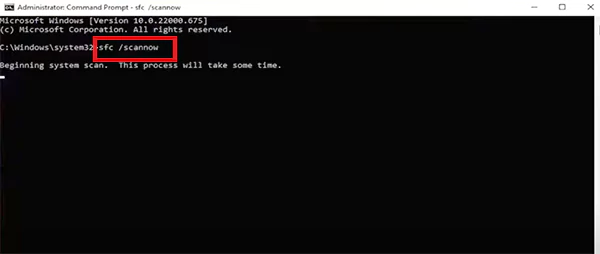
Running DISM first repairs the Windows image, allowing SFC to replace damaged system files more effectively.
6. Repair a Failing Drive
If CRC errors continue to appear across multiple files even after trying the above fixes, your storage device may be failing, your storage device may be failing.
Stop writing new data to the drive, back up any accessible files immediately, and consider repairing or replacing the drive before it fails completely.
How to Recover Data From a CRC Error?
If the affected drive contains important files, recovering your data should be the priority. If the drive is still accessible, copy your essential files to another storage device before attempting repairs. Continuing to use a failing drive can increase the risk of permanent data loss.
If Windows cannot copy the files normally, a professional data recovery software may still be able to retrieve them by scanning areas that Windows cannot access.
However, if the drive starts making clicking noises, frequently disconnects, or no longer appears in Windows, avoid repeatedly running repair tools. This can create more issues for you.
In such cases, creating a sector-by-sector disk image or seeking help from a professional data recovery service is your best chance of recovering your files.
Tips to Avoid Cyclic Redundancy Check Errors
While not every CRC error can be prevented, following these best practices can significantly reduce the chances of encountering one.
- Always eject USB drives safely before disconnecting them.
- Keep regular backups of important files.
- Replace damaged USB cables as soon as possible.
- Keep Windows and storage drivers updated.
- Monitor your drive’s health using SMART diagnostic tools.
- Replace aging hard drives before they begin to fail.
- Download files only from trusted sources to reduce the risk of corrupted downloads.
These simple habits can help protect your data and extend the life of your storage devices.
Final Thoughts
A CRC error does not always mean your files are lost or your hard drive has failed. It simply indicates that Windows could not verify the integrity of the data it read.
The problem can be resolved with simple troubleshooting, such as checking the storage connection, downloading the file again, or running CHKDSK. However, if the error indicates a failing drive, recover your important data before attempting further repairs.
Acting early can prevent a temporary CRC error from turning into permanent data loss.
Frequently Asked Questions
Can I fix a cyclic redundancy check error without losing data?
How do you fix a CRC error?
Start by checking the storage connection, downloading the file again if necessary, and running CHKDSK. If the problem persists, scan for malware, repair Windows system files, and check the health of the storage device.
Is a CRC error always a hard drive problem?
No, it can also result from corrupted files, damaged ZIP or RAR archives, interrupted file transfers, or file system corruption.
Why does Windows show a data error (cyclic redundancy check)?
Windows displays this message when it detects that the data it has read does not match the original data, indicating possible corruption during storage or transfer.
Can a CRC error be repaired?
Yes, most of them can be fixed by using tools like CHKDSK or by correcting the underlying issue.
Related Posts

Protecting Inventory Data: Why Warehouses Need Digital Audit Trails
Sometimes, a warehouse manager opens the inventory spreadsheet on Monday morning and finds that 400 units of a fast-moving product…

Data Integration Services: One View From Many Systems
With the expansion of business, data often gets scattered to different places and systems. Customer details are found in a…

How to Delete a File That Won’t Delete in Windows?
Deleting a file should be simple, but sometimes Windows refuses to remove it. You may see messages saying the “folder…

What Should Businesses Do After Recovering From a Major Data Loss?
Businesses nowadays have entered a new level in terms of storing data, leading to a completely new structure. Customer service,…
How to Protect Your Files From Unexpected Data Loss
Imagine you opened your device and suddenly found out that all the important files are not there. Sounds scary, right?…
How to Fix “File Too Large for Destination File System” on Windows?
Have you ever tried copying a large file to a USB drive or external hard disk, and Windows stopped the…
What is an MKV File? Meaning, Uses, and How It Works
You can often identify a video file by its extension. MP4 is the most common, AVI is an older format,…
Symbolic Links in Windows: A Complete Guide to Creating Symlinks
Have you ever wished to keep a file or folder in one location while making Windows think it exists somewhere…

Data Recovery in 2026: How to Restore Lost Files From Phones, PCs, and Cloud…
Alt: Old Hard Disk Drives Nearly one-third of all data loss is caused by accidental deletion, hardware failure, or a…