


It usually occurs when macOS cannot properly extract a ZIP or compressed archive file.
Error 640 Mac: How to Fix ZIP and Archive Expansion Problems
Seeing Error 640 Mac while opening a ZIP file? It can be confusing, especially when the file looks completely normal. The issue typically appears when Archive Utility cannot properly read or extract the compressed file on a Mac.
It is not a very serious macOS problem. This usually happens because of a corrupted download, an unsupported format, permission issues, or insufficient storage. Today, I will explain why ZIP files fail to expand and the safest ways to fix the Error 640 on Mac.
Quick Glance: What is Error 640 Mac Unzip?
- Error 640 on Mac means that macOS is not able to properly extract a ZIP file or compressed archive.
- Corrupted downloads, low storage, damaged ZIP files, or unsupported formats are some of the most common causes.
- To fix the issue, try downloading the file again, make sure you have sufficient storage, or try using the Terminal commands.
Why Does Error 640 Unable to Expand Happen?
The “Error 640 expanding zip” issue appears when macOS cannot properly extract a ZIP or compressed archive file. The issue is often related to the archive itself rather than your Mac.
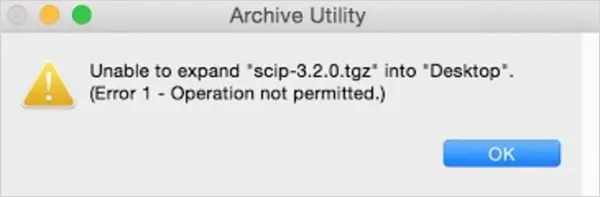
One of the biggest reasons is a corrupted or incomplete download. If the ZIP file was interrupted during download or transferred incorrectly, Finder’s built-in Archive Utility may fail to unzip in macOS.
Other common causes include:
- Insufficient storage space.
- Unsupported or damaged archive formats.
- Incorrectly renamed file extensions.
- Permission restrictions on the folder.
- Compression errors during archive creation.
- Missing parts from multi-volume archives.
- iCloud placeholder files that are not fully downloaded yet.
Another thing many users miss is that .zip, .gz, .tar.gz, and .tgz files are not handled the same way in macOS. Some archive types work better through Finder, while others extract more reliably through Terminal using the tar command.
How to Fix Error 640 Mac?
The safest approach is to start with simple fixes instead of downloading random Mac repair tools. Here’s how you can fix the Error 640 and unzip in macOS:
1. Download the ZIP File Again
Surprisingly, this solves the Mac unzip file issue often. If the download was interrupted even slightly, the ZIP file may appear normal but fail during extraction. Here’s what you should do:
- Delete the current ZIP file.
- Download it again from the original source.
- Wait for the download to complete.
- Try extracting the file again.
If possible, compare the file size with the original download source to confirm that the archive downloaded correctly.
2. Check Available Storage Space
macOS needs enough free storage not just for the ZIP file itself, but also for the extracted contents. For example, a 2 GB ZIP file may temporarily require 4-6 GB during extraction.
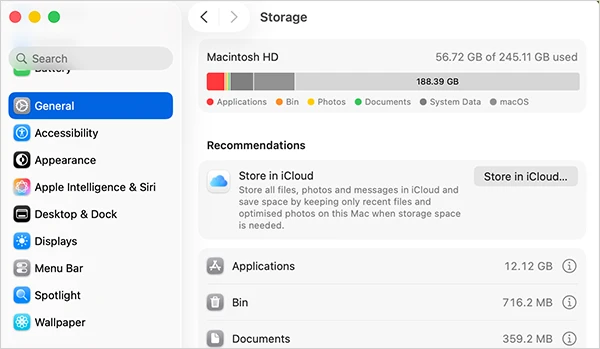
Just go to System Settings, select General, and click Storage to check available space. If storage is l ow, just remove unnecessary files or empty the Trash to free up disk space on Mac before trying again.
3. Move the ZIP File to Desktop
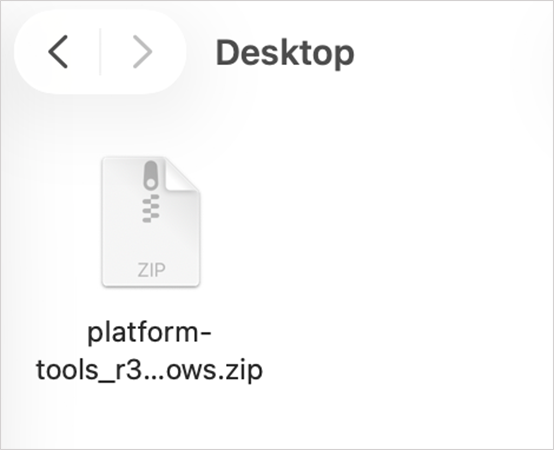
Sometimes the issue comes from folder permissions. So, try moving the archive to the Desktop, Downloads, or Documents folder. Then, try extracting it again. Make sure to avoid protected system folders or incompatible external drives while testing the file.
4. Use Finder First
Many users immediately install third-party extraction tools, but Finder’s built-in Archive Utility should be your first option. To safely unzip documents on Macs, just double-click the ZIP file.
macOS will automatically attempt extraction. If Finder still fails, move to the next solution.
5. Use Terminal to Unzip the File
Terminal gives you more control and often reveals what is actually causing the problem. To unzip a ZIP file:
- Open Terminal using Spotlight.
- Next, navigate to the folder containing the ZIP file. For example: “cd ~/Downloads”.
- Then, run this command: “Unzip filename.zip”.
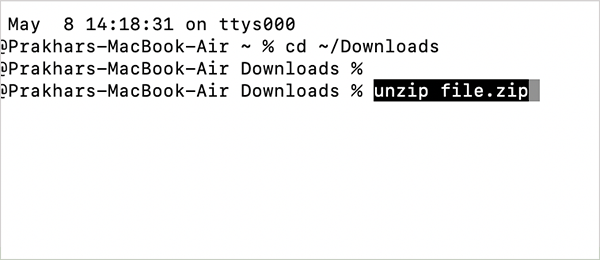
- To open a gz file on Mac, use: “tar -xzf filename.tar.gz”.
This method works especially well when Archive Utility keeps failing, the archive contains minor corruption, or you need more detailed error information.
If nothing works for you, try to test another ZIP file. This step helps isolate the problem quickly. If every ZIP file fails, the issue may be system-related. This simple check can save a lot of unnecessary troubleshooting.
How to Open Zip Files on MacBooks Properly (Prevention Tips)?
While fixing error 640 is important, preventing future extraction problems saves time and reduces the risk of file corruption. Here are some practical habits worth following:
- Make sure the ZIP file is fully downloaded before opening it, especially on unstable internet connections.
- Download archive files only from trusted or official sources to avoid damaged or unsupported formats.
- Do not interrupt the extraction process or force-close Finder while files are expanding.
- Keep enough free storage space available before extracting large ZIP files.
- Use Finder first, and switch to Terminal only if the archive keeps failing to open.
Also, avoid downloading random Mac repair or extraction tools from unknown websites.
Conclusion
Error 640 Mac can be easily fixed with the help of some simple troubleshooting methods. Finder, Archive Utility, and Terminal already provide most of the tools needed to fix the issue safely.
The simple approach mentioned in the guide can fix the majority of expansion problems without risking your files or installing unnecessary software.
Frequently Asked Questions
What is Error 640 on Mac?
Why can’t I unzip a file on Mac?
The ZIP file might be corrupted, incomplete, password-protected, or stored in a restricted folder.
How do I fix Error 640 when unzipping a file on a Mac?
You should try to re-download the archive, check available storage, and extract the file through Finder or Terminal.
How to open tar.zg or .tgz files on Mac?
You can open them through Finder or use the Terminal command: “tar -xzf filename.tar.gz”.
Why is my Mac not compressing a file?
This can happen because of storage issues, permission restrictions, damaged files, or temporary Finder problems.
Related Posts

Protecting Inventory Data: Why Warehouses Need Digital Audit Trails
Sometimes, a warehouse manager opens the inventory spreadsheet on Monday morning and finds that 400 units of a fast-moving product…

Data Integration Services: One View From Many Systems
With the expansion of business, data often gets scattered to different places and systems. Customer details are found in a…

How to Delete a File That Won’t Delete in Windows?
Deleting a file should be simple, but sometimes Windows refuses to remove it. You may see messages saying the “folder…

What Should Businesses Do After Recovering From a Major Data Loss?
Businesses nowadays have entered a new level in terms of storing data, leading to a completely new structure. Customer service,…
How to Protect Your Files From Unexpected Data Loss
Imagine you opened your device and suddenly found out that all the important files are not there. Sounds scary, right?…
How to Fix “File Too Large for Destination File System” on Windows?
Have you ever tried copying a large file to a USB drive or external hard disk, and Windows stopped the…
What is a CRC Error? Meaning, Causes, and How to Fix It
A CRC error can appear when you are copying files, opening a folder, extracting an archive, or accessing a storage…
What is an MKV File? Meaning, Uses, and How It Works
You can often identify a video file by its extension. MP4 is the most common, AVI is an older format,…
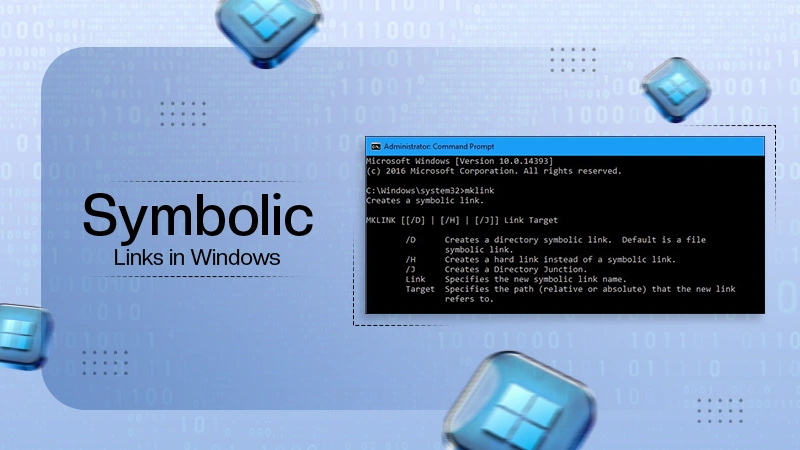
Symbolic Links in Windows: A Complete Guide to Creating Symlinks
Have you ever wished to keep a file or folder in one location while making Windows think it exists somewhere…