


Ans. Yes, it can. Lowering resolution reduces image detail and hence compromises the quality. It also depends on the amount of compression and the method used.
How to Compress a Video on iPhone: Easy Ways to Reduce File Size
A video that looks fine on your iPhone can become a problem when you try to email or upload it. Large recordings take up storage, take longer to share, and can exceed attachment limits.
You don’t need a computer to shrink them. Your iPhone offers a few different ways to reduce video size, whether you want to export a lower-resolution copy, remove unwanted footage, or adjust your camera settings before recording. Here’s how to compress a video on iPhone.
How to Compress a Video on iPhone?
You can compress an existing video on your iPhone using Apple’s iMovie app or a third-party video compressor app for iPhone. Both methods reduce video size on iPhone, but they offer different levels of control.
iMovie allows you to choose the export resolution, while some dedicated apps let you set a target file size. Let’s see how to compress videos on iPhone.
Method 1: Using Apple’s iMovie App
iMovie can create a smaller copy of your video by exporting it at a lower resolution. You can keep the original recording in Photos and save the compressed version separately. Here’s how to reduce the size of iPhone videos:
- Open iMovie on your iPhone. If you don’t have it, download it from the App Store.
- Tap Start New Project and select Movie.
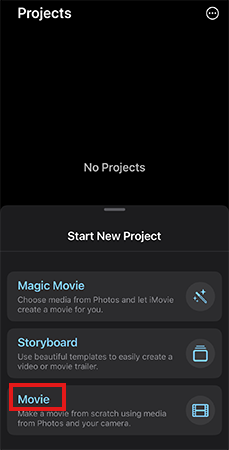
- Go to Media > Video and select the recording you want to compress.
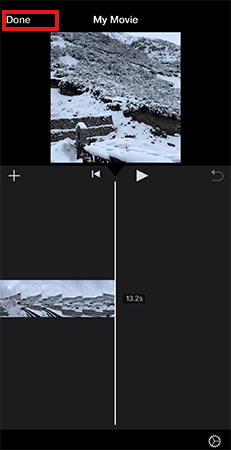
- Tap Create Movie, then select Done.
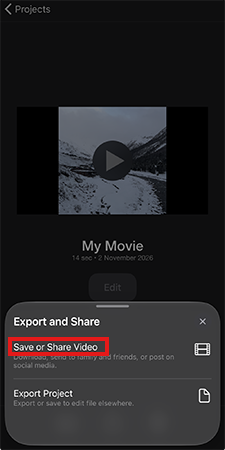
- Tap the Share button and select Save or Share Video.
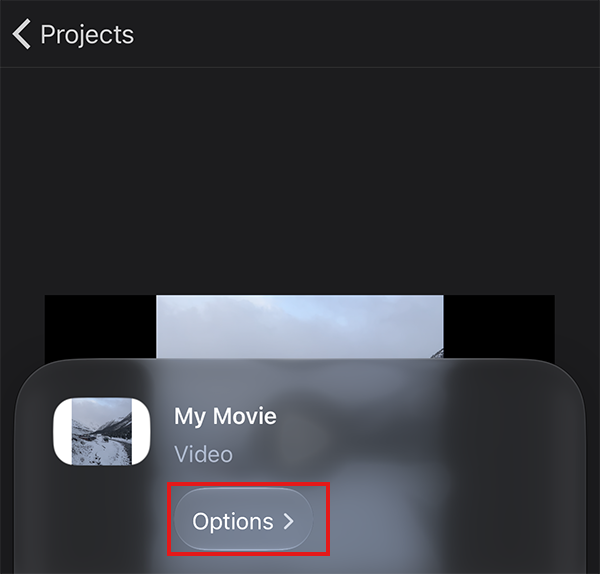
- Then, tap Options to view the available export resolutions.
- Choose a lower resolution, such as 720p, 540p, or 360p.
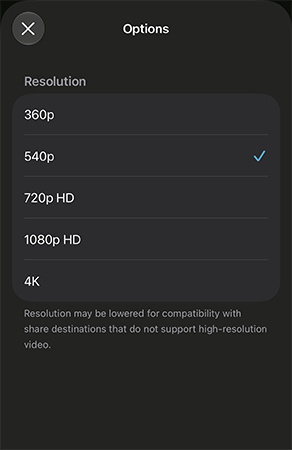
- Tap Done, then select Save Video to store the new copy in Photos.
A lower resolution produces a smaller file but also reduces image detail. For everyday sharing, 720p is a reasonable starting point. Choose 540p or 360p if you need to reduce the size further.
Apple provides the following approximate file sizes for a one-minute video:
| Resolution | Approximate File Size |
| 1080p | 70-105 MB |
| 720p | 19-27 MB |
| 540p | 12-16 MB |
| 360p | 6-9 MB |
Keep in mind that these are estimates. The actual file size depends on the recording and its settings.
Method 2: Using a Third-Party Video Compressor
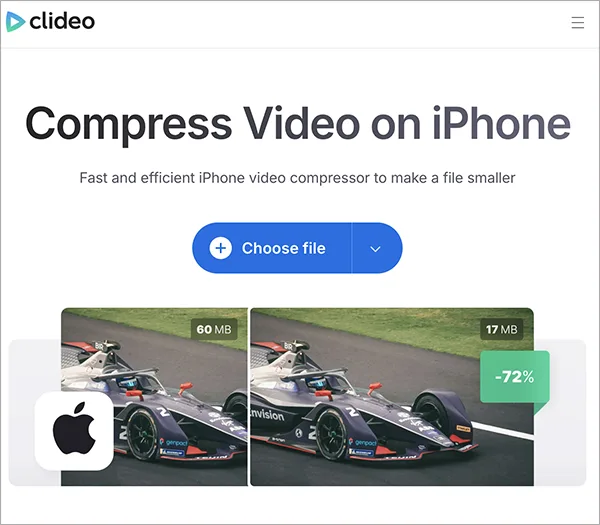
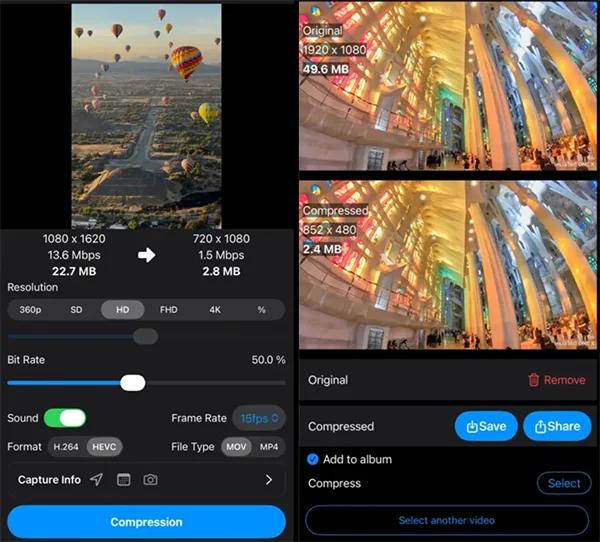
If you need to compress a video to a particular file size rather than choose an export resolution, you can use an online tool or a dedicated iPhone app. Tools such as Clideo and Easy Video Compressor—Resize are a couple of good examples.
- Clideo: A web-based video compressor that you can access through Safari on your iPhone. It allows you to upload a video, compress it, and download the smaller version. Some features and file-size limits may depend on your subscription.
- Easy Video Compressor – Resize: An iPhone app that allows you to reduce video size by adjusting compression settings, including quality and target file size.
There are a lot of video compressor tools available online. Before using one, check its pricing, file-size limits, and privacy policy. Always preview the compressed video to make sure its quality is acceptable before deleting the original.
How to Compress iPhone Videos for Email?
Large video attachments can exceed your email provider’s sending limit. You can either compress the video or use Apple Mail Drop to share the original.
Method 1: Compress the Video Before Attaching It
Here’s how to compress an iPhone video for email sharing using iMovie:
- Open the video in iMovie.
- Export it at 540p or 360p and save the compressed copy to Photos.
- Now open your email app and start a new message.
- Attach the smaller video and send the email.
Choose the resolution based on your email provider’s attachment limit and how much detail the recipient needs. If the file is still too large, try a lower resolution.
Method 2: Use Mail Drop to Send the Original Video
If you don’t want to reduce video quality, Apple’s Mail Drop lets you send large attachments through iCloud. Follow these steps:
- Open Photos and select the video.
- Tap the Share button.
- Select Mail.
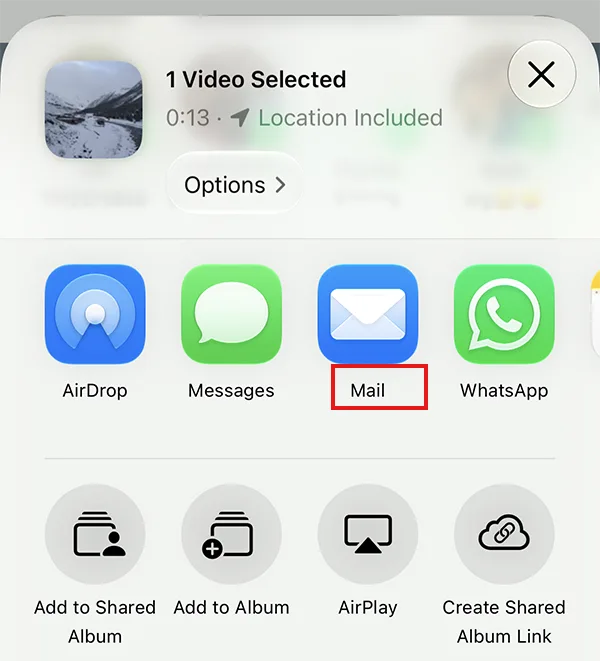
- Enter the recipient’s email address and add your message.
- Send the email. If the attachment exceeds the usual sending limit, Mail can offer to use Mail Drop.
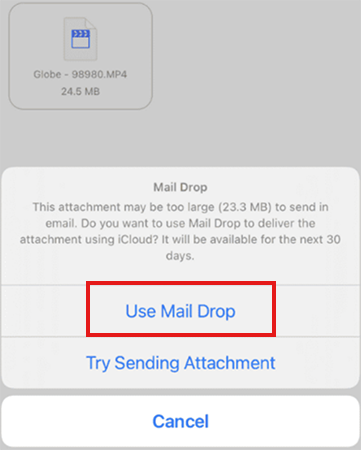
Mail Drop supports attachments up to 5 GB. Recipients have 30 days to download the files. Keep in mind that Mail Drop does not compress your video or create a smaller copy. It provides a way to share a large file without reducing its original quality.
How to Check a Video’s File Size on iPhone?
The steps to check a video’s file size depend on whether the video is stored in Photos or Files.
If the video is saved in Photos:
- Open the Photos app.
- Select the video you want to check.
- Tap the Info (i) button or swipe up on the video.
- Look for the file size in the video details.
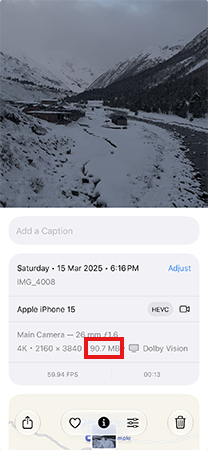
If the video is saved in Files:
- Open Files and find the video under Recents or Browse.
- Switch to List View if needed.
- Check the size displayed beside the filename.

Checking a video’s file size before and after compression shows how much storage you save.
How to Reduce Video Size on iPhone by Trimming?
Trimming removes unwanted footage without changing the resolution of the remaining video. Here’s how to resize iPhone videos with the help of trimming:
- Open Photos and select the video.
- Tap the Edit button.
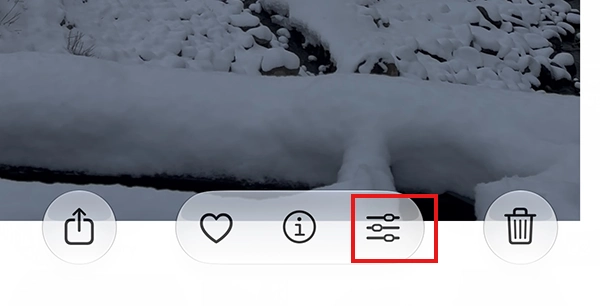
- Drag the timeline handles to remove footage from the beginning or end.
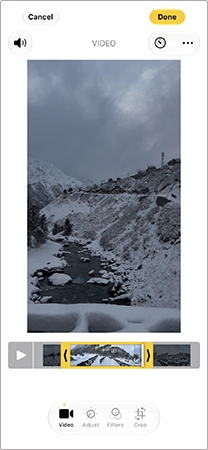
- Preview the shortened video and tap Done.
- Choose Save Video to replace the edited version or Save Video as New Clip to keep both.
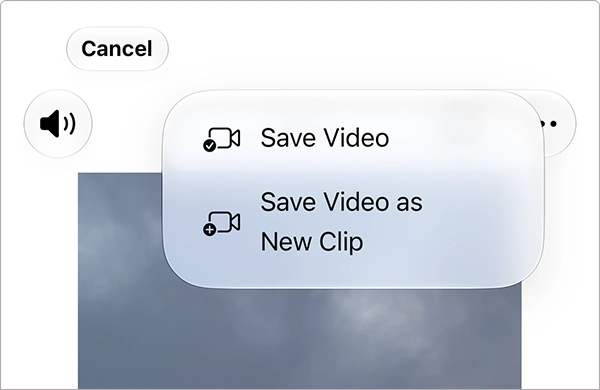
Trimming works well for recordings with unnecessary footage. However, removing only a few seconds from a long video won’t significantly reduce its size.
How to Make iPhone Videos Smaller Before Recording?
You can adjust your camera settings to make future recordings smaller. These changes won’t affect existing videos. Here’s what you can do:
Lower the Recording Resolution and Frame Rate
Higher resolutions and frame rates generally produce larger files.
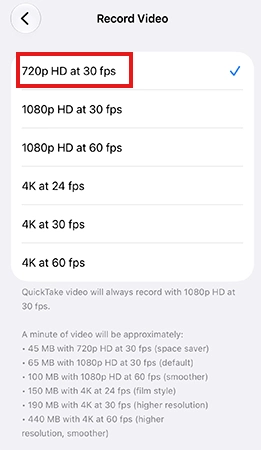
- Go to Settings > Camera > Record Video.
- Choose a lower resolution, such as 720p, if available.
- Select 30 fps instead of 60 fps if you don’t need smoother motion.
Enable High Efficiency
High Efficiency uses HEVC (High Efficiency Video Coding) to reduce file sizes while maintaining comparable visual quality.
- Go to Settings > Camera > Formats.
- Select High Efficiency.
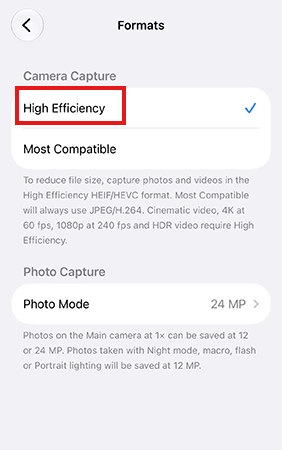
Some older devices and apps may not support HEVC, so check compatibility if you regularly share videos across different devices.
Turn off HDR Video
HDR (High Dynamic Range) captures more highlight and color detail but may increase file size.
- Go to Settings > Camera > Record Video.
- Turn off HDR Video, if available.
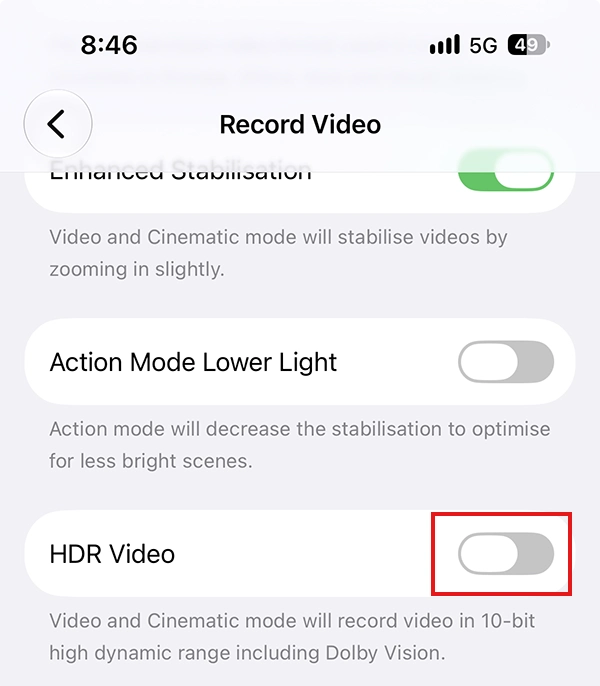
Disabling HDR can reduce storage requirements, but you will lose the additional visual detail it provides.
Wrapping Up
You can reduce video size on your iPhone in several ways. Use iMovie to export a lower-resolution copy, trim unwanted footage in Photos, or adjust camera settings before recording. If you want to preserve the original quality when sharing a large video, Mail Drop is another option. Choose the method that suits your needs and check the compressed copy before deleting the original.
Frequently Asked Questions
Does compressing iPhone videos reduce their quality?
How to reduce iPhone video file size without losing quality?
Ans. Use High Efficiency (HEVC) for future recordings or trim unnecessary footage. However, significant size reductions without quality loss are not always possible.
How to reduce the size of a video on iPhone for email?
Ans. You can export it from iMovie at 540p or 360p. Alternatively, use Mail Drop to share the original video without compressing it.
Can I compress a video on my iPhone without downloading an app?
Ans. You can trim videos in Photos and adjust camera settings for future recording. For resolution-based compression, use Apple’s free iMovie app.
Can I compress an iPhone video directly from the Photos app?
Ans. No, Photos allows you to trim video but does not offer a dedicated compression or export-resolution setting. Use iMovie or a third-party tool to create a smaller copy.
Related Posts

How to Search for Multiple File Types in Windows Explorer
Finding a specific document in a folder full of mixed files can take longer than expected. You might need PDFs,…
What is a TIFF File? Definition, Uses, and How to Open It
Some image formats prioritize small file sizes and quick loading, while others focus on preserving image details for editing, printing,…
How to Migrate Business Files Without Losing Originals or Version History
Small agencies usually face issues when they move client projects to a new storage platform, and the client requests a…
Protecting Inventory Data: Why Warehouses Need Digital Audit Trails
Sometimes, a warehouse manager opens the inventory spreadsheet on Monday morning and finds that 400 units of a fast-moving product…

Data Integration Services: One View From Many Systems
With the expansion of business, data often gets scattered to different places and systems. Customer details are found in a…
How to Delete a File That Won’t Delete in Windows?
Deleting a file should be simple, but sometimes Windows refuses to remove it. You may see messages saying the “folder…
How to Protect Your Files From Unexpected Data Loss
Imagine you opened your device and suddenly found out that all the important files are not there. Sounds scary, right?…
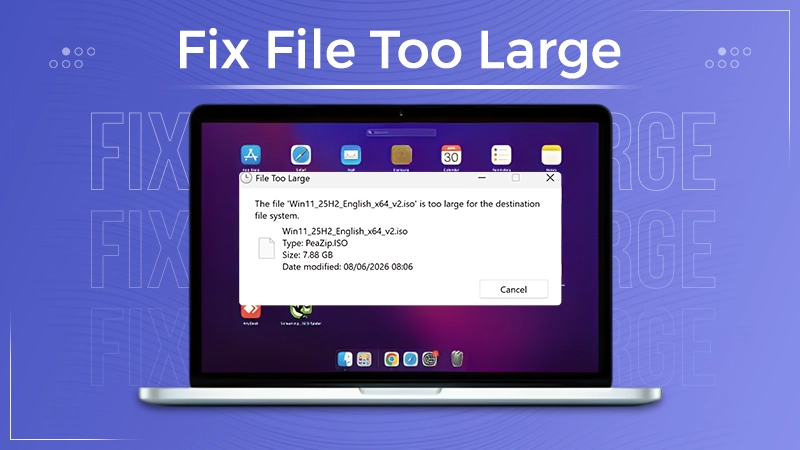
How to Fix “File Too Large for Destination File System” on Windows?
Have you ever tried copying a large file to a USB drive or external hard disk, and Windows stopped the…
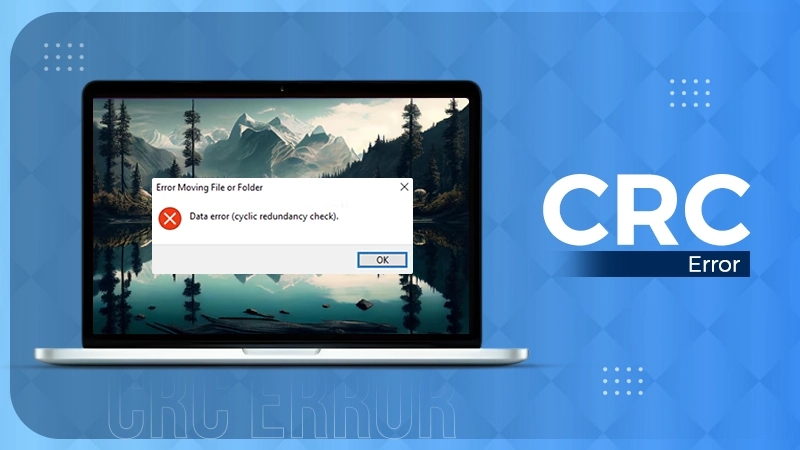
What is a CRC Error? Meaning, Causes, and How to Fix It
A CRC error can appear when you are copying files, opening a folder, extracting an archive, or accessing a storage…