


Open Finder, locate the .zip file, and double-click it. macOS will automatically extract the archive and normally place the uncompressed contents in the same folder as the ZIP file.
How to Unzip Files on Mac: 3 Easy Ways to Extract ZIP Files
A ZIP file has a funny way of making a simple task feel more complicated than it is. On a Mac, you don’t need extra software for most ZIP files. macOS can extract them directly in Finder, while Archive Utility and Terminal offer other built-in options.
In this guide, I will explain how to unzip files on Mac, covering all three methods, plus how to create ZIP files and troubleshoot archives that won’t open.
Quick Answer: How to Unzip a File on MacBook?
- To unzip a file on a MacBook, open Finder, locate the ZIP file, and double-click it. macOS will automatically extract the contents in the same folder.
- You can also Control-click the ZIP file and select Open With > Archive Utility.
- For more control over the extraction, use the unzip command in Terminal.
How to Unzip Files on Mac Using Finder?
For a standard ZIP file, Finder is all you need. macOS can extract ZIP archives automatically, and the uncompressed files usually appear in the same folder as the original archive.
Here’s how to decompress a file on Mac:
- Open Finder on your Mac.
- Go to the folder containing the .zip file.
- Double-click the ZIP file.
- macOS will automatically extract its contents. Just open the newly created file or folder to access the files.

You can keep the ZIP archive if you still need it. Once you have confirmed that the files extracted correctly, you can move or delete the archive to free up storage.
Tip: If you want the extracted files to appear in a specific location, move the ZIP file to that folder before double-clicking it.
How to Open a ZIP File on Mac With Archive Utility?
Archive Utility is macOS’s built-in archive handling tool. Finder normally uses it automatically when you double-click a ZIP file, but you can also open ZIP files on Mac with Archive Utility directly.
Here’s how to access ZIP files on Mac:
- Open Finder and locate the ZIP file.
- Control-click or right-click the file.
- Select Open With and choose Archive Utility. macOS will extract the archive.
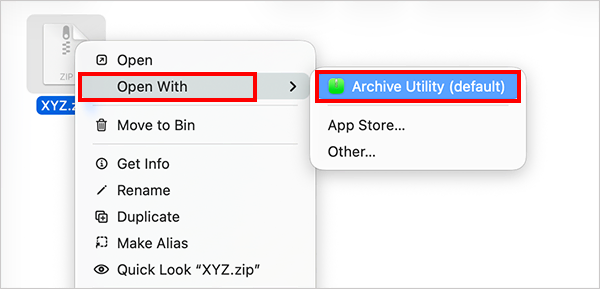
This method can be useful if you want to explicitly use macOS’s built-in Archive Utility instead of another archive application installed on your Mac.
How to Unzip on Mac Using Terminal?
Terminal gives you another way to unzip Mac files. It is useful if you are already working with files from the command line or want to choose a specific extraction location.
Here’s how to unzip a folder on Mac with Terminal:
- Open Terminal from Applications > Utilities.
- Type “unzip” followed by a space.
- Drag the file from Finder into the Terminal window. This is an easy way to get the file path on a Mac.
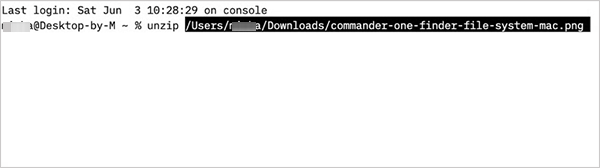
- Press Return and the archive will be extracted into the current Terminal directory.
- You can also specify where you want the extracted files to go. For example:
unzip ~/Downloads/Project.zip -d ~/Documents/Project Here, -d specifies the destination directory.
Dragging the ZIP file into Terminal is useful when its path is long or contains spaces because macOS enters the correct path for you. You can also copy a file’s path name from Finder by holding the Option key while right-clicking the file.
How to Zip a File on Mac?
You can create a ZIP archive directly from Finder. No additional compression software is required for basic ZIP files. Let’s see how to make a ZIP file on Mac.
1. Zip a File or Folder
The process is the same whether you want to compress a single file or an entire folder. Here’s how to zip a file or folder on a Mac:
- Open Finder.
- Locate the file or folder you want to compress.
- Control-click it and select Compress.
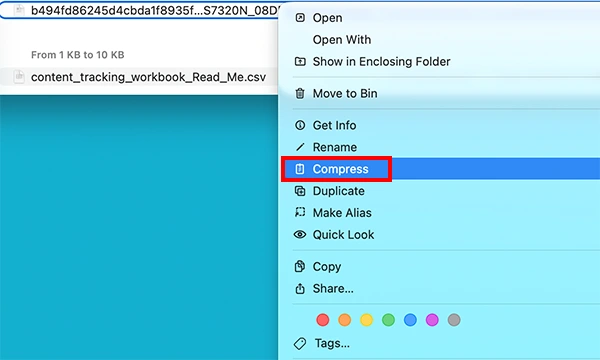
macOS creates the ZIP archive beside the original item. The original file or folder remains unchanged.
2. Zip Multiple Files Together
You can also combine several files into a single ZIP archive. Select the files in Finder, control-click the selection, and choose Compress.
When multiple items are compressed together, macOS normally creates an archive called Archive.zip. You can rename the file afterward to make it easier to identify. This is helpful when you are sharing several documents, images, or other files and want to send them as a single attachment.
3. Create a ZIP file with Terminal
Terminal can also create ZIP archives. For example:
zip file_name.zip file_name.pdf
To compress a folder and everything inside it, use the recursive option:
zip -r archive_name.zip folder_name
The -r option tells the zip command to include the folder’s contents recursively.
What to Do If a ZIP Won’t Open on Mac?
If your Mac cannot open or extract a ZIP file and displays a message like Error 640 Mac, the archive may be damaged, incomplete, or your Mac may not have enough space. Try these checks before installing another extraction tool:
- Check Available Storage: Extracted files can take much more space than the ZIP itself. Make sure your Mac has enough free storage before trying again.
- Download the ZIP Again: An interrupted or incomplete download can prevent extraction. Download a fresh copy, or ask the sender to recreate and resend the archive.
- Check the File Format: Make sure the file ends with .zip. Other formats such as .tar, .tar.gz, and .tgz are different archive types and may need different tools or commands.
- Try Terminal: If Finder still cannot extract the archive, try to unzip the file in Terminal. Terminal will display an error message if it cannot extract the archive, which can help identify the problem.
If the archive is damaged, changing from Finder to Terminal won’t repair it. Getting a fresh copy is the safest option in that situation.
Wrapping Up
Learning how to decompress a ZIP file on Mac computers is straightforward because macOS includes built-in ZIP support.
Finder is the quickest option for everyday use. If you need more control over the extraction location or prefer command-line tools, Terminal is a useful alternative. If a ZIP won’t open, check free storage first and then consider downloading or requesting a fresh copy of the archive.
Frequently Asked Questions
How do I extract a ZIP file on a Mac?
How can I unzip a file on Mac devices using Terminal?
Open Terminal and use the unzip command followed by the ZIP file’s path. For example, unzip ~/Downloads/file.zip.
Does my Mac automatically unzip files?
Yes, macOS includes built-in support for standard ZIP archives. Double-clicking a .zip file in Finder automatically expands it, with the extracted contents appearing in the same folder as the archive.
How do you zip a file on a Mac?
In Finder, locate the file, control-click it, and select Compress. macOS creates a ZIP archive beside the original file. You can use the same process for folders or select multiple items and compress them together.
Can I unzip a file on Mac without installing an app?
Yes, you don’t need a third-party app for a standard ZIP file. Finder and Archive Utility are built into macOS, so you can extract a ZIP simply by double-clicking it or opening it with Archive Utility.
Related Posts

What Is a .BAT file and How Do You Create One?
You may have seen a file ending in .bat and wondered why opening it brings up a Command Prompt window…

How to Disable Microsoft Edge in Windows? 4 Quick Methods
Microsoft Edge can feel difficult to “turn off” because several Windows and Edge settings control when it starts and what…

How to Open EXE Files on Mac: 5 Ways to Run Windows Apps
If you have downloaded a Windows .exe file on your Mac, double-clicking it won’t make it run. macOS does not…

How to Sign Out of iMessage on Mac?
Your Mac can quietly become another place where your private conversations appear. That’s convenient until you are using a shared…

What is Windows Fast Startup and How Does It Work?
Fast Startup can make your PC boot noticeably faster after a shutdown. Instead of completely rebuilding the Windows kernel state…

How to Delete Files Completely in Mac Terminal?
Finder makes deleting files simple, but sometimes you need Terminal to remove a file or folder by its exact path…
How to Add Widget in Mac: A Step-by-Step Guide
Your Mac desktop can give you useful information without turning into another dashboard to manage. A weather update, calendar reminder,…

The macOS Installation Couldn’t Be Completed? Learn How to Fix It
You are halfway through a macOS update when the progress bar stops, and a message says the macOS installation couldn’t…

How to Restart Bluetooth Service Windows 11? (Fix Bluetooth Issues)
Bluetooth stopped working in Windows 11? It can suddenly stop working even when your headphones, mouse, or keyboard work perfectly…