


Ans. Select the file in Finder and go to View > Show Path Bar from the top menu to see the file path at the bottom of the Finder.
How to Get Path of a File in Mac? (5 Simple Methods)
Need to paste a file path into Terminal or share a file’s exact location, but don’t know how to get path of a file in Mac? You are not alone.
Unlike Windows, macOS does not always display file paths by default. Fortunately, there are several built-in ways to view or copy the path without installing any extra software.
In this step-by-step guide, I will show you five simple methods to find, copy, and use a file path on your Mac.
What is a File Path on Mac?
A macOS file path is the exact location of a file or folder. Think of it as an address that tells your system where an item is stored.
For example: /Users/John/Documents/Work/Report.pdf
In this path, Users is the main system folder, John is the user account, Documents is the parent folder, Work is a subfolder, and Report.pdf is the file. On macOS, file paths use forward slashes (/) to separate folders, while the tilde symbol (~) represents your Home folder.
You will often need a file path when using Terminal commands, configuring apps, troubleshooting issues, or navigating to a specific folder. It also makes sharing file locations much easier when someone has a similar folder structure.
How to Get Path of a File in Mac?
macOS offers several built-in ways to view or copy a file path. First, understand your need and then choose the method.
Whether you just want to see a file’s location, copy it for Terminal, or navigate to a specific folder. Here’s how to find a file path on Mac:
Method 1: Using Finder
Finder is the easiest way to view a file’s location without using Terminal. Once you enable the Path Bar, you can see where any selected file or folder is stored. Here’s how to get path of a file in Mac:
- Open Finder.
- Select the file or folder whose path you want to view.
- Now, click on View from the menu bar.
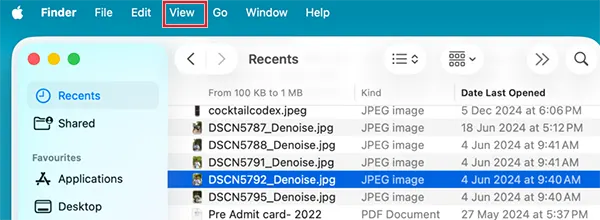
- Finally, select Show Path Bar.
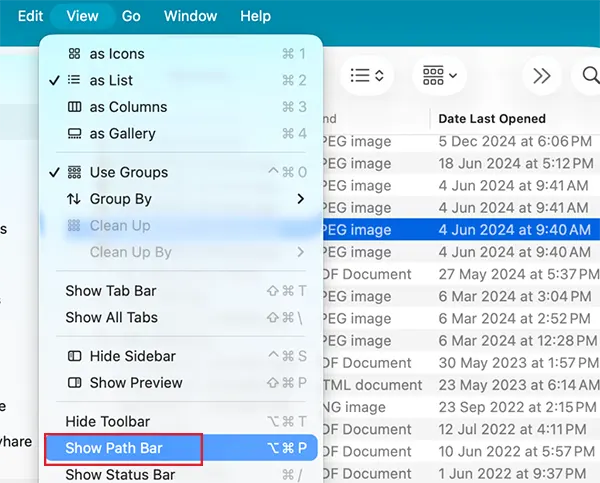
The complete file path will appear at the bottom of the Finder window.
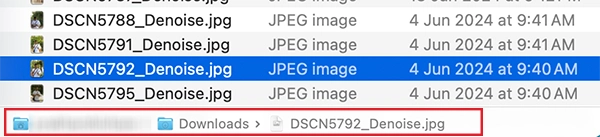
If you frequently browse different folders, it is worth leaving the Path Bar enabled. It updates automatically as you move through Finder, and you can click any folder shown in the path to jump directly to that location.
Pro Tip: You can quickly show or hide the Path Bar by pressing Option + Command + P. This shortcut saves a few clicks if you switch between Finder layouts often.
Method 2: Using Copy as Pathname
If you want to paste a file location into Terminal, a text editor, or another application, Copy as Pathname is the fastest built-in method. It can copy the path of macOS files to your clipboard, so you don’t have to type it manually. Here’s how to get the file path on Mac:
- Open Finder and locate the file.
- Hold the Option key and right-click the file.
- Next, select the “Copy [File Name] as Pathname” option.
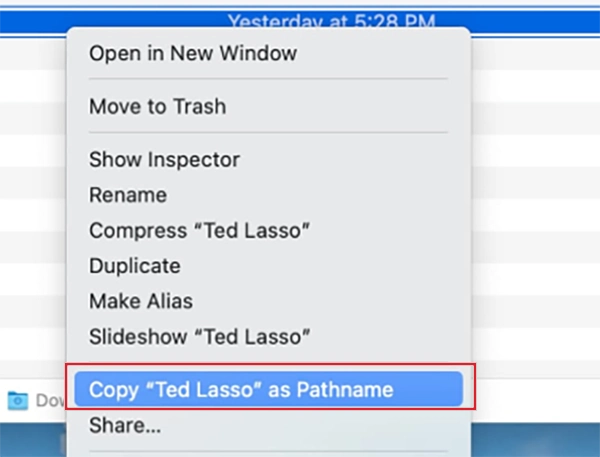
- Now, you can paste the path anywhere using Command + V.
You can also use the keyboard shortcut Option + Command + C after selecting a file in Finder. It is a quicker way to copy the full pathname without opening the context menu.
This method is especially useful when you are running Terminal commands, editing scripts, or sharing an exact file location.
Method 3: Using the Get Info Option
If you only want to know where a file is stored, the Get Info window is a simple option. It shows the file’s location along with other useful details. Just follow these steps:
- Open Finder and select the desired file.
- Press Command + I or go to File > Get Info.
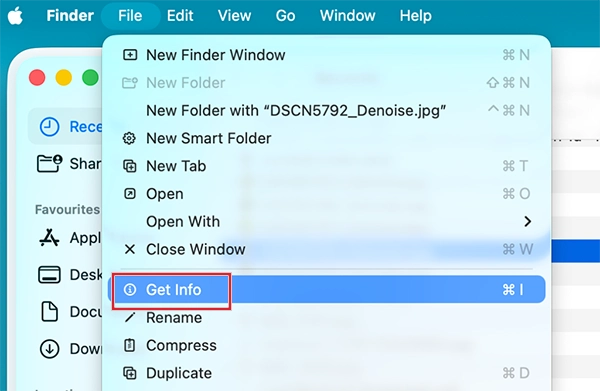
- Expand the General section if it is collapsed, and check the “Where” field to see the folder where the file is stored.
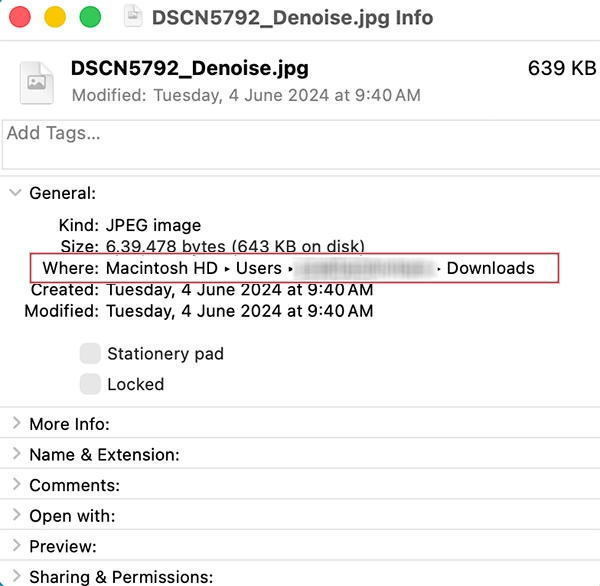
Besides the file location, Get Info also displays details like file size, type, permissions, created date, and modified date. Keep in mind that Get Info does not copy the complete file path. If you need the full pathname, use the Copy as Pathname method instead.
Method 4: Via Go to Folder
Sometimes you already know the file or folder path and simply want to open it without clicking through multiple folders. That’s where Go to Folder comes in.
Here’s how to use it:
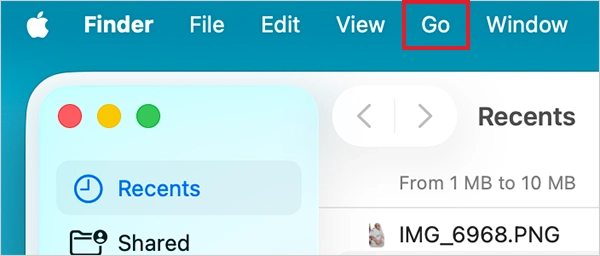
- Open Finder and click Go from the menu bar.
- Select Go to Folder.
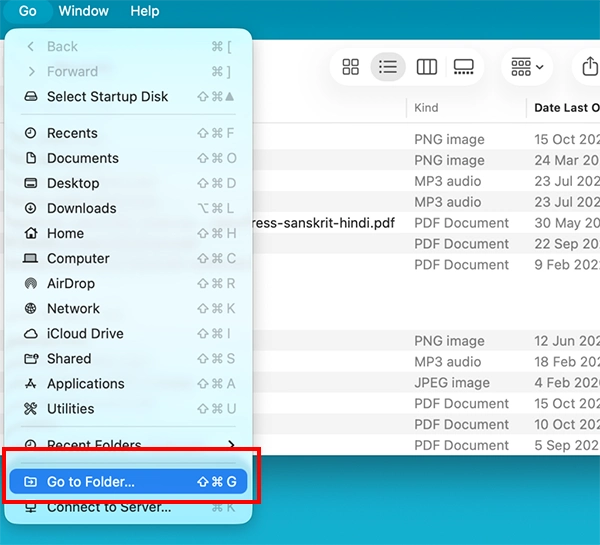
- Type or paste the folder path, and press Return.

Finder will immediately open that location. This feature is particularly useful when you are following software instructions or troubleshooting guides (like how to recover unsaved Word documents) that ask you to open a specific directory.
Method 5: Using Terminal
If you regularly use Terminal, getting a file path on Mac is even easier. Instead of typing the entire location yourself, you can simply drag the file.
- Open Terminal from Applications > Utilities.
- Now, just drag the file or folder from Finder into the Terminal window.
- The complete file path will appear automatically.

You can copy or use the path as needed. This method eliminates typing errors and works with almost any file or folder. It is especially handy when running Terminal commands that require an exact location.
Which Method is Best for You?
Each method is useful in different situations. The right choice depends on whether you want to view a file’s location, copy its path, or quickly open a folder.
| Method | Best For |
| Finder Path Bar | Viewing a file’s location while browsing. |
| Copy as Pathname | Copying the complete Mac file path. |
| Get Info | Checking where a file is stored. |
| Go to Folder | Opening a folder using its path. |
| Terminal | Running commands or working with scripts. |
If you simply want to see where a file is stored, Finder’s Path Bar is the easiest option. For copying an exact path, Copy as Pathname is the fastest.
Common Issues While Finding Mac File Path
Finding a file path on a Mac is usually straightforward, but you may run into a few common issues. Here’s what they mean and how to fix them.
- Copy as Pathname Option is Missing: If you don’t see the option in the right-click menu, make sure you are holding the Option key before opening the context menu. Without it, Finder shows the standard copy option instead.
- The Path Bar is not Visible: If the Path Bar does not appear at the bottom of Finder, make sure you have enabled it, or just press Option + Command + P to quickly show or hide it.
- The File Has Been Moved or Renamed: If a file has been moved or renamed, its old path will no longer work. You need to find the file again and get its new path.
- Permission Errors: Some folders, especially system directories, are protected by macOS. If you can’t open or modify files in these locations, you may need administrator permission or access to any account with the required privileges.
Conclusion
There are several ways to get a file’s path on a Mac, and the right method depends on what you need to do. Use the Path Bar to view a file’s location, Copy as Pathname to copy its path, or Terminal if you are working with commands.
Once you know the built-in methods mentioned in this guide, finding and using the file paths becomes much easier, whether you are organizing files, troubleshooting, or running Terminal commands.
Frequently Asked Questions
How to get the file path in Mac quickly?
How do I copy the path of a file on a Mac?
Ans. Hold the Option key, right-click the file, and choose Copy as Pathname. Then paste it wherever you need.
How to go to a specific file path on Mac?
Ans. Open Finder, go to Go > Go to Folder, enter the file or folder path, and press Return.
Why would I need a file path on Mac?
Ans. File paths are useful for Terminal commands, troubleshooting, configuring apps, and locating or sharing files accurately.
Can I get a file path without using Terminal?
Ans. Yes, you can use Finder’s Path Bar, Copy as Pathname, or Get Info to view or copy a file path without opening Terminal.
Related Posts

How to Fix DISM Error 87 in Windows?
DISM Error 87 usually appears when Windows cannot understand a DISM command or one of its parameters. You may see…

How to Restart Explorer.exe in Windows?
A frozen taskbar, missing desktop icons, or an unresponsive File Explorer can make Windows feel stuck even when your computer…
![How to Reopen Closed Tabs on Mac [Easy Ways to Restore Tabs]](https://datarecovee.com/knowledge-base/wp-content/uploads/2026/10/how-to-reopen-closed-tabs-ftd-img.webp)
How to Reopen Closed Tabs on Mac [Easy Ways to Restore Tabs]
Accidentally closing the wrong tab can be super annoying, especially when you were in the middle of something important. You…

What Is a .BAT file and How Do You Create One?
You may have seen a file ending in .bat and wondered why opening it brings up a Command Prompt window…

How to Disable Microsoft Edge in Windows? 4 Quick Methods
Microsoft Edge can feel difficult to “turn off” because several Windows and Edge settings control when it starts and what…

How to Open EXE Files on Mac: 5 Ways to Run Windows Apps
If you have downloaded a Windows .exe file on your Mac, double-clicking it won’t make it run. macOS does not…

How to Sign Out of iMessage on Mac?
Your Mac can quietly become another place where your private conversations appear. That’s convenient until you are using a shared…

What is Windows Fast Startup and How Does It Work?
Fast Startup can make your PC boot noticeably faster after a shutdown. Instead of completely rebuilding the Windows kernel state…

How to Unzip Files on Mac: 3 Easy Ways to Extract ZIP Files
A ZIP file has a funny way of making a simple task feel more complicated than it is. On a…