


Ans. Sudden slowdowns are often caused by low storage, resource-heavy apps, Spotlight indexing, background processes, or startup programs that launch automatically after you sign in.
How to Fix Slow Boot Mac: 10 Proven Ways to Improve Startup and Performance
Why is my MacBook running so slowly? This is one of the most asked questions I get. Well, a Mac does not usually slow down without a reason.
If your Mac is freezing, taking longer to start, or feeling sluggish during everyday tasks, the problem is often related to storage, startup apps, memory usage, or software issues, not aging hardware.
Don’t worry, I will explain how to fix slow boot Macs through 10 practical ways to improve the boot time and the overall system performance.
Tl;DR
Why is my Mac slow?
- Low storage space.
- Too many login items.
- High CPU or memory usage.
- Spotlight Indexing.
- Outdated macOS or apps.
- Disk errors.
How to fix slow Macs?
- Restart your Mac and disconnect unnecessary peripherals.
- Remove unwanted login items.
- Free up storage space.
- Check Activity Monitor for resource-heavy apps.
- Update macOS and your installed apps.
- Run First Aid in Disk Utility.
- Start your Mac in Safe Mode or reinstall macOS if the issues persist.
Why is My Mac So Slow?
What causes Mac to run slowly? A slow Mac is usually a sign that something is using more system resources than it should. It does not necessarily mean your Mac is old or needs to be replaced.
Here are some of the most common reasons your Mac may be running slowly:
- Low Storage Space
macOS needs free disk space to create temporary files, manage virtual memory, and perform routine background tasks. If your startup disk is almost full, your Mac may take longer to boot, launch apps slowly, and become less responsive.
- Too Many Login Items
Many apps are set to open automatically when you sign in. Cloud storage services, messaging apps, VPNs, and utilities all compete for system resources during startup, increasing boot time. - High Memory or CPU Usage
Running too many demanding apps at the same time can also be the reason behind your iMac running slowly. Web browsers with dozens of tabs, video editing software, virtual machines, and design tools are among the most common causes. Activity Monitor ( a.k.a Task Manager on Mac) can help you identify these apps. - Spotlight Indexing
If you have recently updated macOS, restored a backup, transferred files, or copied a large amount of data, Spotlight may still be indexing your drive. During this process, your Mac may feel slower than usual. Performance typically returns to normal once indexing finishes. - Outdated macOS or Apps
Older versions of macOS and outdated applications can introduce bugs, compatibility issues, or inefficient background processes that affect startup speed and overall performance.
- Disk Errors
Problems with your startup disk can slow file access, delay startup, and affect overall system performance. Running First Aid in Disk Utility can detect and repair many common disk-related issues before they become more serious.
Now that you know why your Mac is slow, let’s look at the most effective ways to speed it up.
How to Fix Slow Boot Macs?
If your Mac takes a long time to start or feels slow immediately after you log in, work through these fixes one by one. Start with the simple solutions first before moving to advanced troubleshooting.
1. Restart Your Mac and Disconnect Unnecessary Peripherals
A simple MacBook restart can clear temporary glitches, stuck background processes, and memory issues that build over time.
If you have external hard drives, USB hubs, printers, or other accessories connected, unplug them and restart your Mac. Faulty or incompatible peripherals can slow the startup process while macOS tries to detect them.
If your Mac starts faster, reconnect each device one at a time to identify the one causing the delay.
2. Remove Unnecessary Login Items
Too many apps launching at startup can significantly increase boot time. To manage Mac startup apps and stop apps from opening automatically:
- Go to System Settings > General > Login Items & Extensions.
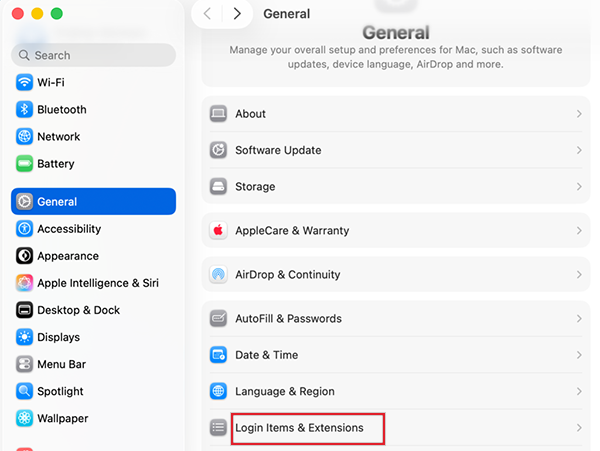
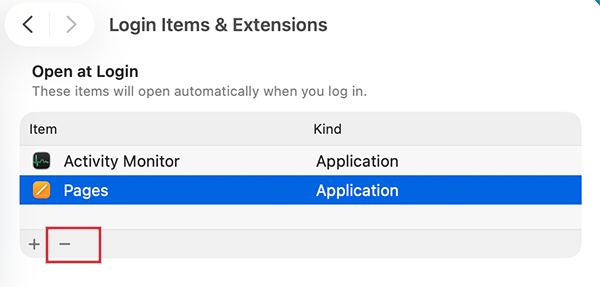
- Click on the minus icon to remove apps that don’t need to open every time you sign in.
- Also, check the App Background Activity section, as some apps continue running even if they don’t appear on your desktop.
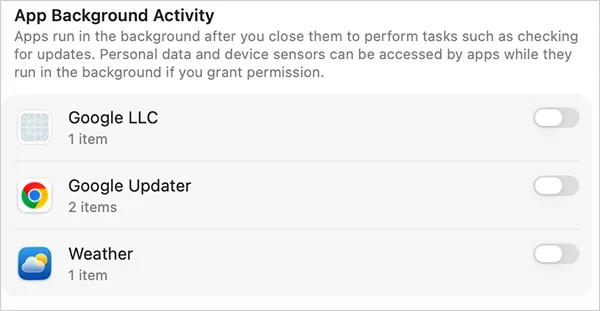
Common startup apps you can disable include Spotify, Microsoft Teams, Dropbox, Google Drive, VPN clients, and third-party utilities. The fewer apps your Mac loads during startup, the faster it can become ready to use.
3. Free Up Storage Space
Running low on storage is one of the most common reasons your devices slow down. To check your available storage, go to Apple Menu > System Settings > General > Storage.
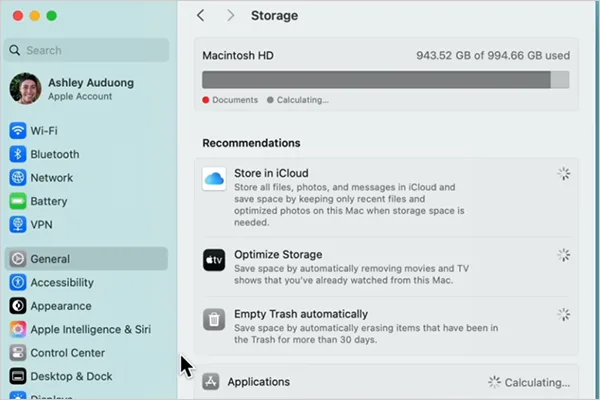
Look for items you no longer need, such as large downloads, duplicate files, unused apps, old backups, movies, and other media files. You can also use Apple’s built-in Optimize Storage and Reduce Clutter recommendations. For the best performance, try to keep at least 10 to 20% of your startup disk free.
4. Check Memory and CPU Usage in Activity Monitor
If your Mac slows down after startup, one app may be using more resources than it should. To check RAM usage and CPU usage on Mac:
- Open Applications > Utilities > Activity Monitor.
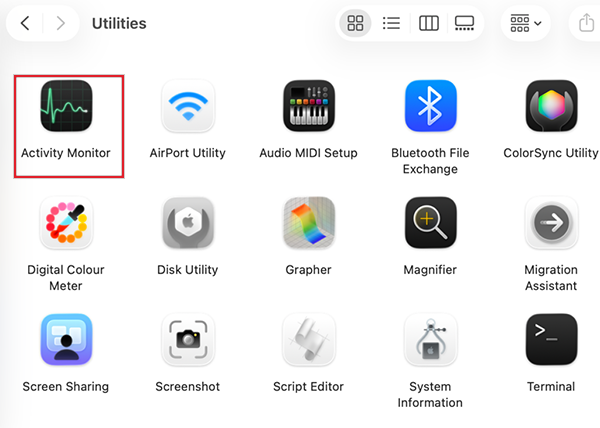
- Now, check the CPU, Memory, and Energy tab.
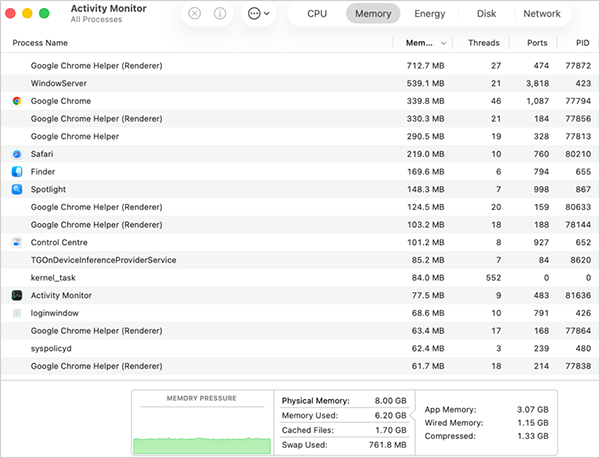
Sort the processes by CPU or Memory usage to identify apps consuming excessive resources.
Also, pay attention to the Memory Pressure graph. If it stays yellow or red, your Mac is running low on available memory, which can affect both startup and everyday performance.
5. Let Spotlight Finish Indexing
If you have recently updated macOS, restored a Time Machine backup, moved files from another Mac, or added a large number of files. Spotlight may still be indexing your drive in the background.
During the process, your Mac can feel noticeably slower than usual. To check whether indexing is still running, click the Spotlight icon and search for any file. If indexing is in process, you will see a status message or progress bar.
If that’s the case, the best solution is simply to let Spotlight finish. Performance usually returns to normal once indexing is complete.
6. Update macOS and Your Apps
Software updates don’t just add new features. They also include bug fixes, security patches, and performance improvements that can help your Mac run more smoothly.
Before moving on to advanced troubleshooting:
- Update macOS to the latest compatible version.
- Update frequently used apps through the App Store or the developer’s website.
- Restart your Mac after installing updates.
Sometimes, a single outdated app can slow down startup or create background conflicts.
7. Repair Your Startup Disk Using Disk Utility
Disk errors can affect startup time, app launches, and overall system performance. To check your startup disk:
- Open Disk Utility.
- Select your startup disk from the sidebar.
- Click on First Aid.
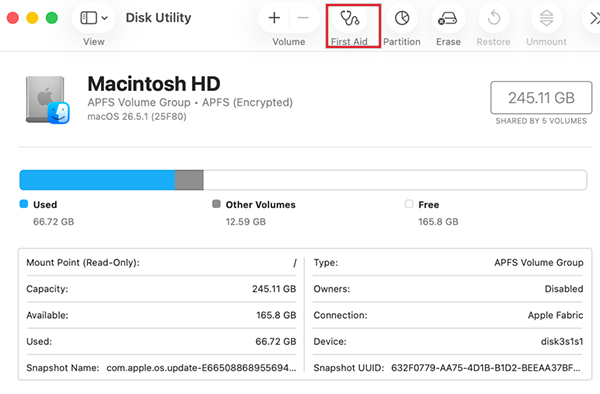
- And, follow the prompts to scan and repair the disk.
If Disk Utility finds any issues, it will try to fix them automatically. For more serious errors, you may need to run First Aid from macOS Recovery.
8. Reset NVRAM/PRAM and SMC (Intel Macs Only)
If you are using an Intel-based Mac, resetting system management settings can sometimes fix startup delays caused by incorrect hardware configuration. Here’s how to speed up MacBooks:
To reset NVRAM/PRAM:
- Shut down your Mac.
- Turn it on and immediately press and hold Option + Command + P + R.
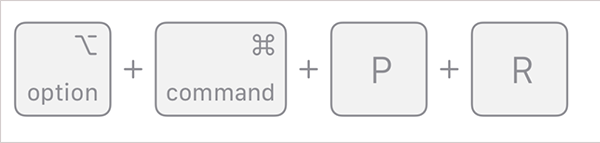
- Keep holding the keys for about 20 seconds, then release them.
To reset the SMC, the steps vary depending on your Mac Model and whether it has a T2 security chip. Just follow Apple’s instructions for your specific device from our Reset NVRAM/PRAM and SMC guide.
9. Start Your Mac in Safe Mode
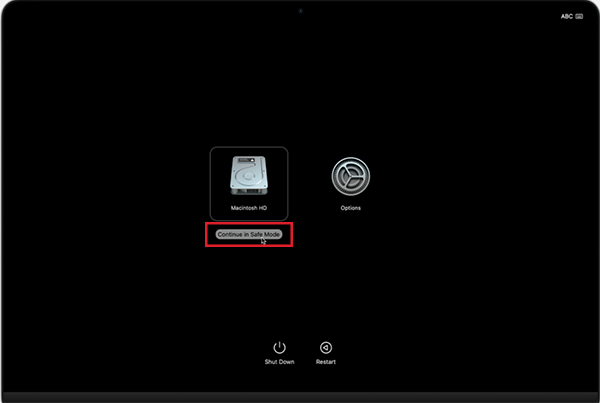
Safe Mode starts your Mac with only the essential macOS components, making it easier to identify whether third-party software is causing the slowdown.
On Apple silicon Macs:
- Shut down your Mac.
- Press and hold the Power button until the startup options appear on your screen.
- Now, select your startup disk.
- Hold the Shift key and click Continue in Safe Mode.
On Intel Macs:
- Restart your Mac, and immediately press and hold the Shift key.
- Release it when you see the login screen.
If your Mac performs noticeably better in Safe Mode, a login item, extension, or third-party app is likely causing the issue. Safe Mode also clears certain system caches and performs a basic disk check during startup.
10. Reinstall macOS
If you have tried every fix above and your Mac is still slow, reinstalling macOS may resolve deeper software issues without deleting your personal files.
Before you begin, back up your important data, check your startup disk for errors, and complete the previous troubleshooting steps.
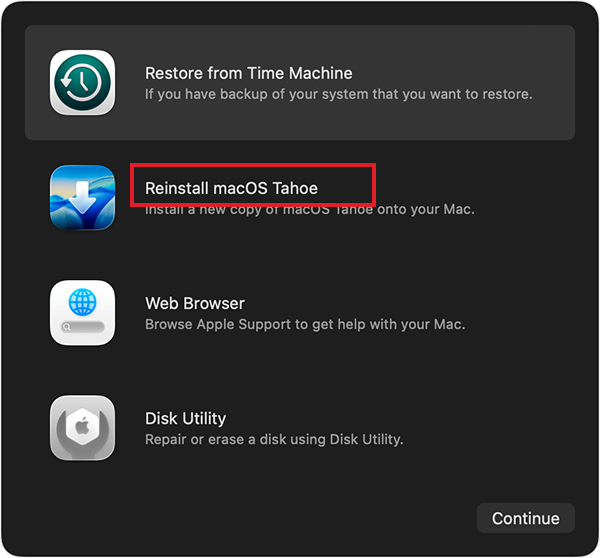
To reinstall macOS, restart your Mac and enter macOS Recovery, then choose Reinstall macOS.
If your Mac has years of accumulated software, settings, and unnecessary files, a clean installation after erasing the startup disk may provide the best long-term performance. Just be sure to back up your data before choosing this option.
How to Prevent Your Mac from Slowing Down Again?
Once your Mac is running smoothly again, a few good habits can help keep it that way. Regular maintenance takes only a few minutes and can prevent many common performance issues.
- Try to keep at least 10 to 20% of your startup disk free. Delete large downloads, old backups, duplicate files, and apps you no longer use to give macOS enough room for temporary files and virtual memory.
- New apps often add themselves to your startup list without your knowledge. So, review Login Items regularly and remove any unwanted apps from the list.
- If your Mac suddenly starts feeling slow, open Activity Monitor and check which apps are using the most CPU or memory. Catching a resource-heavy app early can prevent future slowdowns.
- Try to avoid any unnecessary cleaning apps. Many third-party apps promise dramatic speed improvements, but most provide little real benefit. In some cases, they may even consume system resources themselves.
For everyday maintenance, Apple’s built-in tools, along with proper storage management and occasional system checks, are usually all you need.
When Should You Repair or Replace Your Slow-Running Mac?
Most slow Macs can be fixed with the troubleshooting steps above. However, if the problem persists, the issue might be with the hardware.
Consider repairing your Mac if:
- Disk Utility reportedly reports storage or file system errors.
- Your Mac frequently gets stuck during startup or restarts unexpectedly.
- Apps continue crashing after updating macOS and reinstalling them.
- Performance does not improve after freeing storage, removing login items, and completing the other fixes in this guide.
- Your Mac overheats regularly or, on older models, the hard drive makes unusual clicking or grinding noises.
Consider replacing your Mac if:
- Your Mac no longer supports recent macOS versions.
- The major hardware repair cost is nearly as much as buying a new Mac.
- Your daily work includes demanding tasks like video editing, 3D rendering, or software development, or virtual machines, and your current Mac can’t keep up.
- Your MacBook’s battery life has become poor, and replacing it is not cost-effective.
If you are unsure whether the issue is hardware or software, you can also book a diagnostic appointment with Apple or an authorized service provider before deciding to replace your Mac.
Final Thoughts
A slow Mac is usually caused by something you can fix on your own, such as low storage, too many startup apps, outdated software, or excessive resource usage.
In many cases, a few simple changes are enough to improve boot time and overall performance. If your Mac is still slow after trying every solution in this guide, it is worth checking for hardware issues or consulting an Apple technician.
Frequently Asked Questions
Why is my MacBook so slow all of a sudden?
How to make a Mac boot faster?
Ans. Remove unnecessary login items, free up storage space, update macOS, disconnect unused peripherals, and repair disk errors using Disk Utility. These are some of the most effective ways to speed up a startup.
Does low storage make a Mac slow?
Ans. Yes, when your startup disk is nearly full, macOS has less space for temporary files, virtual memory, and system processes, which can slow both startup and overall performance.
How to clean up a MacBook running slowly?
Ans. Try to delete unnecessary files, uninstall unused apps, remove large downloads, review login items, and use Activity Monitor to identify apps consuming excessive system resources.
How do I know if my slow Mac has a hardware problem?
Ans. If your Mac remains slow after freeing storage, updating macOS, running First Aid, and testing in Safe Mode, the issue could be related to failing storage, insufficient memory, or other hardware components.
Related Posts

How to Fix DISM Error 87 in Windows?
DISM Error 87 usually appears when Windows cannot understand a DISM command or one of its parameters. You may see…

How to Restart Explorer.exe in Windows?
A frozen taskbar, missing desktop icons, or an unresponsive File Explorer can make Windows feel stuck even when your computer…
![How to Reopen Closed Tabs on Mac [Easy Ways to Restore Tabs]](https://datarecovee.com/knowledge-base/wp-content/uploads/2026/10/how-to-reopen-closed-tabs-ftd-img.webp)
How to Reopen Closed Tabs on Mac [Easy Ways to Restore Tabs]
Accidentally closing the wrong tab can be super annoying, especially when you were in the middle of something important. You…

What Is a .BAT file and How Do You Create One?
You may have seen a file ending in .bat and wondered why opening it brings up a Command Prompt window…

How to Disable Microsoft Edge in Windows? 4 Quick Methods
Microsoft Edge can feel difficult to “turn off” because several Windows and Edge settings control when it starts and what…

How to Open EXE Files on Mac: 5 Ways to Run Windows Apps
If you have downloaded a Windows .exe file on your Mac, double-clicking it won’t make it run. macOS does not…

How to Sign Out of iMessage on Mac?
Your Mac can quietly become another place where your private conversations appear. That’s convenient until you are using a shared…

What is Windows Fast Startup and How Does It Work?
Fast Startup can make your PC boot noticeably faster after a shutdown. Instead of completely rebuilding the Windows kernel state…

How to Unzip Files on Mac: 3 Easy Ways to Extract ZIP Files
A ZIP file has a funny way of making a simple task feel more complicated than it is. On a…