


Go to System Settings > General > Software Update and install any available update shown on the screen.
How to Update to Mac OS X: A Simple Step-by-Step Guide
If your Mac computer is freezing randomly, has been feeling slower lately, keeps throwing compatibility issues, or misses out on newer features, there is a good chance it is running on an older macOS.
Keeping Mac OS X updated fixes bugs, patches security issues, and helps your Mac run more smoothly over time. In this guide, I will explain how to update to Mac OS X safely in just a few clicks, what to do before upgrading, and how automatic updates work.
Key Takeaways
- Go to Apple Menu > System Settings > General > Software Update. If an update is available, click on Update Now and follow the on-screen prompts.
- Always back up important files before installing a major update.
- Low storage and unstable Wi-Fi are common reasons macOS updates fail.
- Keeping automatic updates enabled helps your Mac stay secure and stable.
What Does Updating OS X on Mac Mean?
Software Update OS X on Mac simply means installing the latest version of Apple’s operating system. Older Mac systems used the name “OS X” (e.g., Mac OS 10 update), while newer versions are called macOS (e.g., macOS 15.1).
But most people still search for things like “Mac OS X update” or “upgrade OS X on Mac”, which is why the older term still shows up everywhere. Apple recommends keeping macOS updated because older versions gradually become less secure and may stop supporting newer software properly.
How to Update to Mac OS X?
Apple has simplified the process a lot over the years. On newer Macs, almost everything now happens through Software Update in Settings. Here’s how to update Mac OS X software:
- Go to Apple Menu > System Settings > General > Software Update. Your Mac will automatically start checking for available updates.
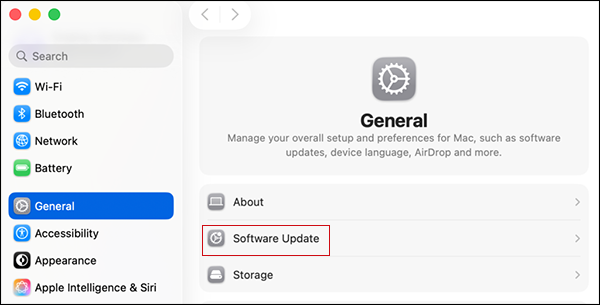
- If an update is available, just click on the Update Now button and follow the instructions on the screen.
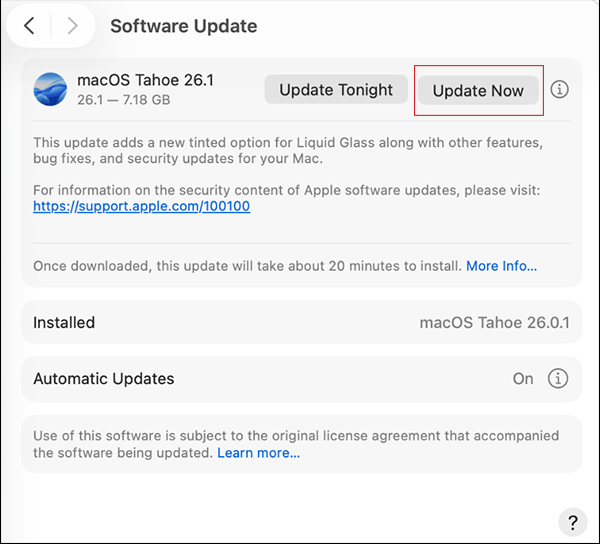
Minor updates usually install faster, while full macOS upgrades can take much longer. During installation, your Mac may restart several times, which is completely normal.
Once the process is done, the updated macOS version will be ready to use.
Things to Do Before You Upgrade to the Latest Mac OS X
Most Mac updates on modern systems can be installed without problems. Still, taking a few precautions beforehand can save you from headaches later.
Now that you know how to upgrade OS X on Mac computers, make sure you:
- Back Up Your Important Files
This is the one crucial step you should not skip. Even though Mac OS X updates are generally reliable, things can still go wrong during installation. A backup gives you a safety net if your files disappear, the update fails, or the Mac gets stuck during setup.
You can back up your Mac using Time Machine, iCloud, an external drive, or another cloud storage device. So, if your Mac contains important files, photos, or documents, do this first.
- Check Mac Compatibility
Not every Mac supports the newest macOS version. This is especially true for older Intel Macs. Many users try updating first and only realize later that their device does not support the update properly.
To check your Mac model, open the Apple Menu and go to About this Mac. Then compare it with Apple’s compatibility list for the macOS version you want to install.
- Free Up Storage Space
macOS updates need enough free storage not just for downloading files, but also for unpacking and installing them properly.
If your storage is almost full, delete unused apps, empty trash, remove old downloads, and move large files to free up disk space on your Mac.
- Keep Your Mac Plugged In
If you are updating a MacBook, keep it connected to power during installation. Large updates sometimes take longer than expected. And if the battery dies during installation, things can get messy very quickly.
Also, make sure you are using a stable internet connection to avoid download interruptions or corrupt installation files.
How to Upgrade OS in Mac Automatically?
If you hate manually checking for updates every few weeks, Mac also allows you to enable automatic updates. Honestly, most users should turn this feature on. To enable automatic features:
- Go to System Settings > General > Software Update.
- Here, click on the “i” button next to Automatic Updates.
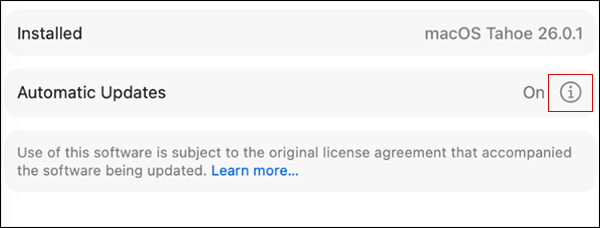
- Turn on the update options you want.
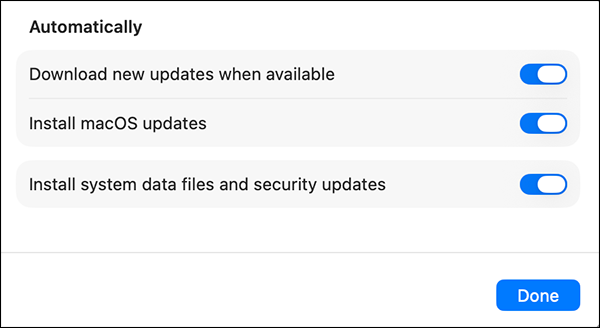
Apple allows you to choose whether your Mac should download updates, install updates, or install security updates automatically.
How to Fix Common macOS Update Errors?
Sometimes, Mac OS X updates fail even when you do everything correctly. Usually, the issue comes down to storage, internet problems, compatibility issues, or corrupted installation files. Here are fixes that can help you most of the time:
- It sounds too simple, but restarting the MacBook genuinely fixes a lot of update problems. Temporary background processes can sometimes interfere with installation.
- If the update seems stuck for too long, switching to a stronger Wi-Fi network can help.
- Many updates fail because the Mac simply does not have enough available storage. Delete unnecessary files and retry the installation.
- If your Mac gets stuck during startup after an update, Mac Recovery Mode can help reinstall macOS safely. Apple recommends this method when installation problems prevent the Mac from booting properly.
Furthermore, make sure you are trying supported upgrades only. Otherwise, it may lead to installation loops, slow performance, and random crashes.
Final Thoughts
Keeping your Mac OS X updated is one of those small habits that quietly makes a big difference over time. New macOS updates improve security, stability, performance, and app compatibility.
Make sure you are prepared before proceeding with the update to avoid any serious problems. Something as simple as regular updates can help your Mac stay faster and usable for much longer.
Frequently Asked Questions
How do you update OS X on Macs?
Why can’t I update my macOS X?
Your Mac may not support the latest macOS version, or there may not be enough storage space available for the update.
How long does a macOS update take?
Smaller macOS updates may take around 20 to 30 minutes, while major upgrades can take over an hour.
Why is my Mac running slow after a macOS update?
Your Mac may feel slow temporarily after an update because macOS runs background tasks like indexing, syncing, and optimization. In most cases, the slowdown improves after some time.
Will updating macOS delete my files?
No, it does not delete personal files. However, backing up your important data before upgrading is strongly recommended in case something goes wrong during installation.
Related Posts

8 Best Online Tools to Identify Unknown Callers
When a call comes on your screen with no name or context, you just zone out, thinking you should pick…

How to Fix Black Shadow on Laptop Screens?
A black shadow on laptop screens can look like a Windows glitch, but the shape and location of the dark…

Fixing Broken IP Allowlists With a Dedicated Static Address
IP allowlisting is one of the easiest security controls available. Tell a service to accept connections only from addresses you…

What is DumpStack.log and Can You Delete It in Windows?
If you have noticed a file named DumpStack.log in the root of your Windows drive, you may wonder why it…

How eSIM Fits Into Your Global Travel Itineraries
Multi-country trips can be exciting, but sometimes mobile device data makes it concerning. Whenever you cross a border, there will…

How to Pick the Right Data Structure Before You Build Your Database
Every application that stores information depends on a structure chosen long before the first row of data arrives. That structure…

Standardizing React Component Iconography Across Distributed Product Teams
Creating a common React component library is essentially a losing battle. During a cross-team review, I shared my screen. I…
Antimalware Service Executable: What It Is and How to Fix High CPU Usage
You open Task Manager and notice Antimalware Service Executable using a surprising amount of CPU or memory. It may keep…

Keeping Your Website Healthy: A Practical Guide to Long Term Success
Introduction The website may appear to be finished once it is launched; however, making sure that the site remains reliable…