


No, Outlook.com does not support Message Recall. However, you can use Undo Send to cancel it within 5 or 10 seconds before it’s sent.
How to Unsend an Email in Outlook (Step-by-Step Guide)
Accidentally sending an email with the wrong information, a missing attachment, or to the wrong recipient can be frustrating. The good news is that Outlook offers ways to recover from these mistakes.
Depending on your version and account type, you can either recall a sent email in Outlook or cancel it before it is delivered. In this guide, I will explain how to unsend an email in Outlook, when each option works, and what to do if you can’t take the email back.
Quick Answer: How Do You Unsend an Email in Outlook?
- Check which Outlook version and account you are using.
- Open Sent Items and use Message Recall if your Microsoft 365 work or school account supports it.
- If you are using personal Outlook.com, click Undo within the Undo Send time window to cancel the email delivery.
Can You Unsend an Email in Outlook?
Yes, but the method depends on the Outlook version and account you are using. Outlook offers two features to help you recover from sending an email by mistake:
- Undo Send delays sending an email for a few seconds, allowing you to cancel it before it leaves your mailbox.
- Message Recall attempts to retrieve an email after it has been sent, but it is available only for supported Microsoft 365 work or school accounts.
Before you learn how to unsend an email on Outlook, you should check your Outlook version.
If you are using a personal Outlook.com account, you won’t be able to recall an email after it has been delivered. Your best option is to enable Undo Send, which gives you a short window to cancel the email before Outlook sends it.
In short, Outlook does not have a single Unsend button for every account. Once you know which feature your version supports, you can follow the appropriate method below.
How to Unsend an Email in Outlook?
The method you can use varies based on your Outlook setup and the features available in your account. Here’s how to unsend Outlook emails in different versions:
New Outlook for Windows
If you are using the new Outlook for Windows:
- Launch Outlook and open Sent Items.
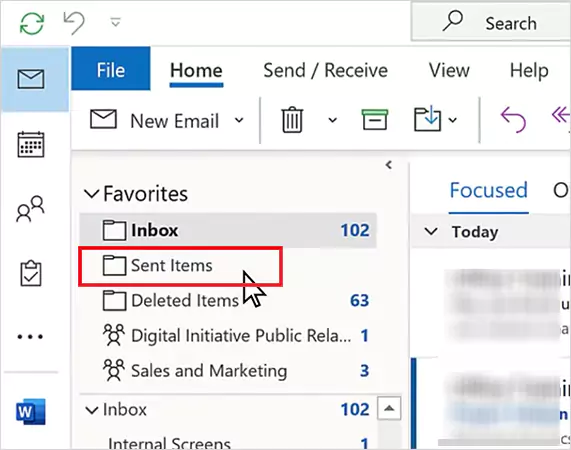
- Double-click the email you want to recall.
- Now, select File > Resend and Recall > Recall This Message.
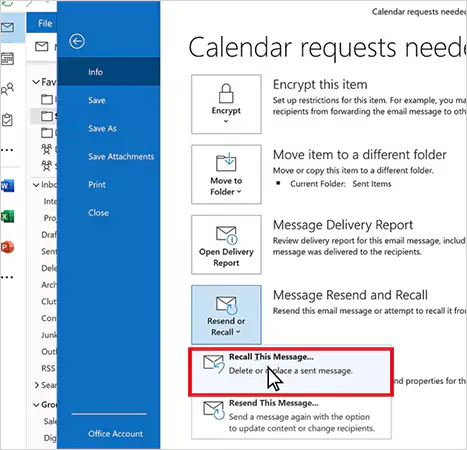
- Click OK to confirm.
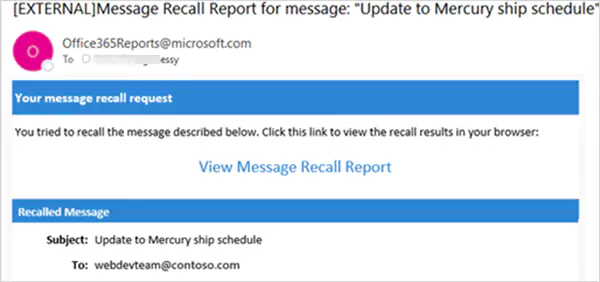
- Finally, just check the Message Recall Report to see whether the recall was successful.
Classic Outlook for Windows
If you are using classic Outlook on Windows, here’s how to unsend a message in Outlook:
- Open Sent Items and double-click the email.
- Next, go to Message > Actions > Recall This Message.
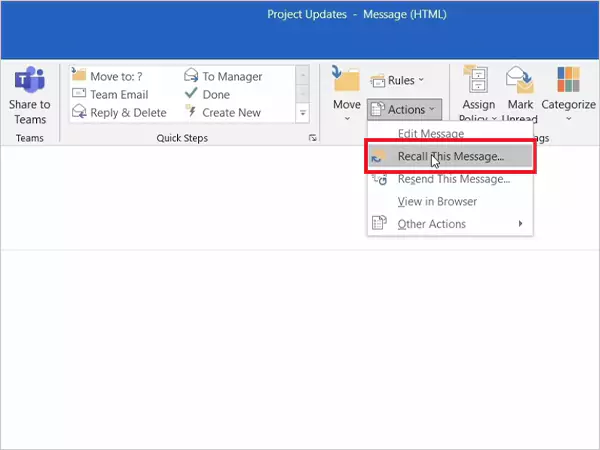
- Here, choose one of the following options:
- Delete unread copies of this message
- Delete unread copies and replace with a new message
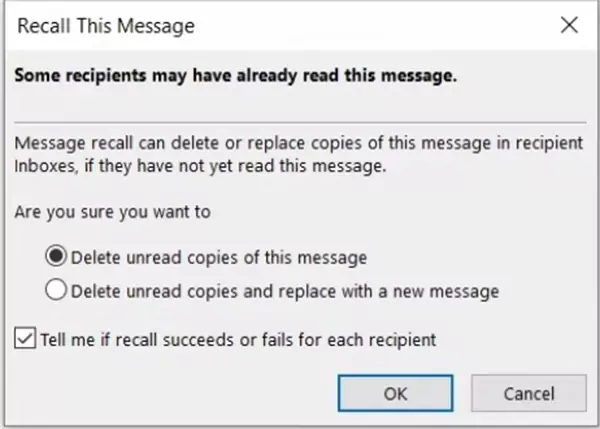
- Click OK.
If you choose to replace the email, Outlook opens it as a draft so you can make changes before sending it again.
Outlook on the Web
Now, let’s see how to unsend an Outlook email on the web version:
- Open Sent Items > Double-click the email > Recall Message.
- Now, confirm your recall request.
- Finally, review the Message Recall Report.
Outlook.com (Personal Accounts)
If your email address ends with @outlook.com, @hotmail.com, @live.com, or @msn.com, you can’t recall an email after it has been sent.
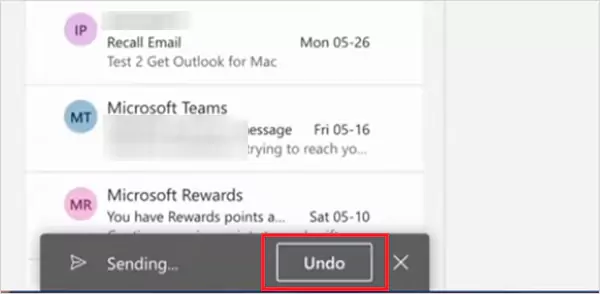
Instead, Outlook.com allows you to use Undo Send, which delays outgoing emails by 5 or 10 seconds. During that time, you can click on Undo to stop the email before it is delivered.
Outlook for Mac
If you are using Outlook for Mac version 16.94 or later, here’s how to unsend emails in Outlook:
- Open the Sent folder.
- Double-click the email you want to recall.
- Click on Recall.

- Next, confirm the action, and check the Message Recall Report.
How to Turn On Undo Send in Outlook?
If your Outlook version supports Undo Send, enabling it is one of the easiest ways to avoid email mistakes. Instead of trying to retrieve an email after it has been sent, Outlook gives you time to cancel it.
Here’s how you can turn it on in Outlook.com and New Outlook for Windows:
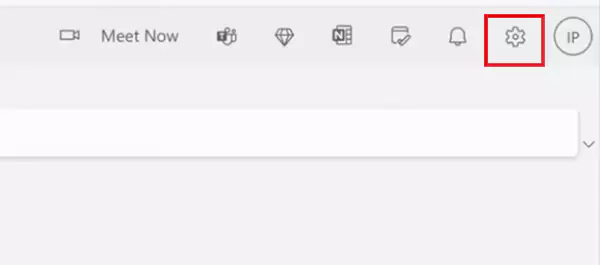
- Open Settings by clicking on the gear icon.
- Go to Mail > Compose and Reply.
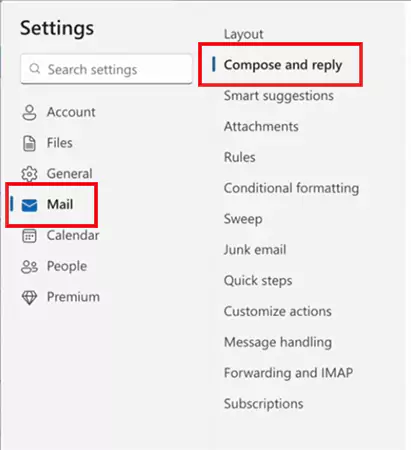
- Scroll to Undo Send.
- Choose your preferred delay time (typically 5 or 10 seconds), and click on Save.
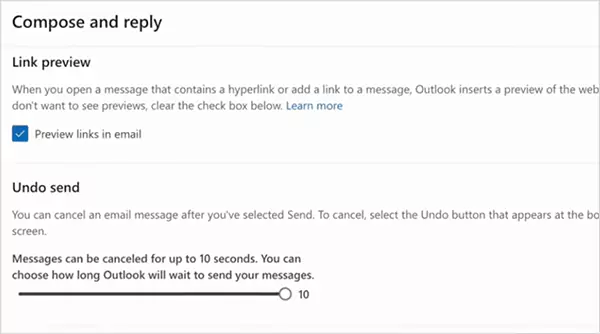
After enabling this feature, Outlook will delay sending your emails for the selected time and display an Undo option.
Now, let’s go through the process to do the same in Outlook for Mac:
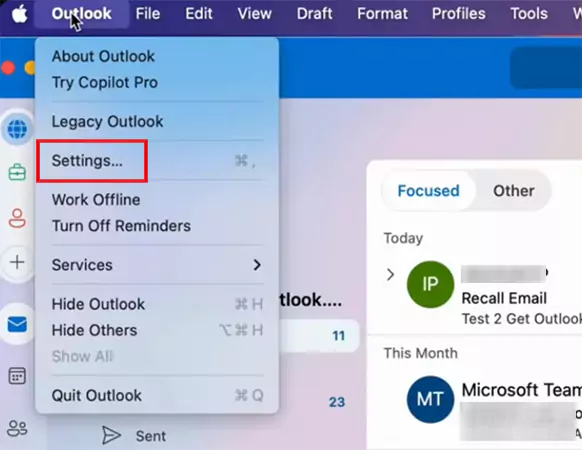
- Open Outlook and select Settings.
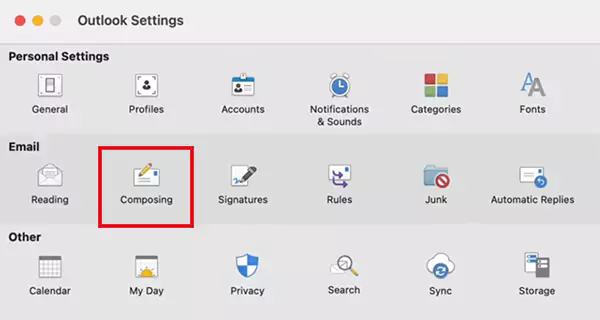
- Now, click on Composing.
- And just choose a delay time as per your preference under the Undo Send option.
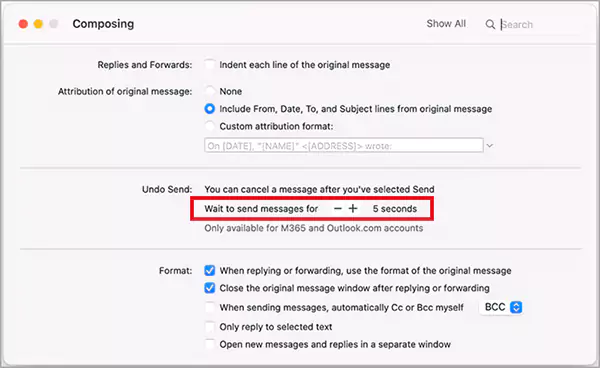
Outlook will display an Undo Send prompt whenever you send a new email.
Outlook Message Recall: Requirements and Limitations
Now that you know how to unsend a message on Outlook, it is important to know that Message Recall does not work for every account or every email you send.
Message Recall works only when:
- Both you and the recipient use Microsoft 365 work or school accounts.
- Both accounts belong to the same organization.
- The recipient has not opened the email yet.
- You are using a supported version of Outlook.
Message Recall won’t work if:
- The email was sent to Gmail, Yahoo Mail, Outlook.com, or another external email provider.
- The recipient has already read the email.
- Your organization does not support Message Recall.
Even if all these conditions are met, Outlook can’t guarantee that the recall will succeed. After submitting the request, you will get a Message Recall Report so you can see whether it worked or not.
What to Do If You Can’t Unsend an Email?
If Outlook can’t recall your email, don’t panic. A quick response can often prevent misunderstanding and reduce the impact of the mistake. Here’s what you should do:
- Send a correction email with the right information or the missing attachment.
- Apologize briefly if the mistake affected the recipient in some form.
- Ask the recipient to ignore or delete the previous email if it contains incorrect or sensitive information.
- Contact your IT or security team immediately if confidential company data was sent to the wrong person.
The sooner you send a correction email, the easier it is to clear up confusion.
Tips to Avoid Sending the Wrong Email Again
While Outlook offers recovery features, preventing mistakes is always the best approach. These simple habits can help you:
- Add the recipient’s email address after you have finished writing the message, and try to attach a file before composing the email.
- Always double-check the recipient, subject line, and attachments before clicking Send,
- Enable Undo Send if your Outlook version supports it.
- Schedule emails in Outlook for important messages so you have extra time to review them.
Furthermore, avoid sending emails when you are distracted or rushing. These small habits can save you from awkward follow-up emails and unnecessary stress.
Conclusion
So, how do you unsend an email on Outlook? Well, now you have the detailed answer to that. Outlook does not have a universal Unsend button, but it does provide tools to help you recover from email mistakes.
You can use the recall feature or the Undo Send option to suit your case. When neither option is available, sending a prompt correction email is usually the best solution. For added peace of mind, always take a few extra seconds to review important emails before clicking Send.
Frequently Asked Questions
Can you unsend emails on Outlook.com?
How do I unsend an email in Outlook?
If you have a Microsoft 365 work or school account, use Message Recall. For personal accounts, enable Undo Send to cancel emails before they are delivered.
Why can’t I unsend a message in Outlook?
Message Recall works only for supported Microsoft 365 work or school accounts, and only if the recipient has not opened the email.
How can I unsend an email in Outlook for Mac?
Open the email from the Sent folder, select Recall Message, confirm the request, and check the report.
What is the difference between Undo Send and Message Recall?
Undo Send delays sending an email, allowing you to cancel it before delivery. The Recall feature attempts to retrieve an email after it has been sent, but it works only in supported conditions.
Related Posts

8 Best Online Tools to Identify Unknown Callers
When a call comes on your screen with no name or context, you just zone out, thinking you should pick…
How to Fix Black Shadow on Laptop Screens?
A black shadow on laptop screens can look like a Windows glitch, but the shape and location of the dark…
Fixing Broken IP Allowlists With a Dedicated Static Address
IP allowlisting is one of the easiest security controls available. Tell a service to accept connections only from addresses you…
What is DumpStack.log and Can You Delete It in Windows?
If you have noticed a file named DumpStack.log in the root of your Windows drive, you may wonder why it…

How eSIM Fits Into Your Global Travel Itineraries
Multi-country trips can be exciting, but sometimes mobile device data makes it concerning. Whenever you cross a border, there will…

How to Pick the Right Data Structure Before You Build Your Database
Every application that stores information depends on a structure chosen long before the first row of data arrives. That structure…
Standardizing React Component Iconography Across Distributed Product Teams
Creating a common React component library is essentially a losing battle. During a cross-team review, I shared my screen. I…
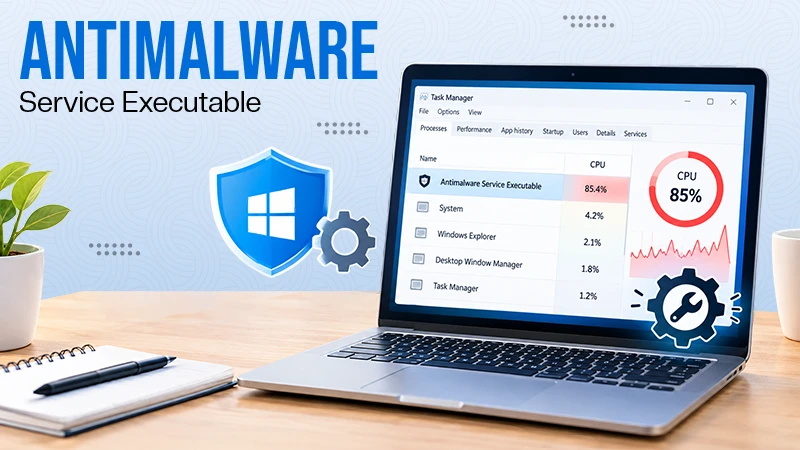
Antimalware Service Executable: What It Is and How to Fix High CPU Usage
You open Task Manager and notice Antimalware Service Executable using a surprising amount of CPU or memory. It may keep…

Keeping Your Website Healthy: A Practical Guide to Long Term Success
Introduction The website may appear to be finished once it is launched; however, making sure that the site remains reliable…