
It is a protected email message format used by Microsoft Outlook and Microsoft 365 for encrypted or rights-managed emails.
What is an RPMSG File and How to Open It?
 Written by Kartik Wadhwa
An RPMSG file usually appears when someone sends you a protected or encrypted email through Outlook. That is why the attachment often feels confusing or refuses to open like a normal file.
Microsoft uses the .rpmsg format to restrict access, forwarding, copying, or printing of sensitive emails. I have created this guide to explain what an RPMSG file type is, how to open it in different email clients, and what to do if it won’t open properly.
Quick Answer: How to open RPMSG files?
- Open the RPMSG file in Microsoft Outlook or Outlook Web and sign in with the authorized Microsoft account if prompted.
- If you received the file in any other email client, open the protected message link inside the email and verify your identity using a one-time passcode or email sign-in.
What is a .rpmsg File?
A .rpmsg file is a protected email message created through Microsoft’s Information Rights Management (IRM) and encryption system. The format is primarily used in Outlook and Microsoft 365 environments to secure sensitive emails and limit recipients’ ability to modify them.
For example, the sender may block forwarding, copying, printing, or downloading attachments. That is why RPMSG (Rights Protected Message) files usually appear in business or corporate emails.
The concept is somewhat similar to WhatsApp’s end-to-end encryption. In simple terms, it is not a normal attachment. It is a permission-controlled message designed to protect your online privacy and confidential information.
It used to send encrypted emails in Outlook. Even if you receive the file, you still may not have permission to open it unless your account matches the sender’s protection settings.
How to open an RPMSG file?
The easiest way to open an RPMSG file is through Microsoft Outlook or Outlook Web. The process depends on the sender’s protection rights, your email provider, and whether your account has permission to access the message.
How to Open an RPMSG File in Outlook?
Outlook is the smoothest and most reliable choice for opening RPMSG files. Here’s how to do that:
- Open Microsoft Outlook.
- Open the email containing the .rpmsg attachment.
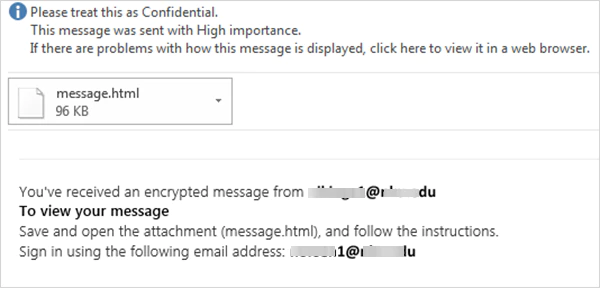
- Double-click the RPMSG file if needed.
- Now, just sign in with the authorized Microsoft account if prompted.
Protected emails in Outlook often behave like regular emails, but you may see restriction notices at the top of the message. Also, remember that RPMSG permissions are tied to identity. Having the file alone does not guarantee access.
How to Open RPMSG Files in Gmail, Yahoo, or Other Email Clients?
This is where most users get confused. Other email clients, like Gmail and Yahoo, do not have a direct RPMSG viewer like Outlook. Instead, Microsoft typically includes a protected-message link inside the email.
Here’s how to open .rpmsg files on other email clients:
- Open the email containing the protected message.
- Next, click on Read the message or a similar option.
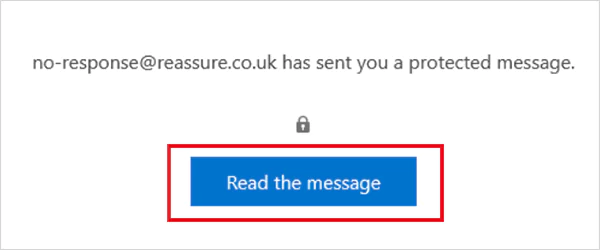
- Sign in with your email account or request a one-time passcode.
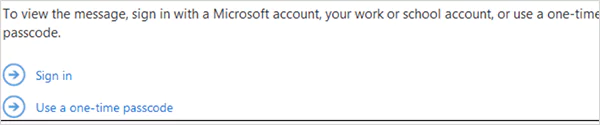
- Verify your identity and open the protected message in your browser.
Keep in mind that one-time passcodes usually expire after a short time, which is why a delayed verification attempt may fail.
What to Do If an RPMSG File Will Not Open?
Most RPMSG problems are related to permissions or compatibility, not file corruption. Here are the most effective fixes you can try:
- Verify the Correct Email Account: Make sure you are signed into the same email address that originally received the protected message. Using the wrong account is one of the most common reasons files stay locked.
- Try Outlook Web: In many cases, Outlook Web opens protected messages more reliably than older desktop Outlook versions. If the desktop app fails, try opening the email directly through your browser.
- Update Outlook: Older Outlook builds may struggle to decrypt newer protected messages properly. Updating Outlook can fix attachment errors and compatibility issues.
- Enable IRM Permissions: If your account belongs to a company or organization, IRM may need to be enabled by the administrator before protected emails can open correctly.
- Install Microsoft Purview or Azure Information Protection Tools: Some organizations use Azure Rights Management protection. In those situations, installing Microsoft Purview Information Protection Viewer and the Azure Information Protection client may help you.
- Ask the Sender to Resend the File: If nothing works, ask the sender to resend the message without encryption, as a PDF, or with regular attachments instead.
If the file itself is damaged or incomplete, even Outlook may fail to open it. In that case, you should ask the sender to resend the original email.
Conclusion
RPMSG files exist to protect sensitive emails, not to make them difficult to open. Once you understand that the format is tied to Microsoft’s protection system, all of this starts making sense.
Outlook usually handles the RPMSG format automatically, while Gmail and other clients often require additional verification steps. And remember, if your account, software, or verification method does not match the sender’s settings, the message may remain locked.
Frequently Asked Questions
What is an RPMSG file?
How do I open an RPMSG file?
The easiest method is using Microsoft Outlook or Outlook Web. Gmail and other client users may need to complete Microsoft’s verification process first.
What software is needed to open RPMSG files?
Microsoft Outlook is the most common RPMSG file viewer. You can also use Microsoft Purview Information Protection Viewer for supported protected files.
How to convert an RPMSG to PDF?
There is no direct RPMSG to PDF converter. You need to open the protected message, then save or print it as a PDF if permissions allow it.
Why won’t my RPMSG file open?
Incorrect account permissions, unsupported email clients, expired passcodes, outdated Outlook versions, or organization–level restrictions are some of the most common reasons.
Related Posts
How to Delete a File That Won’t Delete in Windows?
Deleting a file should be simple, but sometimes Windows refuses to remove it. You may see messages saying the “folder…

What Should Businesses Do After Recovering From a Major Data Loss?
Businesses nowadays have entered a new level in terms of storing data, leading to a completely new structure. Customer service,…
How to Protect Your Files From Unexpected Data Loss
Imagine you opened your device and suddenly found out that all the important files are not there. Sounds scary, right?…
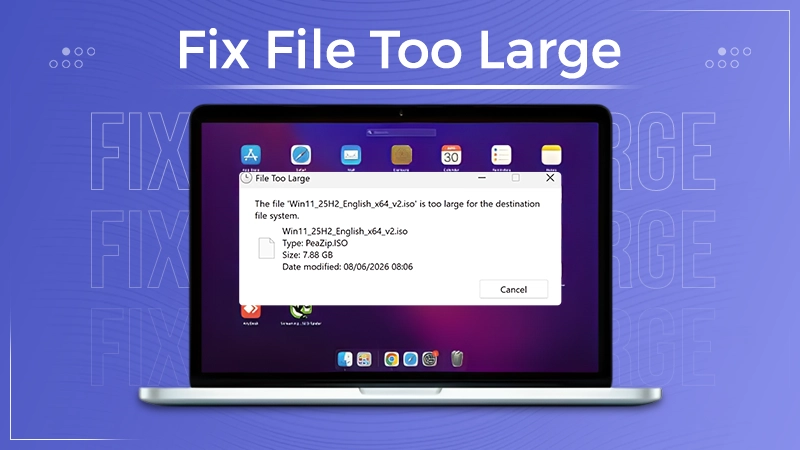
How to Fix “File Too Large for Destination File System” on Windows?
Have you ever tried copying a large file to a USB drive or external hard disk, and Windows stopped the…
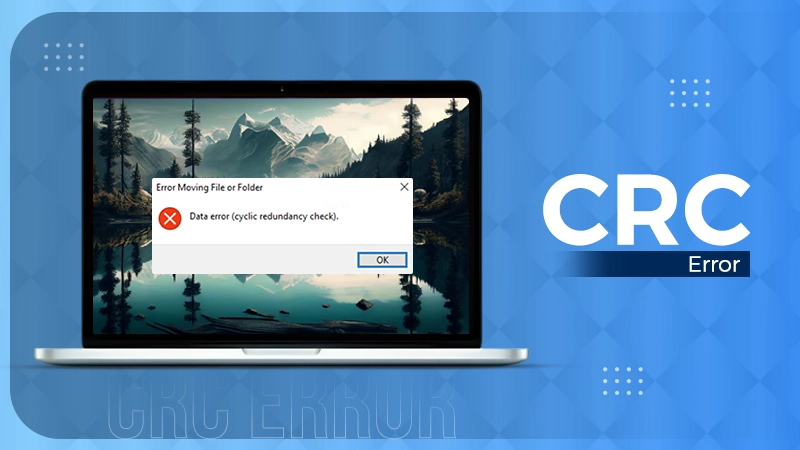
What is a CRC Error? Meaning, Causes, and How to Fix It
A CRC error can appear when you are copying files, opening a folder, extracting an archive, or accessing a storage…
What is an MKV File? Meaning, Uses, and How It Works
You can often identify a video file by its extension. MP4 is the most common, AVI is an older format,…
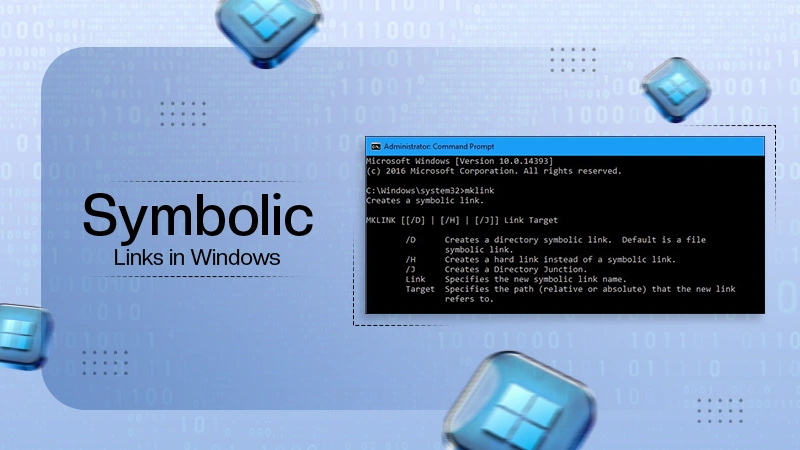
Symbolic Links in Windows: A Complete Guide to Creating Symlinks
Have you ever wished to keep a file or folder in one location while making Windows think it exists somewhere…
Data Recovery in 2026: How to Restore Lost Files From Phones, PCs, and Cloud…
Alt: Old Hard Disk Drives Nearly one-third of all data loss is caused by accidental deletion, hardware failure, or a…

How to Evaluate an SEO Agency’s GEO Capabilities Before Signing a Contract
Is SEO outdated? No, it has actually just changed or updated into other forms, such as GEO. The major question…