


A symbolic link creates a reference to another file or folder, allowing you to access the original content without creating a duplicate copy.
Symbolic Links in Windows: A Complete Guide to Creating Symlinks
Table of Contents
- What is a Symbolic Link?
- Benefits of Using Windows Symbolic Links
- How to Create a Symbolic Link in Windows?
- How to Make a Symlink for a Folder?
- How to Delete a Symbolic Link in Windows?
- Symbolic Link vs Hard Link vs Junction: What’s the Difference?
- Best Practices for Using Windows Symbolic Links
- Final Thoughts
- Frequently Asked Questions
Have you ever wished to keep a file or folder in one location while making Windows think it exists somewhere else? That’s exactly why we create symbolic links on Windows.
Instead of creating duplicate copies, it acts like a smart shortcut that redirects Windows to the original file or folder. Whether you’re organizing storage, moving large directories, or simplifying project paths, symlinks help you manage files without wasting disk space.
In this guide, I will explain what symlinks in Windows are, how to create them, and when you should use them.
TL;DR
- A symbolic link is a pointer that allows Windows to access a file or folder from a different location without creating a copy.
- Symlinks are useful for moving large folders, organizing files, and managing storage space.
- You can create symlinks using the MKLINK command in Command Prompt. They work with both files and folders, even across different drives.
- Deleting a symlink removes the link and not the original file or folder.
What is a Symbolic Link?
A symbolic link, or symlink, is a special file that points to another file or folder. Instead of storing data itself, it acts as a reference that redirects Windows to the original location whenever you open it.
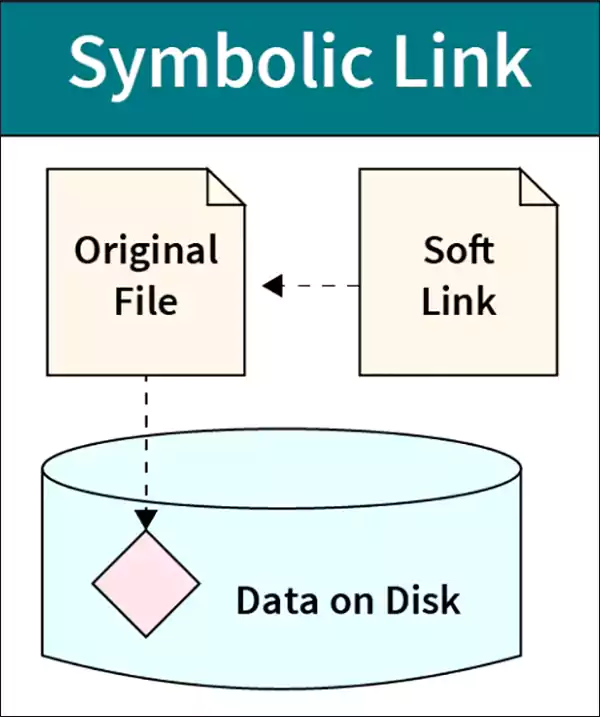
It is like a signpost rather than a copy. The actual file stays in one place, while the symbolic link provides another way to access it. For example, suppose a game stores its save files on your C: drive, but you are running out of space. So, you can move the save folder to another drive and create a symlink in its original location.
The game continues using the same path, while the files are stored elsewhere. This approach helps you recognize files without changing application settings or creating duplicate data. Windows create symbolic links through the MKLINK command, and I will show you how in the following sections.
Benefits of Using Windows Symbolic Links
Symlinks on Windows do much more than redirect files. They can simplify file management and help you use storage more efficiently. Here are some of its key advantages:
- Save Storage Space: Since a symlink points to existing data rather than creating a copy, you avoid wasting disk space on duplicate files and folders.
- Move Large Folder Without Breaking Applications: Some applications expect files to stay in a specific location. Windows creates symlinks and moves the data to a different location while keeping the original path intact.
- Organize Files More Efficiently: You can access the same file or folder from multiple locations without maintaining copies.
- Simplify Development Workflows: Developers often use them to connect the project directories, shared libraries, and resources across different environments.
- Maintain Compatibility With Older Applications: Some legacy programs rely on fixed folder paths. Symlinks allow you to redirect those paths without modifying application settings.
How to Create a Symbolic Link in Windows?
Windows 10 and Windows 11 symlinks can be made with the help of the built-in Windows Command Prompt command, i.e., MKLINK. Here’s how to make a symbolic link for a file:
Step 1: Open Command Prompt
Search for Command Prompt in the Start Menu and open it.
The modern version of Windows allows symlink creation without administrator privileges when Developer Mode is enabled. If required, run Command Prompt as Administrator.
Step 2: Use the MKLINK command.
Basic syntax:
mklink <link> <target>
- Link: The symbolic link you want to create.
- Target: The original file or folder.
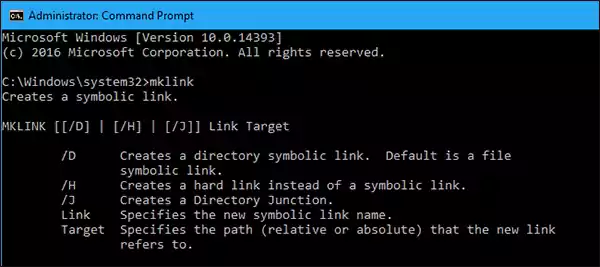
Example:
Mklink Notes.txt D:\Documents\Notes.txt
This creates a symbolic link named Notes.txt that points to the file stored on the D: drive.
Step 3: Verify the Link
Open the symbolic link normally. If Windows redirects you to the original file without errors, the symlink is working correctly.
How to Make a Symlink for a Folder?
Now, to create a symbolic link for a folder, you need to add the “/D” parameter.
Basic Syntax:
Mklink /D <link> <target>
Example:
Mklink /D Projects D:\Work\Projects
Here, “Projects” is the symbolic link and “D:\Work\Projects” is the original folder. Now, when you open this symlink, Windows automatically redirects you to the actual location.
This is particularly useful for game libraries, media collections, development projects, and backup folders.
How to Delete a Symbolic Link in Windows?
Deleting a symbolic Windows link folder removes only the link itself. The original file or folder remains untouched. Here’s how you can delete the link:
- To delete a file symlink, use: “del LinkName”.
- To delete a folder symlink, use: “rd FolderLink”.
- You can also delete the link normally, as you delete any other file or folder on Windows.
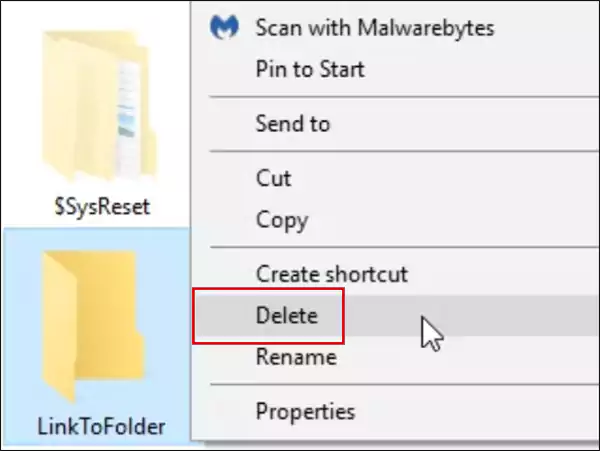
Before deleting anything, make sure you remove the link, not the original target folder. One of the biggest advantages of symlinks is that they can be removed safely without affecting the original data.
Symbolic Link vs Hard Link vs Junction: What’s the Difference?
Windows supports three different link types: symbolic links, hard links, and junctions. While they may seem similar, they serve different purposes.
- A symbolic link in Windows 10 and Windows 11 is the most flexible option. It can point to both files and folders, even if they are located on a different drive.
- A hard link creates another reference to the same file rather than acting as a shortcut. Any changes made through one location appear in the other because both paths point to the same underlying file. However, hard links only work with files and cannot work with multiple drives.
- A junction is designed specifically for folders. It works similarly to a directory symbolic link and is often used to redirect directories within Windows.
For most users, symlinks are the best choice because they support both files and folders and can point to locations on different drives.
Best Practices for Using Windows Symbolic Links
Symbolic links are powerful, but following a few best practices can help you avoid broken links and confusion. Here are a few tips:
- Choose clear names that make it obvious a file or folder is a symlink.
- Avoid moving target files frequently because the link depends on the target path. If the target is moved or deleted, the link stops working.
- Open the link immediately after creating it to verify that it points to the correct location.
- If you manage multiple symlinks, keep a record of where each one points.
- Do not overuse symlinks; too many of them can make folder structures harder to understand and troubleshoot.
Also, don’t forget that users and applications still need permission to access the target location. A symlink does not bypass Windows security settings. So, make sure you verify permissions.
Final Thoughts
Symbolic links are one of the most useful yet overlooked features in Windows. They allow you to redirect files and folders, free up storage space, and maintain compatibility with applications without creating duplicate data.
Symlinks provide a flexible solution for a wide variety of users, saving both time and storage. Once you understand how the MKLINK command works, creating and managing them becomes surprisingly simple.
Frequently Asked Questions
What is the purpose of a symbolic link?
What is an example of a symbolic link?
A common example is moving a large game folder to another drive and creating a symlink in its original location so the game continues to save progress normally on your device.
Does deleting a symbolic link delete the original file?
No, deleting a symbolic link removes only the link itself. The original file or folder stays untouched in its original location.
Can symbolic links point to another drive?
Yes, it can point to files or folders located on different drives.
How do I open a symbolic link file?
Simply double-click it like a normal file or folder. Windows automatically redirects you and opens the target location.
Related Posts

How to Delete a File That Won’t Delete in Windows?
Deleting a file should be simple, but sometimes Windows refuses to remove it. You may see messages saying the “folder…

What Should Businesses Do After Recovering From a Major Data Loss?
Businesses nowadays have entered a new level in terms of storing data, leading to a completely new structure. Customer service,…

How to Protect Your Files From Unexpected Data Loss
Imagine you opened your device and suddenly found out that all the important files are not there. Sounds scary, right?…
How to Fix “File Too Large for Destination File System” on Windows?
Have you ever tried copying a large file to a USB drive or external hard disk, and Windows stopped the…
What is a CRC Error? Meaning, Causes, and How to Fix It
A CRC error can appear when you are copying files, opening a folder, extracting an archive, or accessing a storage…
What is an MKV File? Meaning, Uses, and How It Works
You can often identify a video file by its extension. MP4 is the most common, AVI is an older format,…
Data Recovery in 2026: How to Restore Lost Files From Phones, PCs, and Cloud…
Alt: Old Hard Disk Drives Nearly one-third of all data loss is caused by accidental deletion, hardware failure, or a…

How to Evaluate an SEO Agency’s GEO Capabilities Before Signing a Contract
Is SEO outdated? No, it has actually just changed or updated into other forms, such as GEO. The major question…

What Is an AAE File? Everything iPhone Users Need to Know
An AAE file is an Apple sidecar file that contains editing instructions, like crops and filters, applied to an iPhone…