


It usually appears because Windows is not activated, your product key is invalid, your license can’t be verified, or Windows needs to be reactivated after a major hardware change.
How to Remove the Activate Windows Watermark?
The Activate Windows watermark can be distracting, whether you are working, gaming, or giving a presentation. While many online guides recommend registry edits or third-party tools, most of them only hide the message instead of fixing the real problem.
In most cases, the watermark appears because Windows can’t verify your license. This guide explains why it happens and how to get rid of the Activate Windows message or watermark safely.
Quick Answer: How to Remove Activate Windows Watermark?
- Check your activation status and run the Activation Troubleshooter if Windows is not activated.
- Activate Windows using a valid product key or digital license.
- If the watermark still appears, restore your license by signing in with the correct Microsoft account.
- Registry edits and Command Prompt can hide the watermark temporarily, but they don’t fix the licensing issue.
What is the Activate Windows Watermark?
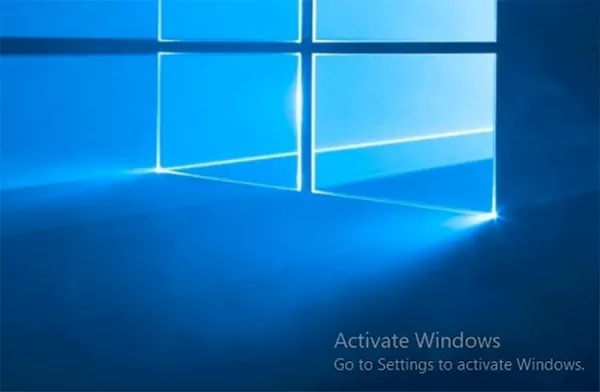
The Activate Windows watermark appears in the bottom-right corner of your desktop when Windows is not activated or can’t verify your license. You may also see activation reminders in the Settings app that ask you to activate Windows.
Although the watermark does not stop you from using your PC, it may restrict some personalization features, including changing your wallpaper, themes, and accent colors.
Microsoft recommends activating Windows with a valid product key or digital license to remove the Activate Windows watermark and restore full access.
How to Get Rid of Activate Windows Watermark?
The only permanent way to remove the watermark is to activate Windows successfully. If your copy of Windows is genuine, here’s how to get rid of Windows activation watermark:
1. Check Your Activation Status
First, go to Settings > System > Activation on your Windows 11 or Pro.
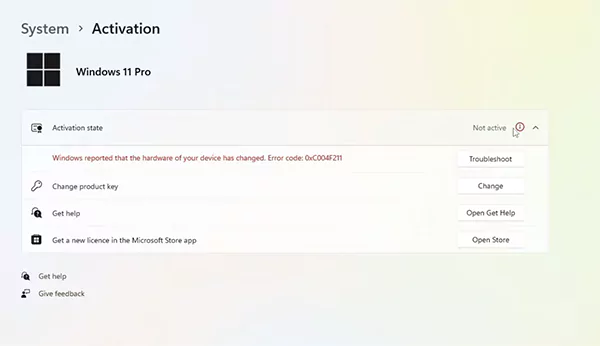
If you have Windows 10, go to Settings > Update & Security > Activation.
Windows will tell you whether your device is activated, linked to a digital license, or if an activation error needs attention.
2. Run the Activation Troubleshooter
If Windows is not activated, the built-in Activation Troubleshooter can automatically detect and fix common licensing issues without requiring advanced troubleshooting. Here’s how to get rid of Activate Windows watermark in Windows 11 or Windows 10:
- On the Activation page, if Windows is not activated, click on Troubleshoot.
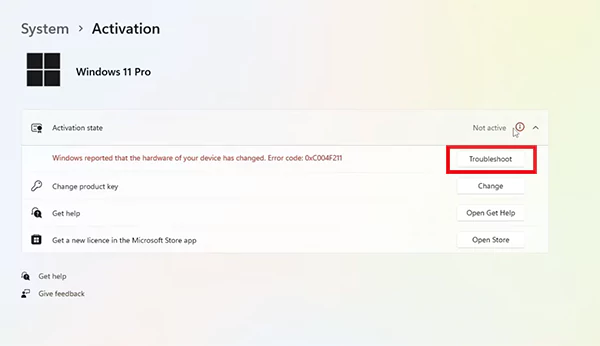
- Follow the on-screen instructions and let Windows scan for activation problems.
- Restart your PC if prompted.
3. Enter a Valid Product Key
If you purchased Windows separately or received a product key from your organization, here’s how to take out Activate Windows watermark:
- Go to Activation settings.
- Select Change Product Key.
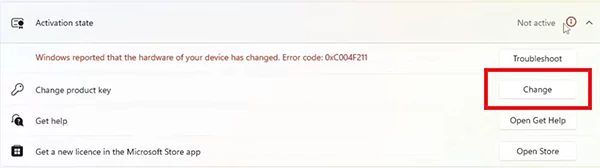
- Enter your product key.
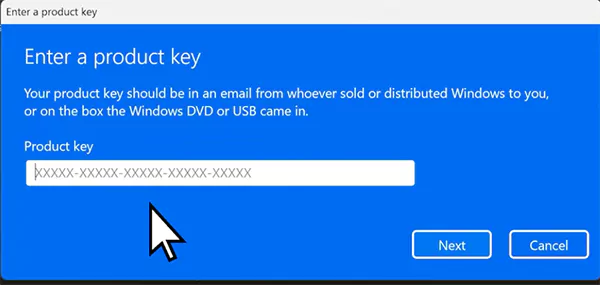
Make sure the key matches the Windows edition installed on your PC. For example, a Windows Home key won’t activate Windows Pro.
4. Sign In With Your Microsoft Account
If your Windows license is linked to your account, signing in with the correct Microsoft account can automatically restore your digital license after reinstalling Windows or changing certain settings.
- Open Settings.
- Go to Accounts > Your Info.
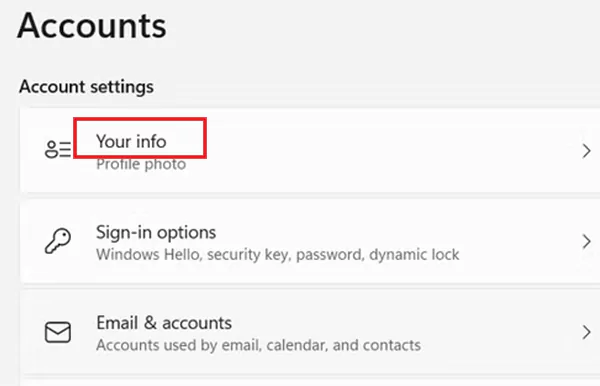
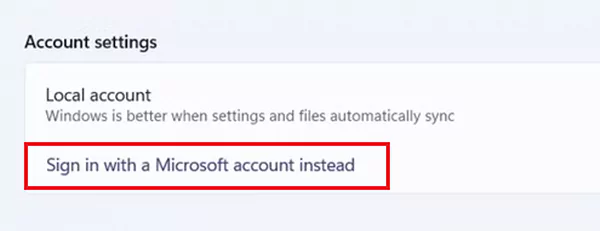
- Select Sign in with a Microsoft account instead if you are using a local account.
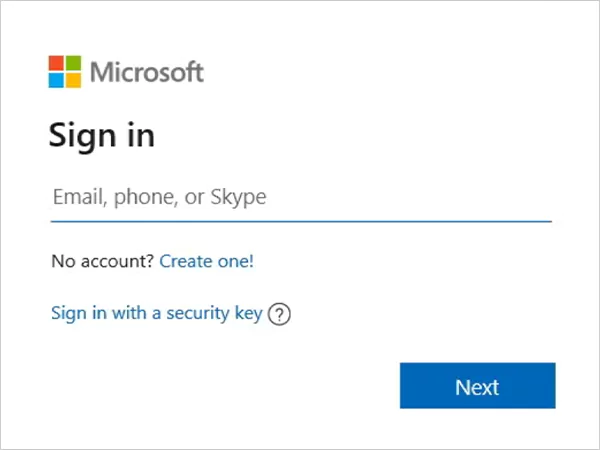
- Sign in with the Microsoft account linked to your Windows license.
If your Windows license is linked to your Microsoft account, the troubleshooter may also help reactivate Windows after a major hardware change.
5. Contact Microsoft Support
If none of the above methods work and you are confident your Windows license is genuine, contact Microsoft Support.
They can help resolve licensing issues, product key problems, or account-related activation errors that can’t be fixed through the built-in tools.
Why Does the Activate Windows Watermark Appear?
The watermark usually appears because Windows can’t verify your license, but several issues can trigger it. Some of the common causes include:
- Windows has not been activated after installation.
- The product key is invalid or does not match your Windows edition.
- Your digital license is not linked to your Microsoft account.
- A major hardware change, such as replacing the motherboard, requires Windows to be reactivated.
- Windows activation files became corrupted after an update.
- You are using a copy of Windows that is not properly licensed.
Identifying the actual cause makes it easier to choose the right solution for removing the Activate Windows watermark instead of trying random fixes.
Can You Hide the Activate Windows Watermark?
Yes, but only temporarily. If you do not want to activate Windows immediately, you can use a few workarounds to bypass Windows activation.
Keep in mind that these methods don’t fix teh underlying issues. The watermark may reappear after a system restart, Windows update, or other major system changes.
Method 1: Edit the Windows Registry
This method temporarily disables the service responsible for displaying the watermark.
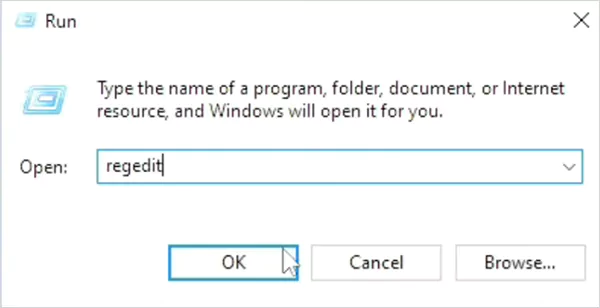
- Press Win + R, type regedit, and press Enter.
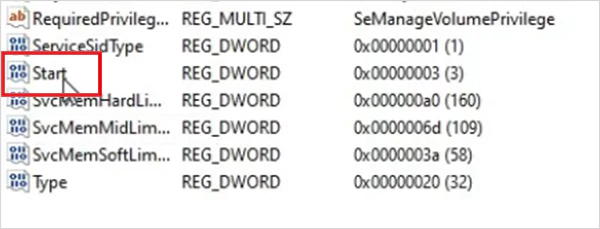
- Open the following path: Computer\HKEY_LOCAL_MACHINE\SYSTEM\CurrentControlSet\Services\svsvc

- Double-click the Start entry in the right pane.
- Change the Value data to 4 and keep the Base set to Hexadecimal.
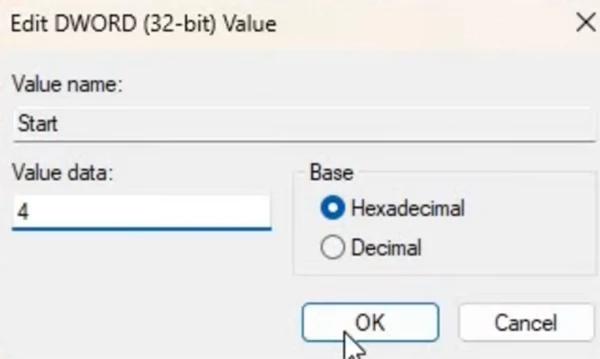
- Click OK and restart your PC.
Note that this only hides the watermark temporarily. Windows will remain unactivated, and personalization restrictions will continue until you activate it with a valid license.
Method 2: Use Command Prompt
If your Windows copy was previously activated and the watermark appeared due to a temporary activation issue, you can try resetting the activation status.
- Search for Command Prompt and run it as an administrator.
- Then, type the “slmgr -rearm” command and press Enter.
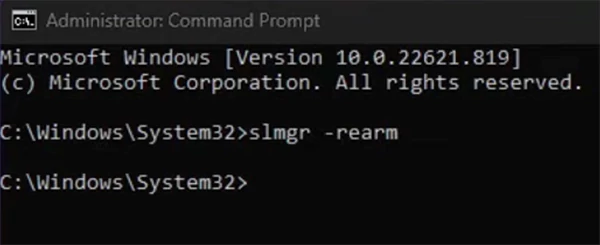
This won’t reactivate Windows, but it may temporarily remove the watermark if activation files need to be refreshed.
Warning: Avoid third-party watermark removal tools or unofficial activation software. They can cause system instability, security risks, and licensing issues.
How to Prevent the Watermark from Coming Back?
Once Windows is activated, the watermark usually does not return unless Windows again fails to verify your license. To avoid future issues:
- Link your Windows license to your Microsoft account.
- Use only genuine Windows product keys.
- Install the correct Windows edition during a clean installation.
- Keep Windows updated to receive the latest activation and security fixes.
- Check how major hardware upgrades may affect your digital license before replacing components.
- Avoid unofficial activation tools that can interfere with licensing.
These simple steps can help prevent activation issues after future updates, reinstalls, or hardware changes.
Final Takeaway
The Activate Windows watermark is not just a desktop notification. It is a sign that there is an issue with verifying your license.
If your license is genuine, checking your activation status, running the troubleshooter, or restoring your digital license is enough to remove the watermark permanently.
While Registry edits and Command Prompt commands can temporarily hide the watermark, they do not solve the underlying activation problem.
Frequently Asked Questions
Why is the Activate Windows watermark showing on my PC?
How do I remove the Activate Windows watermark?
Activate Windows using a valid product key or digital license. If activation fails, run the Activation Troubleshooter and verify your license information.
How to remove Activate Windows watermark in Windows 10?
Go to Settings > Update & Security > Activation, check your activation status, run the Activation Troubleshooter, and activate Windows with a valid license if required.
Does reinstalling Windows remove the Activate Windows watermark?
If your digital license is linked to your Microsoft account, Windows usually reactivates automatically after reinstallation. But sometimes, you may need to activate it again.
Can I use Windows without activating it?
Yes, Windows remains usable, but you will continue to see the Activate Windows watermark and won’t be able to use certain personalization features.
Related Posts

8 Best Online Tools to Identify Unknown Callers
When a call comes on your screen with no name or context, you just zone out, thinking you should pick…

How to Fix Black Shadow on Laptop Screens?
A black shadow on laptop screens can look like a Windows glitch, but the shape and location of the dark…
Fixing Broken IP Allowlists With a Dedicated Static Address
IP allowlisting is one of the easiest security controls available. Tell a service to accept connections only from addresses you…

What is DumpStack.log and Can You Delete It in Windows?
If you have noticed a file named DumpStack.log in the root of your Windows drive, you may wonder why it…

How eSIM Fits Into Your Global Travel Itineraries
Multi-country trips can be exciting, but sometimes mobile device data makes it concerning. Whenever you cross a border, there will…

How to Pick the Right Data Structure Before You Build Your Database
Every application that stores information depends on a structure chosen long before the first row of data arrives. That structure…
Standardizing React Component Iconography Across Distributed Product Teams
Creating a common React component library is essentially a losing battle. During a cross-team review, I shared my screen. I…
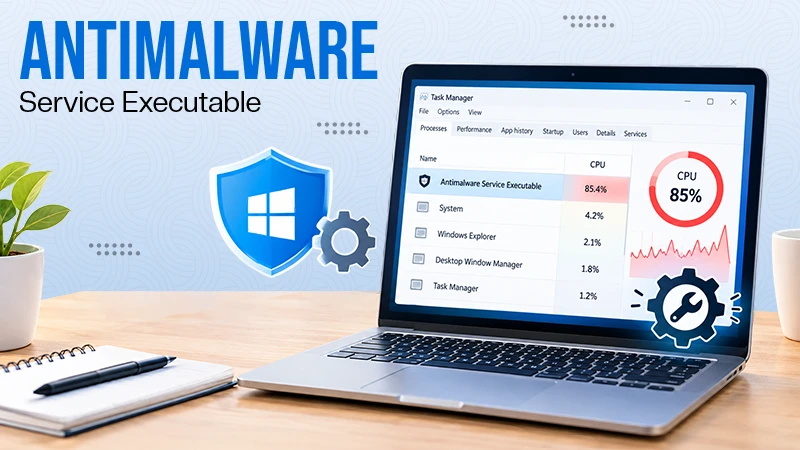
Antimalware Service Executable: What It Is and How to Fix High CPU Usage
You open Task Manager and notice Antimalware Service Executable using a surprising amount of CPU or memory. It may keep…

Keeping Your Website Healthy: A Practical Guide to Long Term Success
Introduction The website may appear to be finished once it is launched; however, making sure that the site remains reliable…